.png?width=200&height=89&name=CC%20%20fiserv.%20(3).png)
Before you begin, make sure you are logged into WordPress with an account that has permission to edit pages and that Elementor is active on your site.
Step-by-Step:
Step 1: Confirm You Are Logged Into WordPress - Visit your website homepage or any page. Look at the top of the screen and confirm you can see the black WordPress admin bar, which shows you are logged in.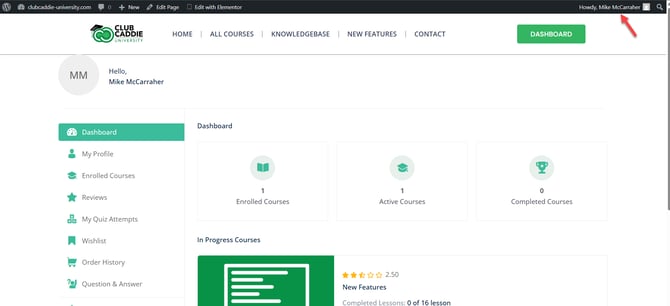
Step 2: Go to the Page You Want to Edit:
Browse your website as a normal visitor would. Click through to the specific page you want to update, such as Home, About, or Contact.
Step 3: Open Elementor from the Admin Bar:
At the top of the page, in the black admin bar, locate and click the Edit with Elementor button. This will open the Elementor editor for the page you are currently viewing.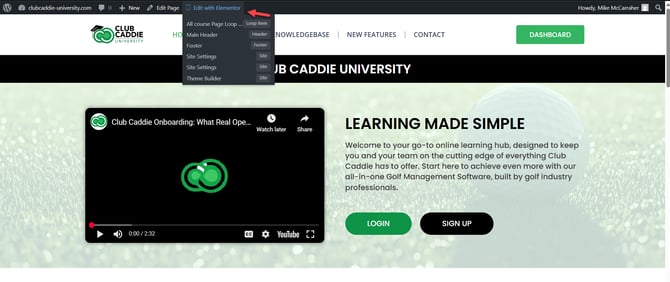
Step 4: Make Edits in Elementor:
In the Elementor editor, click any text, image, or section to edit it. Use the left panel to drag and drop widgets, change text, add images, adjust layout, and then click the Update button to save your changes when finished.