.png?width=200&height=89&name=CC%20%20fiserv.%20(3).png)
If a rate isn't being recognized, members can't book within the right window, or customers are seeing the wrong pricing online — work through this guide in order. The most common cause is simpler than you'd expect.
1) Why a Rate Might Not Be Recognized
The most common reason a rate doesn't apply is a wrong date range. Club Caddie only applies a rate if today's date falls between its configured start and end dates.
How to Check a Rate's Date Range
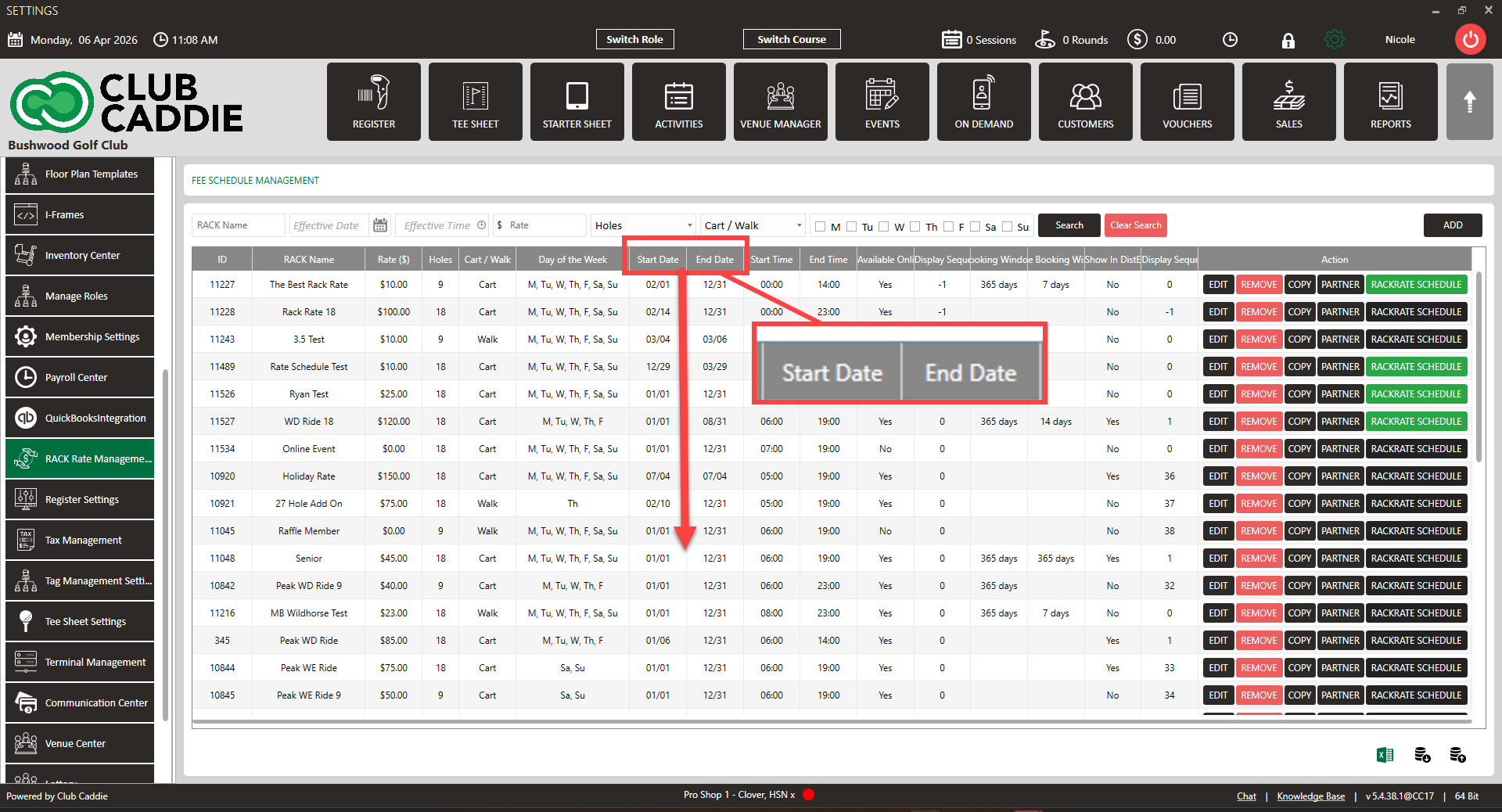
- Step 1: Go to Settings → Rack Rate Management (for public/walk-in rates) or Settings → Class Rate Management (for member rates).
- Step 2: Find the rate in question and click Edit.
- Step 3: Check the Start Date and End Date fields.
- Step 4: If today's date falls outside that range, the rate will not appear. Fix the dates and click Save.
TIP: Fast sanity check: Try checking in a test golfer from the Tee Sheet. If the correct rate appears in the payment options, it's active and working.
Rate Is Set Up Correctly but Still Not Showing?
If the dates are right and the rate still won't appear, check that the rate is assigned to the correct course and time interval. A rate must be connected to the tee times it's meant to cover — creating the rate alone is not enough.
2) How Booking Windows Work
A booking window controls how many days in advance a customer can book a tee time. Windows can be set differently for all customers overall, or adjusted for specific member classes — which is why members and guests sometimes see different availability.
|
Customer Type |
Where to Configure It |
|
All online customers (default) |
Settings → Tee Sheet Settings |
|
Members of a specific class |
Settings → Class Management → Action → Additional Settings |
NOTE: If a non-member booked further out than they should have, check whether they were logged in as a member when they booked. Logged-out or guest users get the default window from Tee Sheet Settings, which may be longer than any class-specific window.
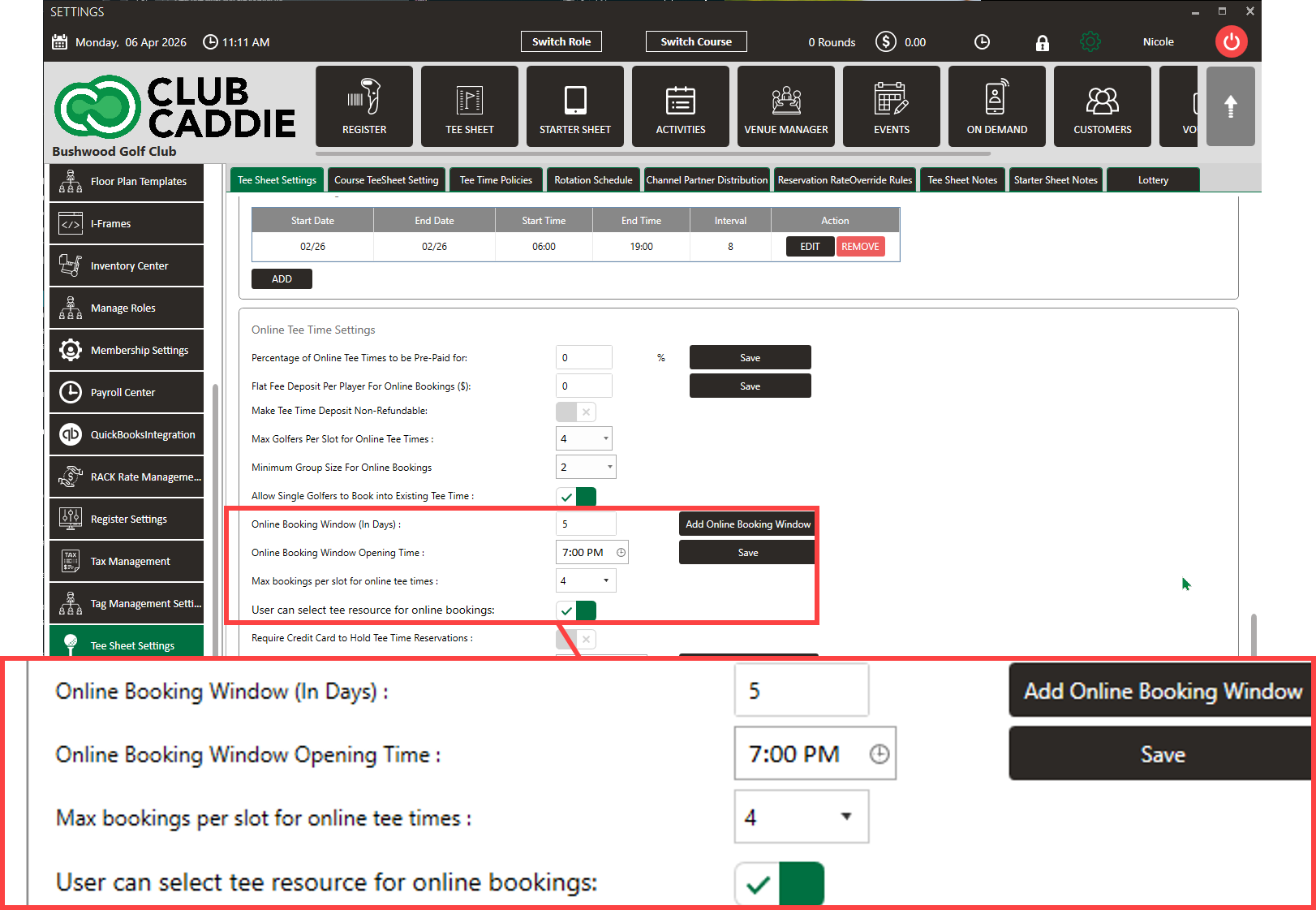
Setting the Default Booking Window
- Step 1: Go to Settings → Tee Sheet Settings.
- Step 2: Find the online booking window settings.
- Step 3: Set the number of days in advance customers can book and click Save.
Setting a Class-Specific Booking Rule
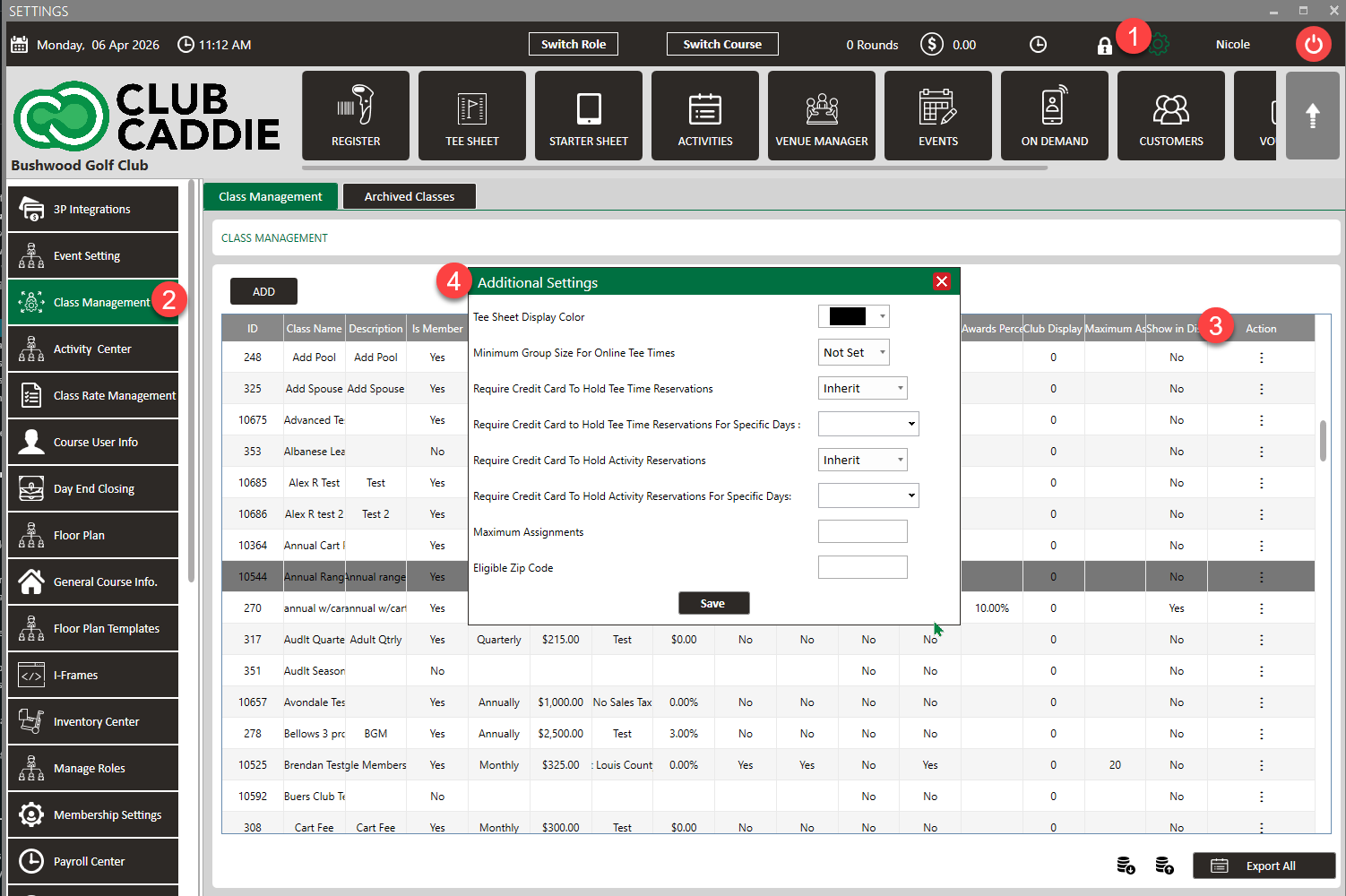
- Step 1: Go to Settings → Class Management.
- Step 2: Find the membership class and click the Action dropdown.
- Step 3: Select Additional Settings.
- Step 4: Set the minimum group size or advance booking rules for this class.
- Step 5: Click Save.
[IMAGE: Class Management Action dropdown showing the Additional Settings option]
3) When Members Can't Book but Staff Can
Staff can book outside the online window because the POS is not subject to online booking restrictions. If members can book from the POS but not online, check these in order:
- Step 1: Is the tee time blocked? Blocked slots are visible to staff on the Desktop tee sheet but invisible to customers online.
- Step 2: Has the member's class rate expired? Confirm the rate's start and end dates per Section 1.
- Step 3: Go to Settings → Tee Sheet Settings and check the Lead Time and Cutoff Time settings. A 2:00 PM cutoff means no online bookings after 2 PM, even if slots are open.
- Step 4: If customers see an "adjust filter" message, no times match their current search. Ask them to widen their date or time range and try again.
4) Membership Price Showing With or Without Tax Online
If some membership prices display with tax and others without on your online portal, this is a tax display setting at the individual membership class level.
- Step 1: Go to Settings → Membership Settings and open the affected class.
- Step 2: Check the Tax Group assigned to that class.
- Step 3: If prices should display without tax, confirm the tax display setting on the class. Contact Club Caddie Support if the option is not visible.