.png?width=200&height=89&name=CC%20%20fiserv.%20(3).png)
Overview
The Membership tab in a member's profile brings their membership details together: what they're billed, what they owe, their invoices and the people on their account. Use it when a member asks about their balance or their bill, or when you set up a household.
The tab opens once the customer is signed up as a member and has a membership class. Until then it's grayed out.
Before you start
The customer needs a membership class. See Browser - Customers: Assign a Membership Class to a Customer.
Open the Membership tab
- Go to Customers and select the Members tab.
- Find the member, select the ⋮ menu on their row, and select View/Edit. The member's profile opens.
- Select Membership in the menu on the left. A strip of tabs runs across the top, and BILLING opens first.
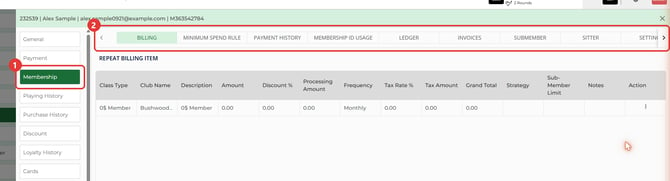
- If you can't see every tab, use the arrows at either end of the strip.
Here's what each tab in the strip holds:
- BILLING: the member's class, its amount and how often it bills, listed under REPEAT BILLING ITEM.
- MINIMUM SPEND RULE: any minimum the member has to spend, with its amount and dates.
- PAYMENT HISTORY: the payments this member made. See Browser - Members: A Member's Payment History.
- MEMBERSHIP ID USAGE: orders paid with the member's Membership ID, including their sub members' IDs.
- LEDGER: charges, payments and other entries on the account, with a running balance.
- INVOICES: the member's invoices, with opening and closing balance and the payment due date.
- SUBMEMBER: the other people on this membership, such as a spouse or children.
- SITTER: the name, gender and date of birth of any sitter on the membership.
- SETTINGS: the member's online profile password, plus account settings such as the charge account limit.
Check a member's balance
- Open the Membership tab as above.
- Select LEDGER. The newest entry is on top, and the Balance column shows the running balance after each entry.
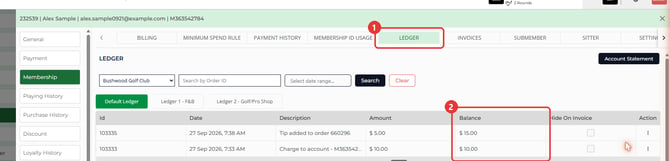
Charges a sub member makes show up here too, on the primary member's ledger. For more on the ledger, see Browser - Members: Member Ledger.
Common Questions
Why is the Membership tab grayed out?
The customer isn't a member yet. Sign them up and give them a membership class, and the tab opens.
Why are most tabs grayed out on this profile?
You've opened a sub member. Only PAYMENT HISTORY and SETTINGS open on a sub member's profile. Billing, the ledger and invoices live on the primary member's profile.
Can I see a member's balance without opening their profile?
Yes. The member list under Customers > Members has a Current Balance column.
What's the difference between Payment History and the Ledger?
PAYMENT HISTORY lists only the payments the member made. LEDGER lists every entry on the account, with the balance.
How do I add someone to a member's account?
Use the SUBMEMBER tab. See Browser - Customers: Add a Sub Member to a Membership.