
Overview
A member's ledger is the running record of what they've been charged and what they've paid. Sometimes something needs to go on that record by hand: a credit the club owes the member, a charge that was missed, or a correction. Here's how to post it from the Advance Ledger Adjustment window.
Before you start
Your role needs the member adjustments permission, found under Membership Management in Manage Roles. Without it the LEDGER tab still shows the ledger, but the Make Adjustment and Advance Ledger Adjustment buttons aren't there.
Find a member's ledger
- Click Customers in the left navigation, then open the Members tab.
- Find the member and choose View/Edit from the three dot menu on their row.
- In the member's profile, select Membership from the menu on the left.
- Open the LEDGER tab.
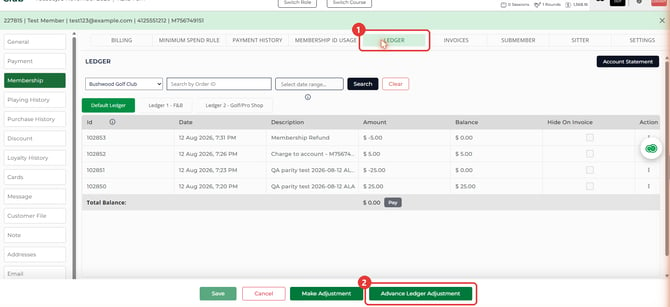
The ledger shows each entry's date, description, amount and running balance. You can also produce an Account Statement from here.
If your facility runs more than one ledger, for example one for food and beverage and one for the golf shop, the ledger tabs above the grid filter what you see. The adjustment window has its own Ledger field.
Post an advance ledger adjustment
You'll find two buttons at the bottom of the ledger: Make Adjustment and Advance Ledger Adjustment. These steps cover the advance window.
- Click Advance Ledger Adjustment.
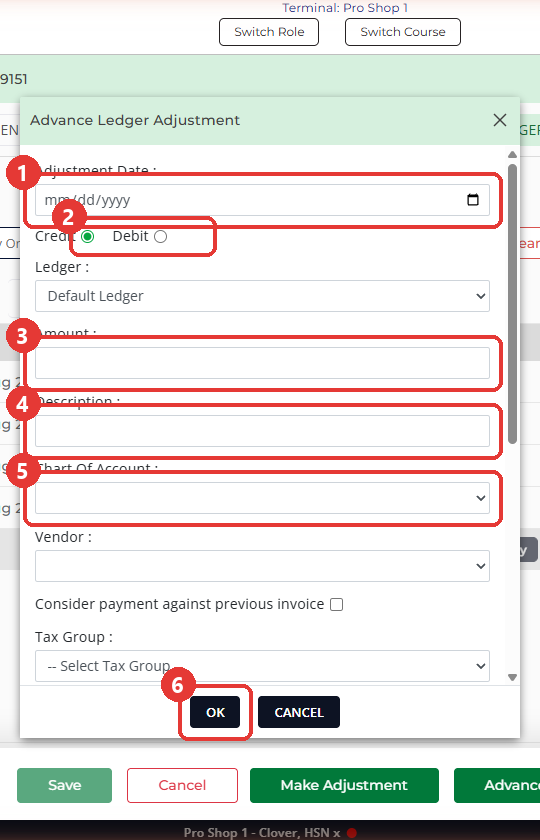
- If Adjustment Date is shown, set it. The field appears when your facility allows date specific ledger adjustments, and it is required when it is there.
- Choose Credit or Debit. Credit is selected when the window opens, so make sure it's the one you want.
- If your facility runs more than one ledger, check the Ledger field. It starts on Default Ledger whichever ledger tab you opened the window from.
- Enter the Amount and a Description your team will recognize later.
- Pick the Chart Of Account for the adjustment, and a Vendor if one applies.
- For a credit, you can also check Consider payment against previous invoice, which counts the credit as a payment on the member's latest invoice. Only check it if your accounting team tells you to. It's greyed out for a debit, and it's ignored if your Adjustment Date is earlier than the latest invoice.
- If the adjustment carries tax or a service charge, choose the Tax Group, enter the Service Charge %, and choose the Service Tax Group. Grand Total shows the Amount with those added. A debit adds that total to the member's balance and a credit takes it off. Pick a Chart Of Account too, or the whole total goes on the ledger as one amount, with no tax or service charge recorded to their accounts.
- Click OK to post the adjustment, or CANCEL to close without posting anything. A success message confirms it posted. If you don't see the new entry, check the other ledger tabs and any date range you've set, then click Search.
Common Questions
What's the Make Adjustment button?
A simpler adjustment window with the same main fields, but no tax or service charge fields. Use Advance Ledger Adjustment when the adjustment needs tax or a service charge.
I closed the window with CANCEL. Did anything post?
No. CANCEL closes the window without touching the ledger.
Does the ledger tab I opened the window from carry over?
No. The window's Ledger field starts on Default Ledger each time, so check it before you click OK.
Does an adjustment show in Sales?
If you pick a Chart Of Account, yes. The adjustment creates a completed order, for a debit or a credit, and a credit's order has a negative total. If you backdate it, the order shows on the Adjustment Date. Without a Chart Of Account, it goes on the ledger with no order, so nothing shows in Sales.
Why was my Adjustment Date rejected?
It can't be in the future. A past date is also rejected if two or more of the member's invoices were created after it, or if one was and the latest invoice seems paid. With a Chart Of Account selected, a past date also can't fall in a period already synced to QuickBooks.