.png?width=200&height=89&name=CC%20%20fiserv.%20(3).png)
Overview
The Payment History tab under Members lists membership payments from every member at your facility in one place. Use it to find a payment when you don't know which member made it, or to pull a list of payments for a date range.
The search box and dates only take effect when you click Search. To see one member's payments instead, open their profile (see Browser - Members: A Member's Payment History).
Find a payment
- Go to Customers and select the Members tab.
- Select the Payment History tab in the strip at the top. The Recent Membership Payments list opens.
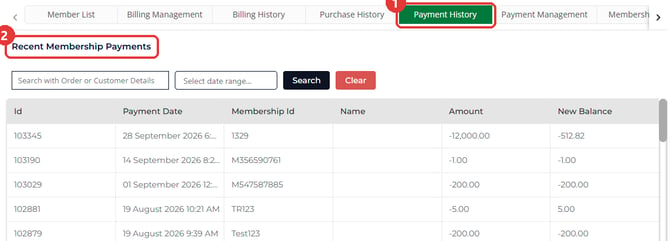
- To find a payment, type a member's first or last name, their membership ID or the payment ID in the box marked Search with Order or Customer Details.
- To narrow the list to a period, pick a start and end date in the date range box.
- Click Search. The list shows only the payments that match.

- To start over, click Clear. The search text and dates are removed and the full list comes back.
Each row shows the payment Id, Payment Date, the member's Membership Id and Name, the Amount and the member's New Balance after that payment. Payments show as negative amounts.
Export the list to Excel
- Set the search text and dates you want, then click Search.
- Click Export Excel below the list.

- Open the downloaded Excel file. It lists every payment that matches your last search, not just the page on screen.
Common Questions
How is this different from a member's own Payment History?
This tab lists every member's payments together. A member's own Payment History, inside their profile under Membership, shows only that member's payments. See Browser - Members: A Member's Payment History.
Can I see just one member's payments here?
Type the member's last name or membership ID in the search box and click Search. To see one member's payments on their own, open their profile instead.
When do the search box and dates take effect?
When you click Search. Typing a name or picking dates on its own doesn't change the list.
Does the export include every page?
Yes. Export Excel includes every payment that matches the search you last ran, not just the rows on the screen. If nothing matches, you'll see a message that there are no records to export.