.png?width=200&height=89&name=CC%20%20fiserv.%20(3).png)
Overview
A member's Billed Till Date is the date their membership class has been billed through. The Bill Classes On Billed Till Date setting decides which day a member's class is billed to their ledger: on the Billed Till Date itself, or the day after. The same setting also moves the billing date for classes that use a custom billing schedule. This article shows where to find the setting and a member's Billed Till Date in Browser, and what each position of the setting does to the billing date.
Before you start
Bill Classes On Billed Till Date is one setting for your whole facility, not one per class. After you change it, check the Billed Till Date of a few members after the next billing run.
Choose when classes bill
- Select the Settings gear at the left edge of the screen, then select Membership Settings.
- On the Membership Setting tab, find Bill Classes On Billed Till Date.
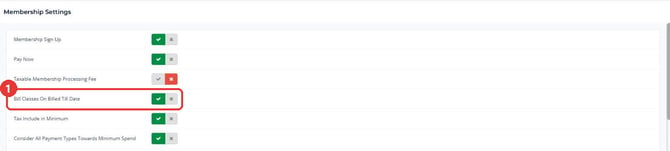
- Turn it ON to bill on the Billed Till Date, or OFF to bill the day after.
Here is what each position does:
- Standard billing, OFF: the member's ledger is billed the day after the Billed Till Date. If the Billed Till Date is September 30, the ledger is billed on October 1.
- Standard billing, ON: the member's ledger is billed on the Billed Till Date. If the Billed Till Date is September 30, the ledger is billed on September 30.
- Custom billing schedule, OFF: the scheduled amount is billed on the 1st day of the month you entered it for. An amount entered for September is billed on September 1.
- Custom billing schedule, ON: the scheduled amount is billed on the last day of the month before. An amount entered for September is billed on August 31.
Check a member's Billed Till Date
- Select Customers, then Customer, then All Customers.
- On the member's row, select the Action menu (three dots), then select View/Edit.
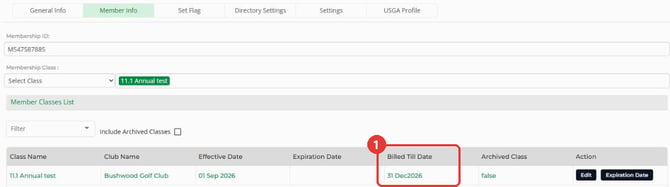
- In the left menu, select General, then open the Member Info tab.
- In the Member Classes List, find the class and read the Billed Till Date column. Effective Date shows when the class started.
Set up a custom billing schedule
A custom billing schedule works with classes whose Due Type is Annually.
- Select the Settings gear at the left edge of the screen, then select Class Management.
- On the class row, select the Action menu (three dots), then select Advance Billing.
- In the Billing Strategy panel that opens, enter the percentage for each month from January to December. The Percentage and Dues totals show what the schedule adds up to.
- Select Save.
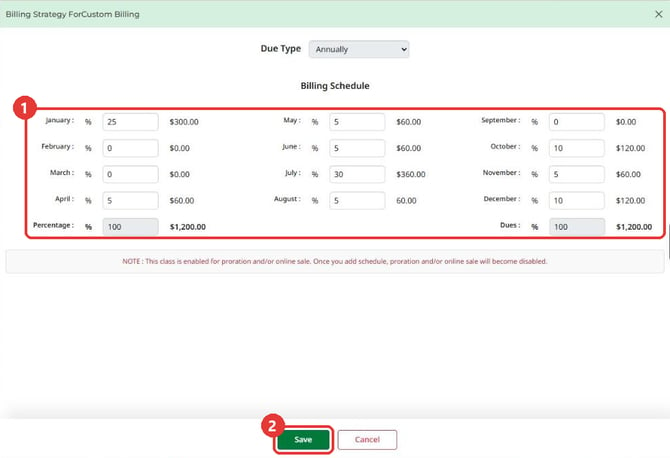
Each month's amount bills on the day the Bill Classes On Billed Till Date setting gives it: the 1st of that month when the setting is OFF, or the last day of the month before when it is ON.
A red note in the panel says that once you add a schedule, proration and online sale become disabled for that class.
Common Questions
What does Bill Classes On Billed Till Date do?
It moves the day a member's class is billed. OFF bills the day after the Billed Till Date. ON bills on the Billed Till Date. For custom billing schedules, OFF bills on the 1st of the month and ON bills on the last day of the month before.
A member's Billed Till Date is September 30. When is their class billed?
With the setting OFF, on October 1. With the setting ON, on September 30.
When does a custom schedule amount bill?
With the setting ON, on the last day of the month before its month, so a September amount bills on August 31. With the setting OFF, on the 1st of its own month, so a September amount bills on September 1.
When does a member's Billed Till Date update?
The billing job runs once a day, in the early morning, and moves the Billed Till Date in the same run. Check the member again after the next run.
Does a class with no Expiration Date keep billing?
A blank Expiration Date means the class has no end date, so it keeps billing each cycle while the class and the membership stay active. Use an Expiration Date for fees that end on a set day, such as an annual locker rental.
Can I change a member's Billed Till Date?
In the Member Classes List, select Edit on the class row. Billed Till Date becomes a date input, and Save and Cancel buttons appear.