.png?width=200&height=89&name=CC%20%20fiserv.%20(3).png)
Prerequisites/Notes:
-
You need access to the computer’s Desktop and shortcut Properties (Windows user permissions).
-
This setup is intended for a kiosk-style workstation where receipts should print immediately.
Step-by-Step:
Part 1: Copy Your Club Caddie Login URL
- Step 1: Open your browser and go to the Club Caddie login screen.
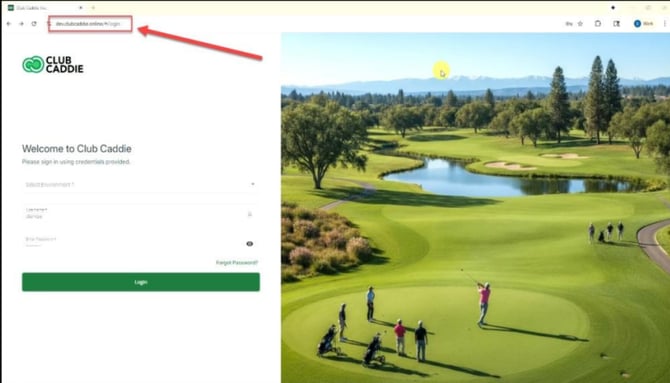
- Step 2: Copy the full URL from the browser address bar.
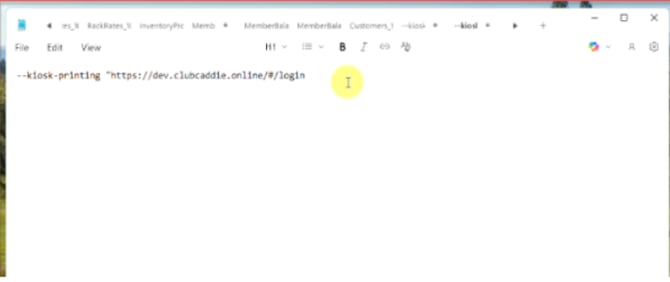
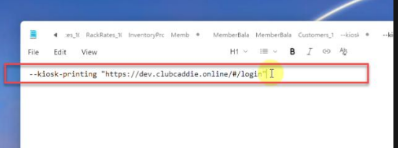
- Step 3: Open Notepad (or any plain text editor) and type the following line exactly as shown — all on one line:
--kiosk-printing "[paste your URL here]"
NOTE: Make sure there are two dashes (--) before kiosk, one space before printing, and the full URL is wrapped in double quotation marks. Leave Notepad open — you'll need this line in Part 3
Part 2: Turn Off Headers and Footers in Print Settings
This step makes sure your receipts don't have extra text printed at the top or bottom.
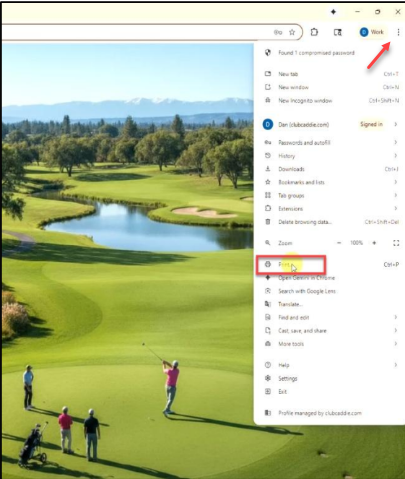
- Step 1: In your browser, select the three-dot menu (⋮) in the top corner.
- Step 2: Select Print from the menu.
- Step 3: In the print window, find the Headers and footers option and turn it off (toggle off or uncheck).
Step 4: Close the print window. Your setting is saved.
Part 3: Create the Desktop Shortcut
- Step 1: In your browser, select the three-dot menu again.
- Step 2: Go to Cast, save, and share → Create shortcut.
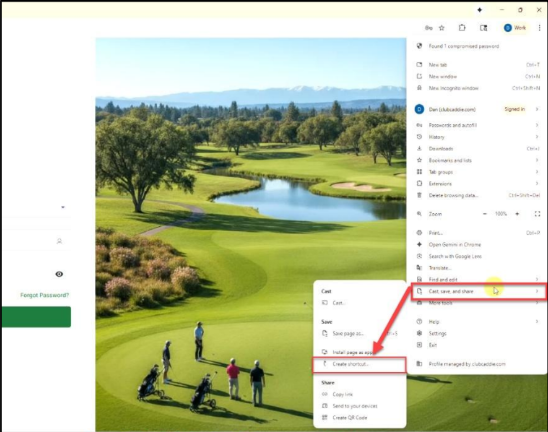
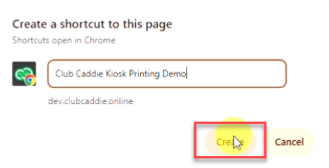
- Step 3: In the name field, type a name for the shortcut — for example, Club Caddie Kiosk. Then select Create.
- Step 4: Close the browser window. You should now see the shortcut icon on your desktop.
Part 4: Edit the Shortcut to Enable Kiosk Printing
This is the most important part. You're editing the shortcut's target field to tell the browser to open in kiosk printing mode.
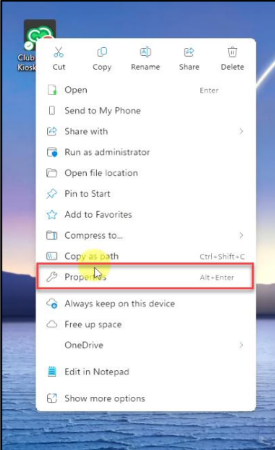
- Step 1: On your desktop, right-select the Club Caddie Kiosk icon and select Properties.
- Step 2: In the Properties window, find the Target It contains the command the shortcut runs.
- Step 3: In the Target field, find the part that ends with exe. Delete everything after proxy.exe — leave the closing quotation mark in place.
- Step 4: After the closing quote, type one space.
- Step 5: Go back to Notepad, highlight the entire line you typed in Part 1, and copy it.
- Step 6: Return to the Properties window. Select inside the Target field right after the space, and paste the line from Notepad.
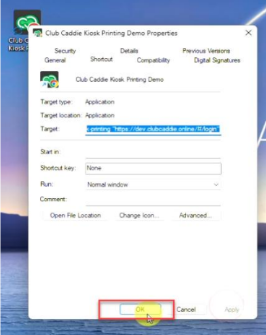
Step 7: Select Apply and then OK to save.
Test Your Setup
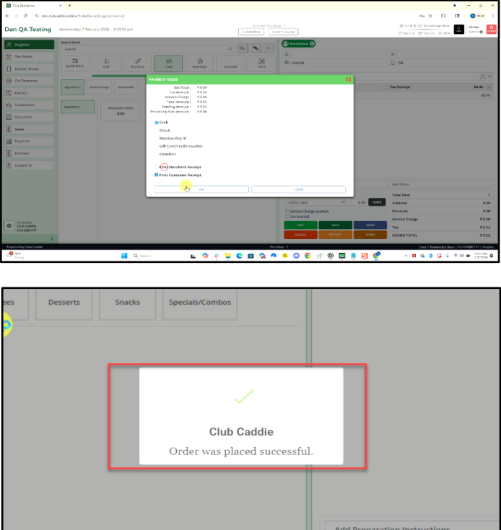
Double-select the Club Caddie Kiosk shortcut on your desktop. The browser should open and take you directly to the Club Caddie login screen. Log in, select an item, process a payment, and create a receipt. If everything is set up correctly, the receipt will print automatically — no print preview screen.
NOTE: If the shortcut doesn't behave as expected, go back to Properties → Target and double-check that the line ends correctly after proxy.exe and that your kiosk printing line is pasted in exactly as written.
Example Scenario:
A pro shop team has a dedicated POS computer that prints customer receipts all day. They create the Club Caddie Kiosk shortcut so staff can print receipts with one click and avoid the extra print preview screen. They also turn off browser headers and footers so receipts don’t show date/time stamps or page URLs. After a test transaction confirms auto-print is working, the workstation is ready for daily use.