.png?width=200&height=89&name=CC%20%20fiserv.%20(3).png)
Overview
The bar along the bottom of the Club Caddie Browser screen shows the name of the terminal you're signed in to. When that terminal is set up with a Clover Connect or CardConnect card reader, the bar also shows the reader type, its HSN number, and a small colored dot. The dot tells you whether the reader answered its last connection check.
Before you take a card payment, click the dot for a fresh check. Until you click it, the color shows the result of the last check, and a click runs a new one.
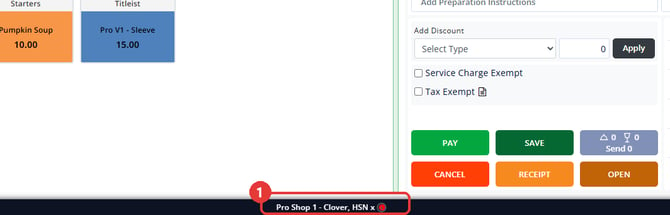
What the bar shows
The label follows this pattern:
Terminal name - Reader type, HSN number
For example: Pro Shop 1 - Clover, HSN followed by the reader's number.
- The terminal name is the terminal you picked when you signed in.
- The reader type names the kind of reader, for example Clover.
- The number after HSN identifies the reader this terminal is set up to use. If you have several terminals close together, it tells you which reader belongs to which terminal.
What the colors mean
- Green: the reader answered the connection check.
- Red: the reader did not answer the connection check, or no check has finished yet.
Checking the connection again
The check runs once when you pick your terminal. It doesn't repeat on its own, so the color shows the result of the last check. You can check again at any time:
- Click the dot.
- A small spinner replaces the dot while the check runs.
- The dot comes back green or red with the new result.
If the dot is red
- Make sure the reader is powered on.
- Check its cable or network connection.
- Check that the terminal name in the bottom bar is the station you're working at. The dot checks the reader set up for that terminal.
- Click the dot to check again.
If the dot stays red after these checks, contact Club Caddie Support and give them the terminal name and the HSN number shown in the bar.
Common Questions
I don't see a dot at all. Why?
The dot appears when the terminal is set up with a Clover Connect or CardConnect reader. If your terminal uses a different reader, or has no reader set up, the bottom bar shows just the terminal name.
The dot is green. Does that mean the payment will go through?
Not on its own. Green means the reader answered the connection check. The check doesn't look at the card or the payment.
Why does the HSN number matter?
When several terminals sit side by side, the number after HSN tells you which reader belongs to the terminal you're signed in to. It's also the detail to give Support if you call.