.png?width=200&height=89&name=CC%20%20fiserv.%20(3).png)
Overview
Clicking the ✕ on a tab doesn't delete it straight away. Club Caddie asks where the tab should go, and the choices do very different things. Move to Pull Tabs parks the tab so you can bring it back later. Permanently Delete takes the tab off the register. Close keeps the tab open.
On a tab that has items, Permanently Delete can ask for a manager override PIN first, depending on your role.
Close a tab
- Click the ✕ on the tab's name at the top of the register. You can also right-click the tab's name and choose Delete.

- Check the details in the box so you know it's the right tab. It shows the ID, Customer, Tab, Table and Employee.
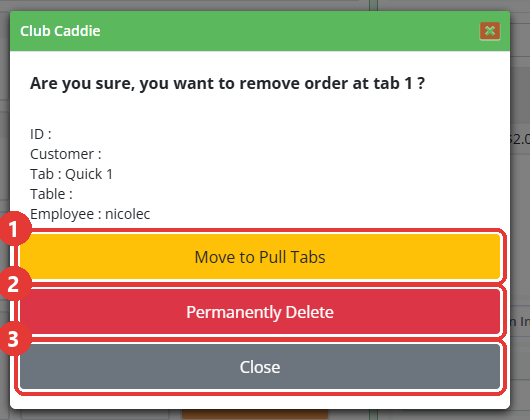
- Choose where the tab goes:
- Move to Pull Tabs keeps the order and parks it. Use this for a guest who has stepped away, or a group you'll settle up with after their round.
- Permanently Delete takes the tab off the register. Use this for a tab that was opened by mistake.
- Close changes nothing. The tab stays open.
Bring a parked tab back
- Go to Register → Tools → All Tabs Pull Tabs.
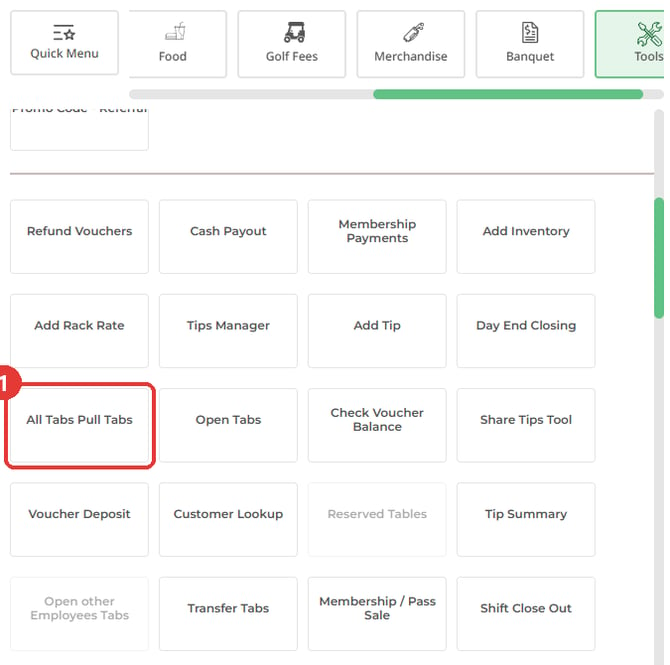
- Find your tab in the list. Match the ORDER ID and the CREATED AT time to be sure it's yours.
- Click Re-Open. The tab goes back on the register.

Take a parked tab off the list
The pull tab manager shows every employee's parked tabs, not just yours.
- Open Register → Tools → All Tabs Pull Tabs and find the row.
- Check the ORDER ID and CREATED AT time so you only touch your own tab.
- Click Remove on that row and confirm.
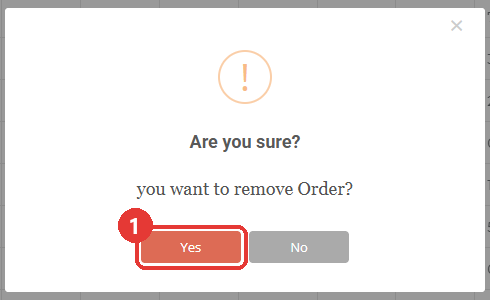
Remove takes the entry off this list. It isn't a way to erase the order. If you see a Remove All button at the top of the list, leave it alone. It can remove other employees' parked tabs too.
Common Questions
Which option should I pick?
Move to Pull Tabs for anything you might need again. Permanently Delete for a tab that was opened by mistake.
Does Permanently Delete erase the order?
No. It takes the tab off the register. If the order had already been saved, it can still show in Sales. Ask a manager if the record itself needs dealing with.
Why did Permanently Delete ask for a manager PIN?
The tab has items on it, and your role needs a manager to approve deleting it. Ask a manager to help.
Does Remove in the pull tab manager delete the order?
No. It takes the entry off that list. Treat it as tidying the list.
Is saving a tab the same as closing it?
No. SAVE keeps your work and gives the order a number, but the tab stays open in front of you. To put the tab away, close it with the steps above.
The box shows a blank ID. Is that a problem?
No. A tab that has never been saved has no order number yet, so that line is empty.
Why can I see other people's tabs in the pull tab manager?
It lists parked tabs from every employee. Match the ORDER ID and CREATED AT time before you re-open or remove anything.
I merged two tabs. Why is the first one still there?
Merging moves the items but leaves the original tab open and empty. Close it with the steps above. See Browser - Register: Merge One Tab Into Another.
What if the tab already has a payment on it?
This article covers tabs with no payment taken. If a payment has been taken, check with a manager before you close or delete the tab.