.png?width=200&height=89&name=CC%20%20fiserv.%20(3).png)
Step-by-Step:
Step 1: Select the Register module, then select the Tools tab.
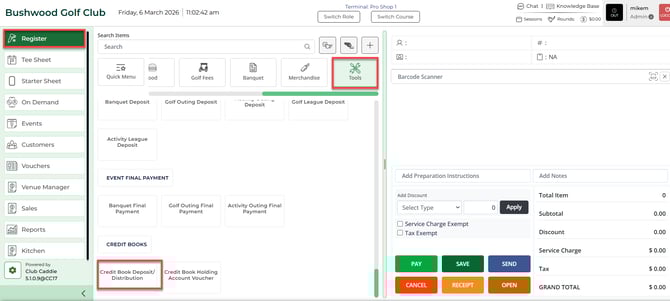
Step 2: Scroll down then you can see the Credit Book Deposit and Credit Book Distribution options.
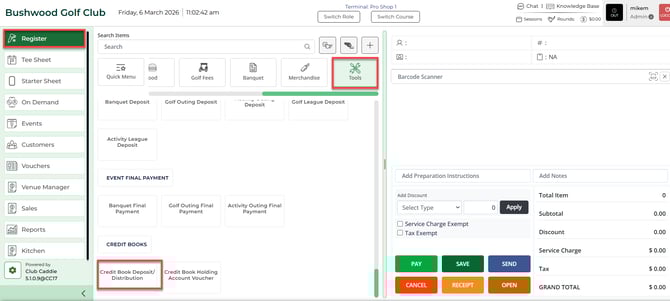
Step 3: Users in this step will be prompted to fill out which holding account, the customers information, and the amount. To finish the voucher creation once the above fields have been filled out, select the Pay button to finalize this transaction.
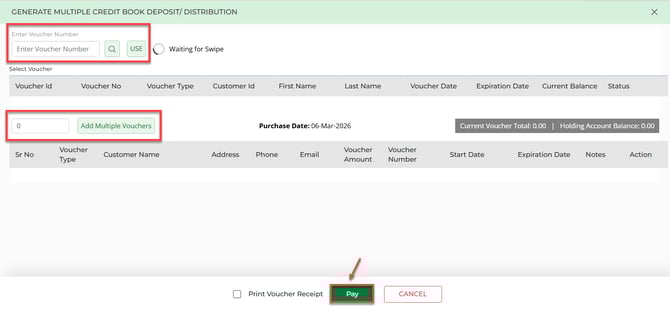
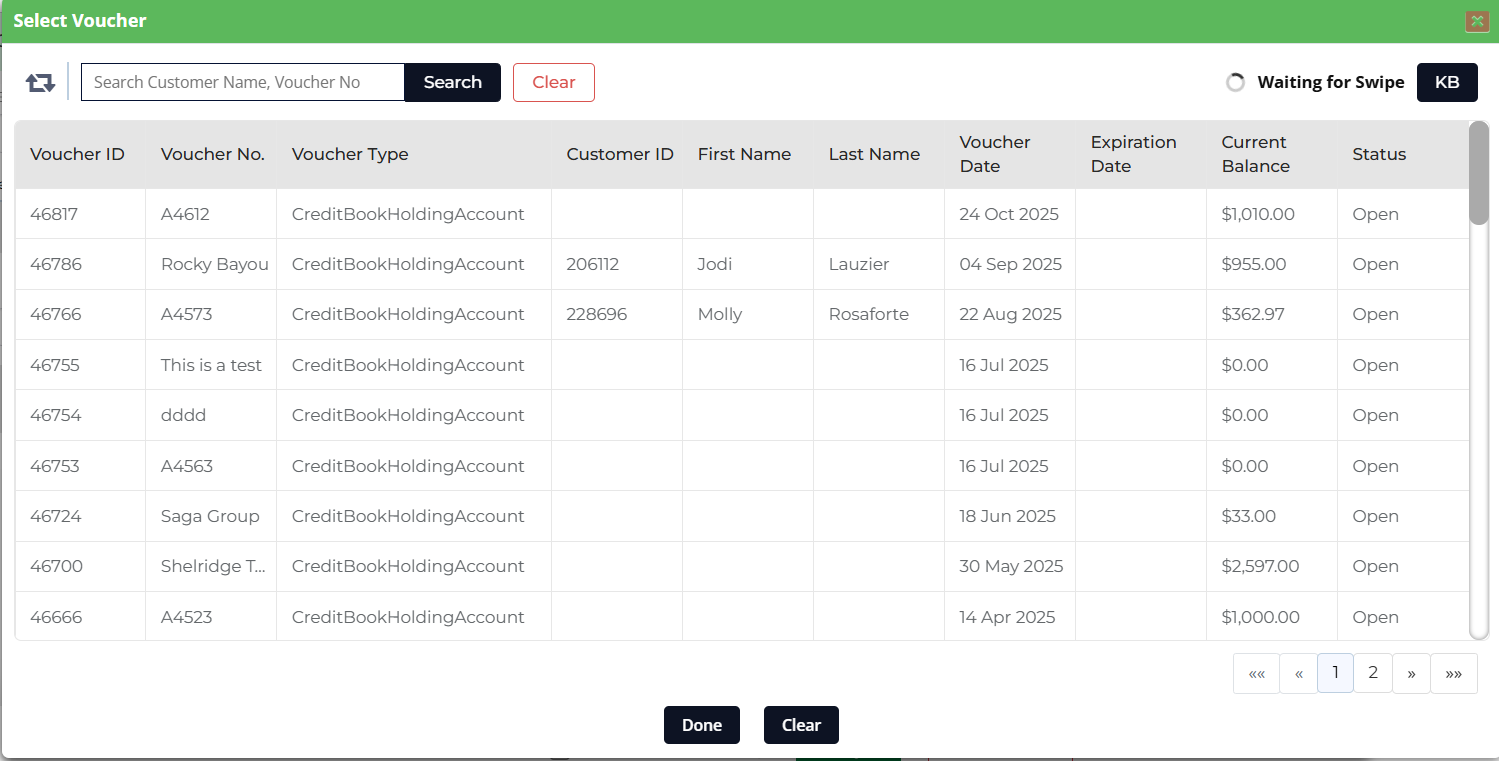
Users can use the search icon to select account, then enter the customers information along with the amount. You will also have the option to set an expiration date for the voucher.
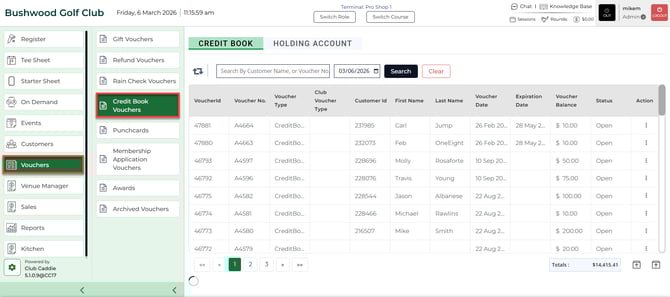
Step 4: To view the recently created vouchers, click on the Vouchers module.
Next, select Credit Book Vouchers from the menu.
You will see at least the default voucher types being Credit Books, and Holding Accounts.
Under the credit book section, you can view the recently created voucher from the previous steps above.