.png?width=200&height=89&name=CC%20%20fiserv.%20(3).png)
Overview
A guest changes their mind after the item is already on the tab. Any item that shows the green pencil can be reopened, and its options switched on, off or marked No, Extra or On Side. Save keeps the change and moves the tab total. Close throws it away.
Reopen the item
- Find the item on the tab and click the green pencil to the left of its name.
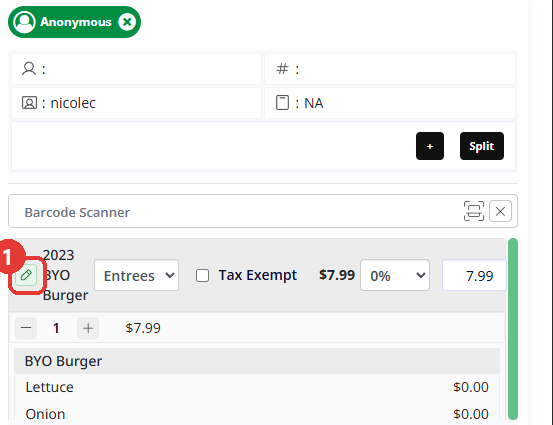
- The EDIT ORDER MENU ITEM window opens with everything you chose last time still set: the selected options, any No, Extra or On Side you applied, and the charges those choices carry.
Change a choice
Each option is a toggle: green when it is on, red when it is off.
- Switch off anything the guest no longer wants.
- Switch on the replacement.
- Click Save.
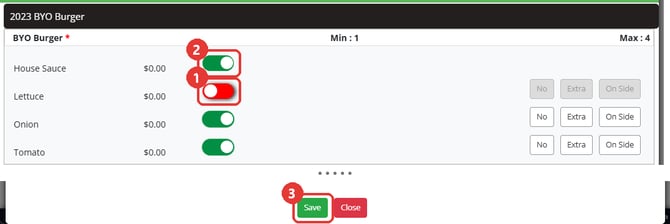
The tab total updates straight away.
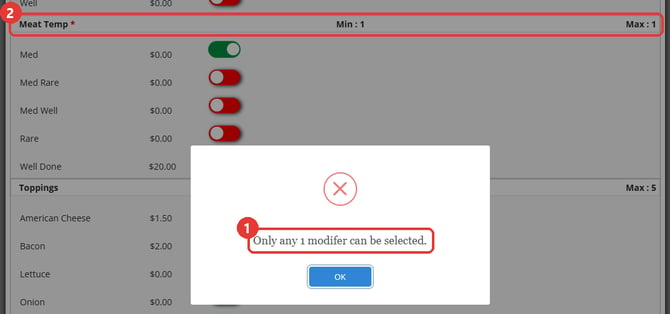
In a category with a limit, switch the old choice off first. When a category is already at its Max, Club Caddie keeps the choice you already made and a pop-up appears with a message like this one (the number matches the category's Max):
Click OK to close the pop-up. Then switch off the option you are replacing and switch on the new one.
Mark an option No, Extra or On Side
- Switch the option on. If it offers No, Extra and On Side, they sit beside it.
- Click the one you want. Only one of the three applies at a time, so choosing one clears the others. Click the same one again to clear it.
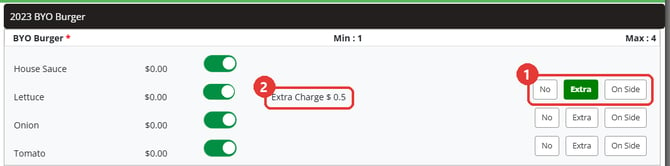
- Click Save.
What each one does:
- No marks the option as left off. It is available only on options that cost $0.00.
- Extra marks it as extra. If the option carries an extra price, Extra Charge $ appears beside it and the amount is added.
- On Side marks it to come on the side. There is no charge.
On the tab, the choice reads as part of the name, for example Extra Lettuce, On Side Onion or No Tomato.
Save or Close
- Click Save to apply your changes and close the window.
- Click Close to discard them. Anything you switched on or off since opening the window is dropped and the item goes back exactly as it was.

Common Questions
How do I swap a choice in a category that has a Max?
Switch off the choice you are replacing first, then switch on the new one. While the category is at its limit, your existing choice is held rather than replaced.
When is No available?
No is offered on options that cost $0.00. On a priced option it is not available.
Does Close keep my changes?
No. Close discards them, so the item keeps whatever was last saved. Save is what commits a change.
Which choices change the price?
Three things carry money: the option's own price; the Extra Charge $ shown when you mark something Extra; and the Upcharged by $ amount that appears when you pick more options than a category's included number. Adding or removing an Extra or an upcharge moves the item's price, and the tab total with it. Take a choice back off so you are back at the included number, and the upcharge comes off again.
Can I add a note to the item?
Yes. Add Note is in the same window. Type the note and click Save.