.png?width=200&height=89&name=CC%20%20fiserv.%20(3).png)
Overview
Each item on a register order has its own discount, so you can take money off one item and leave the rest of the order at full price. Use it for a damaged item, a price match, or a one-item loyalty discount. Two things decide whether the discount holds: the customer goes on the order before you pick the discount, and the item's floor price sets the lowest price it can reach.
Watch the 3-minute video, or follow the steps below.
Discount one item
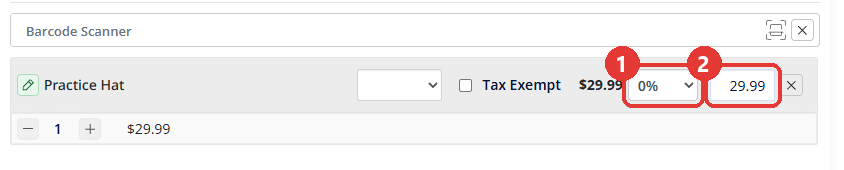
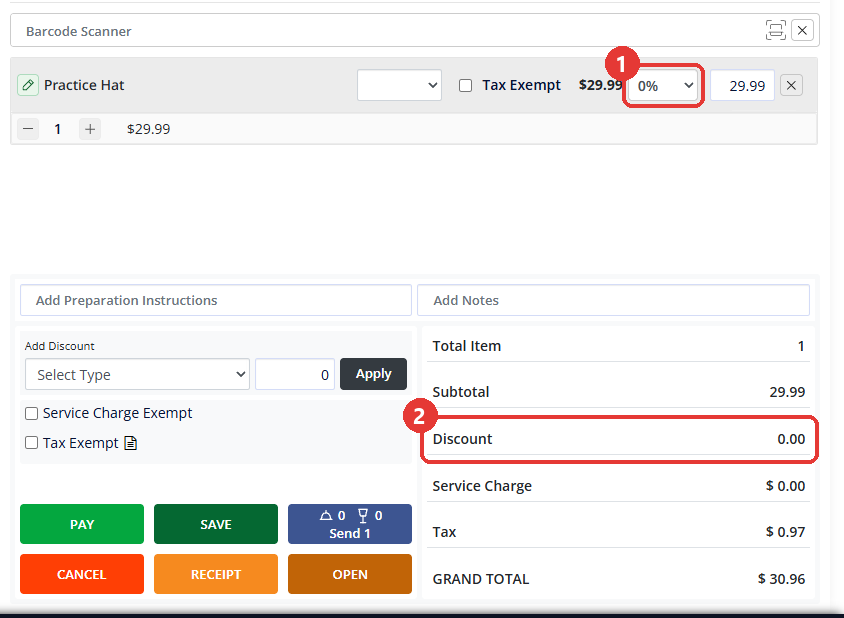
- Open the Register and add the item to the order. On the right of the item's line are the discount dropdown, which starts at 0%, and the price box.
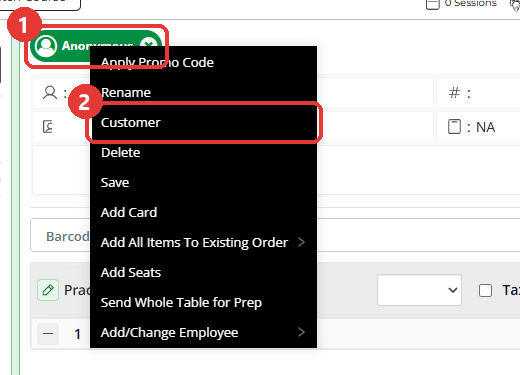
- If the sale is for a customer, put them on the order now. Right-click the order tab above the cart and click Customer. Search for the customer, click their row, then click Done.
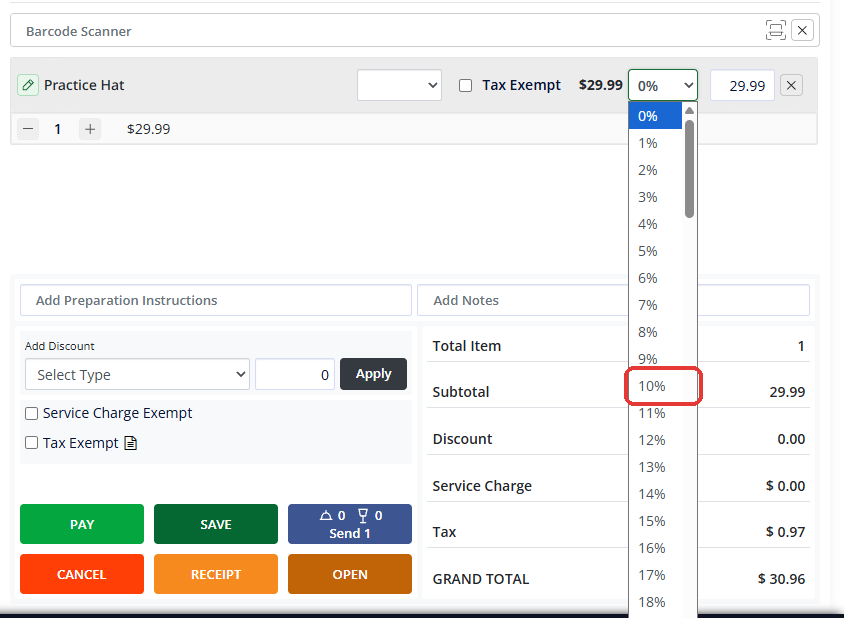
- Pick a percentage from the discount dropdown on the item's line. The list runs from 0% to 100%.
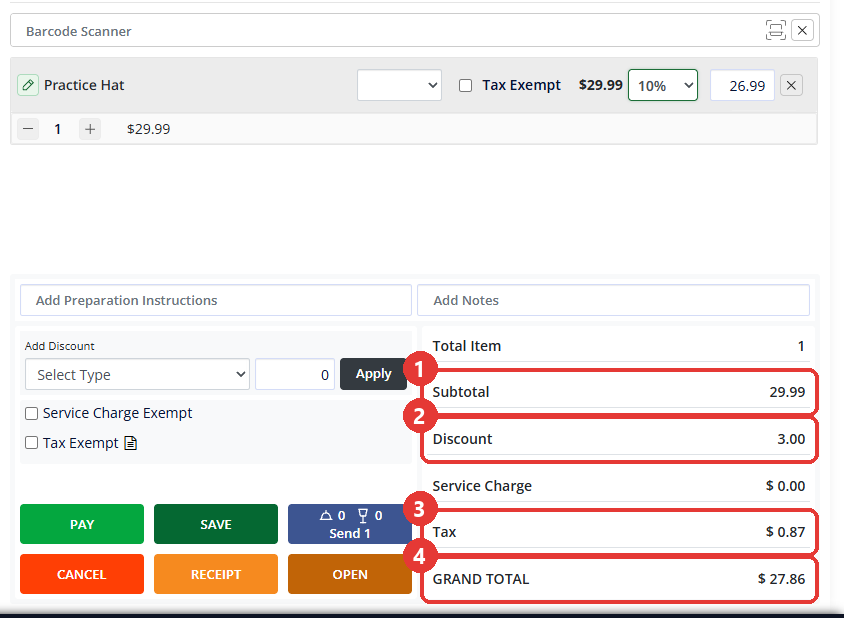
- Check the totals. Subtotal still shows the full price, Discount shows the amount taken off, and Tax is worked out on the lower price, so GRAND TOTAL goes down.
- Adding the customer after the discount resets the line. If the dropdown shows 0% after you add the customer, pick the percentage again. With the customer already on, it stays.
- Finish the order as usual. Only the discounted item changes; every other item keeps its price.
Set a new price for one item
- Click the price box on the item's line, to the right of the discount dropdown.
- Type the new price and press Enter.
- Check the line. The dropdown shows the matching percentage, rounded to a whole number, and Discount shows the exact amount taken off. For example, a $2.83 item set to 2.50 shows 12% and a Discount of 0.33.
Handle the floor price message
- If a discount would take the item below its floor price, a message opens: "Discount cannot be applied on following items:" followed by the item name and its floor price. Click OK.
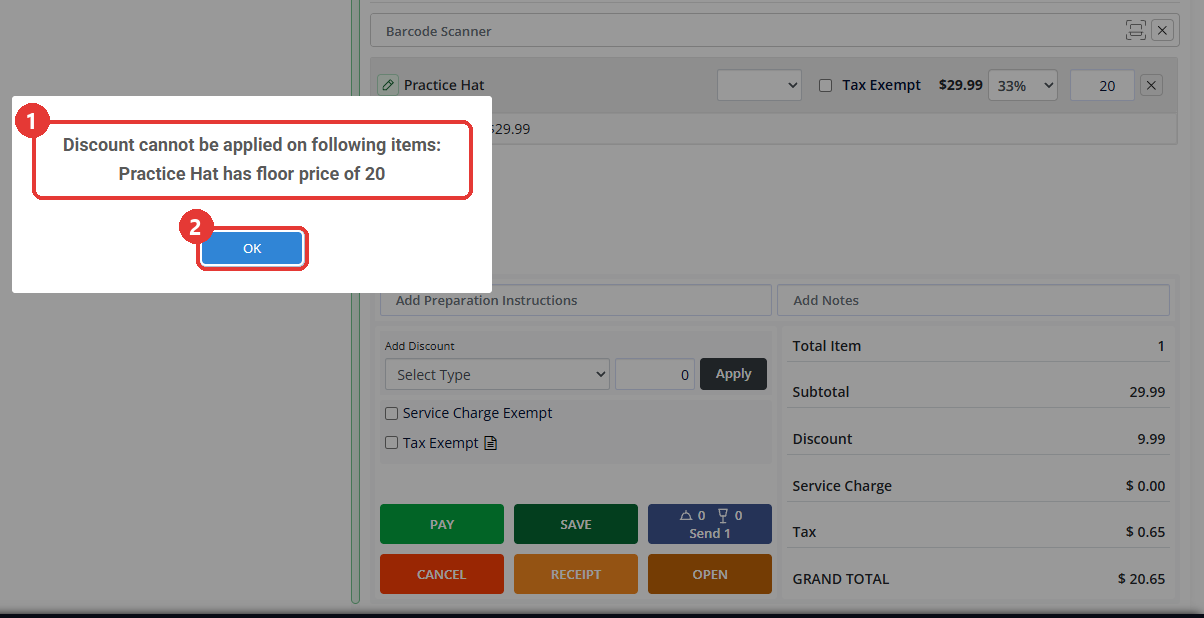
- Check the line. The register sets the item's price to its floor price, and the dropdown shows the nearest whole percentage. A $29.99 item with a floor price of 20, set to 50%, ends at 33% with the price box at 20.
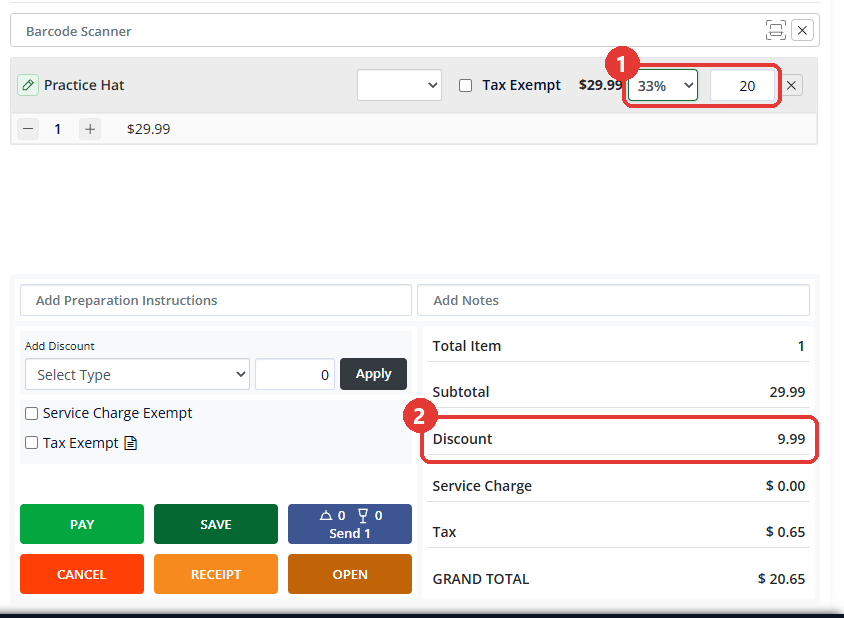
- To allow a bigger discount on this item in the future, change its Floor Price: open Inventory Center from the gear icon at the bottom of the side menu, go to Add / Manage Items, open the item with View/Edit, and change Floor Price. The new floor applies the next time the item is added to an order.
Common Questions
Why does adding a customer reset the discount?
Adding or changing the customer on the order after you pick a discount resets the line, so the discount you picked comes off. Put the customer on first. If the discount already came off, pick the percentage again; with the customer on, it stays.
How do I discount every item on the order?
Use Add Discount below the cart instead. Choose the type in Select Type, enter the amount, and click Apply. The line discount on this page changes one item only.
What does the pencil on an item's line do?
It opens EDIT ORDER MENU ITEM, where you can add a note for that item with Add Note and pick its modifiers if it has any. To discount the item, use the discount dropdown instead.
Why won't the discount go as high as I picked?
The item has a floor price, the lowest price it can be sold for. The register stops the discount at that price and tells you why. The floor is set on the item in Inventory Center, Add / Manage Items.