.png?width=200&height=89&name=CC%20%20fiserv.%20(3).png)
Step by Step:
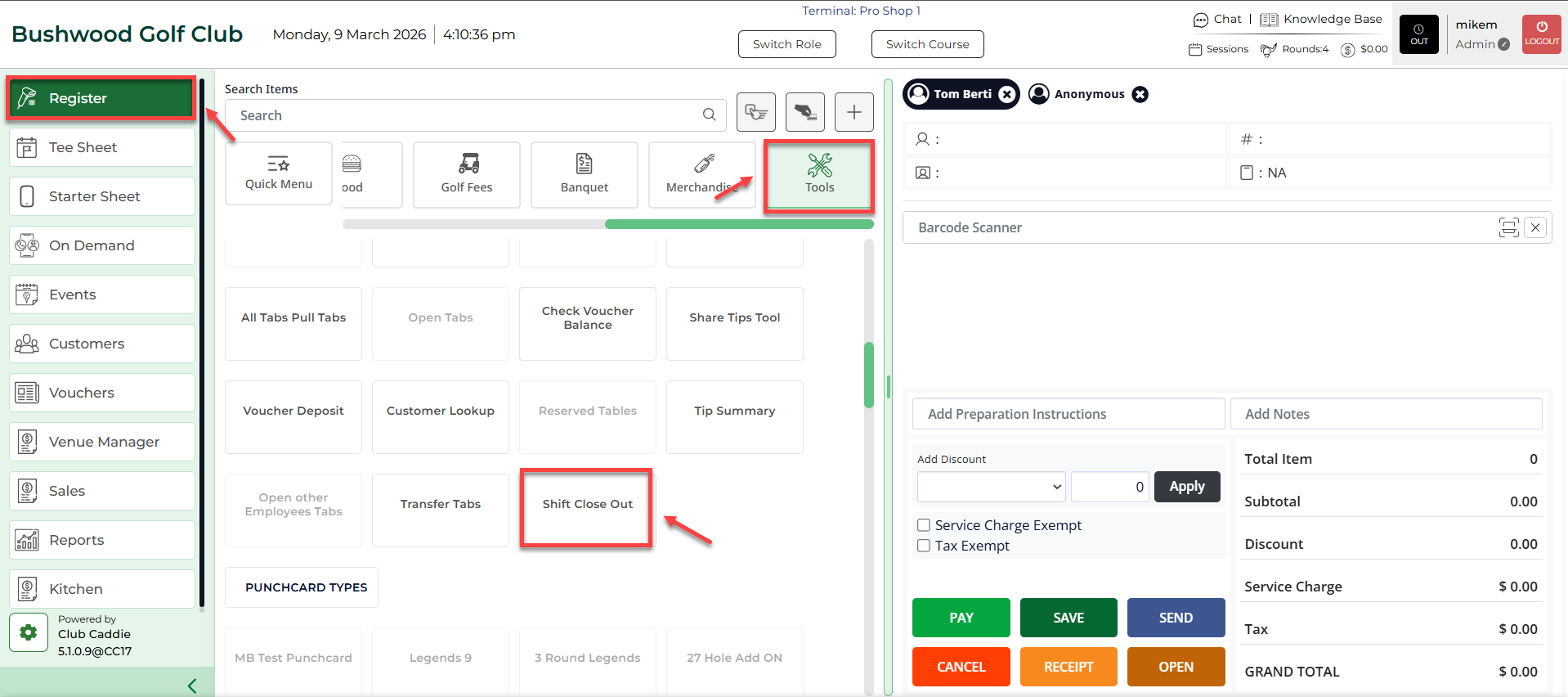
Step 1: Select the REGISTER module, then select the TOOLS tab, followed by Shift Close Out.
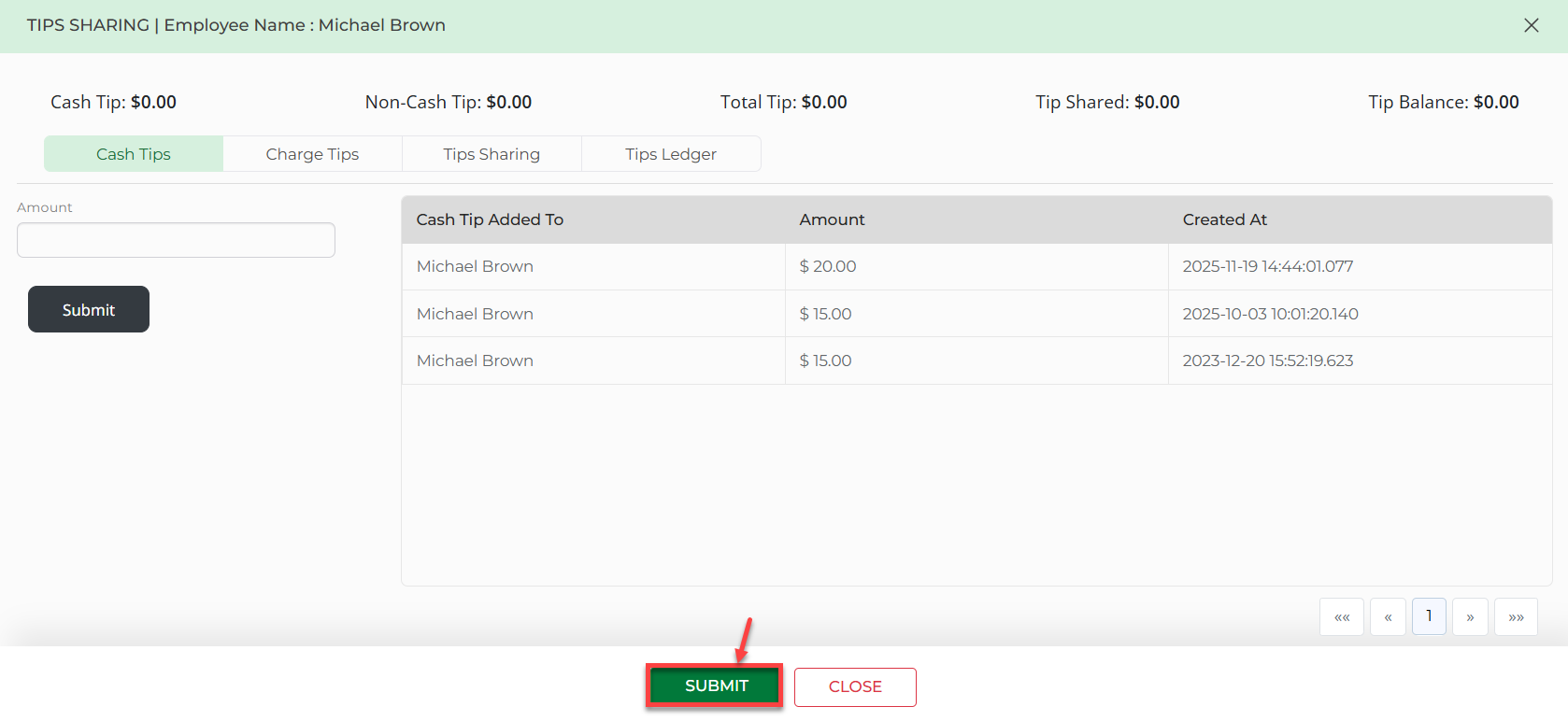
Step 2: A pop-up window will display where you will be able to enter the tip information for that employee. Once the correct amount is entered, select Submit.
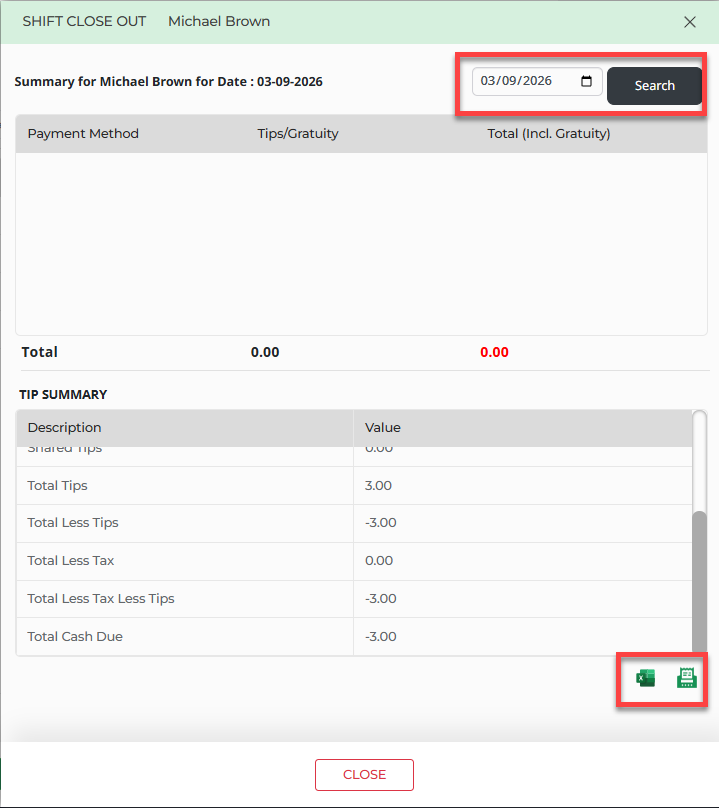
Step 3: Next you will see a breakdown in tips for that employee for the selected day. You can also use the calendar filter at the top if you wish to view another day. Lastly, you can export this report to excel or download a receipt by clicking on the icons in the bottom right corner.
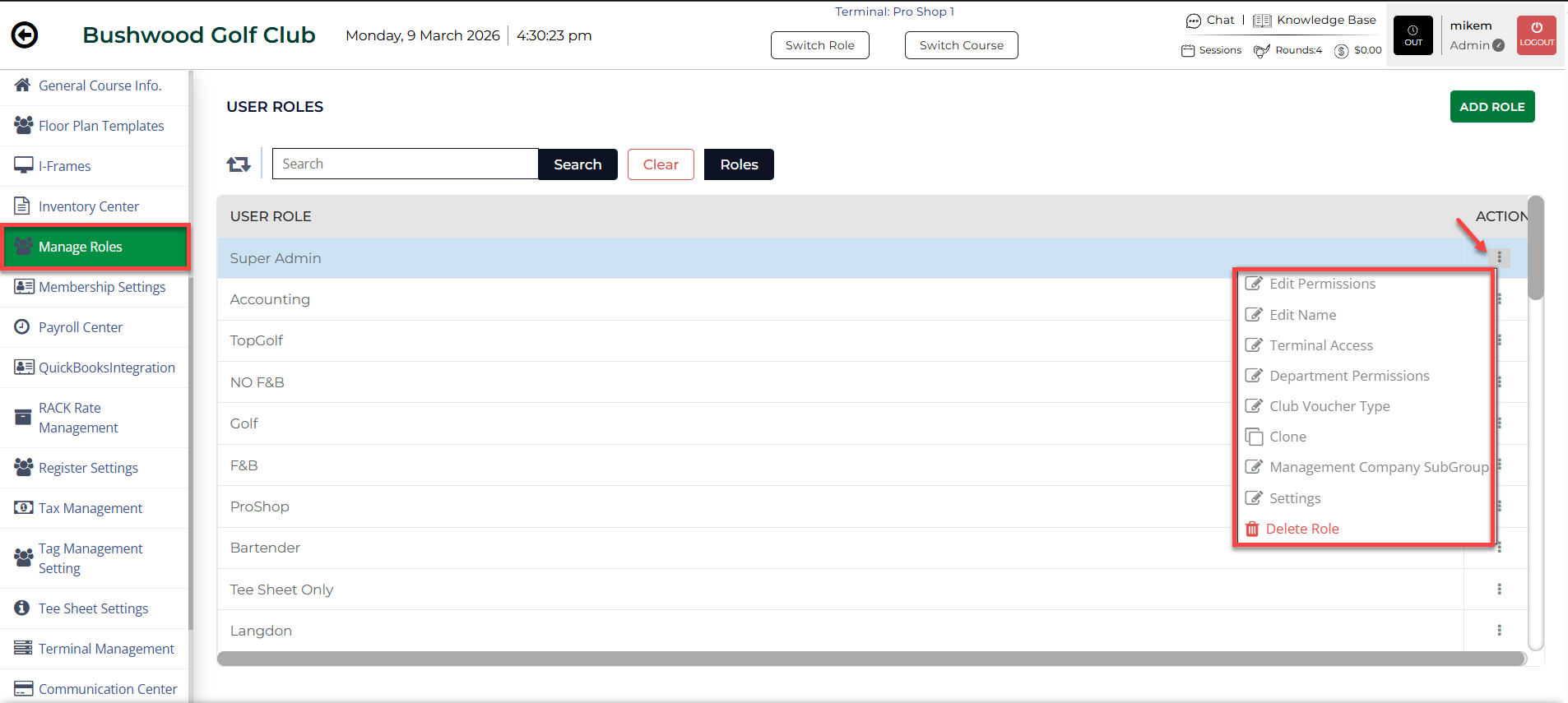
Please note that if the Shift Close Out button is not available, you will most likely need to toggle this feature on. You can do so in Settings > Manage Roles.
Step 1: Select Settings > Manage Roles > Action (for the correct role) > Edit Permissions.
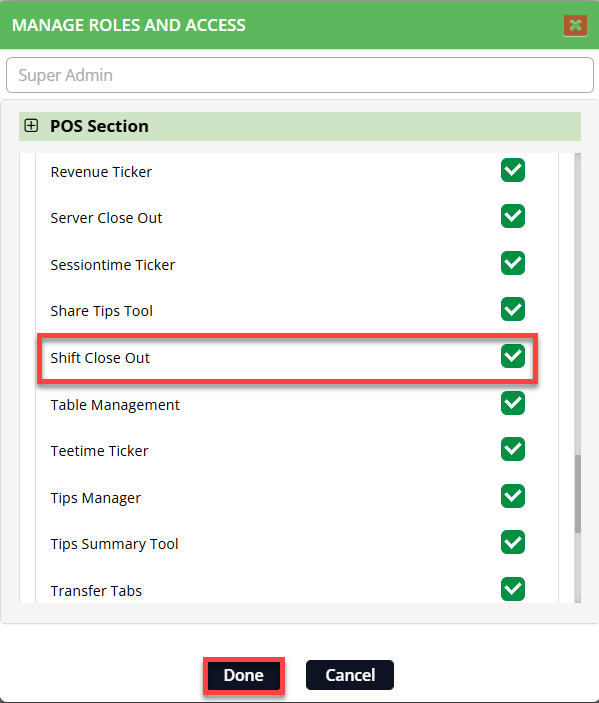
Step 2: Then, select the Register drop down, and toggle on Shift Close Out. Select Done.