.png?width=200&height=89&name=CC%20%20fiserv.%20(3).png)
Overview
The Sales screen has one search box that covers both orders and the customers on them. Type an order ID, or a customer's name, email or mobile number, and the same box finds it.
Searching your sales history
- On the Sales screen, click into the Search with Order or Customer Details box.
- Type what you're looking for: an order ID, or a customer's name, email or mobile number.
- Click Search.
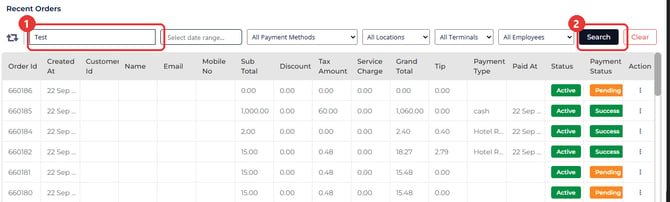
The list of recent orders is replaced by the orders that match.
You can narrow the results further with the other filters in the same bar: the date range, All Payment Methods, All Locations, All Terminals and All Employees. Set them, then click Search, and they apply together with whatever you typed. For the date range, pick your start and end dates and click OK to close the calendar before you click Search.
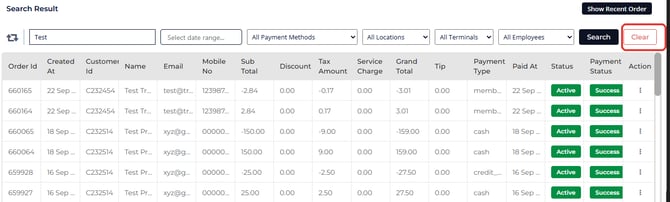
To go back to the full list, click Clear. It empties the search box, resets every filter and the date range, and reloads your recent orders, newest first.
Common Questions
Do I need to type the full name or email?
No. Part of a name or the start of an email address works. A few digits of a phone number can match orders from several customers, so use the full number when you can.
Does Clear also reset my date range and other filters?
Yes. Clear resets the search text, the date range and all the filters in that bar together.
Is this the same search box as the item search on the Register screen?
No. The Register has its own search fields for items, customers and vouchers. This box searches the order history on the Sales screen.