
Overview
A discount you create in Register Settings gets a name, a type and an amount, and staff then pick it by name at the Register instead of typing a number each time. There are four types: Percent takes a percentage off, Fixed $ takes a dollar amount off, CostPlusPercent works from the item's cost instead of its selling price, and Specific Department Rule sets a different rate for each department or subdepartment you choose. This article is for managers who set up discounts in Club Caddie Browser.
Create a Percent, Fixed $ or CostPlusPercent discount
- Go to Settings, open Register Settings, and click the Discounts tab. The list shows each discount's Name, % Discount, $ Discount and Type.
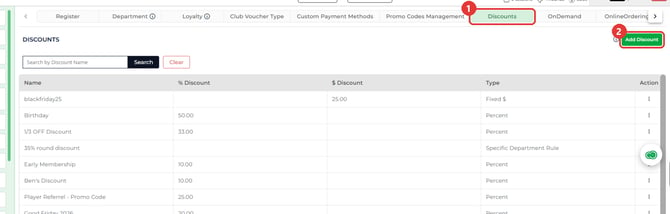
- Click Add Discount. The ADD DISCOUNT panel opens with Type set to Percent.
- Choose the Type: Percent, Fixed $ or CostPlusPercent.
- Enter a Discount Name. Staff see this name at the Register, so make it clear, for example "Staff Apparel 15%".
- Enter the amount. The box changes with the type: Percent % Off, Fixed $ Off or CostPlusPercent Off.
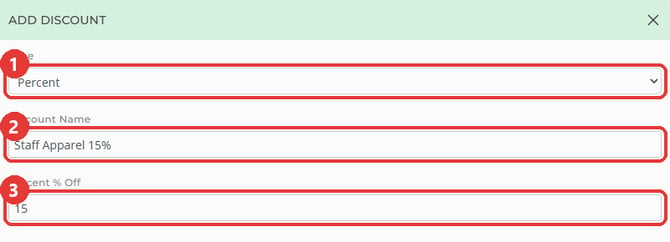
- Click Save at the bottom of the panel. A Success message confirms it, and the discount appears in the list.
Create a discount with department rules
Use Specific Department Rule when the rate depends on what is being sold, such as 10% off sandwiches but not drinks.
- Click Add Discount, set Type to Specific Department Rule, enter a Discount Name, and click Save. This type has no amount box; the rates come from its department rules.
- Find the new discount in the list and click the ⋮ in its Action column, then click Department Rule. Department Rule can be clicked only on a discount whose type is Specific Department Rule.

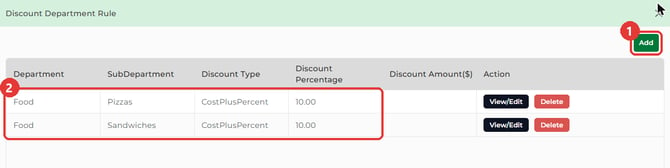
- The Discount Department Rule window lists the rules already set for this discount. Click Add.
- Choose a Department. It is required; without one you see Department is required.
- Choose a SubDepartment if the rate is for one part of that department. Leave it on -- Select SubDepartment -- to cover the whole department. When an item matches both, the subdepartment rule is used.
- Choose the Discount Type, Percent or CostPlusPercent, and enter the rate in the box beside it.
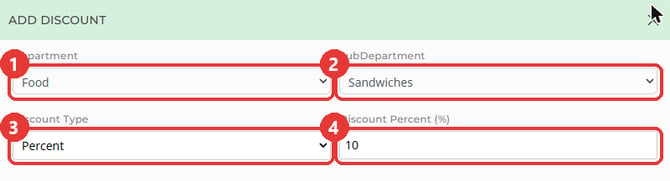
- Click Save. The rule appears in the Discount Department Rule list.
- Click Add again for each other department or subdepartment the discount covers, then close the window.
Common Questions
Where do staff use the discount I created?
At the Register, in the Add Discount section of a tab. The Select Type dropdown lists Percentage and Dollar first, then the discounts your club has created, by name. Percent and CostPlusPercent discounts show (%) after the name, and Fixed $ discounts show ($). Staff see the Add Discount section when their role is allowed to discount in the order tab, a permission set in Manage Roles.
Why can't I click Department Rule?
Department Rule works only on a discount whose type is Specific Department Rule. On Percent, Fixed $ and CostPlusPercent discounts it is greyed out.
Can a department rule take a dollar amount off?
No. A department rule's Discount Type is Percent or CostPlusPercent. For a dollar amount off, create a Fixed $ discount.
What does "Discount Title Already Exist" mean?
Another discount already has that exact name. Choose a different Discount Name and click Save again.
What is Discount Schedule in the row menu?
It opens the schedule for that discount, used to limit when it can be applied. Setting up a schedule is not covered in this article.