.png?width=200&height=89&name=CC%20%20fiserv.%20(3).png)
Overview
A burger needs a temperature, so the register should ask for one. A modifier group does that: it is a set of choices for an item, like a temperature or a side. You build the group, add its choices, and attach it to the items that need it. The group's Min and Max decide how many choices must be picked: a Min of 1 makes a choice required, and Max is the most that can be picked. With a Min of 1, the register opens a choices window as soon as the item is rung in and asks for a choice.
Before you start
The item you attach the group to must already exist in Add / Manage Items. If you want to practice first, use a test item, not one you sell. You can delete a practice group afterwards.
Open Inventory Modifier Groups
- From the Register, click the gear icon at the bottom of the side menu.
- Click Inventory Center. It opens on Add / Manage Items.
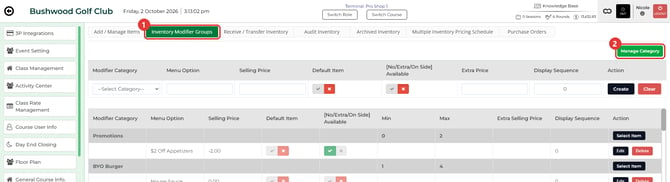
- Click the Inventory Modifier Groups tab, the second tab.
Create a modifier group
- Click Manage Category. The COMMON MODIFIER CATEGORY window opens.
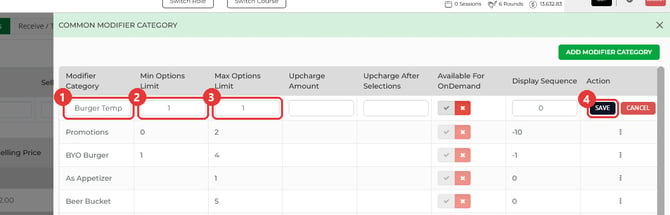
- Click ADD MODIFIER CATEGORY. A new row opens at the top of the list.
- Type the group's name in Modifier Category, for example Burger Temp.
- Enter the Min Options Limit, the fewest choices that must be picked. Enter 1 to make a choice required.
- Enter the Max Options Limit, the most choices that can be picked. For one temperature per burger, enter 1.
- Click SAVE. You can leave Upcharge Amount and Upcharge After Selections blank.
- Click OK on Category Added Successfully, then close the window.
Add choices to the group
- In the row at the top of the page, pick your group from --Select Category--.
- Type the choice in Menu Option, for example Medium.
- Enter a Selling Price. It is required, so enter 0 for a choice that costs nothing extra.
- Click Create. The message Modifier Added Successfully! confirms it.
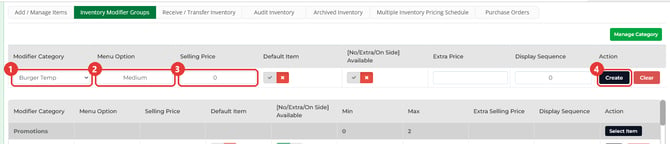
- Repeat for each choice. The top row clears after every Create, group included, so pick the group again each time.
Attach the group to an item
- Find your group in the list. It shows its Min and Max, with its choices listed under it. On the group's row, click Select Item.
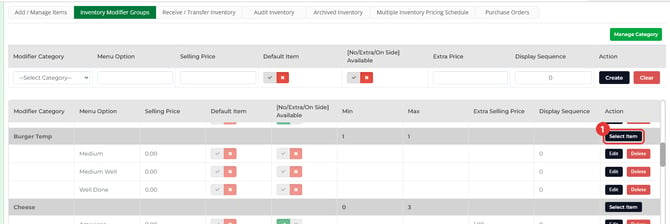
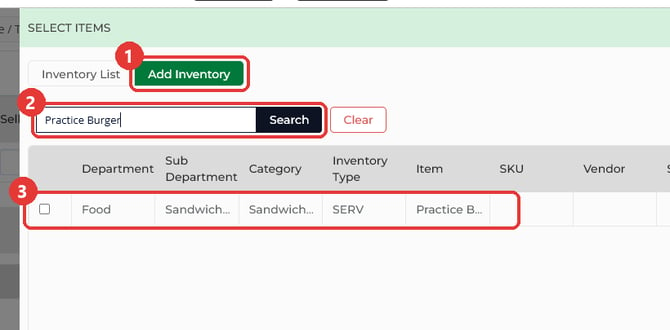
- The SELECT ITEMS window opens on Inventory List, which shows the items already using this group. For a new group it is empty. Click the Add Inventory tab.
- Use Search to find your item, then tick its box. The tick saves it straight away, and there is no Save button.
- Click OK on Added Successfully!. Tick any other items that need this group.
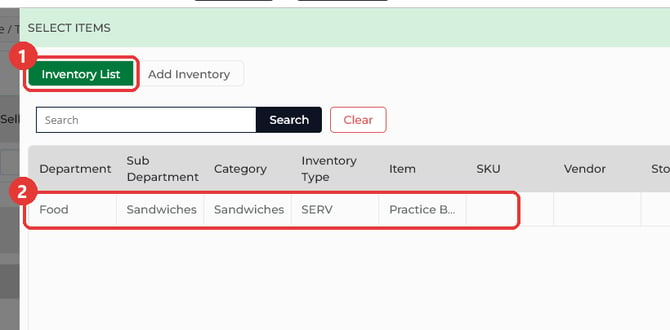
- Click Inventory List to check. Every item you ticked is listed.
Check it on the register
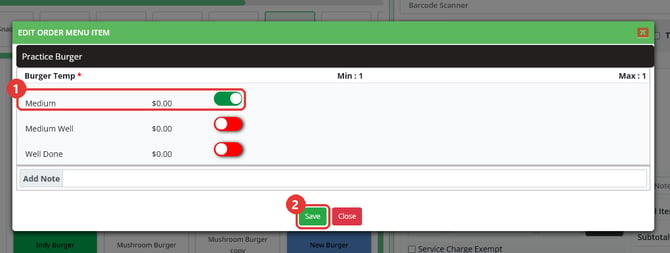
- Go back to the Register with the back arrow at the top left, and ring in the item the way you normally do. The item goes on the ticket and the EDIT ORDER MENU ITEM window opens by itself, showing the group with its Min and Max.
- Click Save without turning anything on. With a Min of 1, the register asks for a choice first: At least ( 1 ) selections needed for ( Burger Temp ). Click OK.
- Turn on a choice, then click Save.
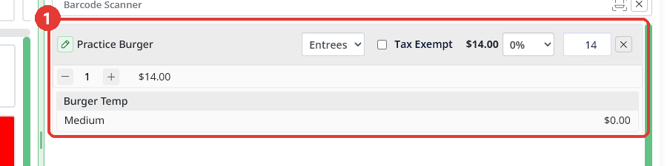
- The choice now shows on the ticket under the item.
Remove a group you no longer need
- On the group's row, click Select Item, open Add Inventory, and untick each item. Each untick shows Deleted Successfully!.
- Click Delete on each of the group's choices, then click Yes.
- Click Manage Category. On the group's row, click ⋮, then Delete, then Yes.
Common Questions
What makes the choices window open when I ring in the item?
Two things. First, the group is attached to that item. To check, click Select Item on the group's row and look for the item on Inventory List. If it is not there, attach it from Add Inventory. Second, the group still needs a choice: its Min is 1 or more, and fewer of its choices are turned on as a Default Item than the Min.
Do I have to fill in the other columns on the top row?
No. A choice only needs the group, the Menu Option and the Selling Price. You can leave the other columns as they are.
I rang in a test item. How do I take it off the ticket?
Click the ✕ at the right end of the line, then click Yes.
When does a deleted group leave the list?
It leaves the COMMON MODIFIER CATEGORY window straight away, and the Inventory Modifier Groups tab once you leave Settings and open it again.
Where do I see which items use a group?
On the group's row, click Select Item. Inventory List shows every item using that group.