.png?width=200&height=89&name=CC%20%20fiserv.%20(3).png)
Overview
An activity prepayment rule sets a prepayment behaviour for one resource type, such as a simulator, over a date range, a time window and the days of the week you choose. Each rule has one behaviour: No prepayment, Require card without prepayment or Prepayment required.
The one setting to know: with Prepayment required, Percentage (%) is a choice of 0% or 100%. Activity rules have no flat fee box.
This article covers adding, editing and deleting rules. Rules live under Settings, Activity Center, on the Activity Prepayment Rules tab.
Before you start
Each rule needs a Resource Type, so set up your resource types first on the Activity Resource Type tab of Activity Center.
Open Activity Prepayment Rules
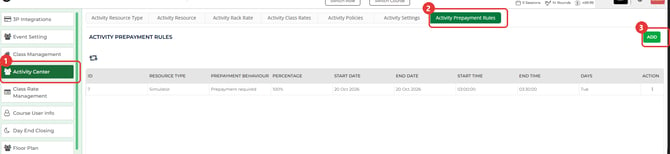
- Go to Settings and click Activity Center in the left menu.
- Click the Activity Prepayment Rules tab. The list shows one row for each rule, with its resource type, behaviour, percentage, dates, times and days.
Add an activity prepayment rule
- Click ADD at the top right of the list. Add Activity Reservation Prepayment Rule opens.
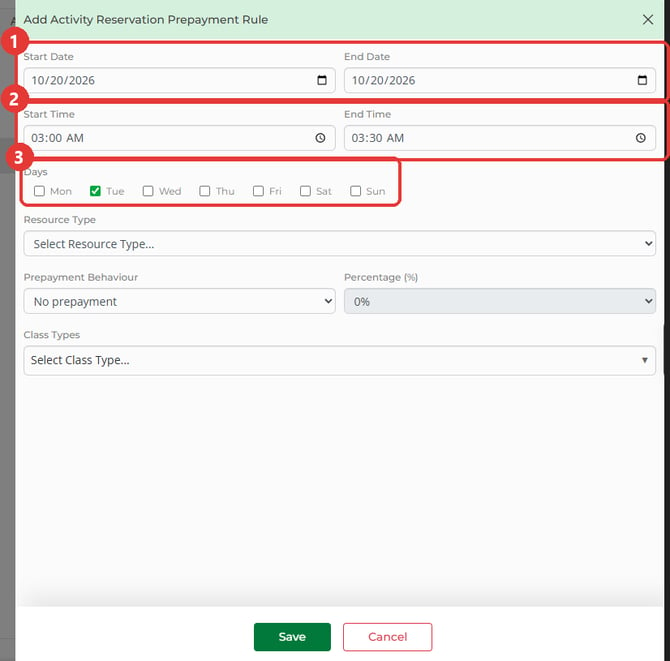
- Set Start Date and End Date. Both start on today's date, and they can be the same date.
- Set Start Time and End Time. A new rule starts at 12:00 AM and 11:59 PM. Start Time has to be earlier than End Time.
- Under Days, tick each day the rule applies to. No day is ticked to begin with, and you need at least one.
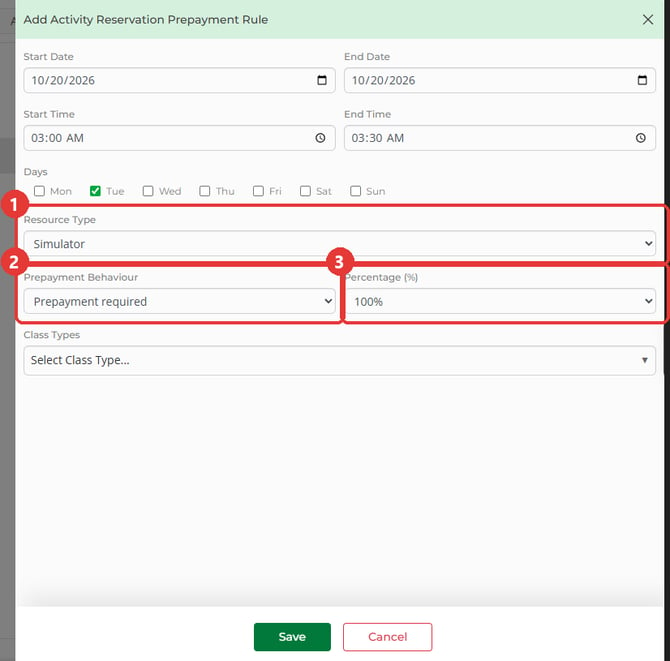
- Choose a Resource Type from the list. A rule covers one resource type.
- Choose a Prepayment Behaviour. It starts as No prepayment. Percentage (%) stays greyed out at 0% until you choose Prepayment required. If you switch to another behaviour, Percentage (%) goes back to 0%.
- For Prepayment required, choose 0% or 100% in Percentage (%).
- Leave Class Types as it is, or choose from the list. A rule saves without one.
- Click Save. Success! appears. Click OK, and the new rule shows in the list.
Edit or delete a rule
- On the rule's row, click the three dots in the ACTION column.
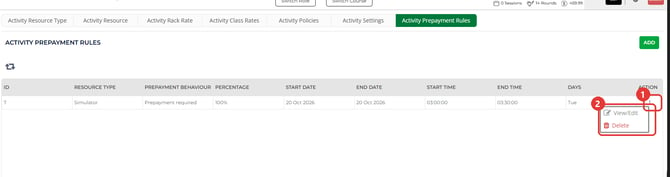
- Click View/Edit to open Edit Activity Reservation Prepayment Rule with the rule's saved values. Change what you need and click Save.
- Click Delete to remove the rule. Click Yes when asked Are you sure you want to delete this prepayment rule?, and Prepayment rule deleted successfully confirms it.
Common Questions
Can I set a flat fee on an activity rule?
Activity rules use Percentage (%) for the amount, with a choice of 0% or 100%. The form has no flat fee field. The tee sheet rule has a flat fee per player when Prepaid Tee Time Liability is on, covered in Browser - Settings: Set Up a Tee Sheet Prepayment Schedule.
Why is Percentage (%) greyed out?
It opens when Prepayment Behaviour is Prepayment required. With No prepayment or Require card without prepayment, it stays at 0%.
Can one rule cover more than one resource type?
No. Resource Type takes one choice per rule. To cover a second resource type, add another rule for it.
What do the messages on Save mean?
Save checks the form first. An Oops message such as Please select at least one day of the week., Please select a resource type. or Start time must be less than end time. points to the field to change. Change it and click Save again.