
Overview
Loyalty points reward customers for what they buy at your club. You set the program up in three places: the Loyalty tab under Register Settings turns it on and decides how points are earned and who earns them, each inventory item holds its own loyalty values, and Class Management marks which classes earn when you limit loyalty to certain classes. On the Loyalty tab, the Loyalty Applicable toggle and the two dropdowns save as soon as you change them. Loyalty Point saves when you click SUBMIT.
Before you start
Decide two things first. How points are earned: the same rate on everything (Club Wide Points Per Price Strategy) or a value you set on each item (Inventory Specific Strategy). Who earns them: all customers (Club Wide Customers Methodology) or only customers in classes you mark (Customers With Specific Classes Methodology).
Turn on loyalty and choose how points are earned
- Click the settings icon (gear), select Register Settings and open the Loyalty tab.
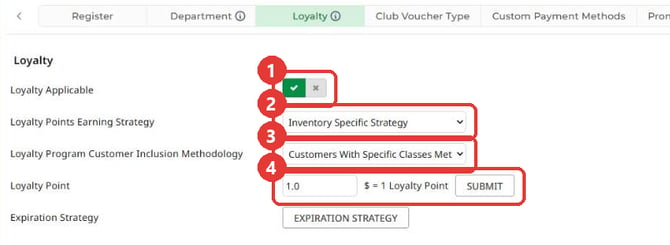
- Set Loyalty Applicable to the check mark to turn loyalty on. The change saves straight away and Update Success confirms it.
- In Loyalty Points Earning Strategy, pick how points are earned:
- Club Wide Points Per Price Strategy: customers earn at the Loyalty Point rate on what they buy.
- Inventory Specific Strategy: each item earns the loyalty value set on that item.
The choice saves as soon as you pick it.
- In Loyalty Program Customer Inclusion Methodology, pick who earns:
- Club Wide Customers Methodology: all customers earn.
- Customers With Specific Classes Methodology: customers in classes marked Eligible For Loyalty earn, and a sub-member earns through the primary member's class. Mark the classes in the last section below.
- For Club Wide Points Per Price Strategy, enter the dollar amount a customer spends to earn one point in Loyalty Point (the text beside it reads $ = 1 Loyalty Point), then click SUBMIT. For example, 10 means 1 point for every $10 spent.
Set an item's loyalty values
- Go to Settings > Inventory Center. The Add / Manage Items tab opens.
- Find the item, click the ⋮ at the end of its row and choose View/Edit. The ADD/EDIT INVENTORY window opens on the Details tab.
- Set Loyalty Earned Type:
- Fixed: the item earns the same number of points each time it is bought. Enter that number in Loyalty Earned.
- Point Per Dollar: points are worked out from the item's price, so Loyalty Earned is greyed out.
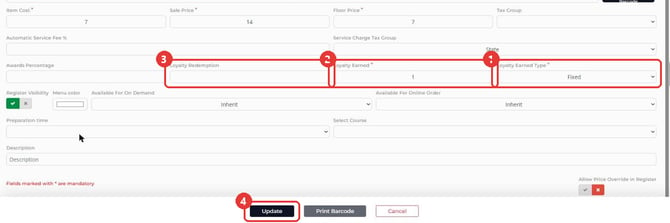
- In Loyalty Redemption, enter the points a customer needs to redeem toward this item.
- Click Update. If loyalty is on and Loyalty Earned Type is empty, the window asks you to Select Loyalty Earned Type; with Fixed and no number, it says Loyalty Earned is required.
Choose which classes earn points
Use this when Loyalty Program Customer Inclusion Methodology is Customers With Specific Classes Methodology.
- Go to Settings > Class Management. The Eligible For Loyalty column shows Yes or No for each class.
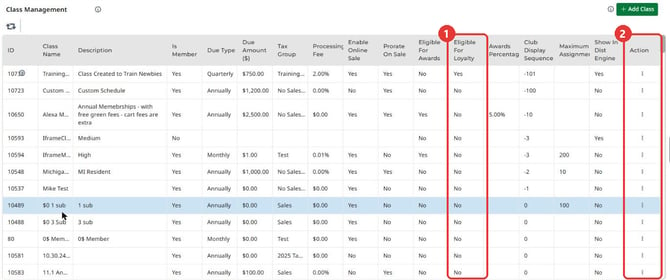
- In the class's Action column, click the three dots, then Edit Class. The row becomes editable.
- Switch Eligible For Loyalty on.
- Click the green check mark at the end of the row to save.
Common Questions
Why does an item earn no points?
Check the item's Loyalty Earned Type. With Inventory Specific Strategy, an item earns points once it has a Loyalty Earned Type; until then it earns zero points, even if a number shows in Loyalty Earned.
Why can't I enter Loyalty Redemption on a combo?
The field is greyed out on a combo item. A combo sale earns what the items inside it earn, so set the loyalty values on those items.
I don't see Loyalty Redemption on an item. Why?
Loyalty Redemption shows on the item window when Loyalty Applicable is turned on in Register Settings > Loyalty.
Can points expire?
Yes, if you set an expiration rule. Use the EXPIRATION STRATEGY button on the same Loyalty tab.