.png?width=200&height=89&name=CC%20%20fiserv.%20(3).png)
Overview
Prepaid Tee Time Liability is the setting that turns on deposit options for online tee times in Club Caddie Browser. When it is on, two rows show under Online Tee Time Settings: Flat Fee Deposit Per Player For Online Bookings ($) : and the Make Tee Time Deposit Non-Refundable : toggle. It also adds the Flat Fee Deposit Per Player ($) box to rules on the Prepayment Schedule tab.
This article covers turning the setting on, filling in the deposit rows and finding the deposit transaction types in the QuickBooks journal entry setup. The toggle saves the moment you click it.
Turn on Prepaid Tee Time Liability
- Go to Settings and click Tee Sheet Settings in the left menu.
- Stay on the Tee Sheet Settings tab, which is the first tab.
- In General Settings, find Prepaid Tee Time Liability : and click the check mark. Update Success appears. Click OK. If the check mark is already green, the setting is on; leave it.
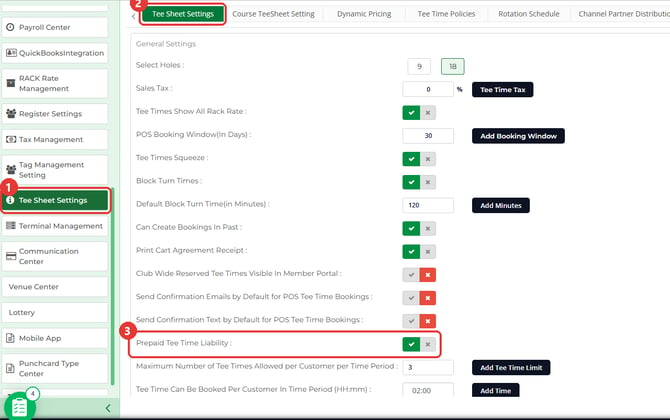
Set the deposit for online bookings
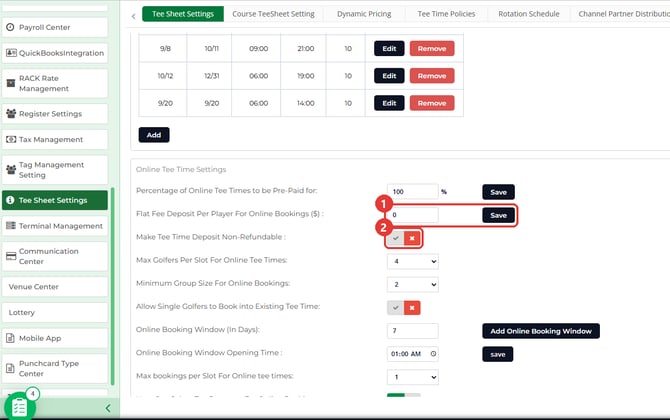
- On the same tab, scroll down to Online Tee Time Settings.
- In Flat Fee Deposit Per Player For Online Bookings ($) :, type the deposit amount for each player and click the Save button beside it.
- To turn on Make Tee Time Deposit Non-Refundable :, click its check mark. This toggle saves when you click it. For how refunds work on a non-refundable deposit, see the Desktop article linked in Common Questions.
Map a deposit transaction type in Journal Entry Setup
The Transaction Type list in Journal Entry Setup includes three deposit types: Tee Booking Liability Received, Tee Booking Liability Applied and No Show Revenue. Your bookkeeper decides which ones to map and to which accounts. The Desktop article linked in Common Questions shows how they were set up there.
- Go to Settings and click QuickBooksIntegration in the left menu.
- Click the Journal Entry Setup tab, then click ADD JOURNAL ENTRY. Add Journal Entry opens.
- Leave Journal Entry Type on Transaction Type. In Transaction Type, choose Tee Booking Liability Received.
- Choose the Credit Account or Debit Account your bookkeeper uses for this entry, add a Memo if you want one, and click Save.
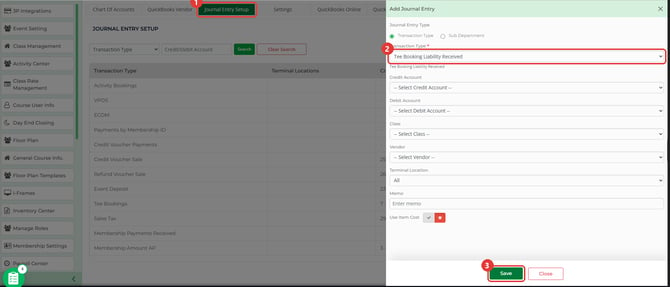
- Repeat steps 2 to 4 for each other deposit type your bookkeeper wants mapped.
Common Questions
Do I need to click Save after I turn on Prepaid Tee Time Liability?
No. The toggle saves when you click it, and Update Success confirms it.
When do the flat fee and non-refundable rows show?
They show while Prepaid Tee Time Liability is on. With it off, Flat Fee Deposit Per Player For Online Bookings ($) : and Make Tee Time Deposit Non-Refundable : are hidden, and Percentage of Online Tee Times to be Pre-Paid for: stays on the screen. Turn the setting back on and the two rows return.
How does this setting change the Prepayment Schedule?
With it on, the Add Prepayment Schedule form has a Flat Fee Deposit Per Player ($) box. With it off, the form has no flat fee box and Percentage (%) offers 0% and 100%. See Browser - Settings: Set Up a Tee Sheet Prepayment Schedule.
Which accounts should the deposit journal entries use?
Use the accounts your bookkeeper sets up for tee time deposits and no show revenue. The Desktop article Settings : Prepaid Tee Time Liabilities shows the journal entries and accounts it was set up with, and covers no show revenue and refunds.