.png?width=200&height=89&name=CC%20%20fiserv.%20(3).png)
Overview
The Starter Sheet is where starters keep track of the day's groups. It shows your tee times as booking cards, and from here you record when each group starts, turns and finishes. New bookings, rates, customers and cancellations are made on the Tee Sheet.
Open the Starter Sheet
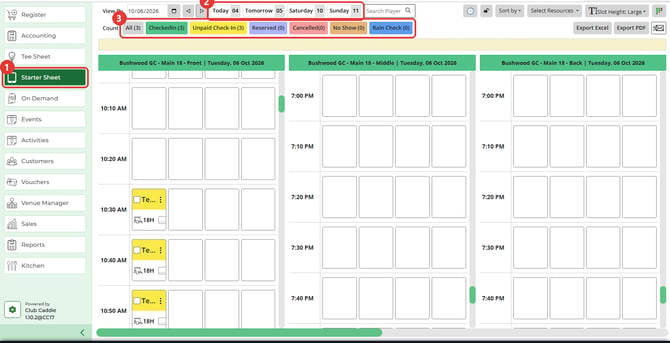
- Click Starter Sheet in the left menu. It sits between Tee Sheet and On Demand.
- The sheet opens on today's tee times and scrolls to the current time.
- Each starting nine has its own column, side by side, with the time slots running down it.
Find a group
- To change the day, click a day tab such as Today or Tomorrow, or use the View By date picker and its arrows. The number on each tab is the date.
- To find a player, type their name in Search Player.
- Check the Count row. It shows a number for each booking status: All, CheckedIn, Unpaid Check-In, Reserved, Cancelled, No Show and Rain Check.
- To pick out one status on the sheet, choose it from Sort by. For most statuses, matching bookings stay solid and the rest fade. Cancelled and rain check show only the matching bookings.
Record a group's times
- Click the player's name on their booking card. A bar opens at the bottom of the sheet with a booking summary, View/Edit, Start Time, Turn Time, End Time and Cancel.

- Click Start Time when the group heads out. Click Turn Time when an 18 hole group makes the turn, and End Time when they finish. Each button greys out once that time is recorded.
- To add cart numbers or look over the booking, click View/Edit. Rate and customer details are read only there. For the full steps, see Browser - Starter Sheet: Check a Player In and Assign a Cart.
Adjust the view
- Use Select Resources to choose which courses show on the sheet.
- Use Slot Height to set the card size to Small, Medium or Large. The choice stays while you stay in the same browser tab.
- If your role has Starter Heat Map access, a heat map icon opens the heat map.
- In each course's Count row you'll also find Export Excel, Export PDF and an envelope icon that opens Send Email.

Common Questions
Is the Starter Sheet the same as the Tee Sheet?
No. Both show your tee times, but the Starter Sheet is built for recording start, turn and end times. New bookings and cancellations are made on the Tee Sheet. The buttons at the bottom of the View/Edit window are Save and Cancel, so there is no Reserve or Quick Pay there.
Can I book or cancel a tee time from the Starter Sheet?
No. Bookings are made and cancelled on the Tee Sheet. Cancel on the bottom bar only clears your selection.
Does recording a start time check the player in on the Tee Sheet?
No. It records when the group went out. Check-in and payment are done on the Tee Sheet, and the CheckedIn count does not change when you use Start Time.
What happens when I pick a status in Sort by?
For most statuses, bookings with that status stay solid and the rest fade, so you can spot them. Cancelled and rain check show only the matching bookings.
How do I see the start time on a booking card?
When several courses show side by side, each card is narrow and can clip the time. Use Select Resources to show fewer courses and the cards widen to show the time.