
Overview
A group reservation holds several tee times for one group, such as an outing or a club event. A group reservation can have one customer as its contact. This article shows how to pick an existing customer or add a new one while you set up the group reservation on the Browser tee sheet.

Open a group reservation
- Go to Tee Sheet and pick the date.
- Click the time (or the arrow beside it) where the group starts, and select Add Group Reservation. You can also right-click the time. The Group Reservation window opens.
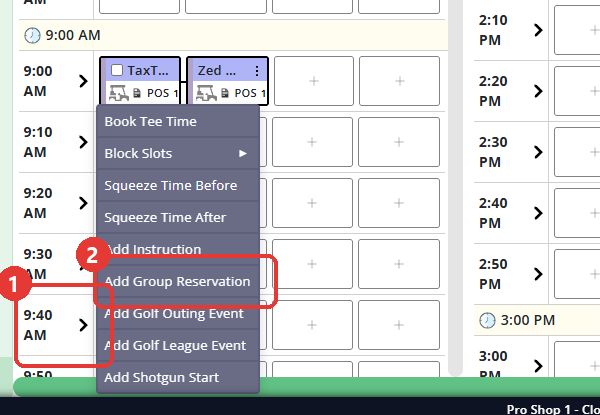
Add an existing customer
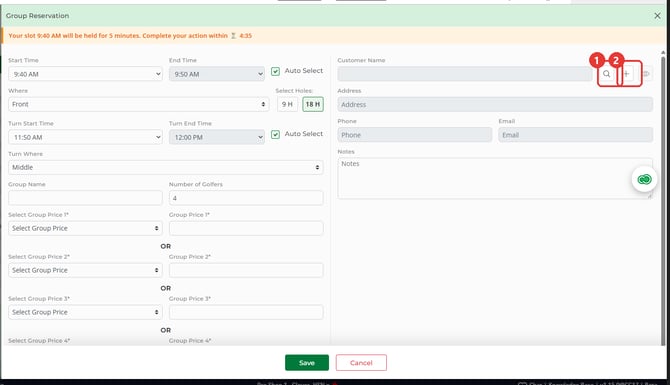
- In the Group Reservation window, click the search icon (magnifier) beside Customer Name.
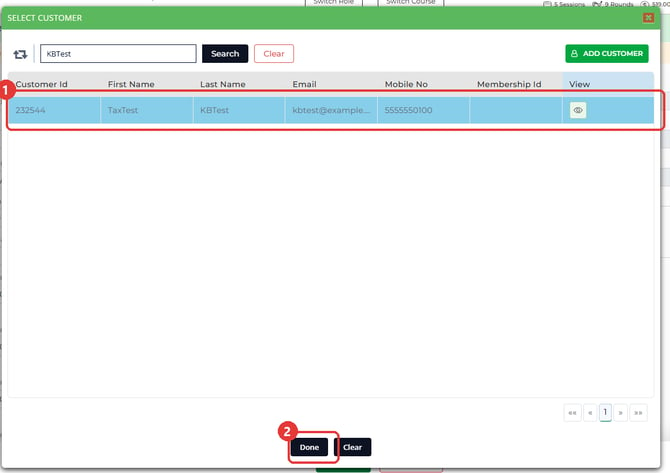
- In SELECT CUSTOMER, type the name in the search box and click Search.
- Click the customer in the list, then click Done.
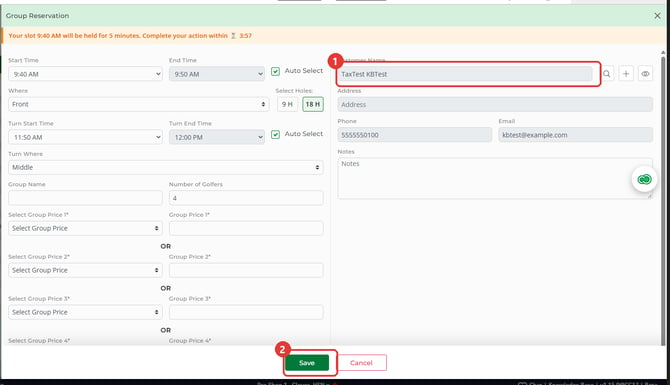
- The customer's name, phone and email fill in. Finish the rest of the group reservation, then click Save at the bottom of the window. Nothing is saved until you click Save.
Add a new customer
- In the Group Reservation window, click the + beside Customer Name.
- The ADD CUSTOMER window opens. Fill in the customer's details and click Save.
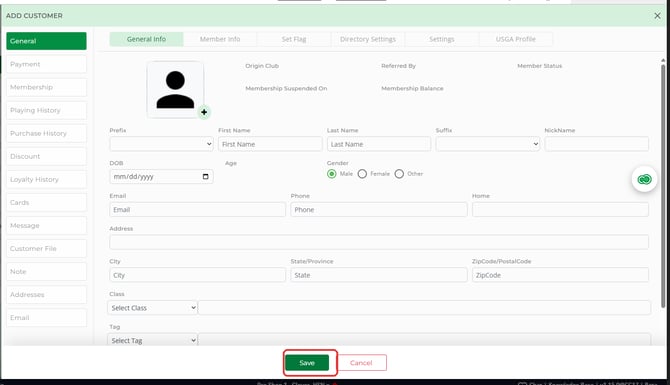
- Back in the Group Reservation window, finish the group reservation and click Save.
Common Questions
Why doesn't a right-click on an empty tee time box show Add Group Reservation?
A right-click on an empty box starts a regular booking instead. Add Group Reservation is on the menu that opens from the time at the left of the row.
When is the group reservation saved?
When you click Save at the bottom of the Group Reservation window. Picking the customer only fills in the window.