
Overview
A no show is a golfer who had a reserved tee time and did not check in. The Club Caddie Browser tee sheet marks a reserved booking as a No Show once its tee time is more than 1 hour past and it has not been checked in. You do not need to mark it yourself; the tee sheet does it for you.
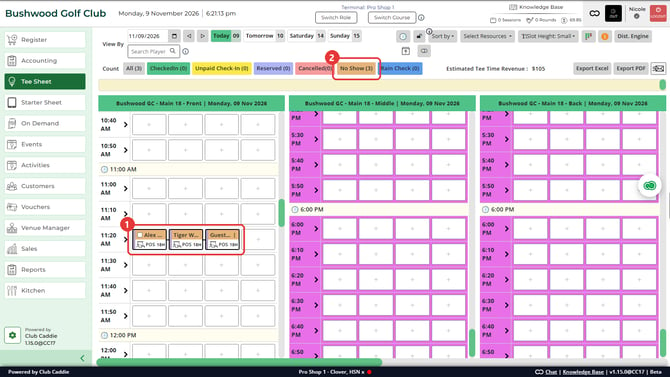
See no shows on the tee sheet
- Go to Tee Sheet in the main menu and pick the date.
- The tee sheet shows a no show booking in tan. The No Show chip on the Count row above the tee sheet shows how many players are no shows that day.
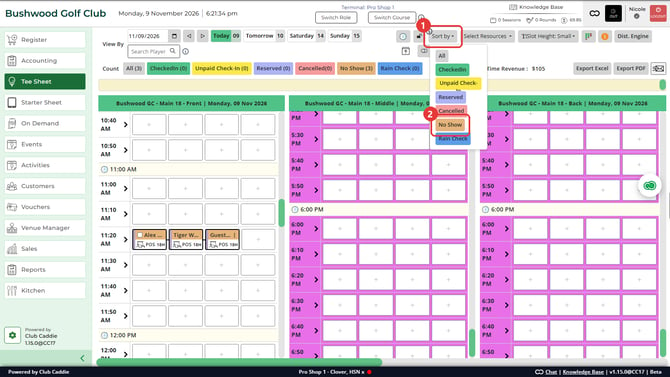
- To pick them out, open Sort by and select No Show. The no show bookings stay highlighted and the other bookings fade.
Review a golfer's no shows
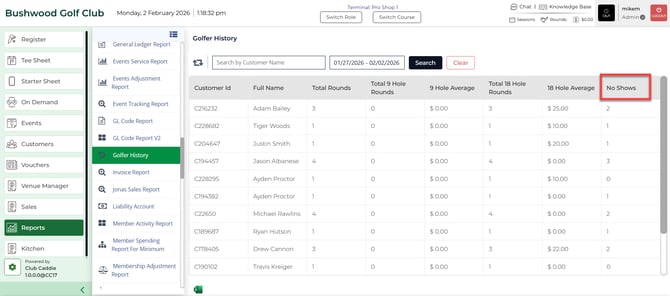
- Go to Reports and open Golfer History.
- Set the date range. The No Shows column shows each golfer's no shows. For today's date, the report counts a no show once the tee time passes, while the tee sheet marks it after one hour.
Common Questions
When does a booking become a No Show?
When its tee time is more than 1 hour past and the booking is still reserved, not checked in.
Does the No Show count show bookings or players?
Players. A booking for three players that becomes a no show adds 3 to the No Show count.
Do I need to mark a booking as a No Show myself?
No. The tee sheet marks it for you once the hour has passed. If the booking has a deposit, the booking menu also has an option to keep the deposit as no show revenue.