.png?width=200&height=89&name=CC%20%20fiserv.%20(3).png)
Step by Step:
Step 1: Select Tee Sheet from the main menu.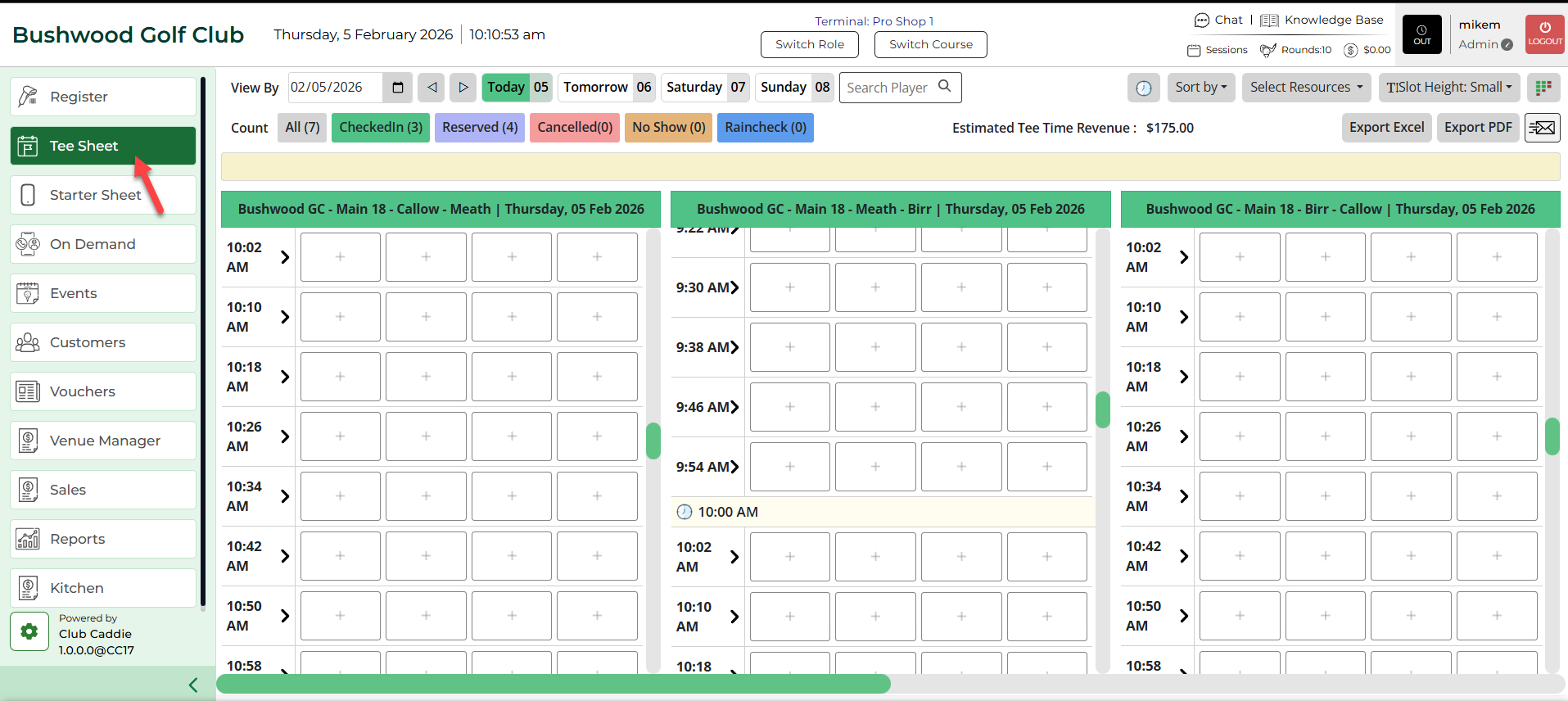
Step 2: The default date selection will be today's date. If you wish to book for a future date, choose a date from the date selection in the top left-hand corner of the tee-sheet module. For quick navigation you can utilize Today button to return to today.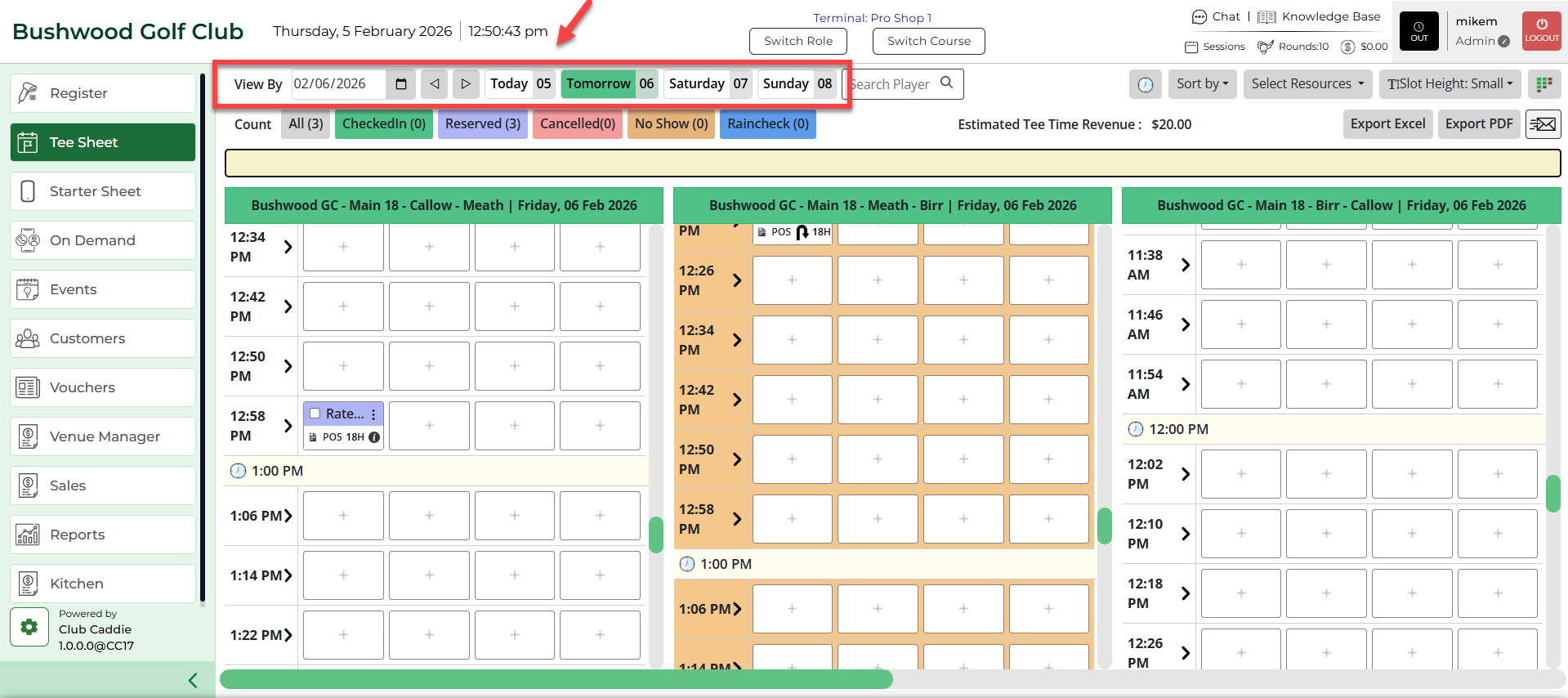
Step 3: There are 2 ways to reserve tee times:
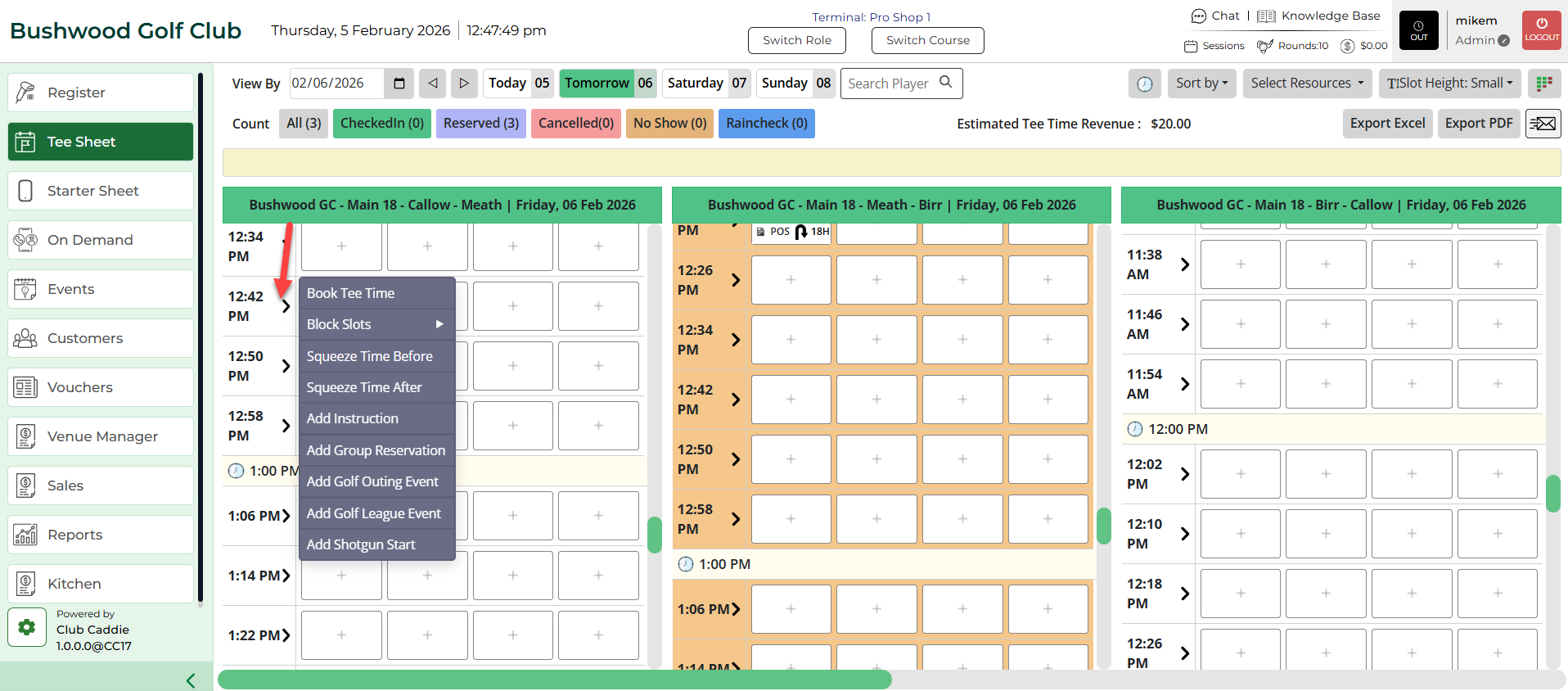
- Select “>” button next to the desired time slot. Then select Book Tee Time.
- Select the "+" icon in the time slot.
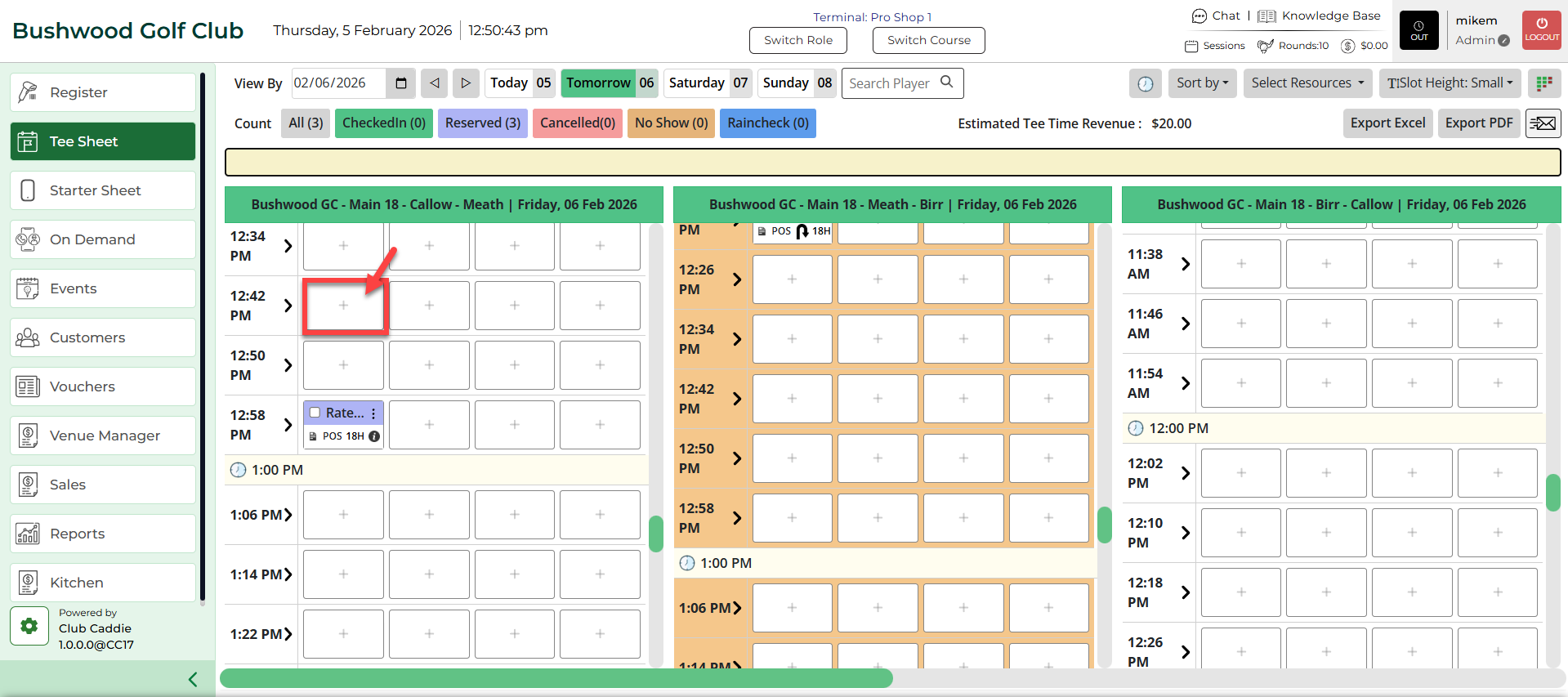
Note: Both ways above open a booking popup that contains the booking details.
Step 4: With the booking details pop-up open you will have a number of different options available:
- Select holes 9 or 18
- Select Players between 1 to 4 - your choices will vary depending on the facility's settings.
- Enter Player Details i.e. Last name, First Name, Member no., Mobile no., and Email Id
- Select the applicable pricing plan using the rate selection drop-down.
- If your facility requires a cart # be defined you may utilize the cart selection box to specify the cart number the group/player will utilize.
- If additional notes are required to be saved alongside the booking you may add text to the "Add Notes" field.
- If required, facilities have the option to require their staff to input an employee initial's within the "Initials" text box.
- To finalize your reservation after the applicable fields have been filled out, click on the “Reserve” "Split Reserve" button.