
Overview
Send Email lets you write to the golfers booked on a course's tee sheet for a day, or only the golfers in a time window. Use it to let golfers know about a change to their day.
Watch: email everyone booked on a day, or part of it, from the Tee Sheet (2 min).
Email everyone booked on a day
- Go to Tee Sheet and pick the date.
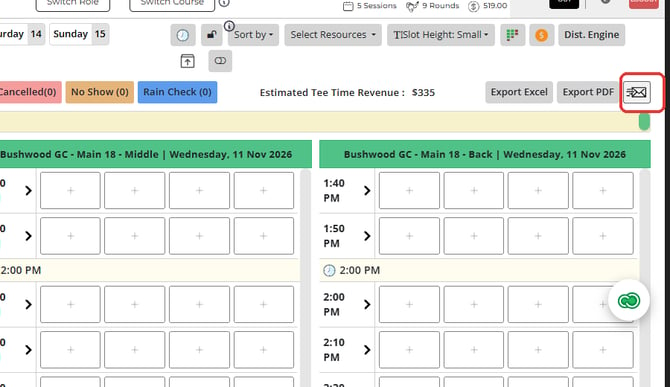
- Click the envelope icon on the right of the Count row, beside Export Excel and Export PDF.
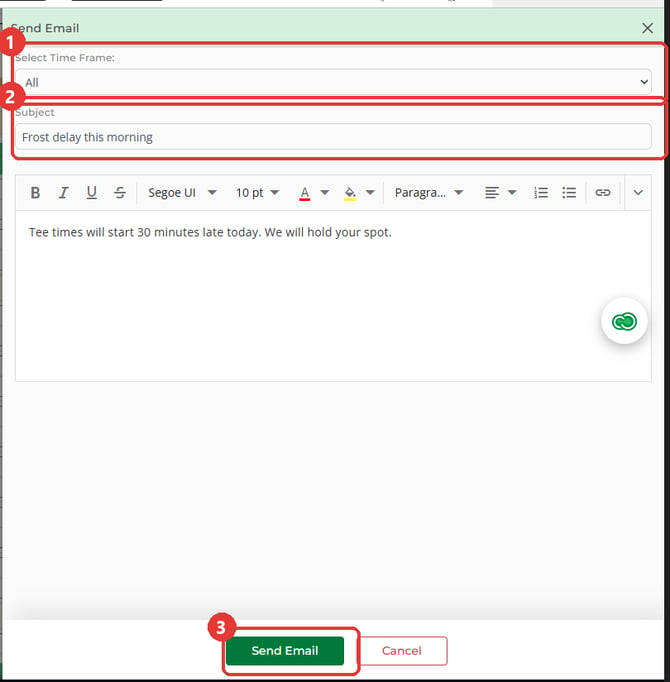
- In the Send Email window, leave Select Time Frame on All.
- Type the Subject and your message, then click Send Email.
Email the golfers in a time window
- Open Send Email from the envelope icon, as above.
- In Select Time Frame, pick Specific Time.
- Set From Time and To Time, for example 8:00 AM to 10:00 AM.
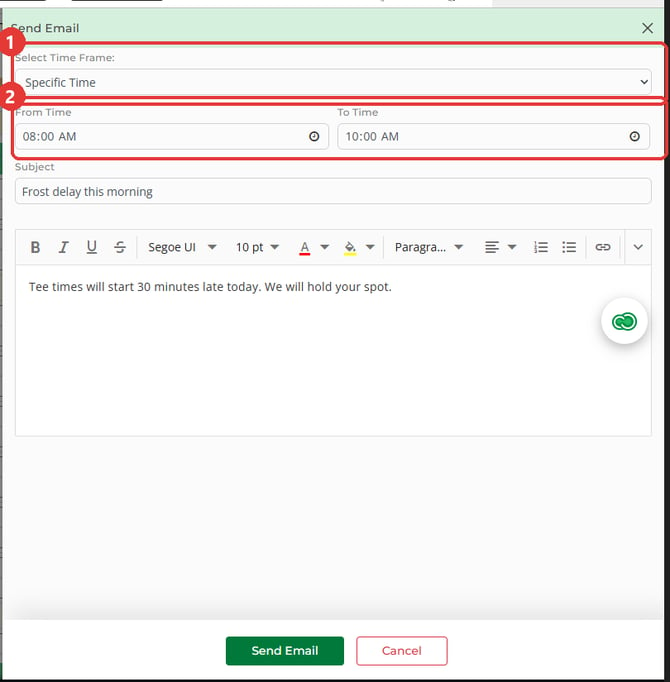
- Type the Subject and your message, then click Send Email.
Common Questions
Where is the Send Email button?
On the tee sheet it is an envelope icon with no label, on the right of the Count row beside Export PDF.
Who gets the email?
Golfers on that course's tee sheet for the date on screen whose bookings are still reserved (not checked in, cancelled or no-show) and who have an email address. With Specific Time, golfers with a tee time from From Time to To Time are included. The list can also include customers on a repeat booking for that date, the customer on a reserved group reservation, and event customers on that date. Each address gets one email.
I have more than one course. Does the email go to all of them?
No. Each course column has its own envelope icon. Click the one for the course you want to email.