How to delete or archive a customer
To delete a customer in Club Caddie, navigate to the Customers module in the POS, search for the customer, and select Delete from the Action menu. The customer is moved to the Archived tab and can be unarchived at any time. Note that deleting a customer does not cancel an active membership — you must expire the membership separately to stop billing.
Step 1: Navigate to the Customers module along the top of the POS, then click on Customers.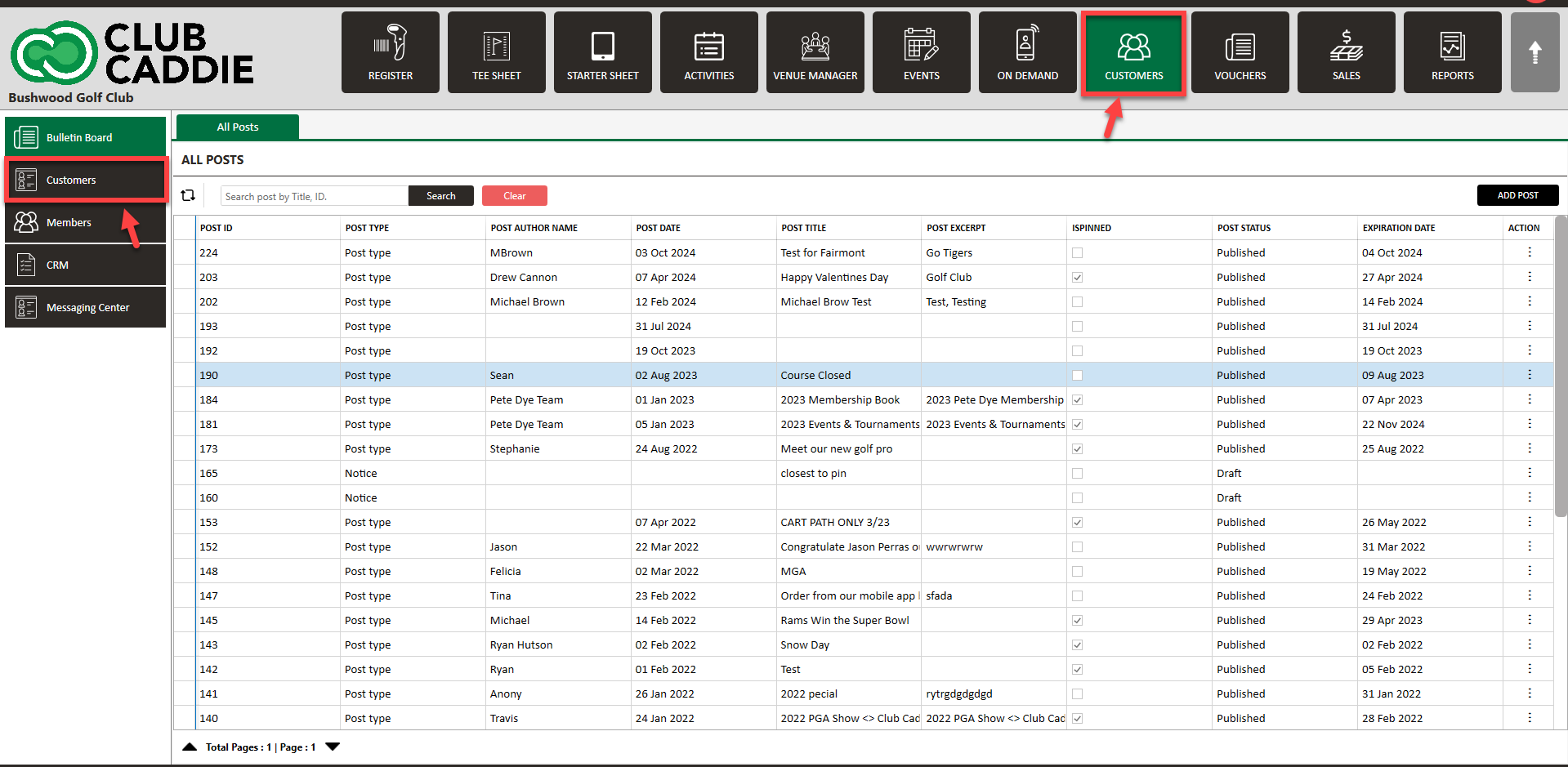
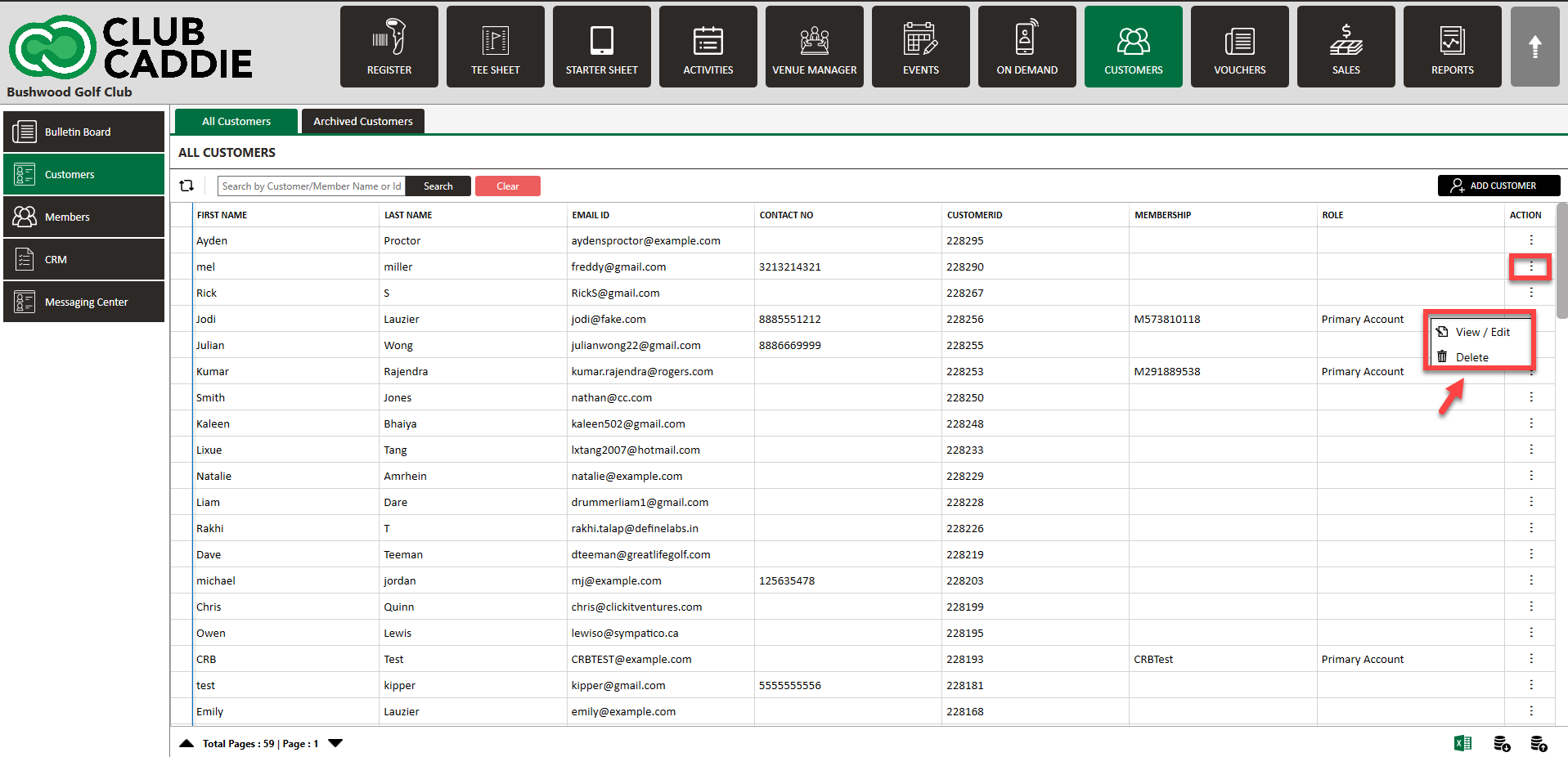
Step 2: Search for the customer that you want to delete, and click on
Action (three small dots) on the right hand side. Select
Delete.
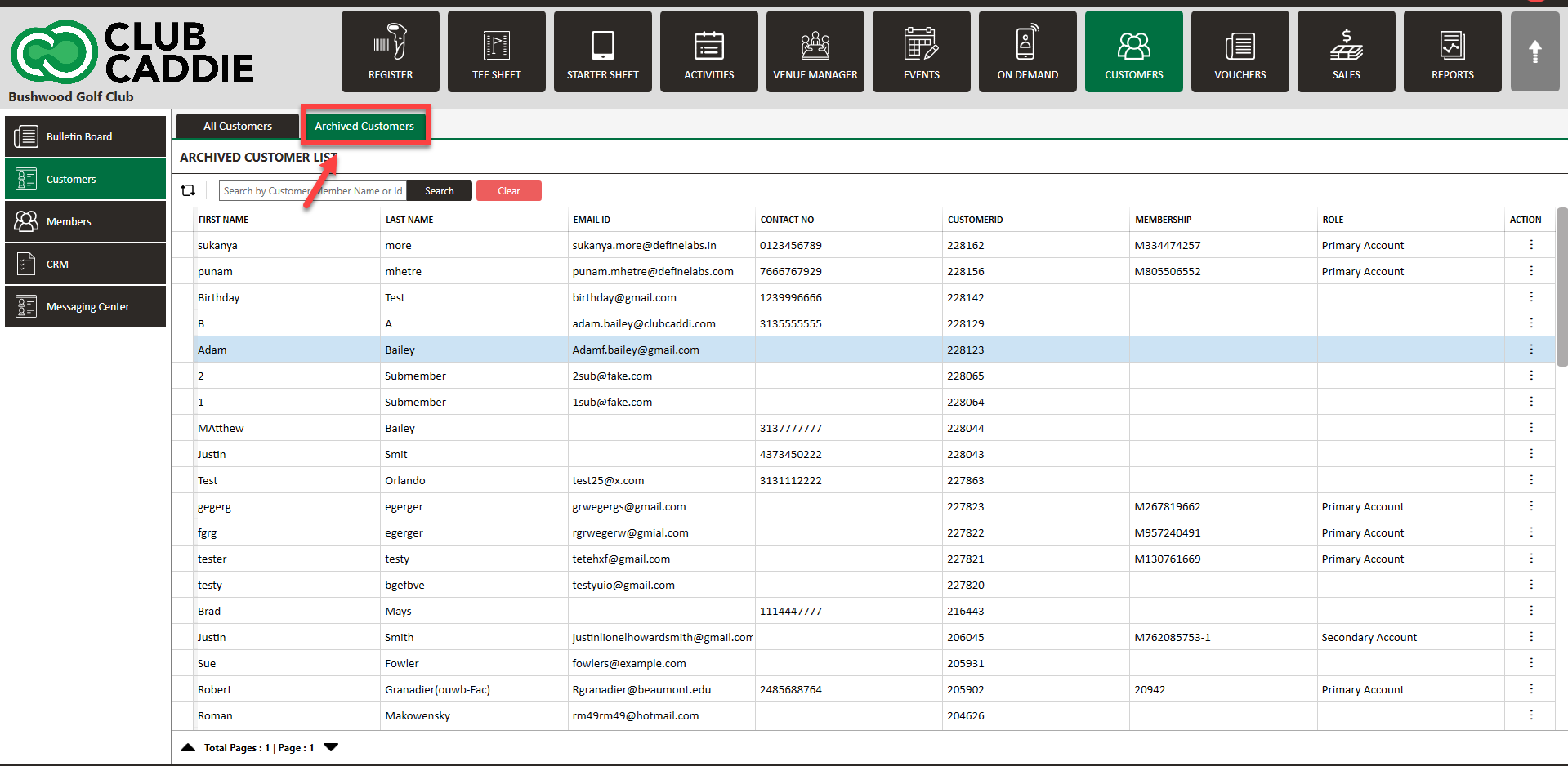
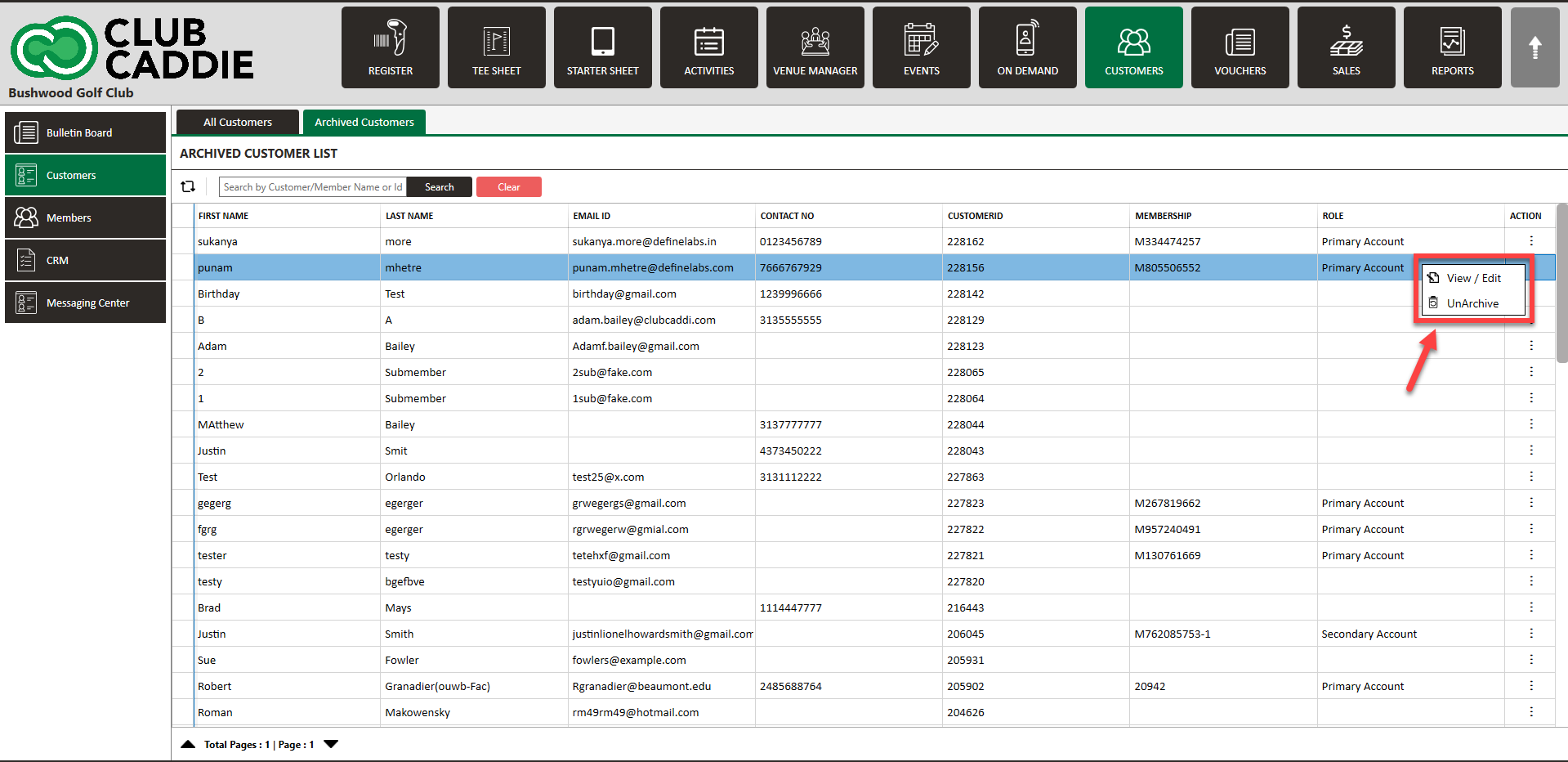
Step 3: The deleted customer will appear in the
Archived tab.
Step 4: If you would like to Unarchive the customer, click on
Action and then select
Unarchive.
Does deleting a customer stop their membership billing?
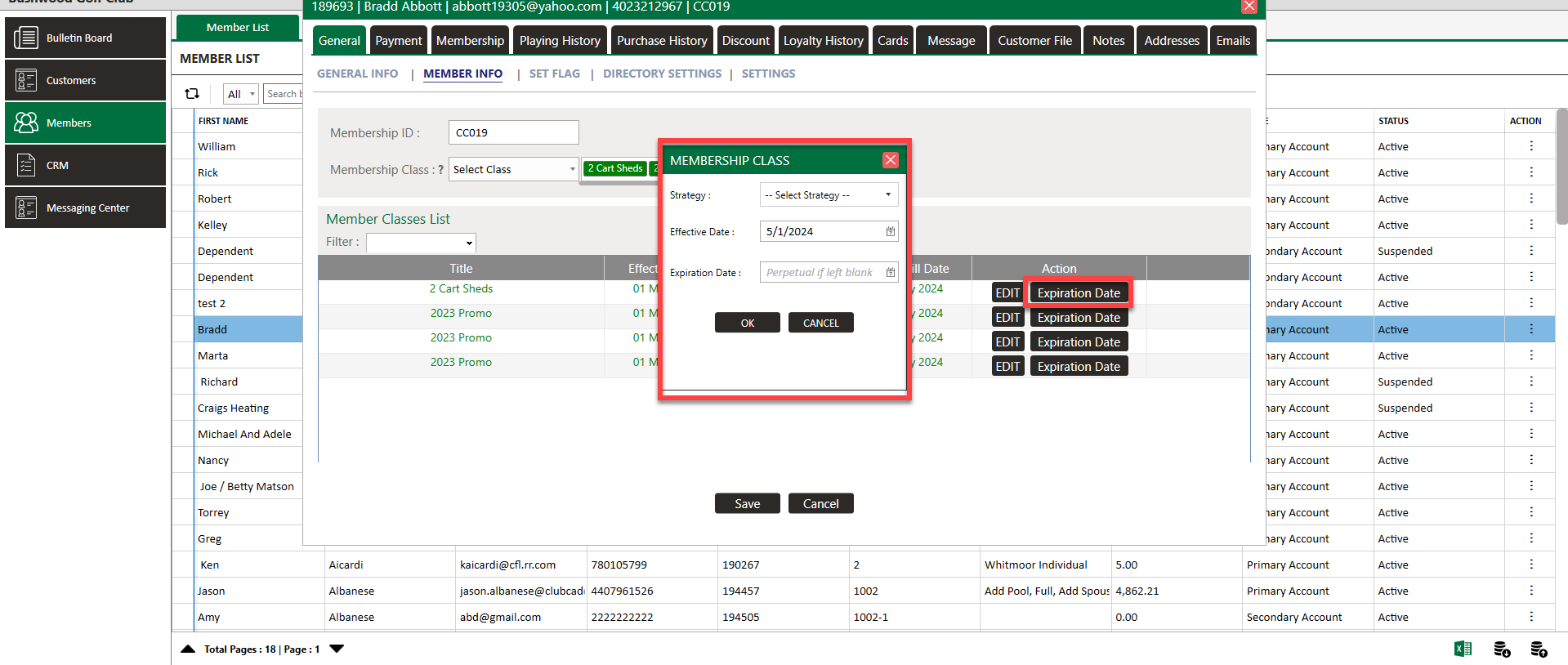
No. Deleting and archiving a customer does not end billing if the customer is an active member. To stop billing, navigate to the customer's profile and expire their membership.
How to expire a membership and stop billing
- Navigate to the Customers module along the top of the POS and click Customers.
- Click the Archived tab to locate the customer.
- Click on the customer's name to open their profile.
- Locate the active membership and select Expire.
- Confirm the action to stop billing immediately.