.png?width=200&height=89&name=CC%20%20fiserv.%20(3).png)
Courses are set up in your facility’s desktop system settings. If an item has a default course assigned in Inventory Center, it will auto-fill on the tab—otherwise it will be blank until you choose one. You can always change the course however in the order summary.
Here is an article to learn how to set up meal coursing.
Step-by-Step:
Step 1: Open a tab and add items as normal. As you add each item, assign it to a course (like Appetizer, Entrée, Dessert, or To Go) by tapping the item on the right side of the tab and selecting a course from the dropdown.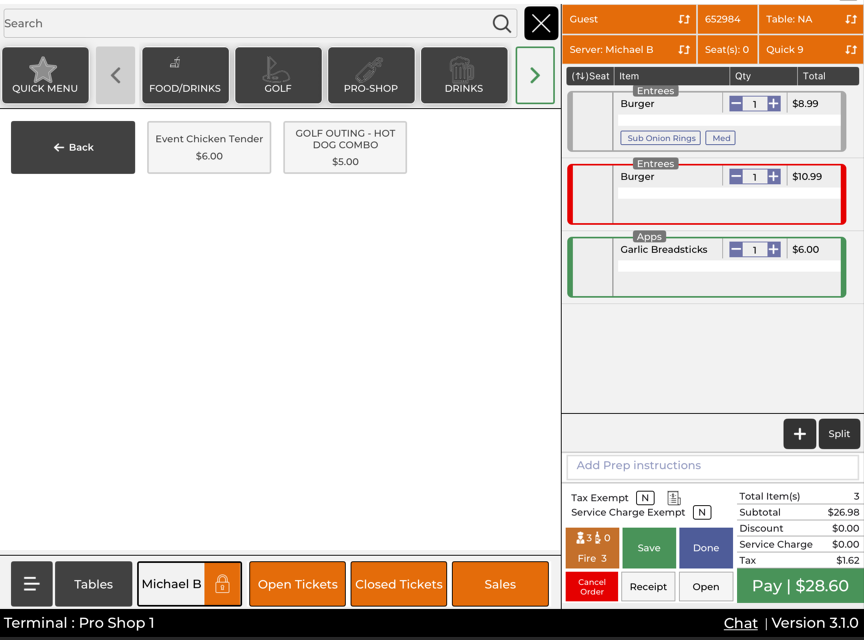
Step 2: Review the course assignment for each item. If an item didn’t auto-assign a course, tap it and choose the correct course before you send anything to the kitchen.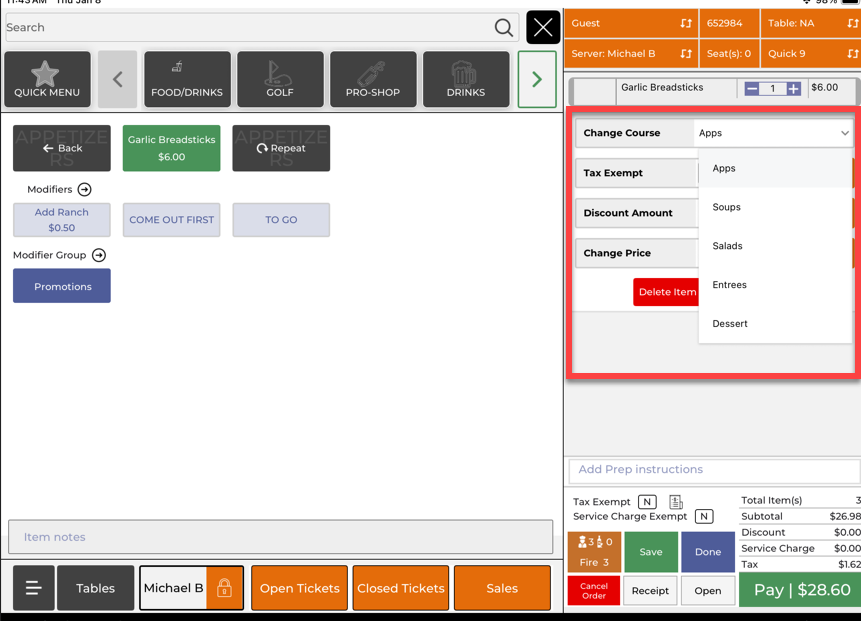
Step 3: Tap the fire icon/Send button. When the send options appear, you can choose to send by course (instead of sending all items at once).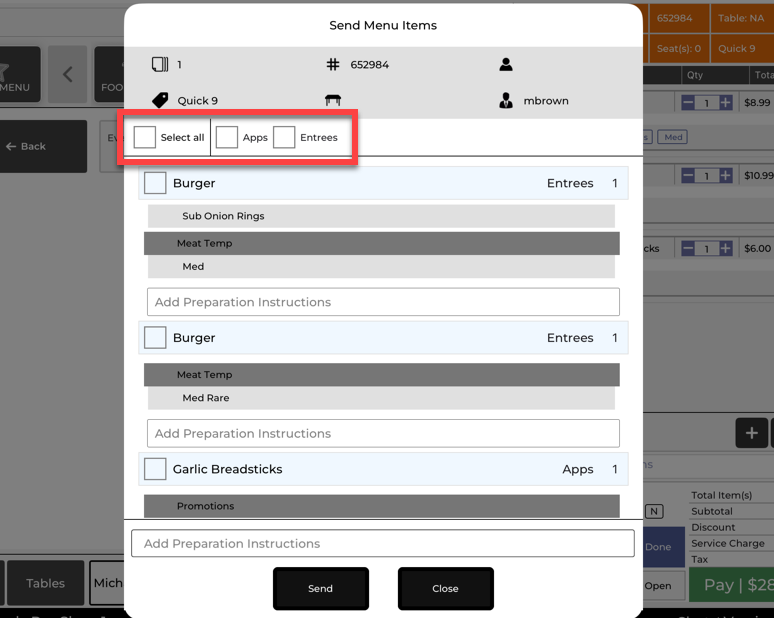
Step 4: Select the course you want to send. Only the items assigned to that course will print in the kitchen, and the rest will stay on the tab until you send them.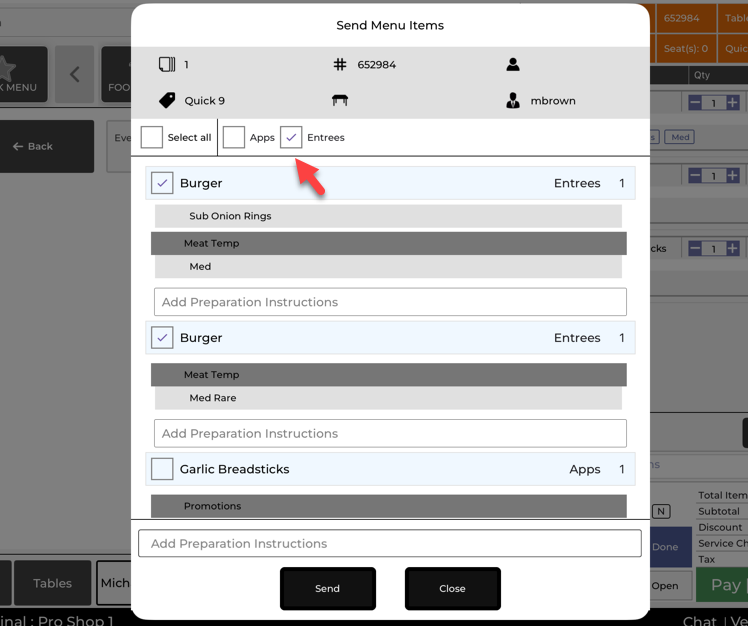
When you’re ready for the next part of service, return to the same tab and repeat to send by course or by individual item.
Example Scenario:
A foursome sits down for dinner and orders appetizers, entrées, and desserts all at once. The server assigns the appetizers to the Appetizer course and the steaks to the Entrée course, then taps Send by Course to fire only the Appetizers. Once the group is almost finished, the server returns to the tab and fires the Entrées so the kitchen starts them at the right time. After dinner, the server fires Desserts so they print together for faster prep and plating.