.png?width=200&height=89&name=CC%20%20fiserv.%20(3).png)
The cash drawer must be physically connected to the receipt printer. The drawer opens through that printer connection.
Step-by-Step:
Step 1: To print a pre-receipt, open the tab you want to print.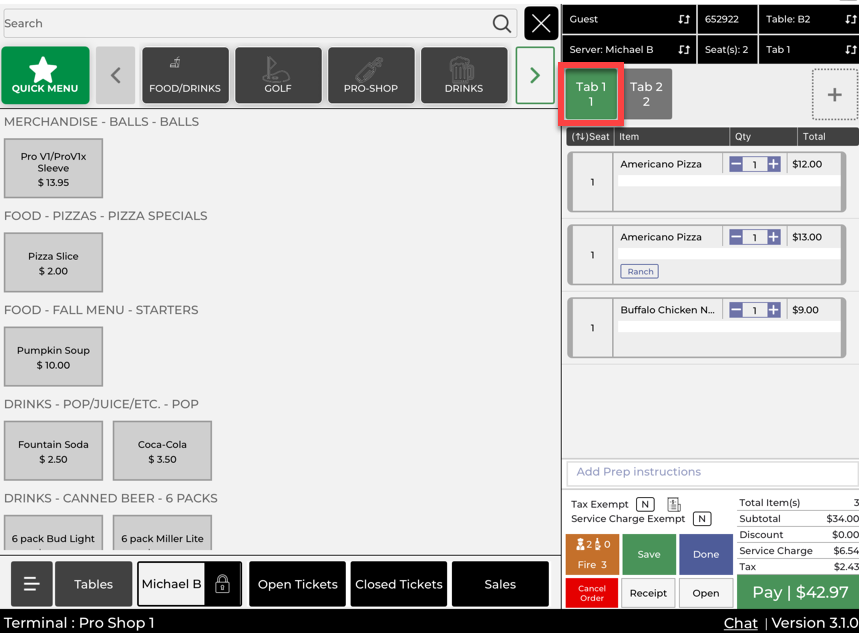
Step 2: On the tab screen, tap Receipt (bottom right). A pre-receipt prints showing the current items, subtotal, tax, and total due. The tab stays open because the guest has not paid yet.
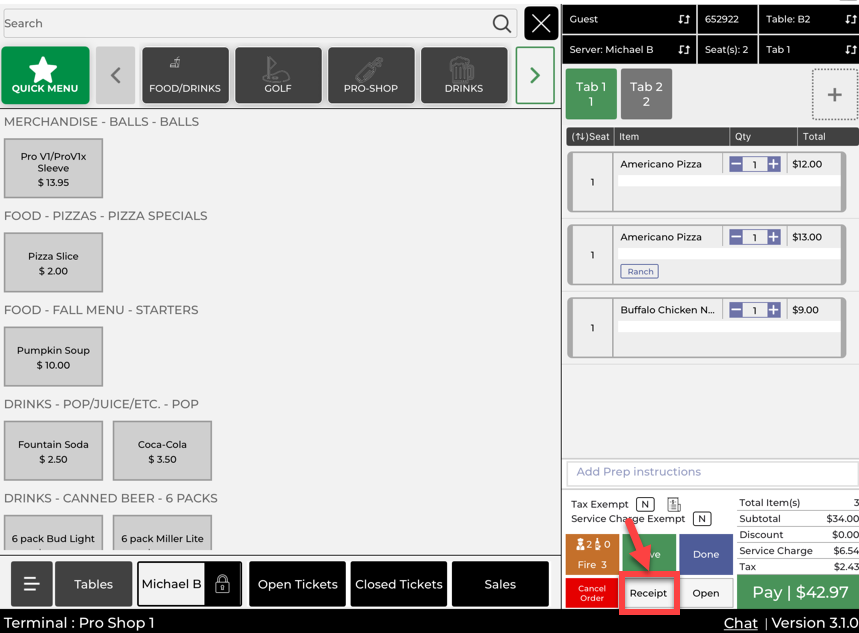
Use the pre-receipt when a guest wants to review their running total before paying (common at the bar, in cash-heavy environments, or when presenting a check at the end of a meal).
Step 3: To open the cash drawer without processing a payment, go to the main screen and tap Open Drawer.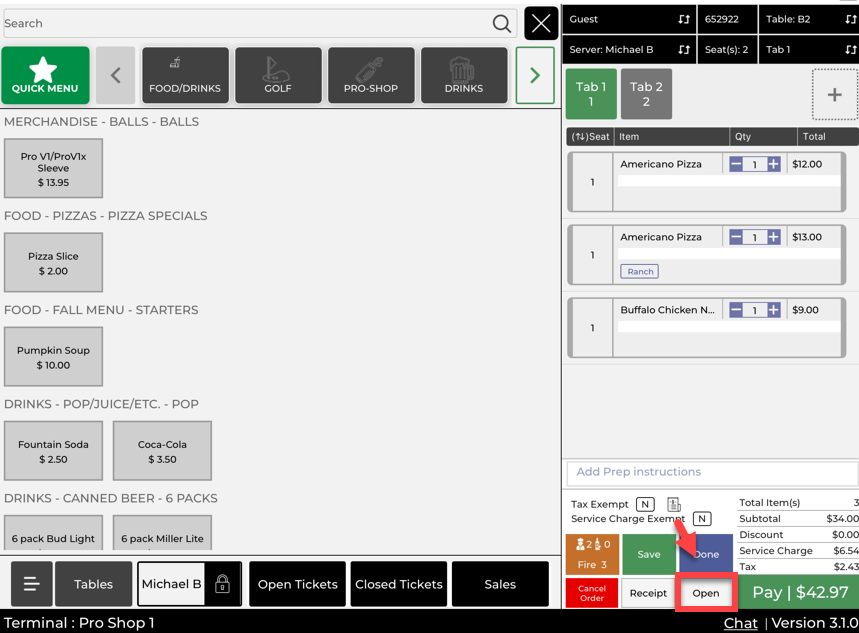
Step 4: The connected cash drawer opens. Complete your cash handling (make change, add/remove cash, start/end-of-shift tasks) and close the drawer manually.
Step 5: Know the difference between receipt types so you print the right one:
Pre-Receipt: Printed before payment, shows current items and total, tab remains open, no payment method shown, printed using the Receipt button on an open tab.
Final Receipt: Printed after payment, shows items, total, payment method, and tip (if applicable), and the tab is closed after payment is completed.
Example Scenario:
A bartender has a guest running a tab and the guest asks to see their total before closing out. The bartender opens the tab and taps Receipt to print a pre-receipt for review, then keeps the tab open while the guest decides how they want to pay. Later, the bartender needs to make change for another cash customer, so they tap Open Drawer from the main screen to access the cash drawer without starting a new transaction.