.png?width=200&height=89&name=CC%20%20fiserv.%20(3).png)
Step-by-Step:
Open the tab and add all items to the order. Review the item list to confirm quantities, modifiers, and special instructions are correct. Also, Check for any items that still need required modifiers. If an item is marked as incomplete (required modifiers not selected), complete those modifiers before firing so the item can be sent.
Step 1: Tap the Fire icon button (usually in the bottom right of the screen). A menu may appear with firing options.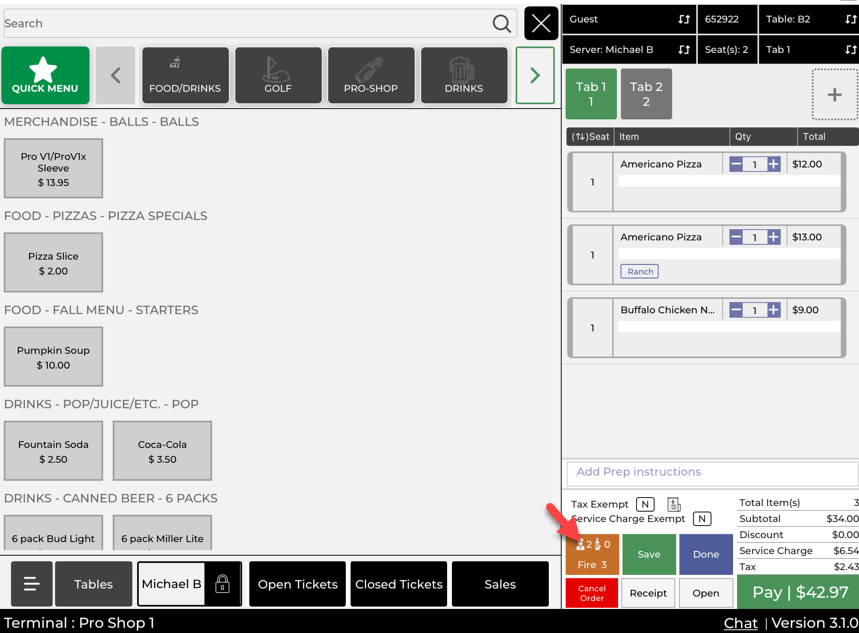
Step 2: Choose the firing method that matches your service:
Select Send All Items to send everything on the order that has not been fired yet (most common).
Select Send by Course to send only items assigned to a specific course (Appetizer, Entrée, Dessert, etc.) for staged service.
Select Send Individual Items to select specific items to send (used for special situations).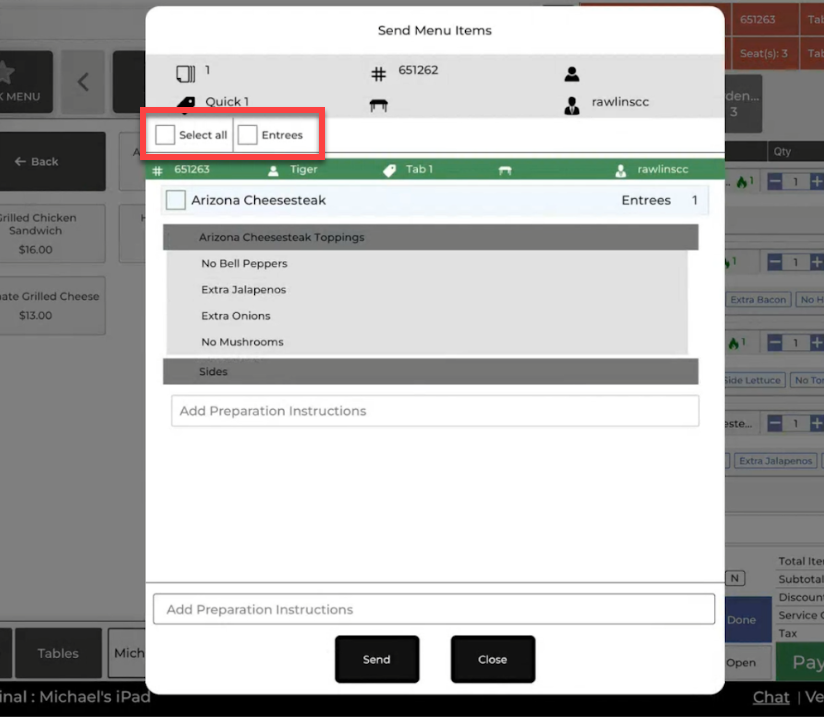
Step 3: Confirm the items were sent by checking the order list. A fire indicator/icon should appear next to each item you fired. If an item does not show a fire icon, it was not sent.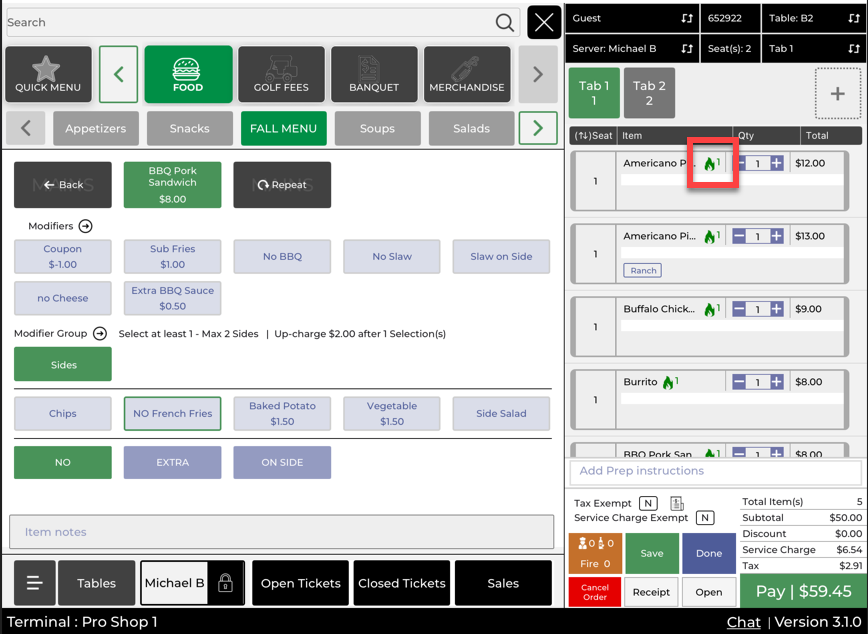
Step 4: Continue service as needed. You can keep adding items to the same tab after firing.
Step 5: When you add new items after firing, the new items will appear without a fire icon. Tap Fire again to send only the new, unfired items—previously fired items are not resent.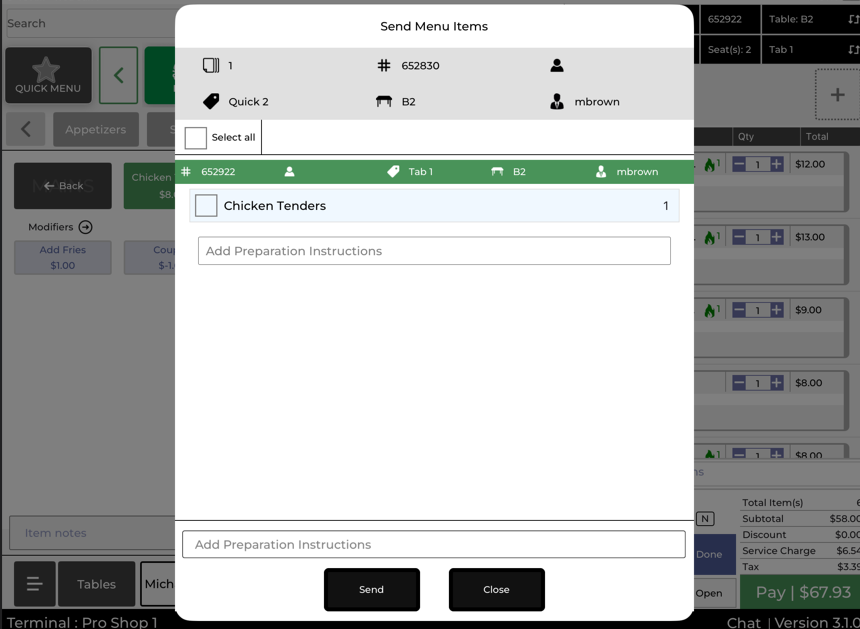
Step 6: Do a final check before closing the tab to confirm all items that should be prepared have been fired and show the fire icon.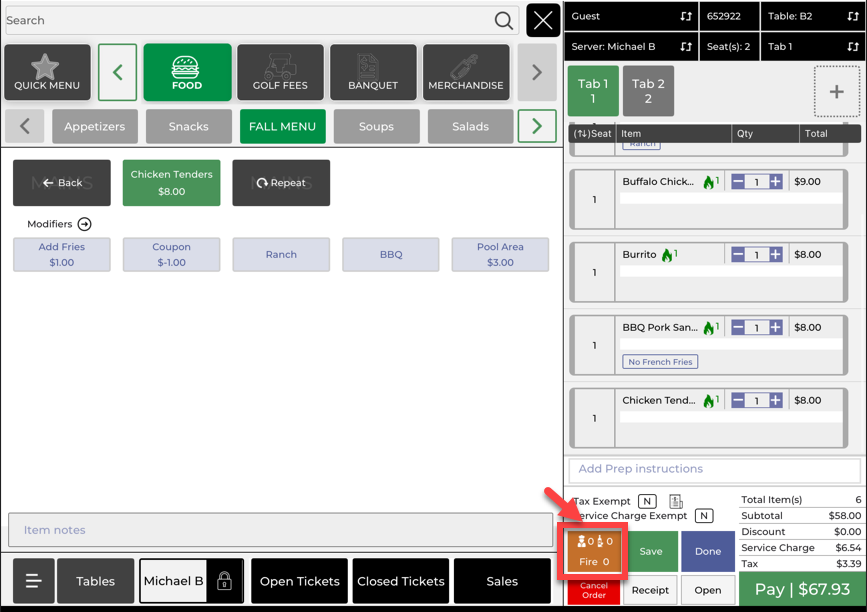
Example Scenario:
A table orders appetizers and entrées, but they want the entrées held until later. You enter all items, then tap Fire and choose Send by Course to send only the appetizers. After the appetizers are served, you tap Fire again and send the entrée course. Halfway through the meal, the table adds a side of fries—after you add it, you see it has no fire icon, so you tap Fire to send only that new item to the kitchen.