.png?width=200&height=89&name=CC%20%20fiserv.%20(3).png)
Splitting by seat converts one tab into multiple separate tabs. Before splitting, you must create seats and assign all items to the correct seats. Once split, tabs are separate and cannot be re-combined, so verify seat assignments before you split.
Step-by-Step:
Step 1: Open the tab and switch to Seats view. Review each seat to confirm the correct items are assigned (for example, Seat 1 has Guest 1’s food and drinks).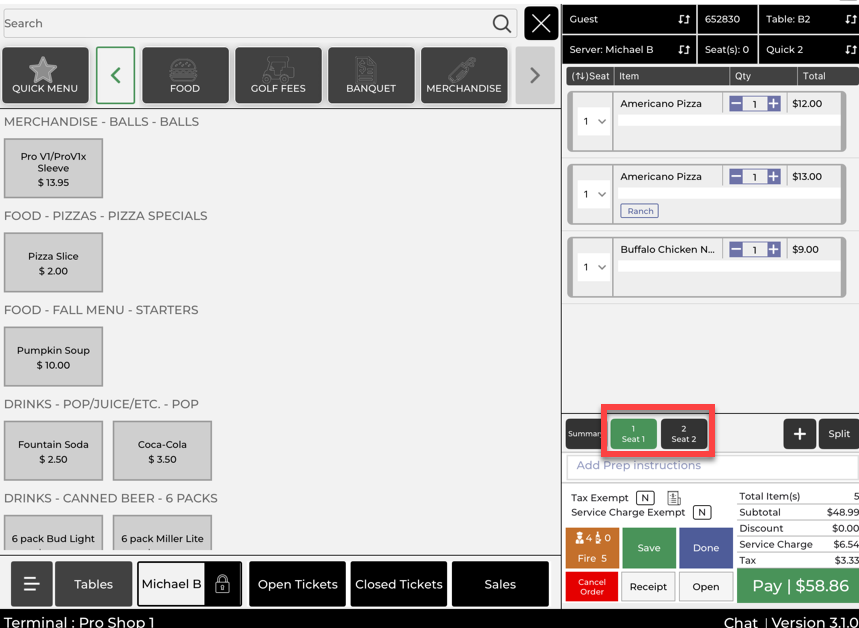
Step 2: Fix any mistakes before splitting. If an item is in the wrong seat, reassign it to the correct seat using the item’s options in the order list.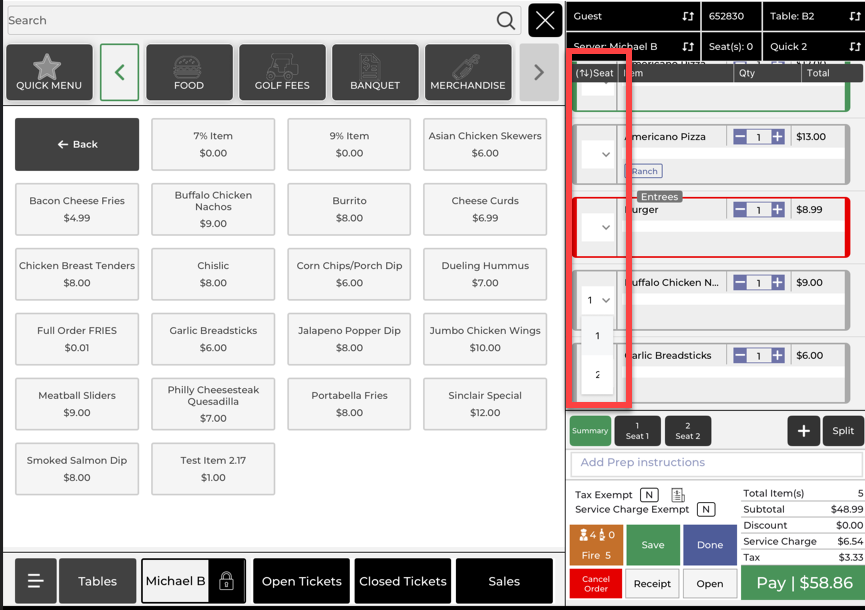
Step 3: Tap Split (or Split by Seat) on the tab screen. If a confirmation message appears, tap Confirm or Yes to continue.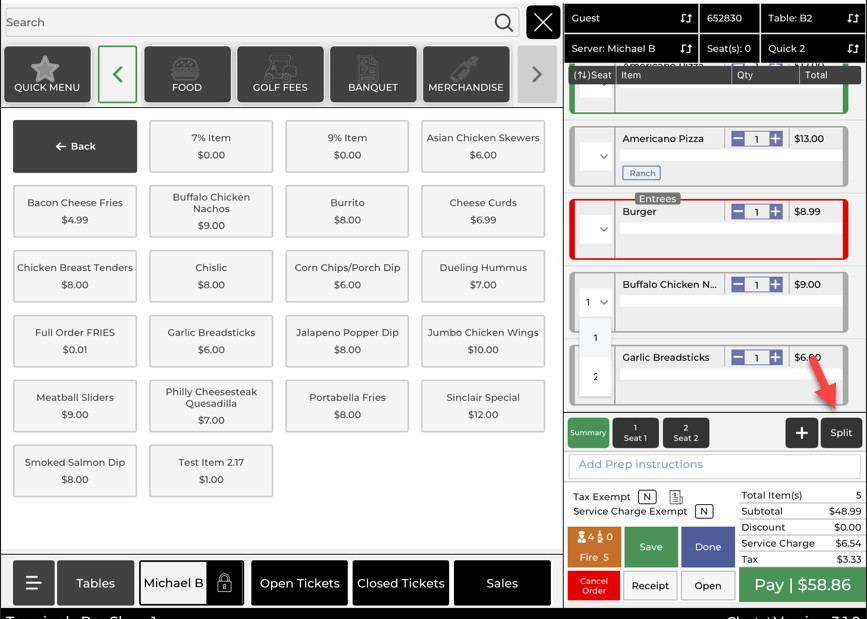
Step 4: Tap Open Tickets and confirm the original tab is now split into multiple tabs (one per seat). Open each new tab and process payment for each guest individually.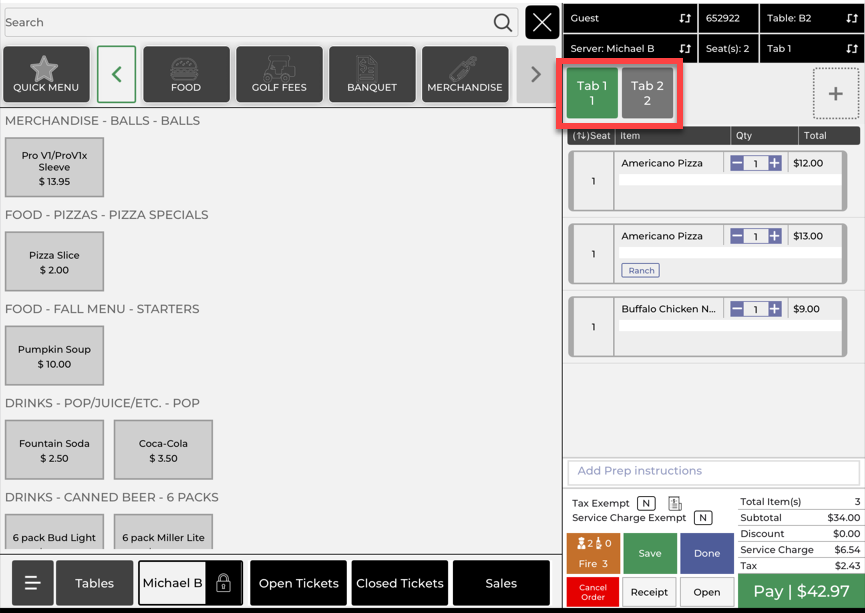
Example Scenario:
A table of three wants separate checks. You open the tab, switch to Seats view, and confirm each guest’s items are assigned to Seat 1, Seat 2, and Seat 3. You tap Split by Seat and confirm, which creates three separate tabs in Open Tickets. You open each tab one at a time, take payment, and close each ticket as the guests finish paying.