.png?width=200&height=89&name=CC%20%20fiserv.%20(3).png)
Tapping Open Tickets auto-saves your work and keeps you logged in. Paid tabs close automatically and move to Closed Tickets.
Step-by-Step:
Step 1: From anywhere in the app, tap Open Tickets in the bottom navigation to view the list of all open tabs.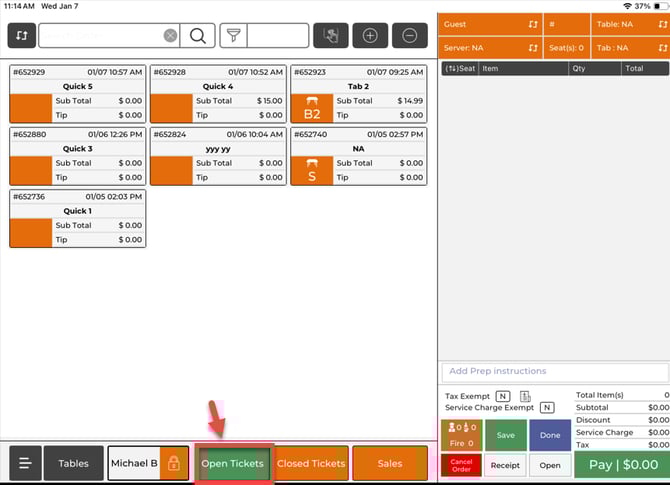
Step 2: Find the tab you want by looking for your employee color and locating it by table number, guest name, or tab number.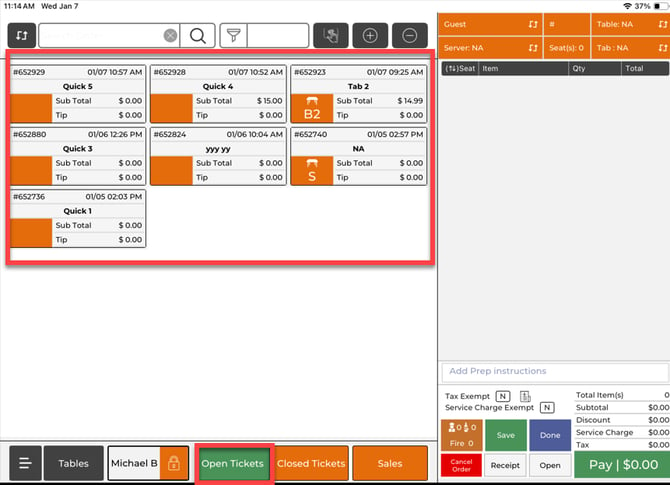
Step 3: Tap the tab to open it. You can now add items, fire items to the kitchen, review the order, or take payment.
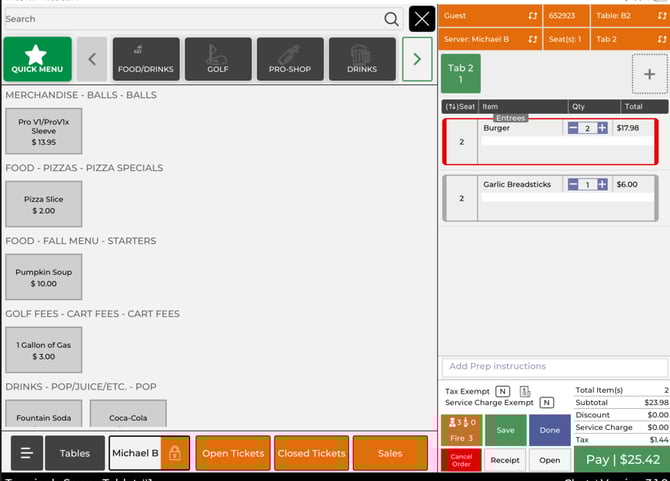
Step 4: To switch to another tab, tap Open Tickets again (your work saves automatically), then tap the next tab you want to work on.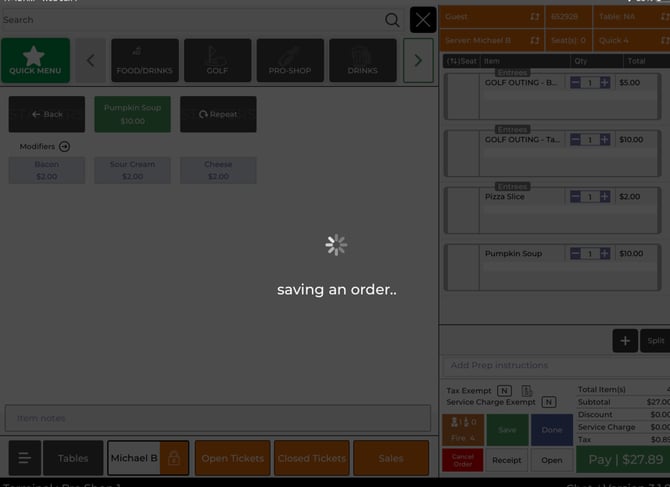
Step 5: If you have permission to view everyone’s tabs, use the All Tabs view next to Quick Tab at the top to filter by a specific user or view all users. All open tabs display color-coded by employee.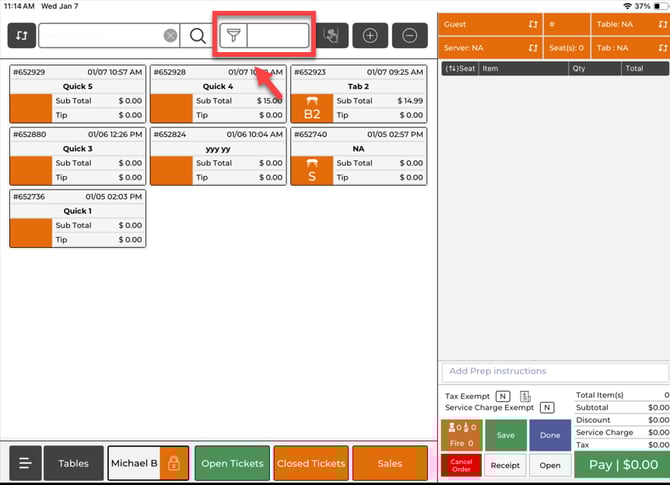
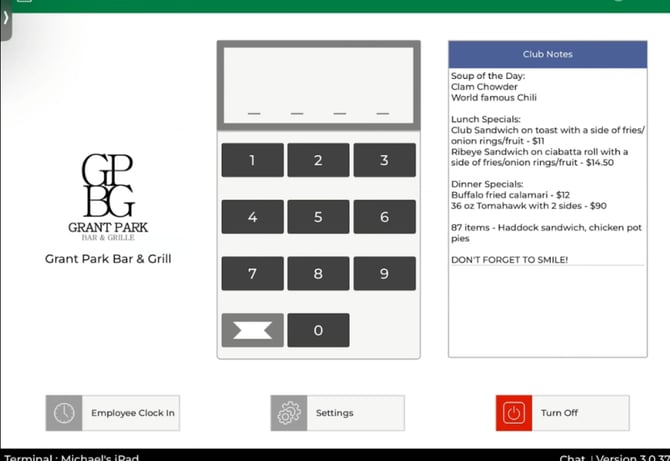
Step 6: When you are done and want to return to the sign-in screen for the next employee, tap Done (bottom right). This returns to the PIN lock screen (it is not the same as switching tabs).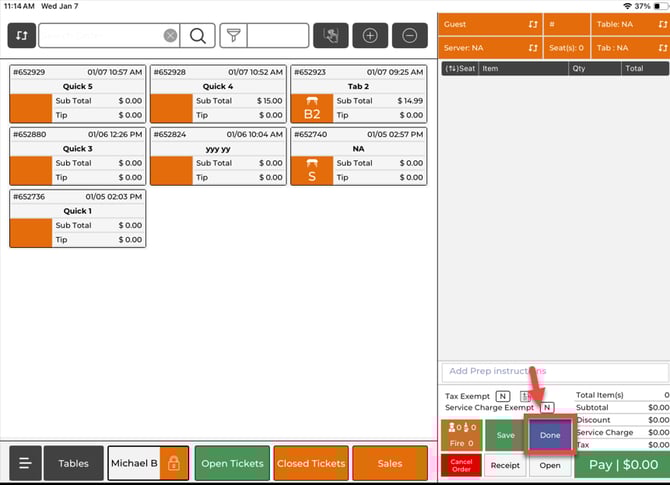
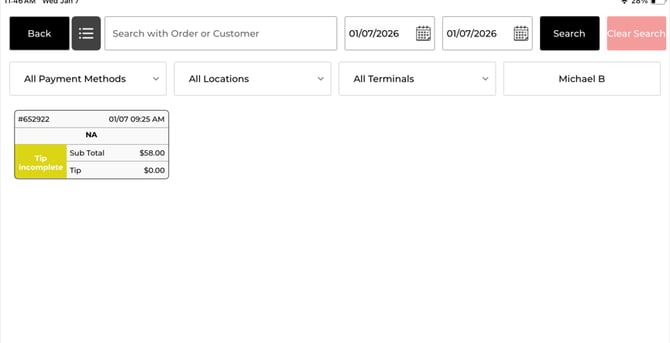
Step 7: To review tabs that have already been paid, tap Closed Tickets to view closed tabs from the current shift.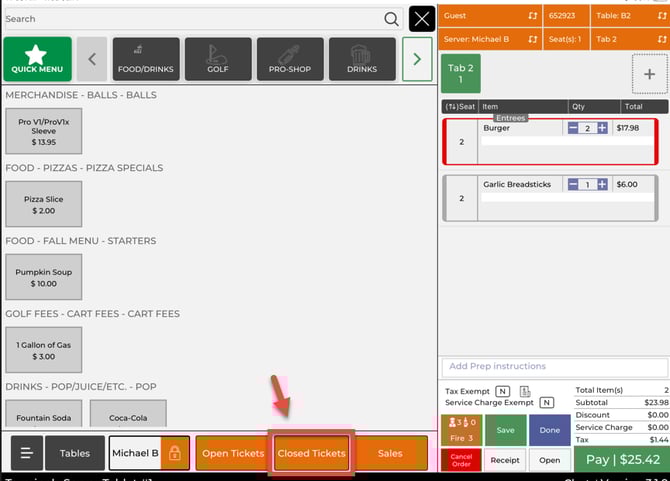
Example Scenario:
You have three active tabs during a busy lunch rush—one table, one bar guest, and one walk-up order. You tap Open Tickets to see all open tabs and quickly identify yours by your employee color. You open the table tab to add a drink, then tap Open Tickets to jump to the bar tab to fire an appetizer. After closing a paid tab, it disappears from Open Tickets, and you can find it later under Closed Tickets if you need to reference it.