.png?width=200&height=89&name=CC%20%20fiserv.%20(3).png)
Step by Step
Step 1: Access the Time Clock by clicking the clock icon in the top right-hand corner of your screen. Then, enter your unique employee pin and select the enter icon.

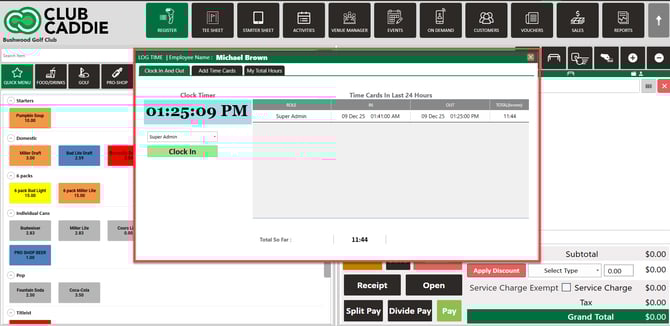
Your newly created shift will display on the right-hand side with your clocked-in time stamp.
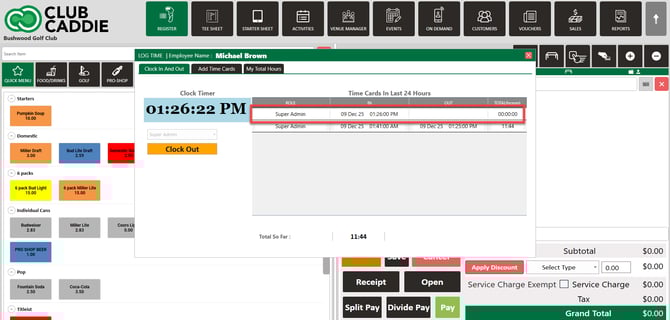
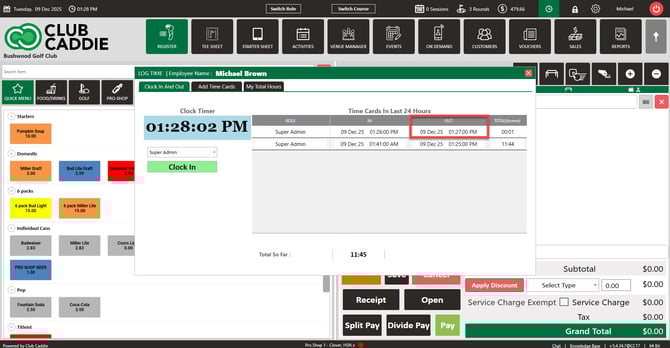
Step 4: To clock out at the end of your shift you will need to repeat the above steps of entering your employee pin then select the Clock Out button.
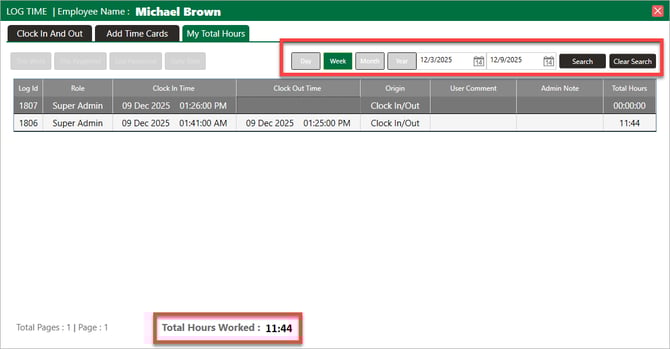
Step 5: To view your recent time cards you can utilize the "My Total Hours" tab to sort and view your submitted and approved hours.
- Allows you to filter the date period.
- Summarize your total hours.
- Summarizes the total tips both submitted in cash reporting as well as non-cash payment methods.
Step 1: Access the Time Clock by clicking the clock icon in the top right-hand corner of your screen. Then, enter your unique employee pin and select the enter icon.
If you have not been provided with a unique employee pin, please contact your general manager or course administrator to assign a pin to your username
Step 2: Select Clock In to start your shift.
Your newly created shift will display on the right-hand side with your clocked-in time stamp.
Step 4: To clock out at the end of your shift you will need to repeat the above steps of entering your employee pin then select the Clock Out button.
Step 5: To view your recent time cards you can utilize the "My Total Hours" tab to sort and view your submitted and approved hours.
- Allows you to filter the date period.
- Summarize your total hours.
- Summarizes the total tips both submitted in cash reporting as well as non-cash payment methods.
Clock-In / Clock-Out Error Messages:
Invalid Employee Pin - This indicates that the pin you input was not tied to an employee profile. Please contact your general manager or facility administrator to reset your unique employee pin.