.png?width=200&height=89&name=CC%20%20fiserv.%20(3).png)
Note:
When you are reporting issues it may be necessary that the following log files be sent in order to dig into your request further.
It is important to ensure that the logs are taken from the same terminal that you are reporting issues or have questions regarding.
If the question or issue refers to a particular order id, please ensure that you are sending the log file from the date the transaction was paid for.
If the question or issue refers to a particular order id, please ensure that you are sending the log file from the date the transaction was paid for.
Step by Step
Step 1: Navigate to your C Drive folder or whichever drive you have installed Club Caddie onto.
You can copy "C:\" and paste this into your Windows search bar.
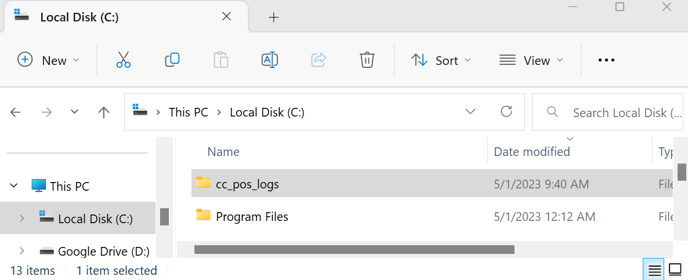
Step 2: Locate and open the folder called "CC_Pos_Logs"
Step 3: Select and copy the text file whose date matches the date the transaction was paid for (as noted above).
You can copy "C:\" and paste this into your Windows search bar.
Step 2: Locate and open the folder called "CC_Pos_Logs"
Step 3: Select and copy the text file whose date matches the date the transaction was paid for (as noted above).
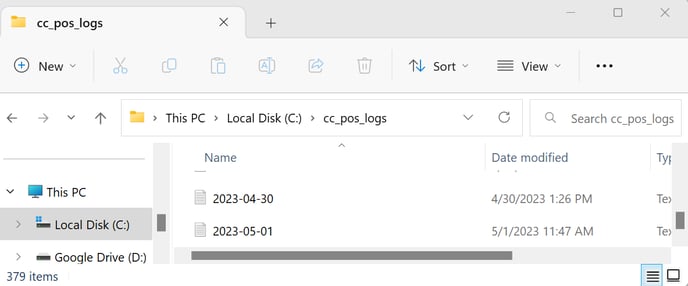
Step 4: Send Files to Club Caddie Support by one of the options below:
A)
B) Start a new e-mail to support@clubcaddie.com, and
- Attach them to your current email thread with support.
- Start a new email to
support@clubcaddie.com, and reference your ticket number or chat number.
B) Start a new e-mail to support@clubcaddie.com, and
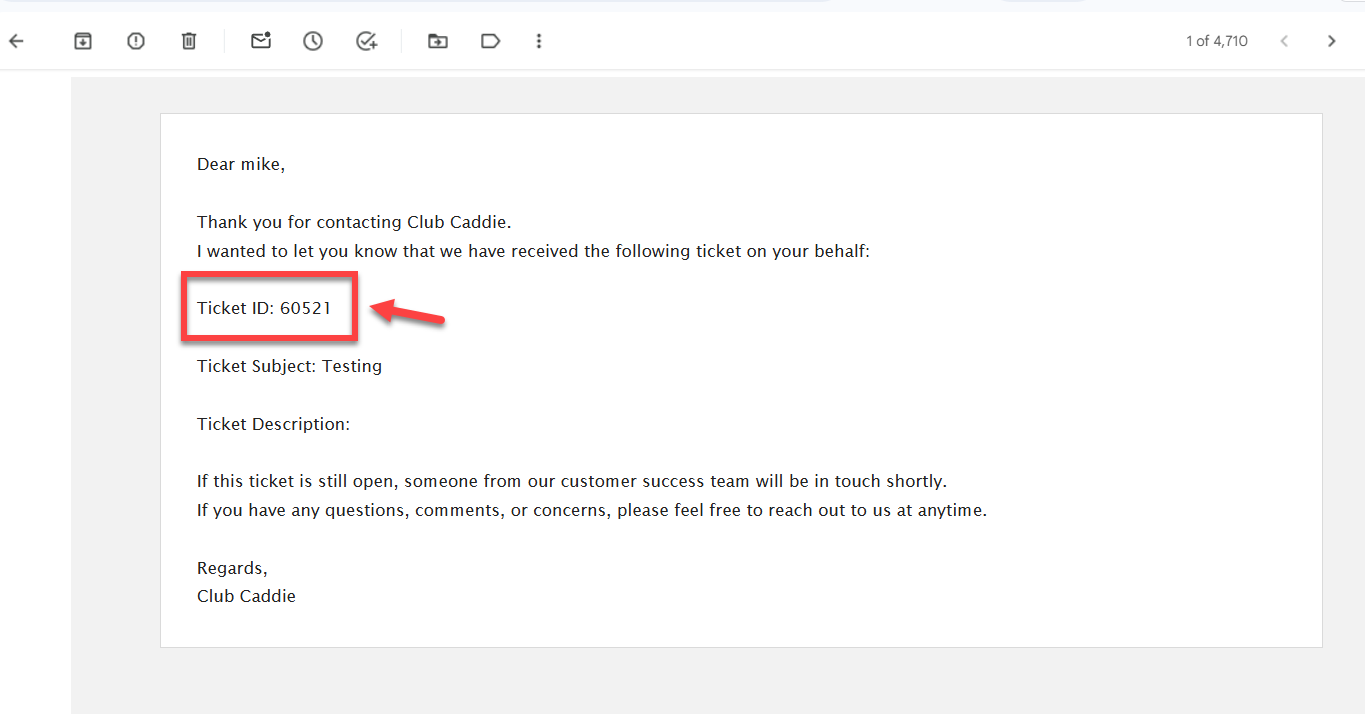
Where do I find my ticket number or chat number?
- Ticket number: Provided automatically after you contact Club Caddie Support via email.
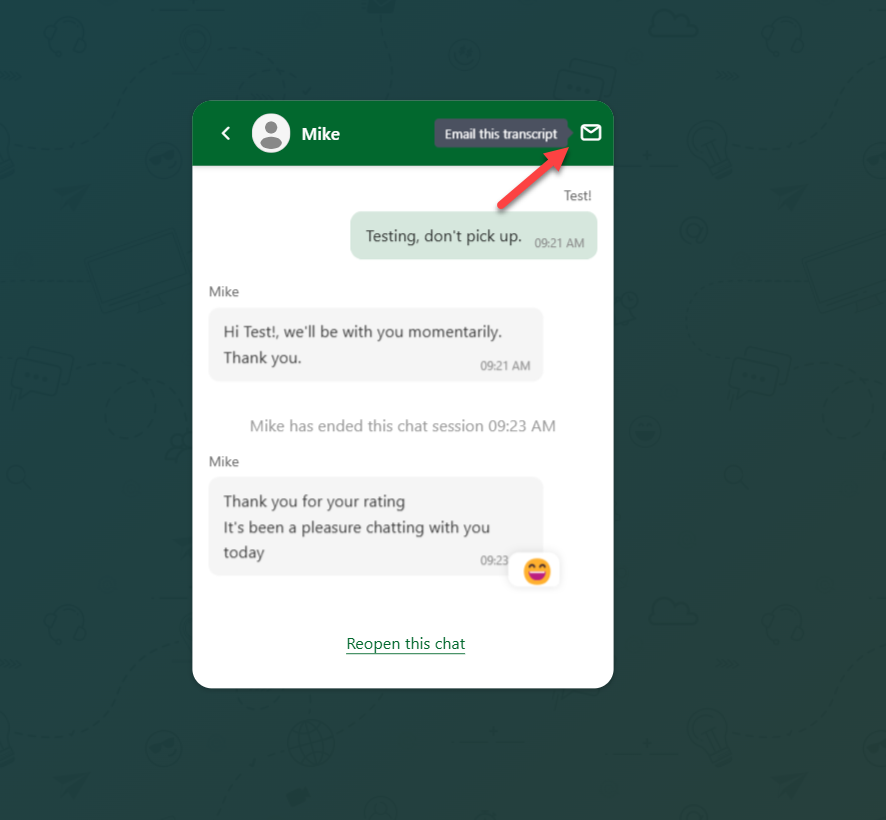
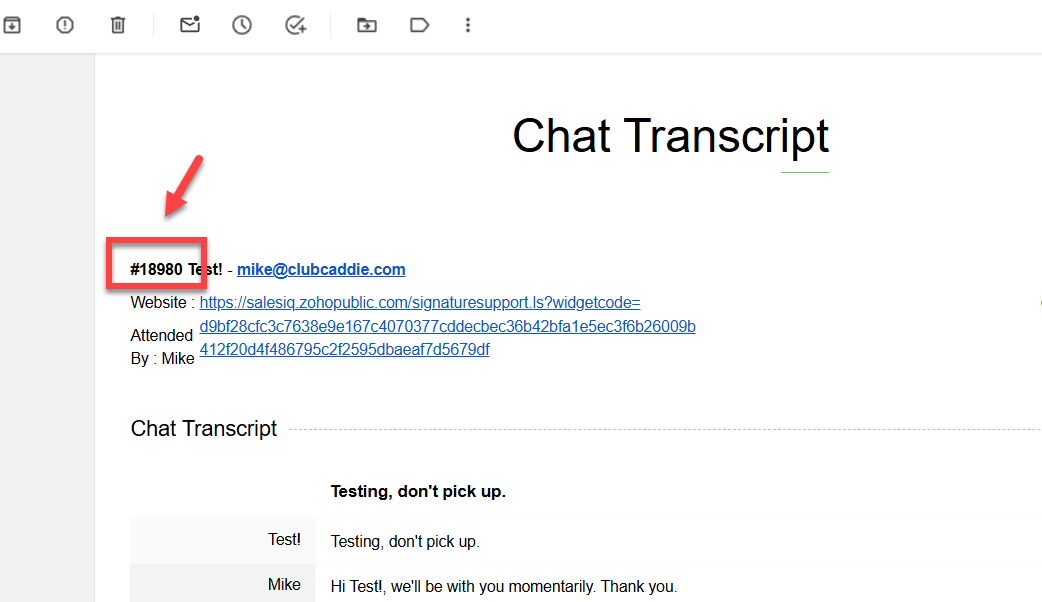
- Chat number: Available only after you email the chat transcript to yourself. To do this, locate the option to email the transcript within the chat window before closing the session, enter your email address when prompted, and send. Your chat number will appear in the transcript email you receive.