.png?width=200&height=89&name=CC%20%20fiserv.%20(3).png)
Overview
Our development team recommends two Windows driver settings for Star and Epson receipt printers used with CC Online, POS and the F&B App. The first is the Paper Size for your printer brand. The second is the paper cutting options: Document Bottom set to Partial Cut, and all other paper cutting options set to No Cut. These settings help prevent receipts that cut before they finish and blank paper feeding. When you print a downloaded PDF receipt, print it at Actual Size.
Before you start
- Depending on the printer model and driver version, these settings may be under a different tab or section, such as Advanced.
Set the paper size
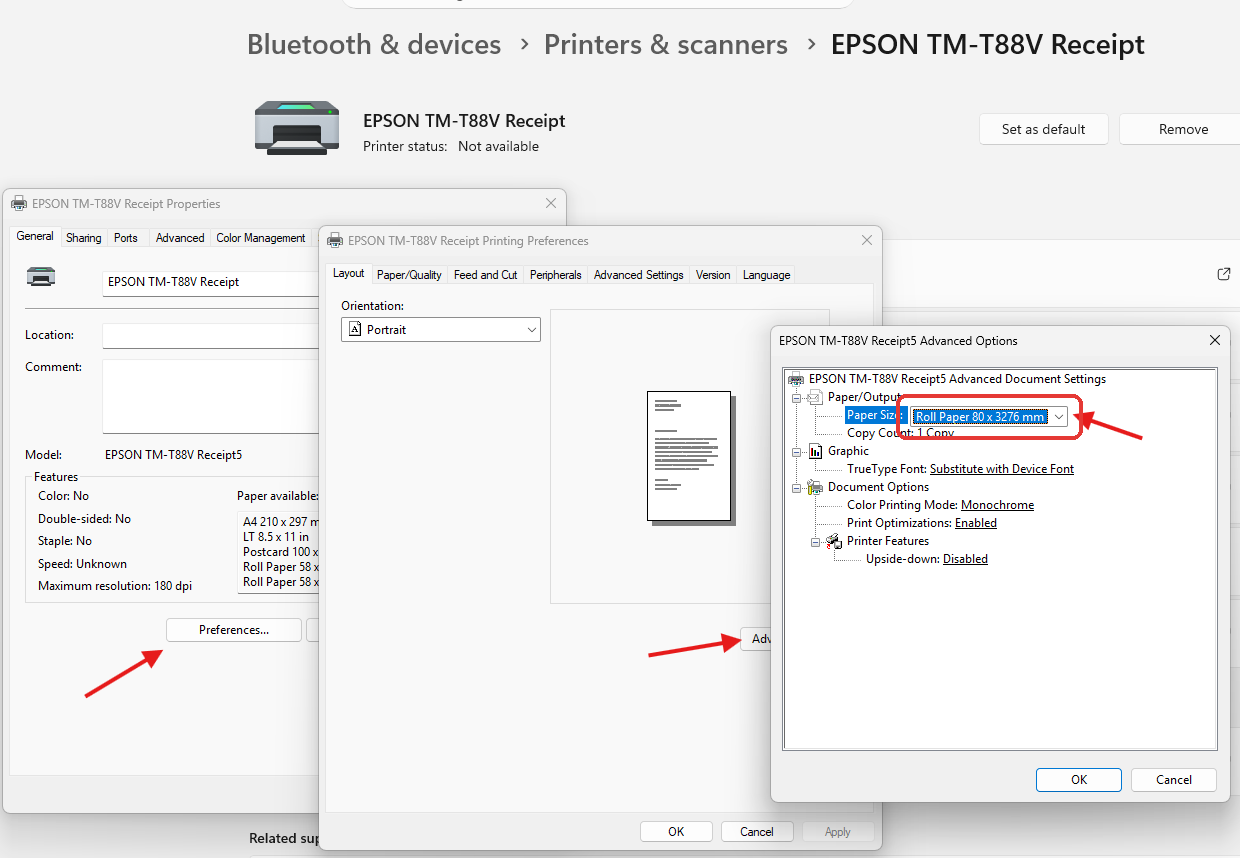
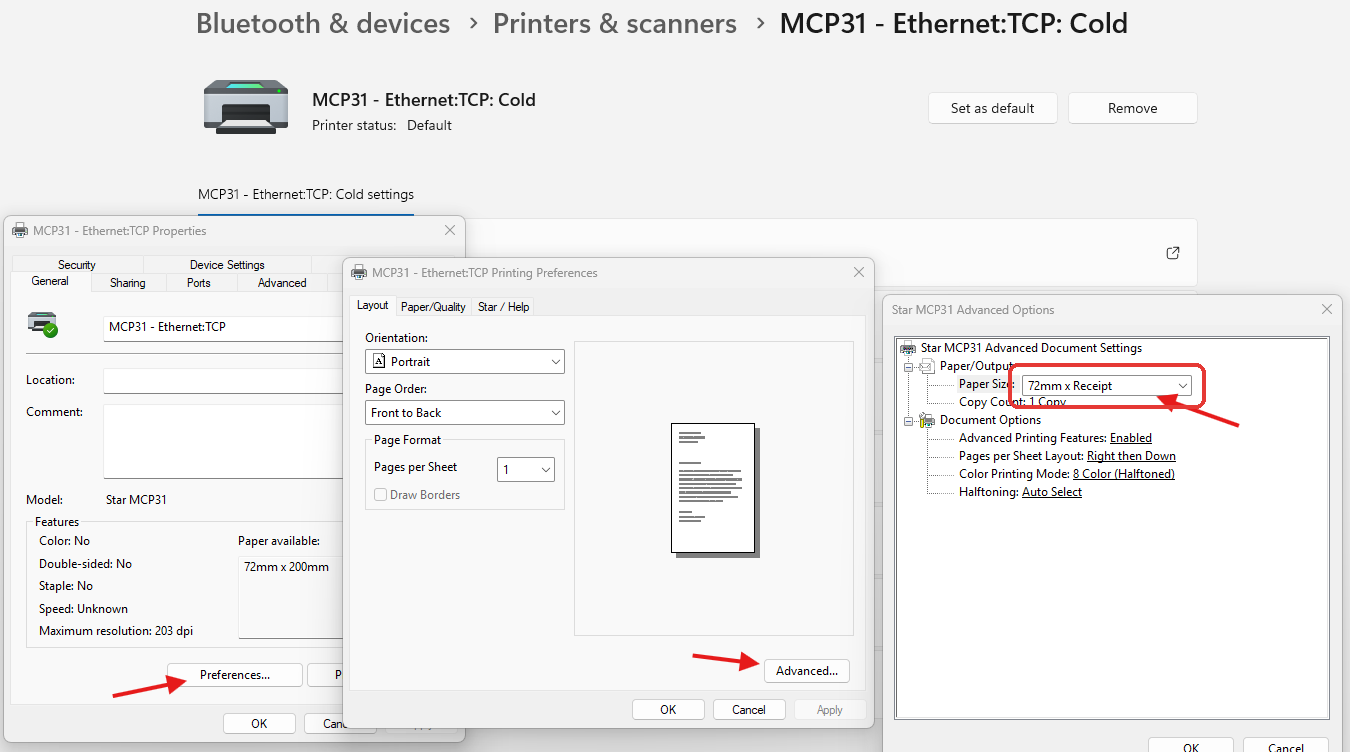
- Open the receipt printer's driver settings in Windows. In our development team's examples, the paper size is in the printer's properties under Preferences, then Advanced.
- Find the paper size setting and choose the size for your printer brand:
- Star: 72mm x Receipt or 72 mm × 3276
- Epson: 72 mm × 3276 or Roll Paper 80 x 3276 mm
Set the paper cutting options
- In the receipt printer's driver settings, find the paper cutting options.
- Set Document Bottom to Partial Cut.
- Set all other paper cutting options to No Cut.
Print a downloaded PDF receipt without blank paper
- Open the downloaded receipt PDF.
- Open the print dialog.
- Expand More Settings.
- Under Scale (%), select Actual Size.
- Click Print.
Common Questions
The paper size I need isn't in the list. What do I do?
The printer driver may need to be updated to add more paper size options. Update the driver only if the options above are not visible, and make sure it is the correct driver for your printer model and operating system. For the Epson TM-T88V, use the Epson download center. For the Star MC Print 3 and TSP100-143IV, use the Star Windows Software Full package from Star Micronics.
What should happen after I print the PDF at Actual Size?
The receipt should print correctly without extra blank paper feeding.