.png?width=200&height=89&name=CC%20%20fiserv.%20(3).png)
Why inventory matters
- Rates that do not have inventory associated with them will post to the Tee Time department (often labeled as "Tee Time" or appear as unassigned tee bookings in accounting exports).
- The Tee Time department includes outing rounds, league check-ins, and any rate that lacks an associated inventory item.
- To have a rate show up under your regular Golf/Green Fees reporting (or a specific GL code), you must associate the rate with the appropriate inventory item (for example, a Green Fee inventory item and, if applicable, a Cart Fee item).
How to associate inventory with a rate
- Go to Settings -> Rack Rate Management.
- Find the rate you want to change and click Edit.
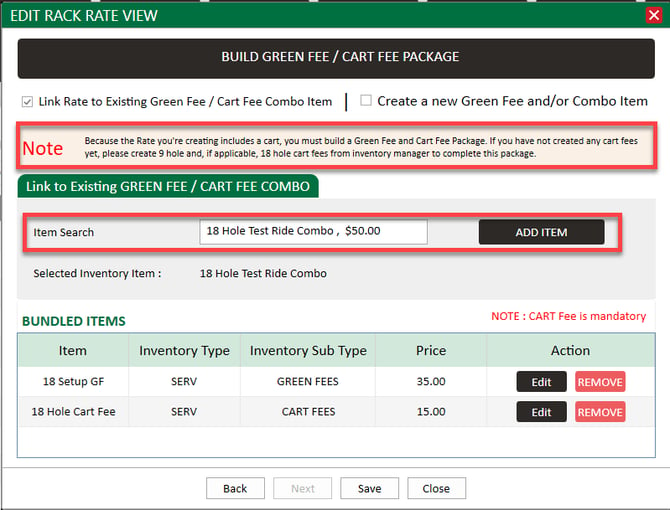
- On the second page of the rate editor, associate the rate with the appropriate inventory item(s):
- Attach the green fee inventory item (e.g., "Resident Green Fee").
- If the rate includes cart charges, also attach the cart fee inventory item.
- Save the rate.
Notes on reporting and historic transactions
- Reporting and exported transaction lines will reflect how a rate was configured at the time the sale was rung in.
- Changes that associate inventory to a rate are not retroactive; past transactions will continue to show under the department or memo that applied when they were originally processed.
- If you see transactions under "Tee Time" that should be under Golf/Green Fees:
- Verify the specific rate used for those transactions in Rack Rate Management.
- If the rate has no inventory associated, edit the rate and add the correct green fee/cart fee inventory items.
- Understand that existing historical transactions will not move; future transactions will post to the newly associated inventory/department.
Example use cases
- A Member Guest - 9 rate that already has inventory associated will post to the green fee item and appear under Golf/Green Fees.
- A Resident - 9 rate without inventory will post to Tee Time; attaching the Resident Green Fee inventory item will correct future postings.
Troubleshooting tips
- If rounds or fees appear under "Tee Time" or as "Unassigned":
- Verify the rate used for those rounds has inventory tied to it in Rack Rate Management.
- If the rate has no inventory associated, add the correct Green Fee and/or Cart Fee inventory items on the second page of the rate editor.
- If prior transactions show under the wrong department after you update a rate:
- Understand that reporting will not update retrospectively; past transactions will continue to display based on how they were recorded at the time.
- If an outing or league check-in should post to a specific department, ensure the rate used for the check-in is tied to the desired inventory item.