.png?width=200&height=89&name=CC%20%20fiserv.%20(3).png)
If you do not see a Footer option under Edit with Elementor, you can still access it from WordPress › Templates › Theme Builder › Footer tab and click Edit with Elementor there.
Step-by-Step:
Step 1: Open Your Live Website While Logged In:
Log into WordPress, then visit any page on your site as if you were a visitor. Confirm the black WordPress admin bar is visible at the top of the screen.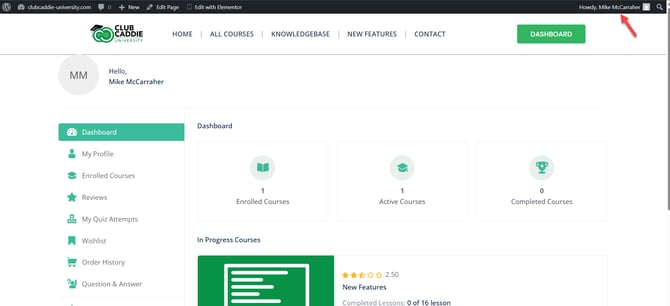
Step 2: Open the Footer Template from the Admin Bar:
In the black admin bar, find the Edit with Elementor button. Click the ▼ down arrow next to it, then click Footer from the dropdown. Elementor will open the global footer template for editing.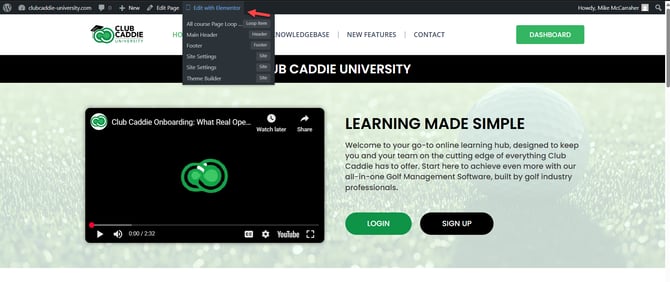
Step 3: Use Theme Builder if Footer Is Not in the Dropdown:
If Footer does not appear in the dropdown, go to your WordPress dashboard, click Templates, then click Theme Builder and open the Footer tab. From there, find your footer template and click Edit with Elementor to open it.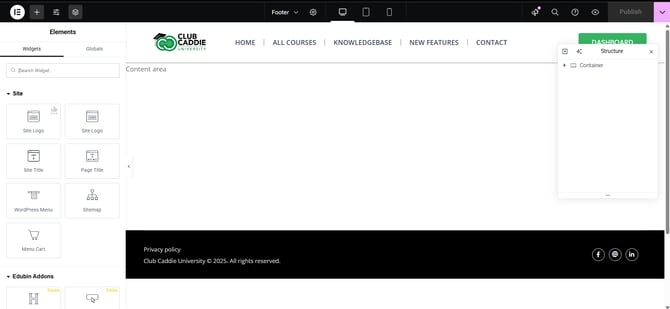
Step 4: Edit Text and Copyright Information:
In Elementor, click any Text Editor widget in the footer (for example, “© 2025 Your Club”). Update the wording, font, size, alignment, and links as needed. You can also use a shortcode (such as a dynamic current year) if your site supports it.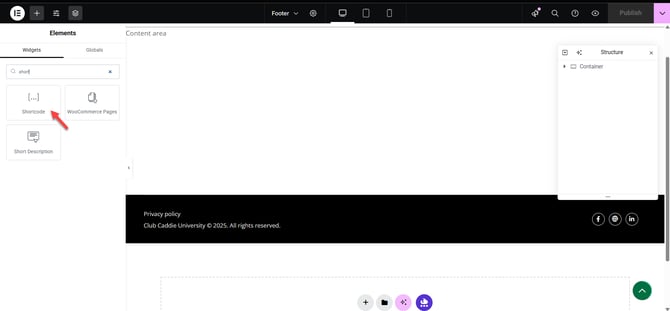
Step 5: Update Logo, Menus, Social Icons, and Forms:
Click the Image widget to change the logo or brand icon, and set its link if needed. Click any Nav Menu widget to choose which WordPress menu to display and adjust alignment and colors. Use the Social Icons widget to add or edit links to platforms like Facebook or Instagram. If there is a newsletter signup form, click the Form widget to adjust fields, actions (e.g., send to email service), and button styling.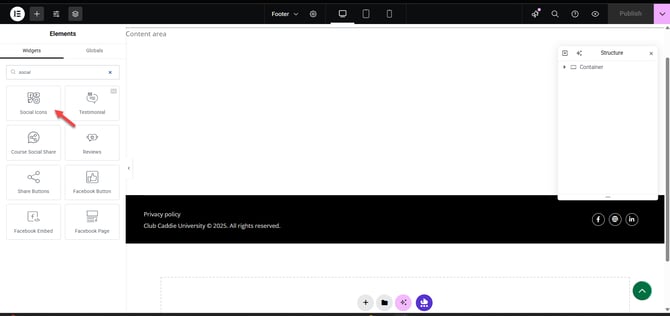
Step 6: Adjust Footer Layout and Design:
Select the footer section to change background color or image under the Style tab. Use columns to organize content (such as logo, menu, and contact info in separate columns). Adjust padding and spacing to make the footer easy to read and visually balanced.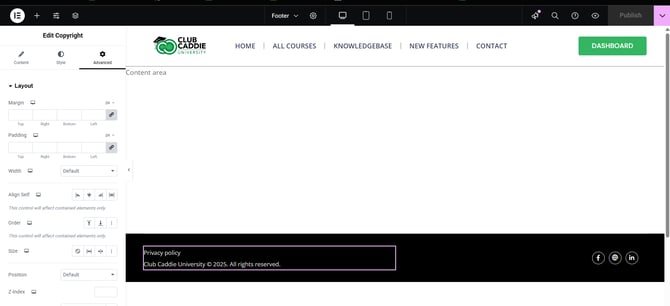
Step 7: Make the Footer Mobile-Friendly:
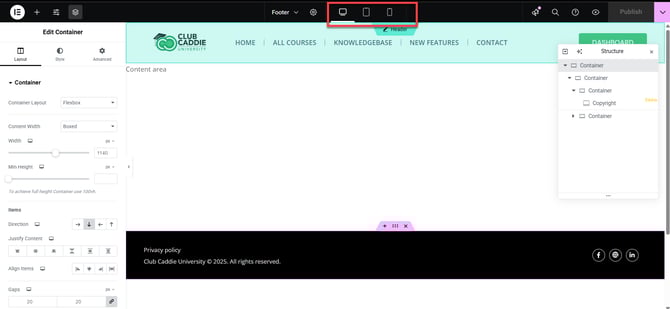
Click the Responsive Mode (screen icon) in Elementor and switch between desktop, tablet, and mobile views. Adjust font sizes, margins, and padding for smaller screens. Stack columns vertically if needed, and center-align text and icons so the footer looks clean and is easy to use on phones and tablets. Click Update to save your changes.