Step-By-Step:
The Club Caddie Member Portal is a web-based hub that allows your members to access account information, book tee times, view invoices, register for events, and manage their membership — all in one place. Giving members self-service access reduces staff administrative time and keeps your operation running efficiently.
The Membership Portal Builder is easy to use and does not require any coding or technical skills. You can create your own membership website in just a few steps.
Step 1: Navigate to Settings > I-Frame > Member Portal Builder.
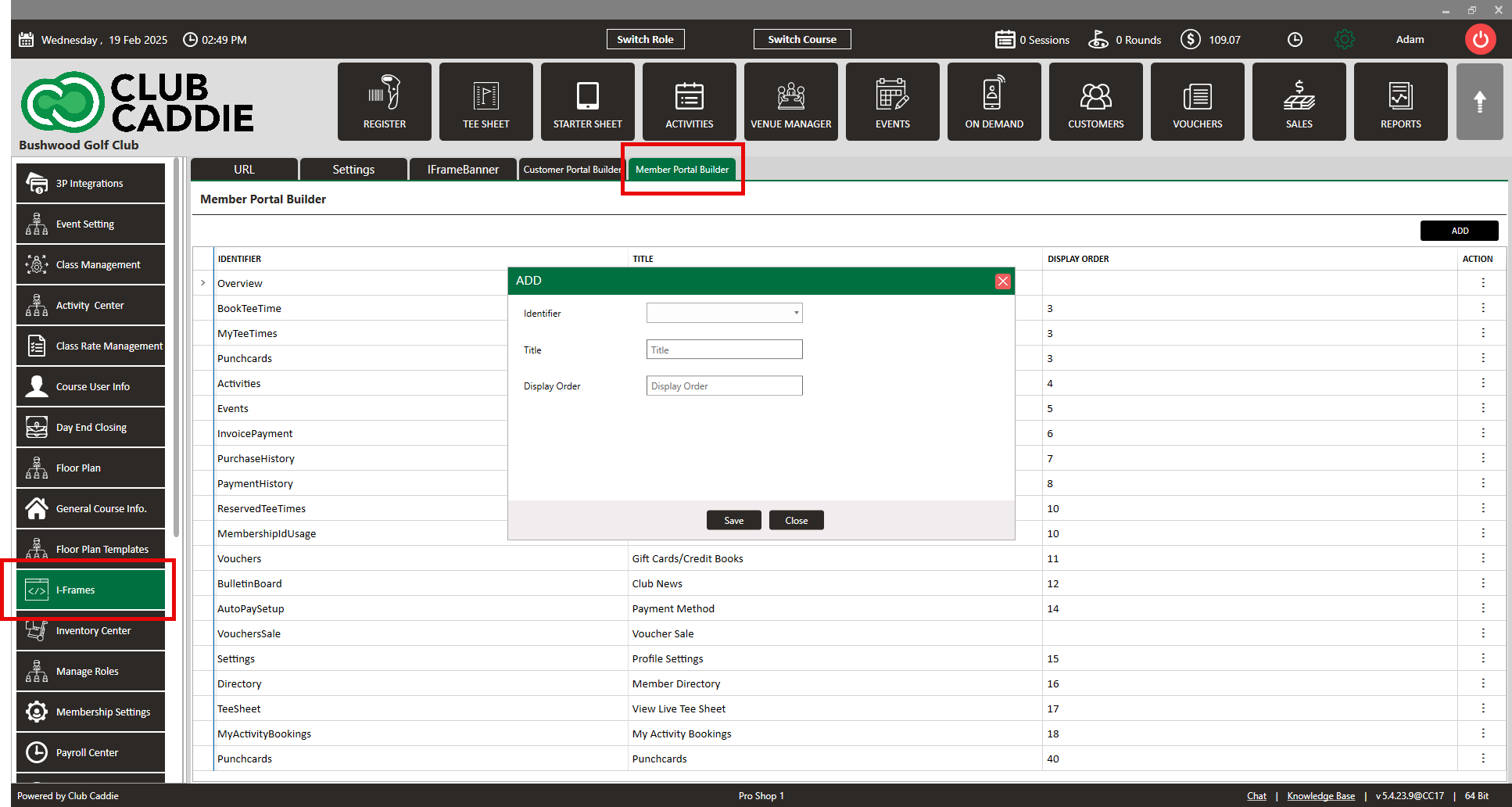
Step 2: Click on the Membership Builder tab. You can add sections from here by clicking the Add Section button.
Each section will create a different web page for your membership site.
Use the Identifier field to select the section you want to include.
The Title field is used to name the section and will be displayed on the webpage.
The Display Order field determines the sequence in which sections appear on the webpage.
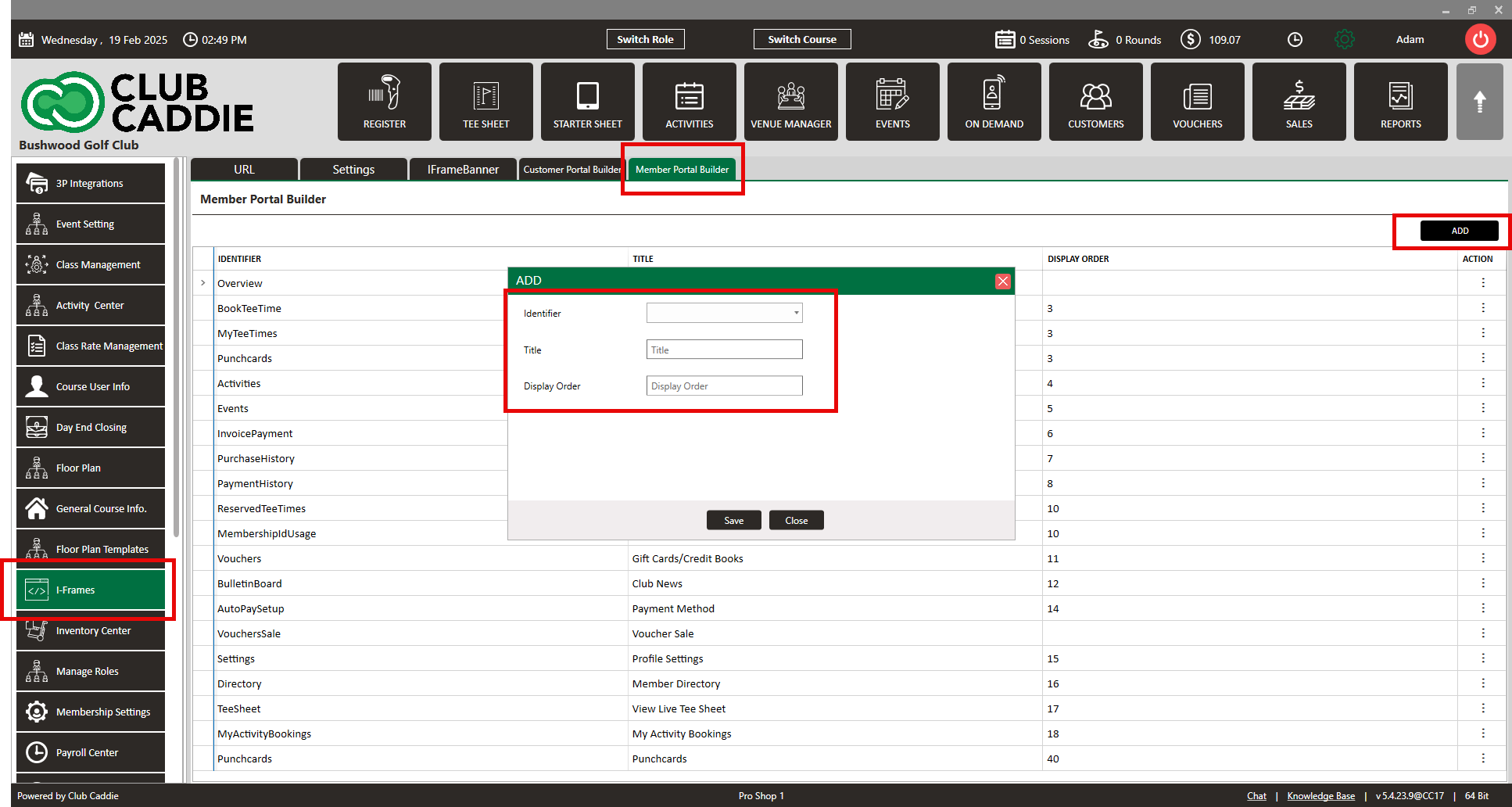
Click save to update the Membership Portal Builder.
What pages are available in the Member Portal Builder?
The following pages are selectable in the builder (verify the current count in your Club Caddie account, as available pages may vary by version):
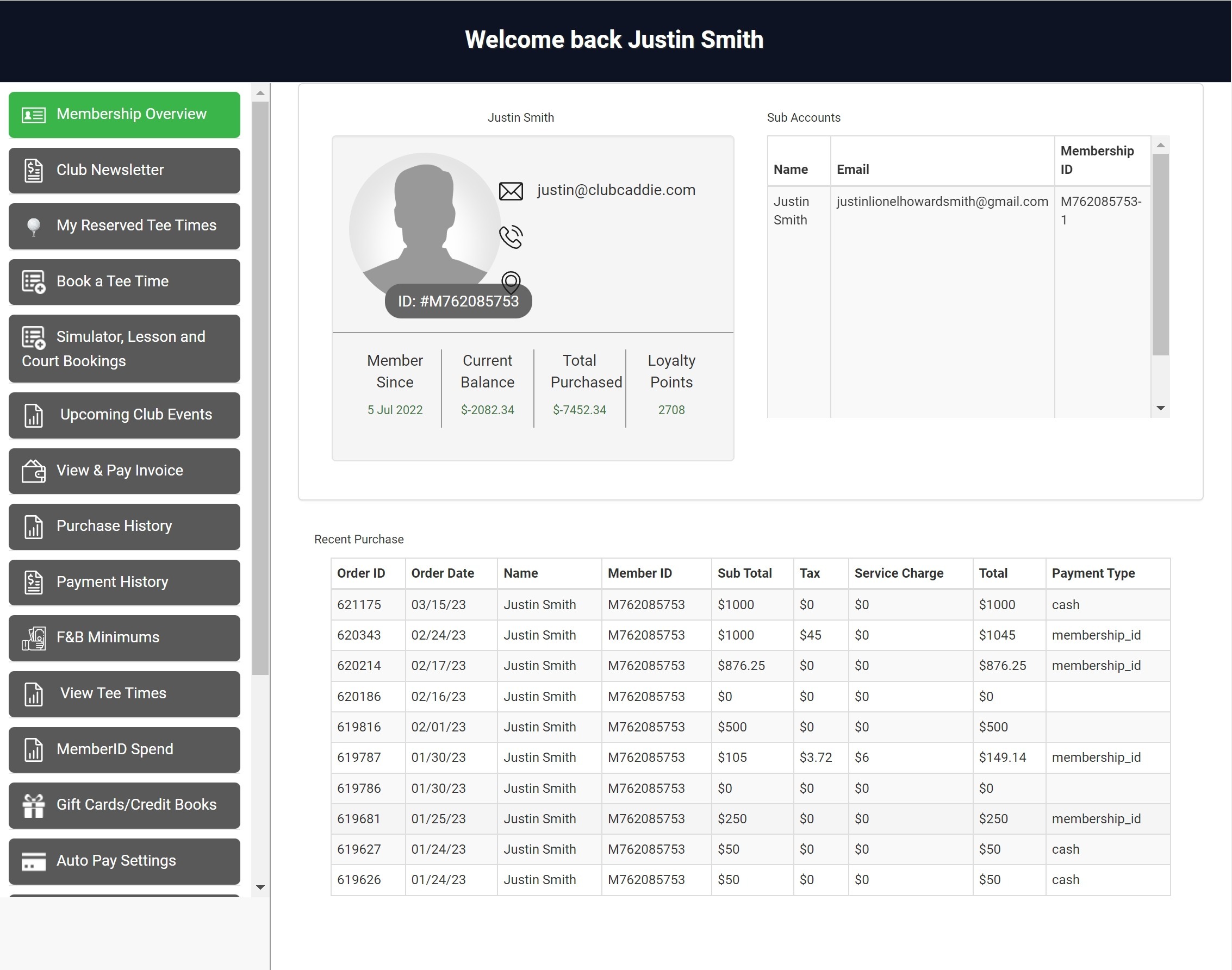
Overview: This page gives an overview of the member's account. Including contact info, current balance, sub-accounts, and recent purchase history.
Bulletin Board: This page allows you to post announcements, updates, news, tips, etc., for your members.
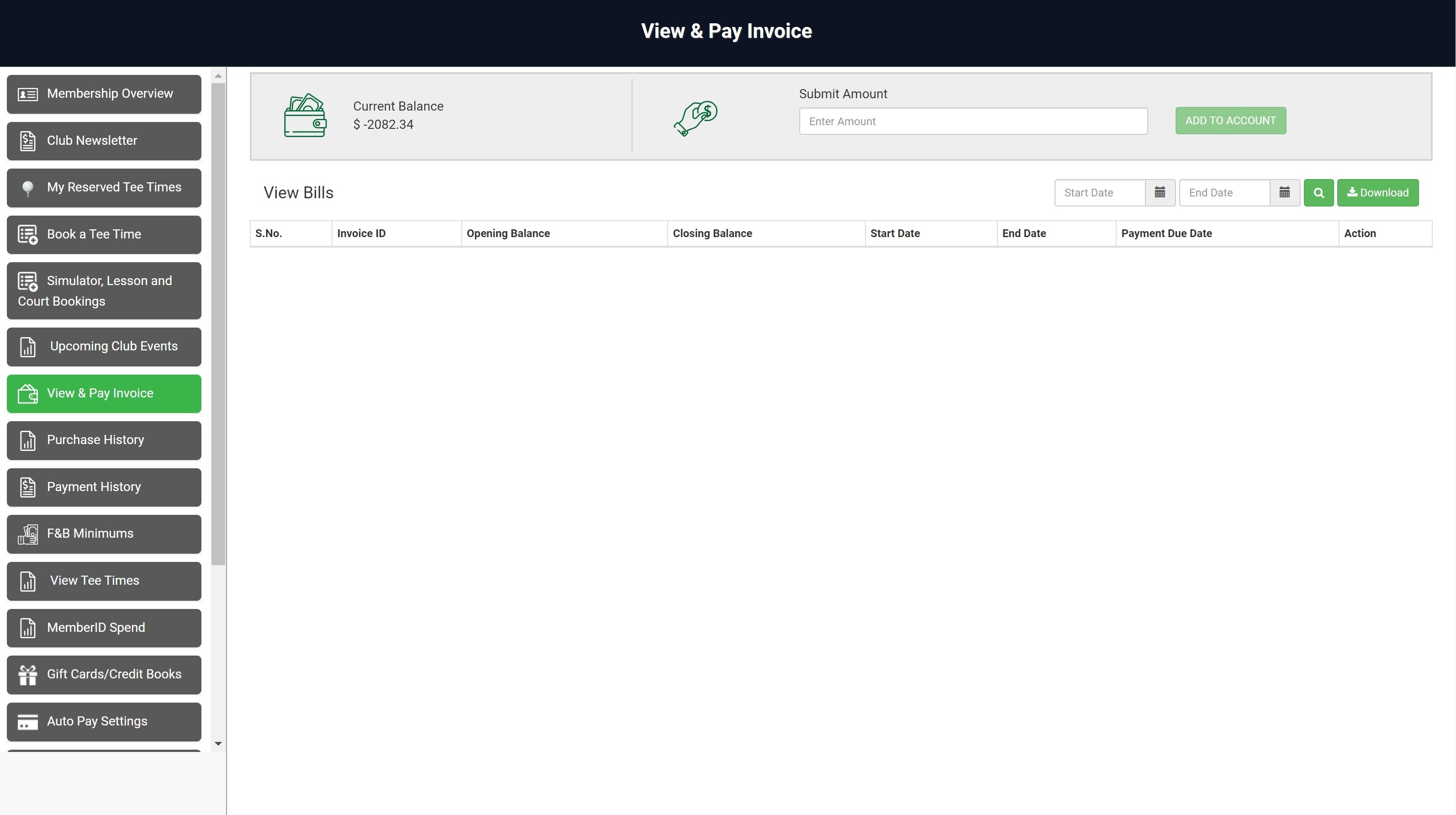
Invoice Payment: This page allows your members to view their current balances, invoices, and pay them online using stored credit card information.
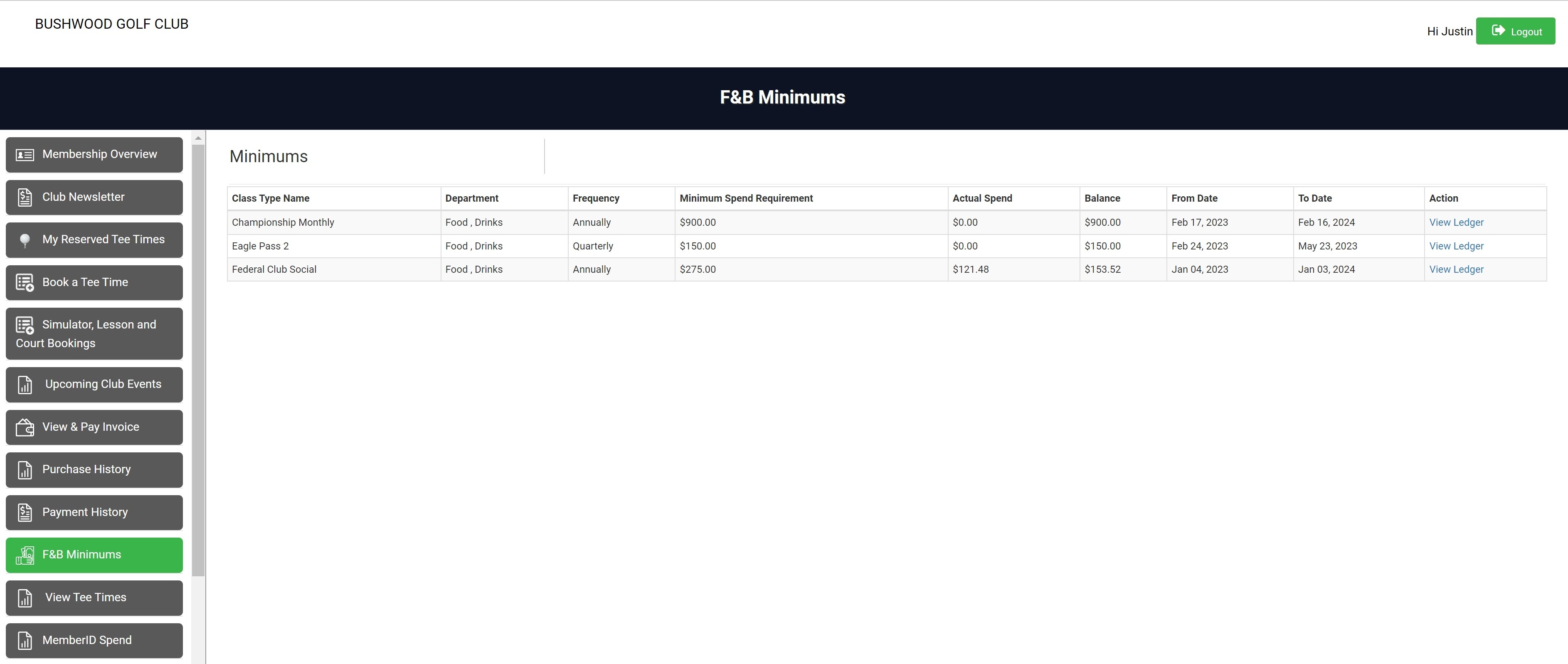
Minimums: This page allows members to track how much the member has spent so far on their account towards their monthly minimums.
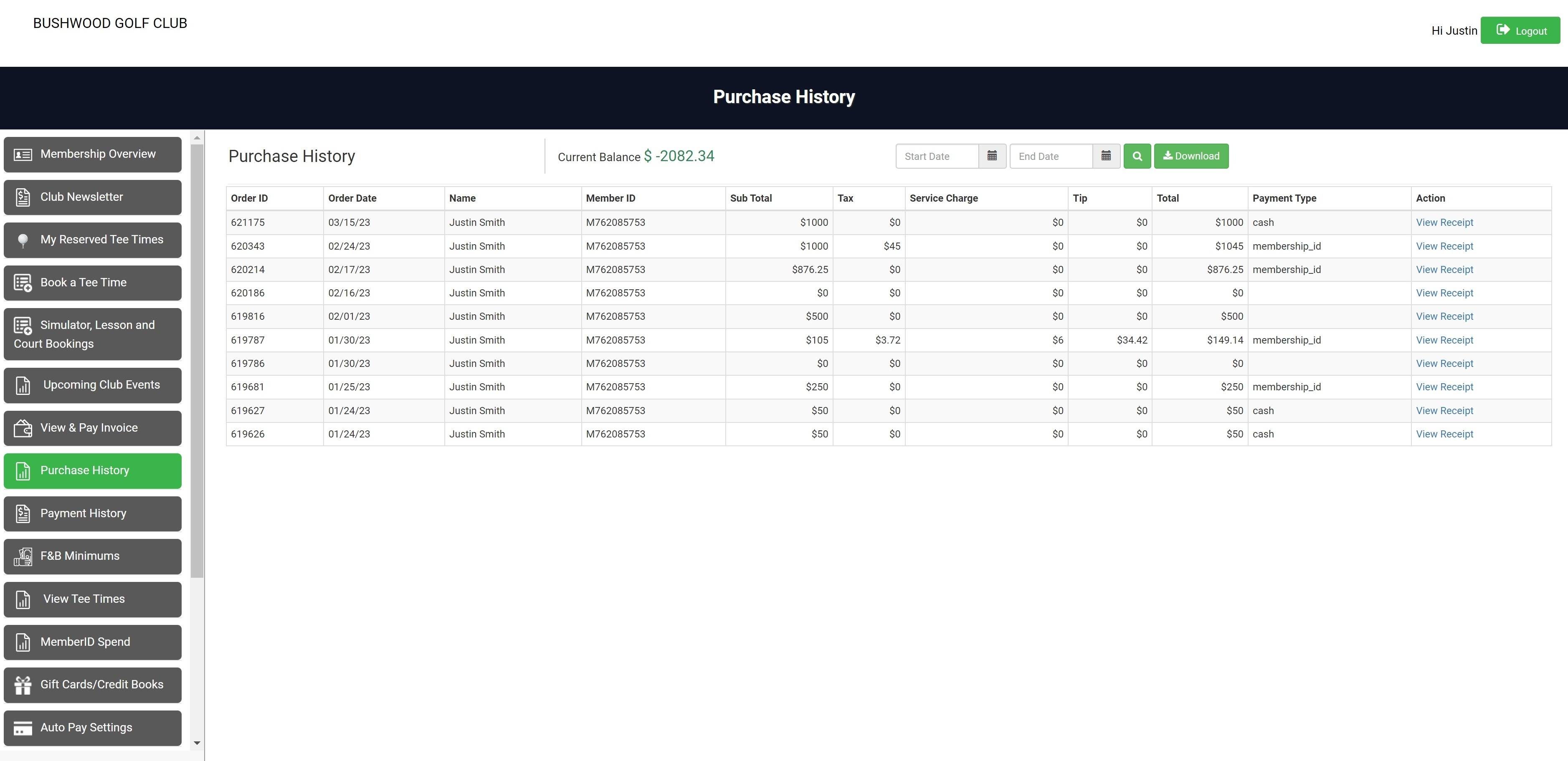
Purchase History: This page allows your members to view their purchase history at the club and online. They can see details like the date, amount, and receipts for each transaction. The purchase history can be filtered by date using the Start date / End date fields.
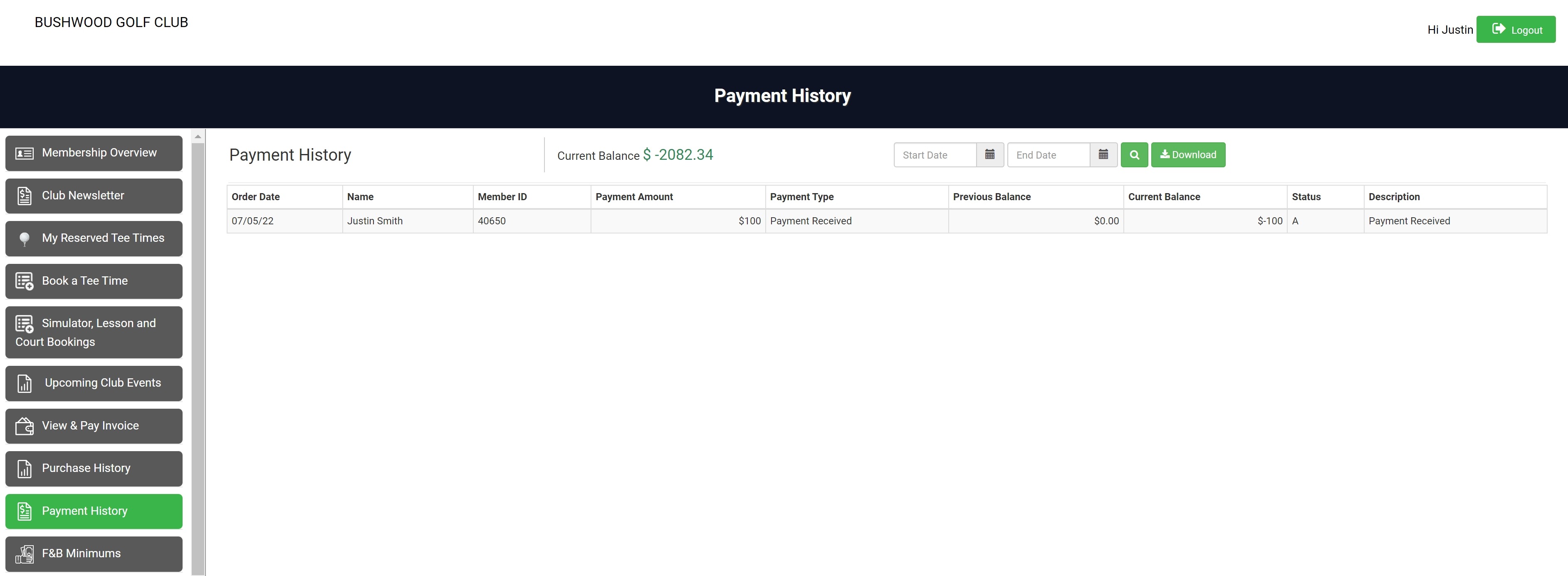
Payment History: This page allows your members to view their payment history at the club and online. They can see details like the date, amount, and status of each payment. The payment history can be filtered by date using the Start date / End date fields.
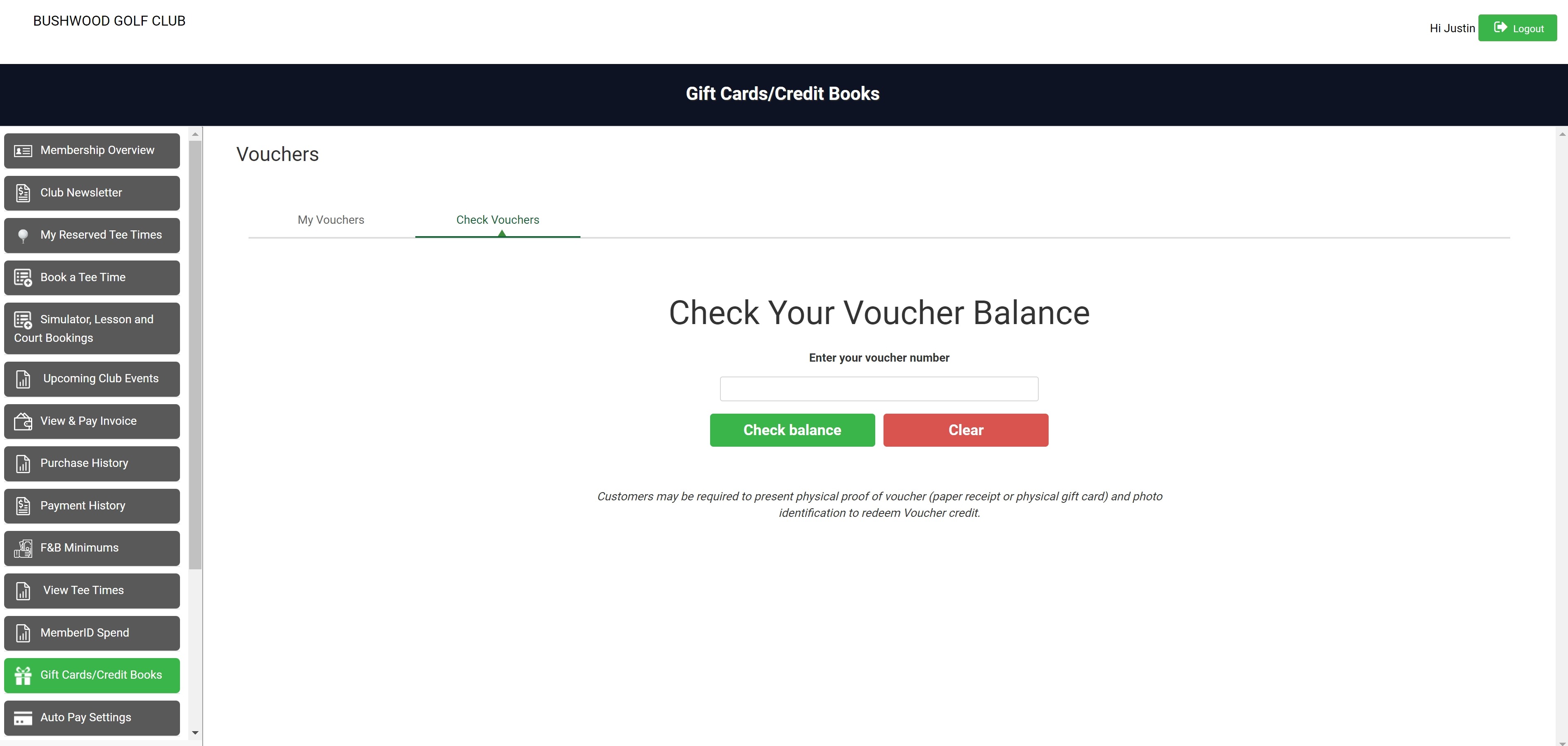
Vouchers: This page allows members to see the info on any vouchers that have been assigned to their accounts. The check voucher balance tab allows members to input a voucher number and check the voucher's current balance.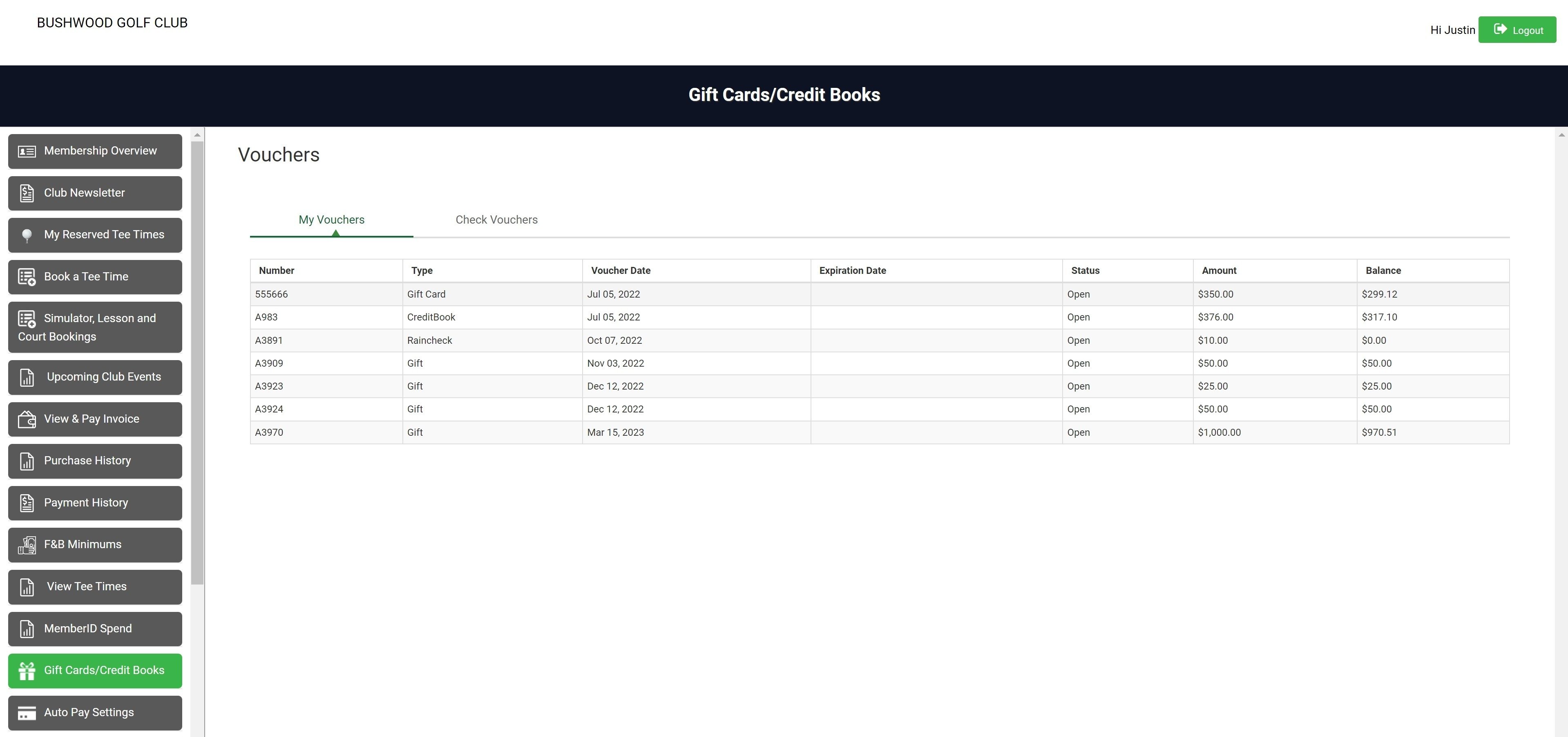
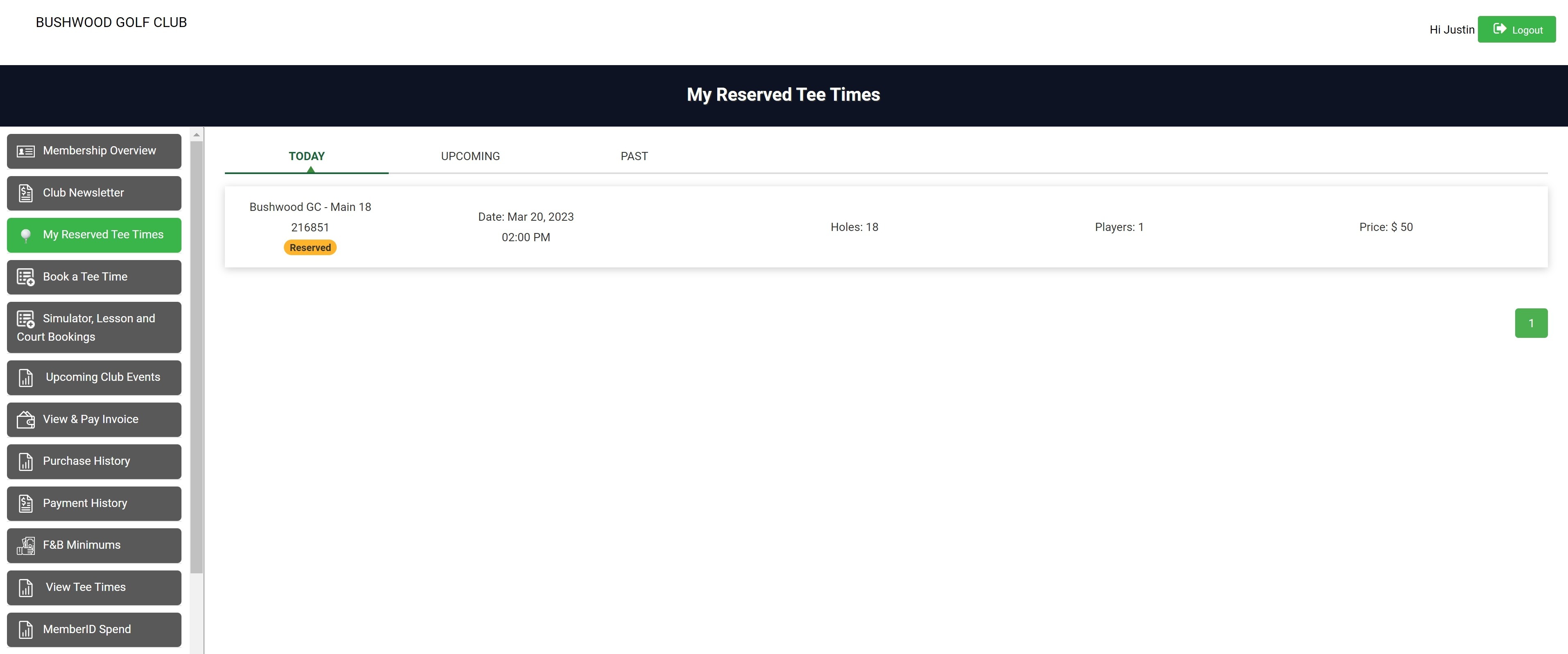
My Tee Times: This page allows members the ability to see tee times they have reserved either online or at the club. There are tabs for the current day, future bookings and historical past bookings.
Book Tee Time: This page allows your members to book tee times online. They can also cancel or reschedule their bookings if needed.
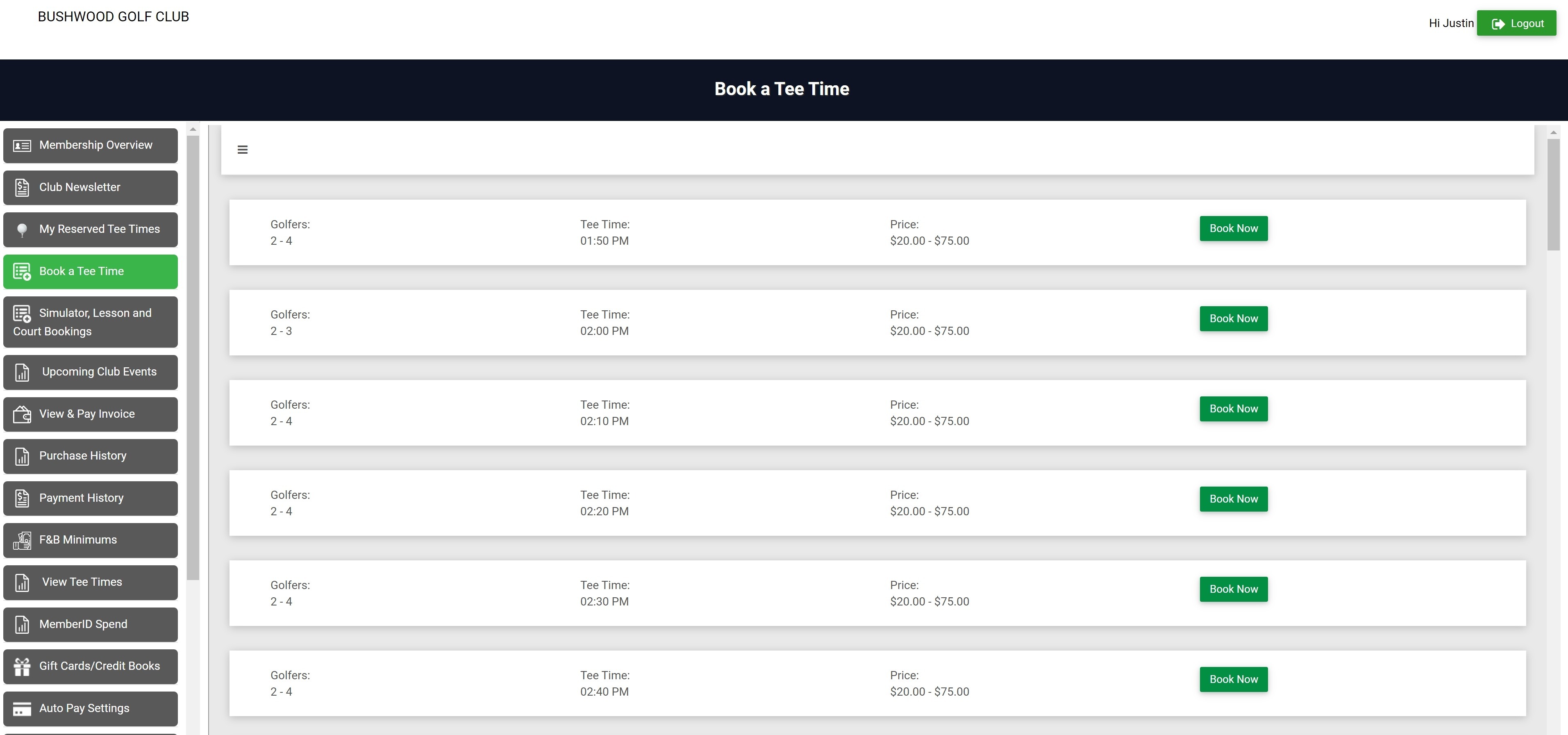
The booking engine allows for searching by date, the number of players, holes, time, and price.

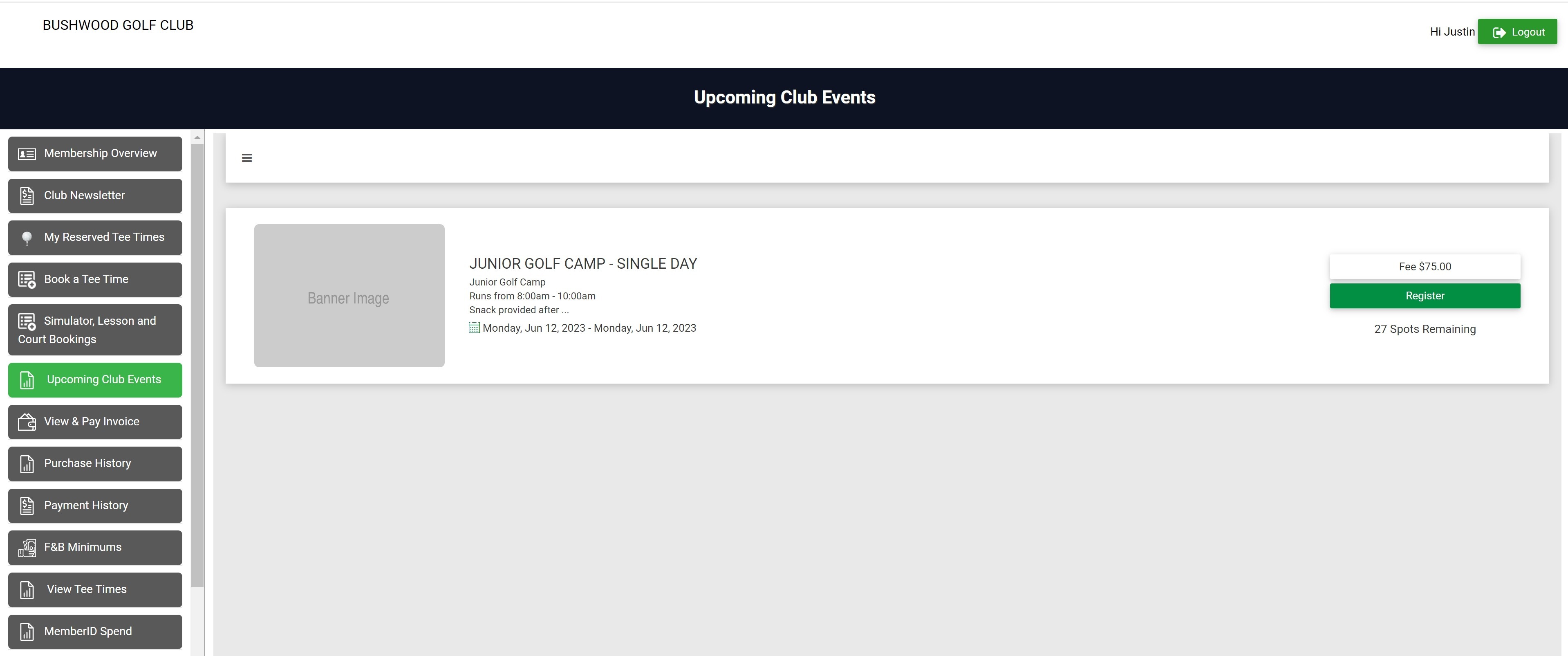
Events: This page allows members to see created upcoming events (e.g., webinars, workshops, and parties). They can see details like date, time, location, description, and registration fee. Members will have the ability to register and pay for listed events based on the parameters set up with the EVENTS module of Club Caddie.
Autopay Setup: This page allows your members to view and add credit/bank account information which can be used for invoice payments, event registrations, and tee and activity time bookings.

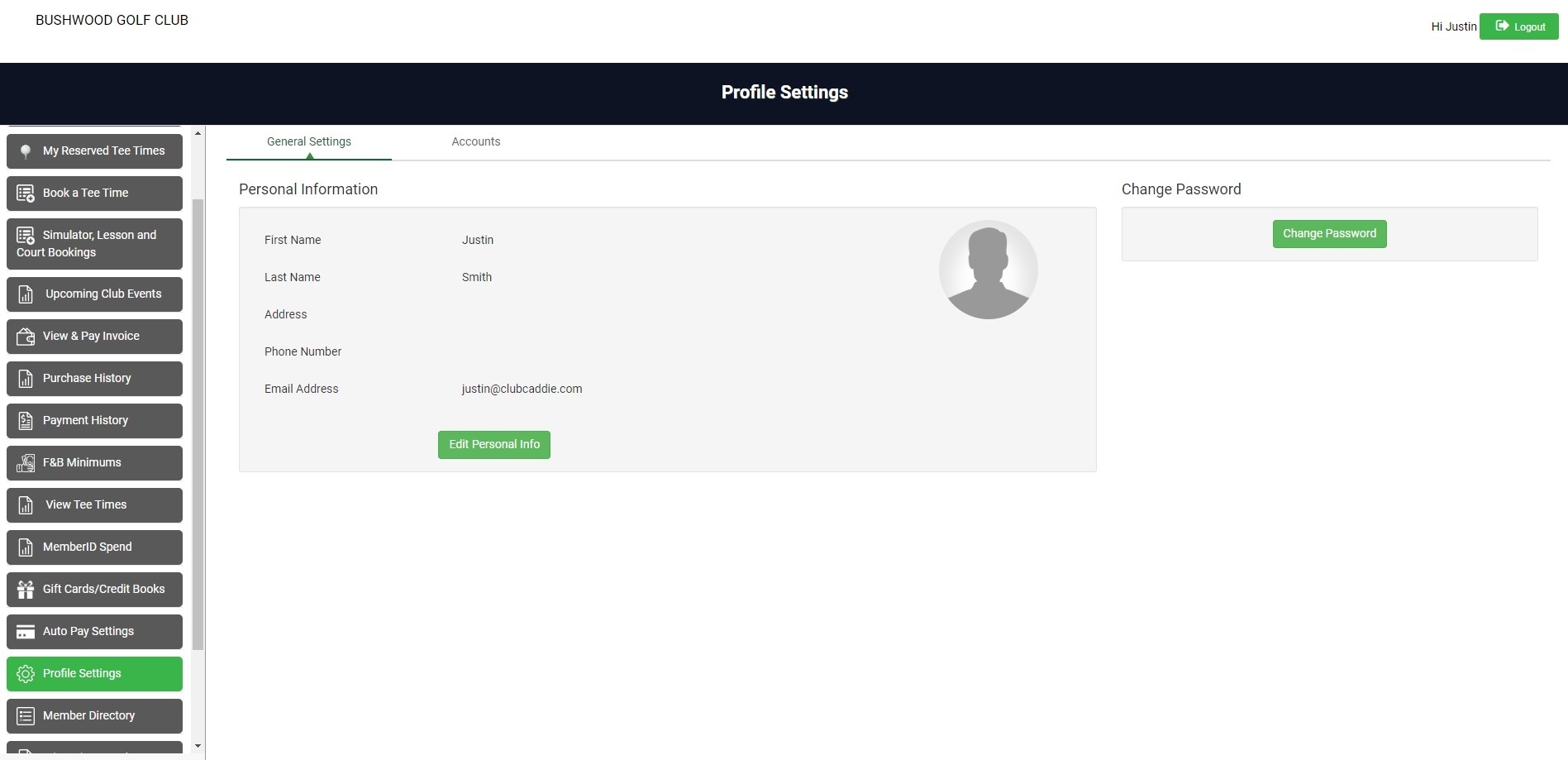
Settings: This page allows your members to update their personal information such as email, password, and address.
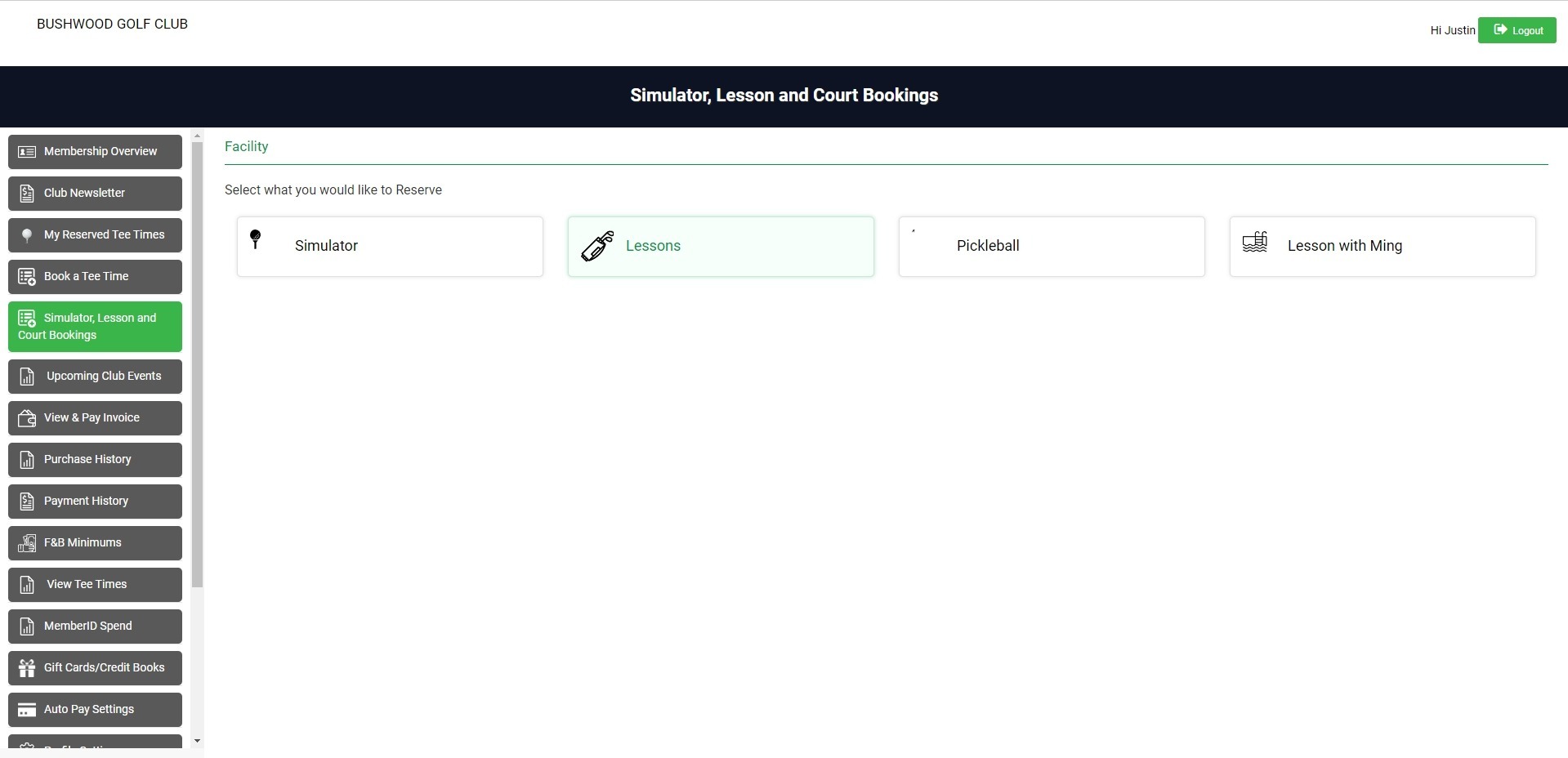
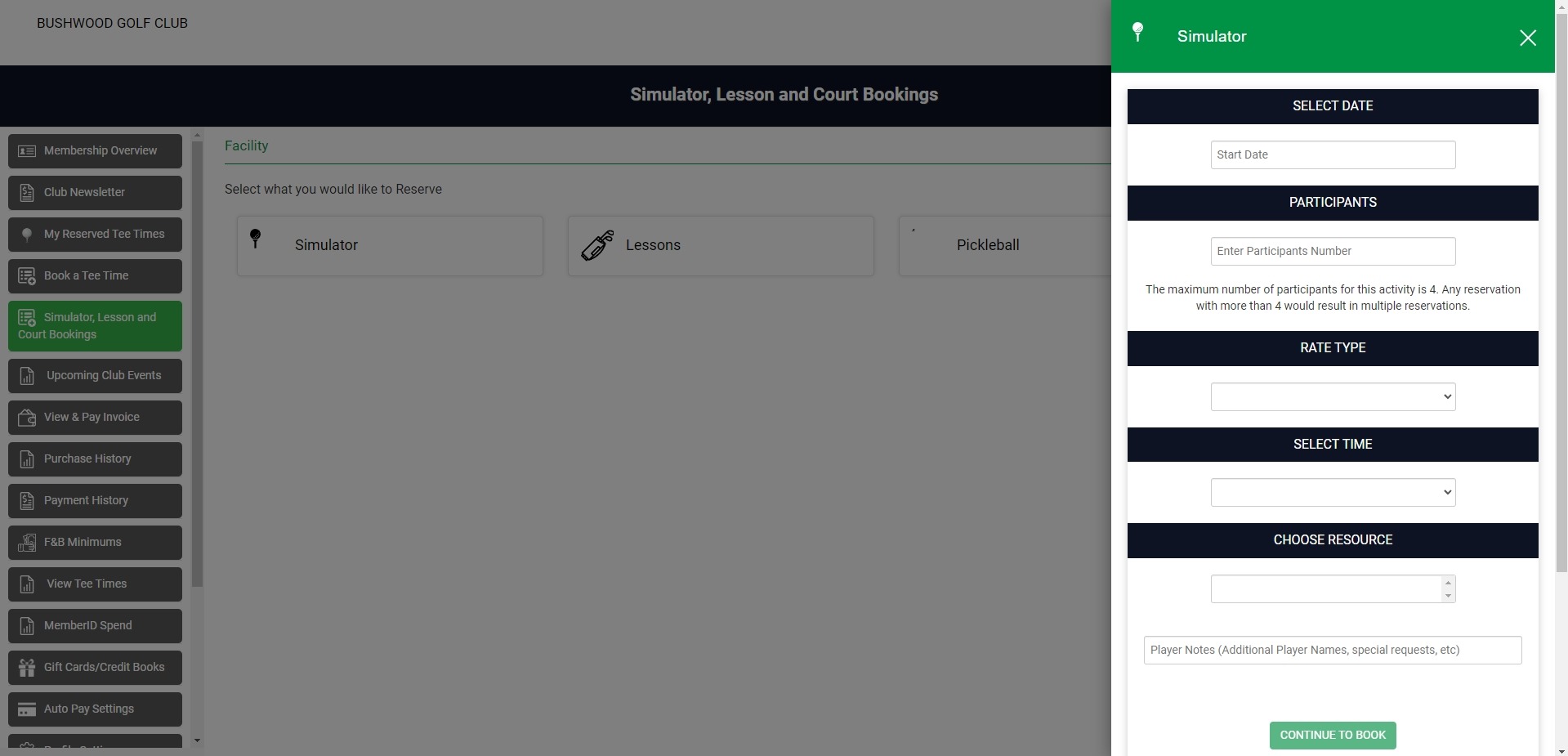
Activities: This section allows members to book activities such as tennis, golf simulators, swimming, etc. You can also set the availability, pricing, and booking rules for each activity within Club Caddie and those will be displayed within this activity booking engine.
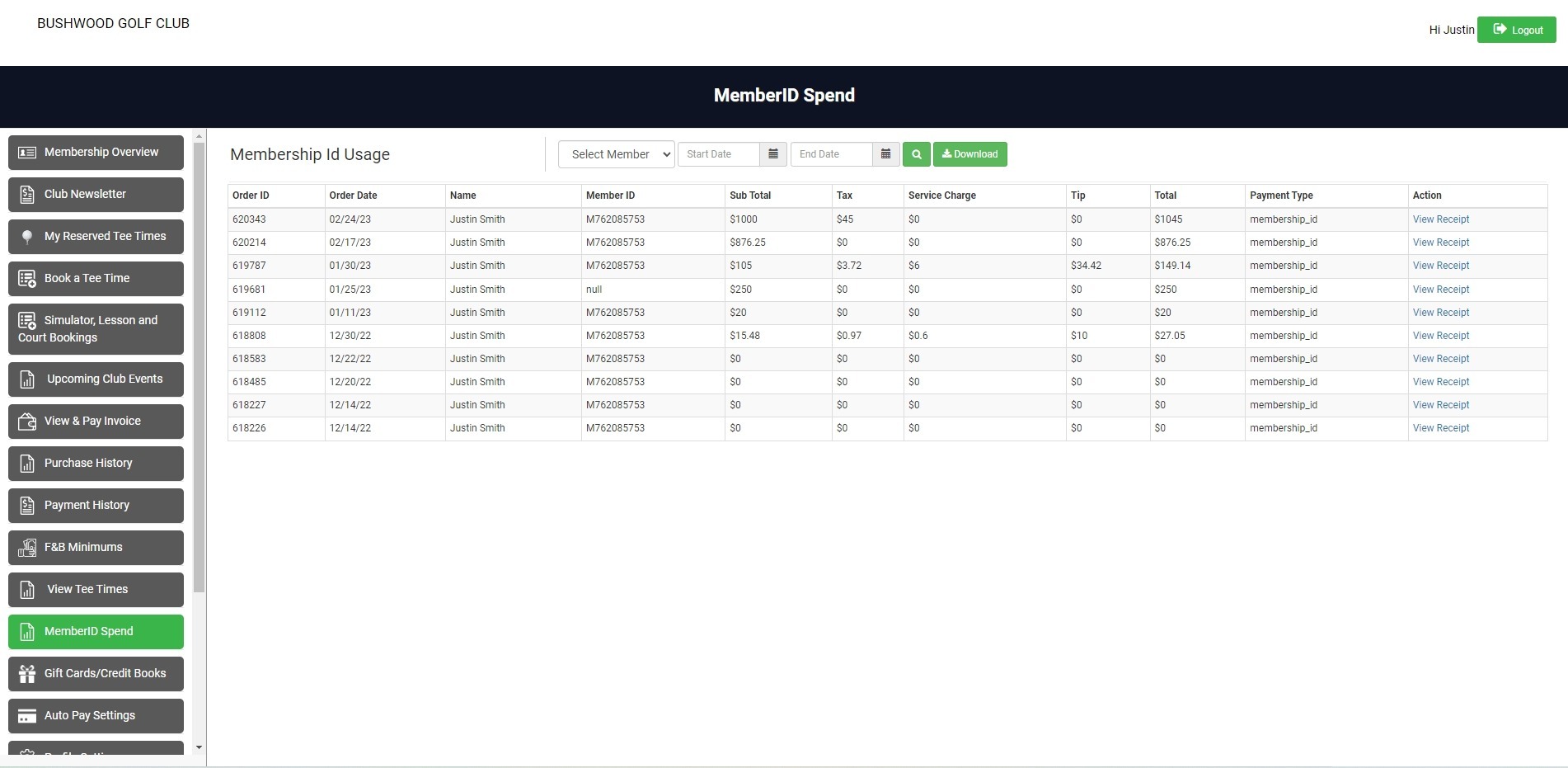
Membership ID Usage: This page allows your members to view their Membership ID usage and payment history. They can see details like the date, amount, and status of each payment. The payment history can be filtered by date using the Start date / End date fields.
Directory: This section displays a list of all your members and their contact information sorted alphabetically by surname.

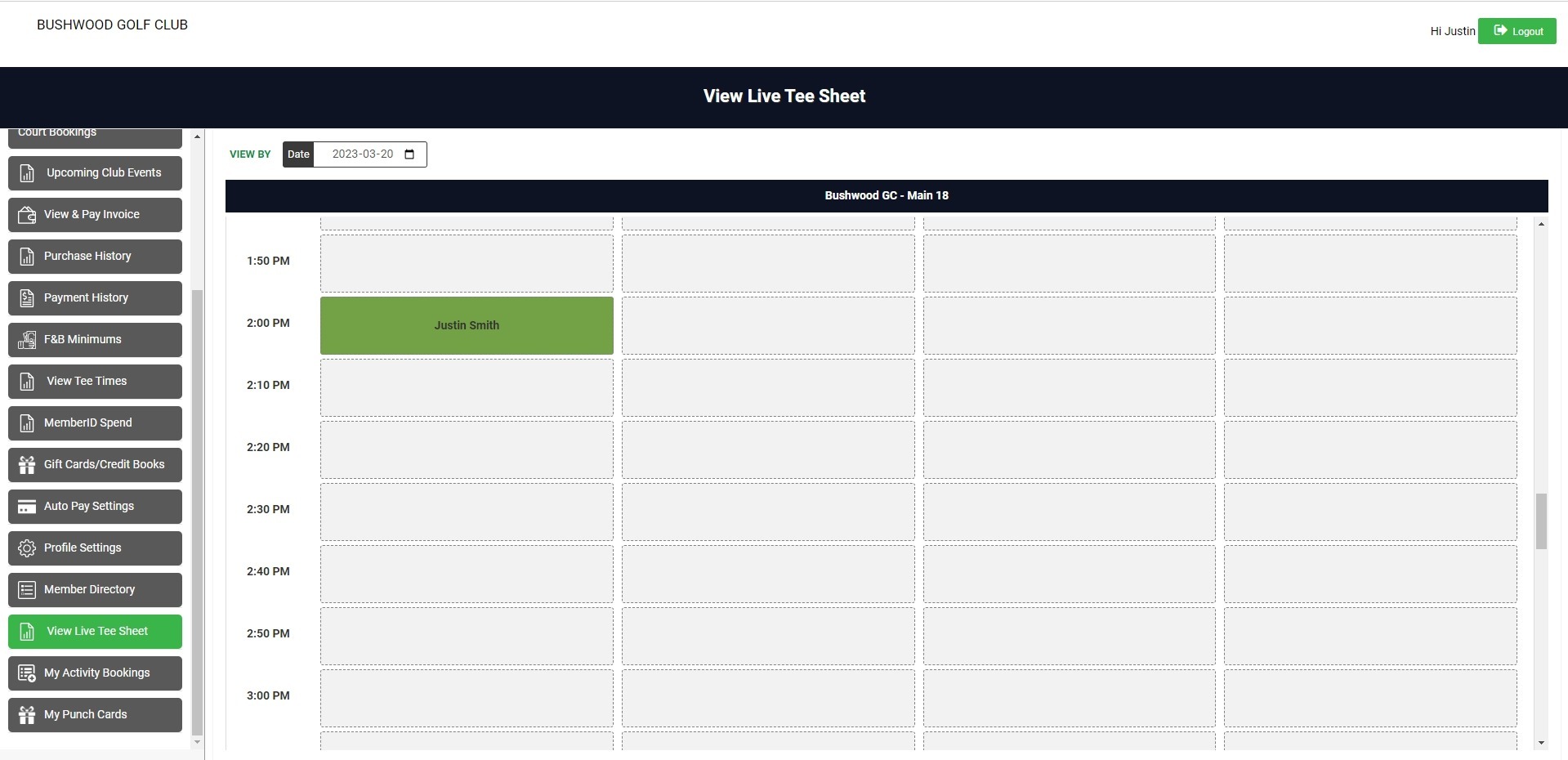
Tee Sheet: This section allows you to manage your tee times and reservations for golf. You can view the availability of each tee time slot, assign players or groups, check-in or cancel reservations, and print receipts or reports.
Vouchers: This section allows members and guests to purchase vouchers (gift cards) online. Vouchers can be configured with different values and expiration dates to drive engagement and additional revenue.

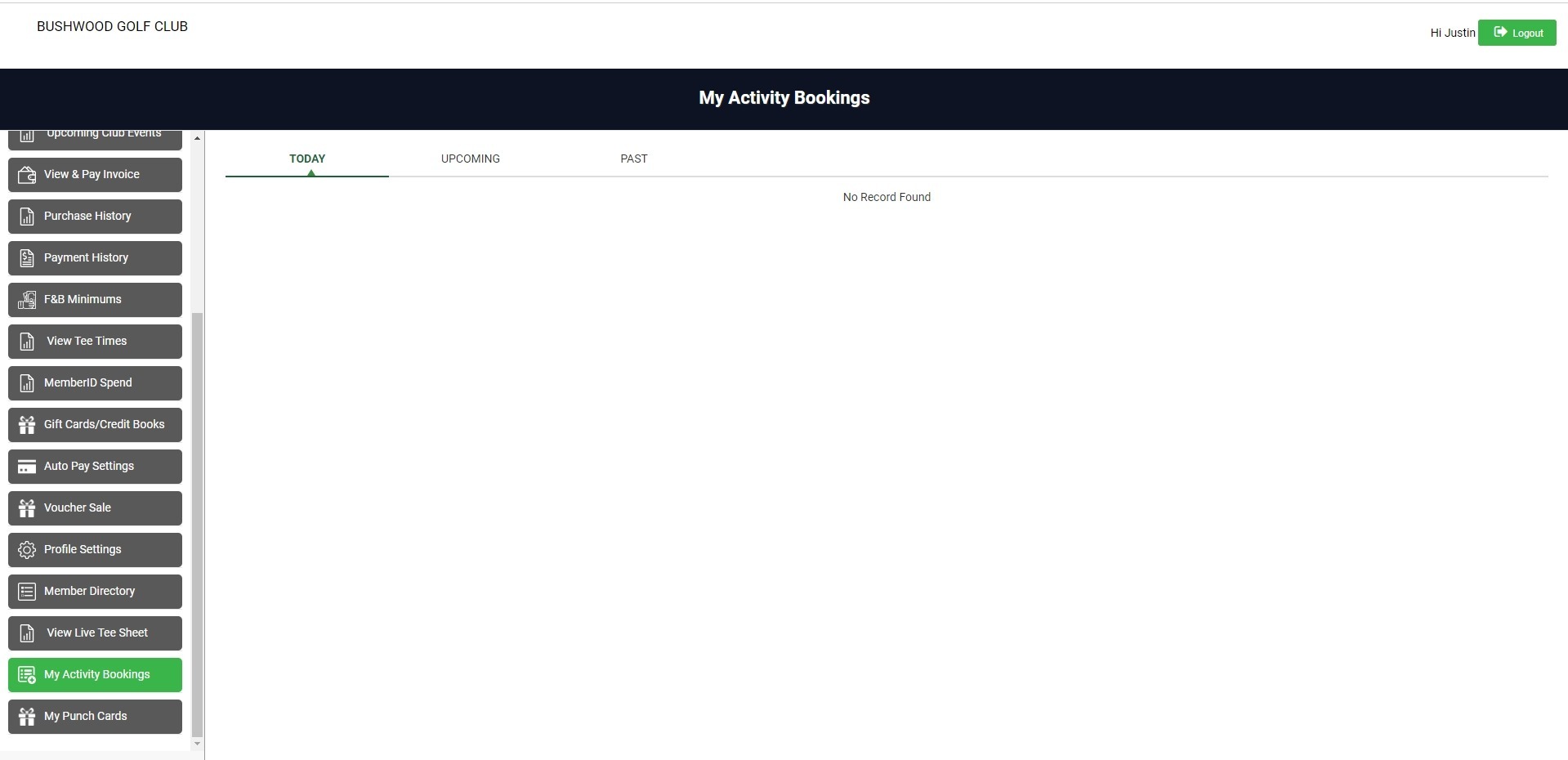
My Activity Bookings: This page allows members the ability to see activity times they have reserved either online or at the club. There are tabs for the current day, future bookings, and historical past bookings.
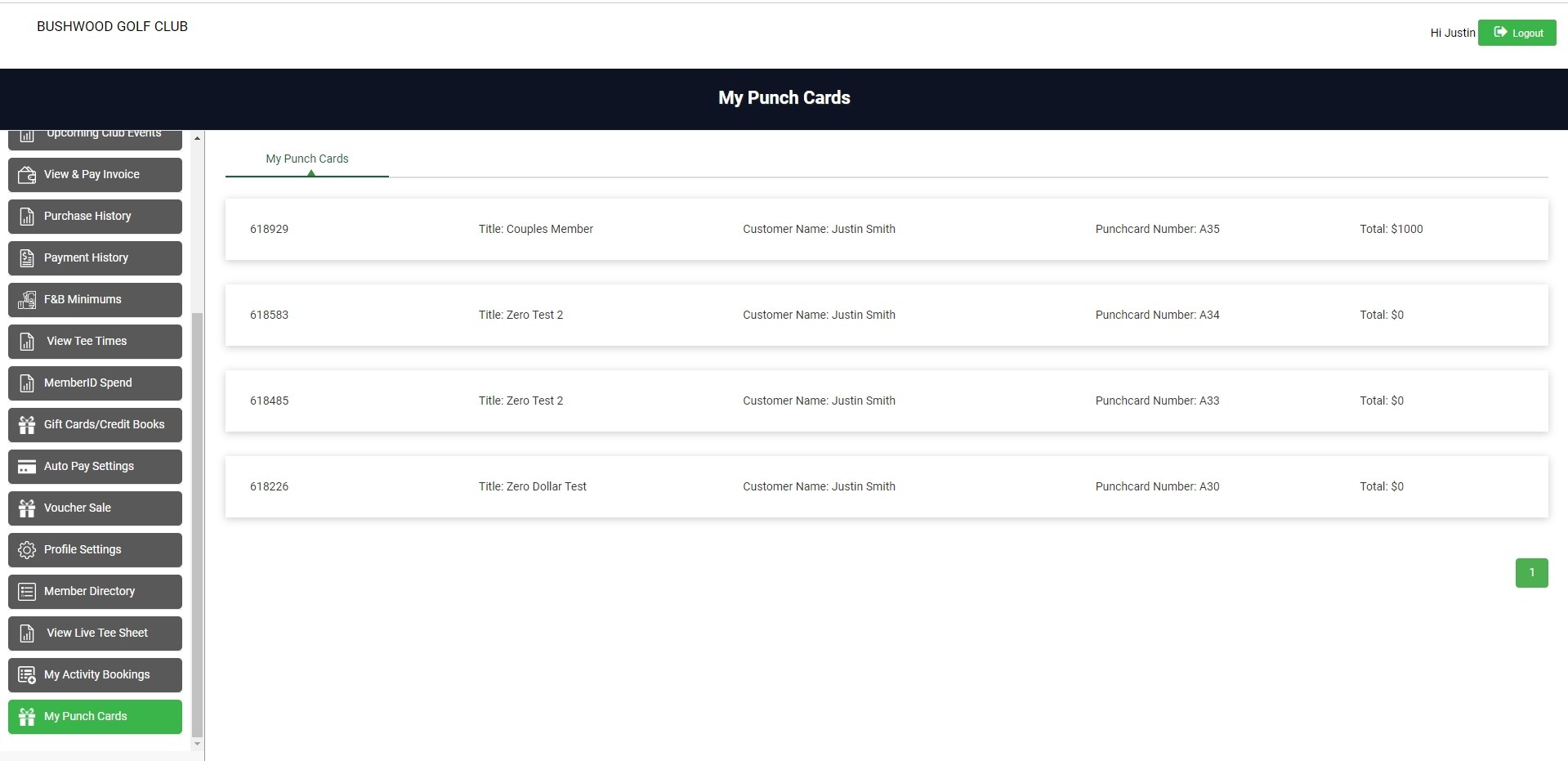
My Punch cards: This section allows your members to view and manage their punch cards online. They can also see how many punches they have left, their usage history, and when they expire.