.png?width=200&height=89&name=CC%20%20fiserv.%20(3).png)
Step By Step:
You can set a minimum spend rule across an entire class or alternatively set up a customer-specific spend rule on any department.
To Set Minimum Spend Rules By Class:
Step 1: Click on the Setting button from the header of the window.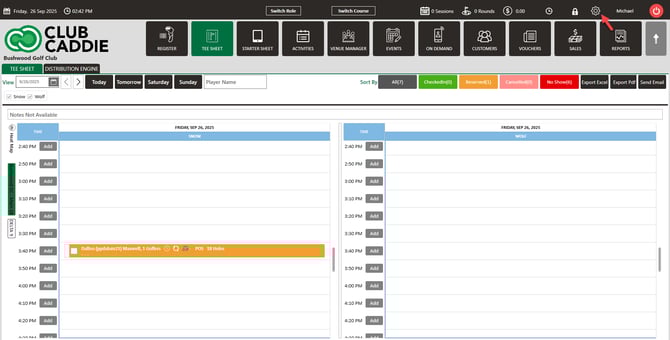
Step 2: Select the Class Management from the left row of the window. To apply the Minimum Spend Rule, select the Minimum Spend Rule from the Action button's drop-down list. 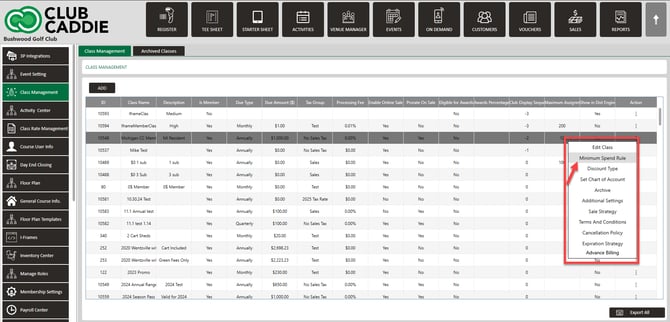
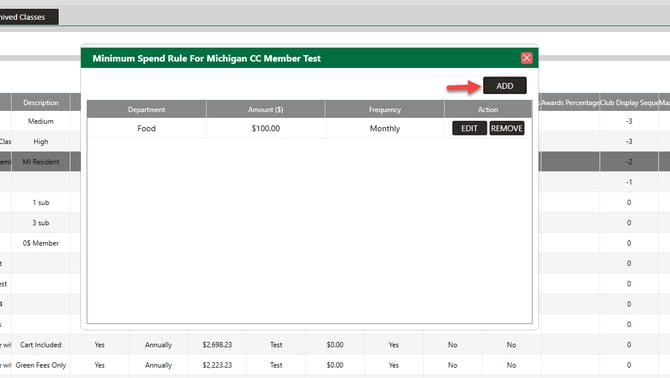
Step 3: The system will generate a new Minimum Spent Rule window. Click on the Add button then select the department from the Drop Down for which department you want to add Minimum Spend Rule. Set the amount and select frequency then click on the Save button. The rule will be added to the list. Click on Remove to remove it.
To select specific customer:
Step 1: Click on the Customers module. Select Members from the left row of the window.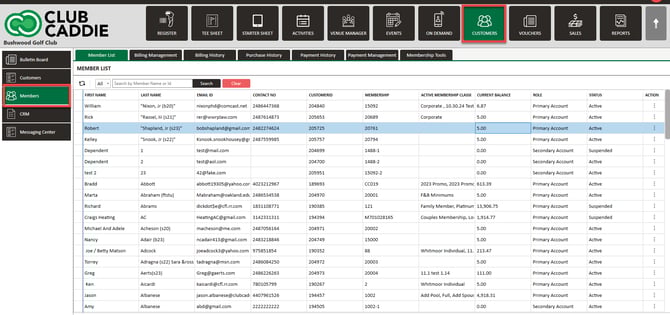
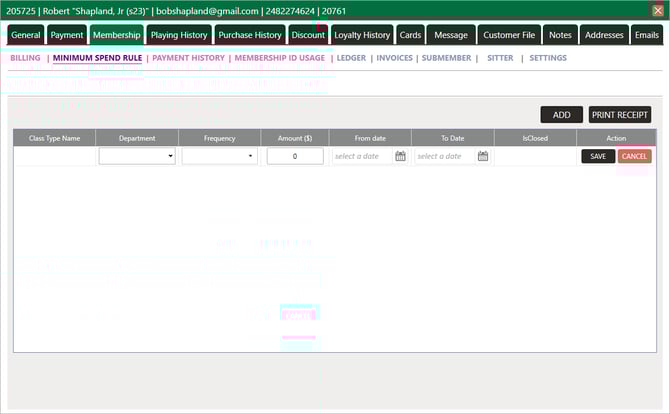
- ClassTypeName: If the minimum Rule come from class directly
- Departments: Departments that need to be considered for a minimum
- Frequency: Monthly/Quarterly/Annually
- Amount: Minimum Rule Amount that needs to be spent.
- From Date: Date of Minimum Rule assignment
- To date: Date after which rule's renewal will happen and the member will get charged if he has not fulfilled the minimum spend requirement
- Minimum Amount: This is the original minimum rule amount
- Applied: Total purchase against a minimum amount
- Remaining: Amount that members need to spend else he will get charged against this amount as he has not fulfilled the minimum spend requirement
To chance a minimum:
Step 1: Select Settings, then Class Management.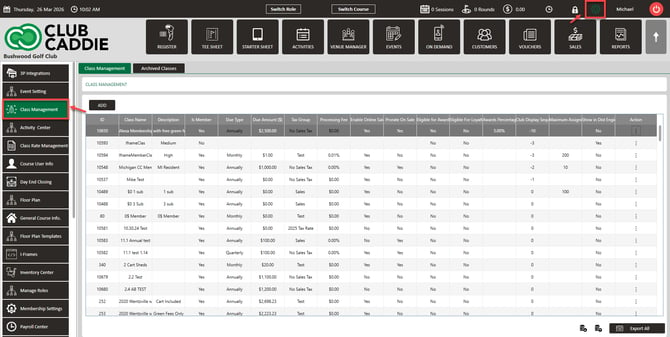
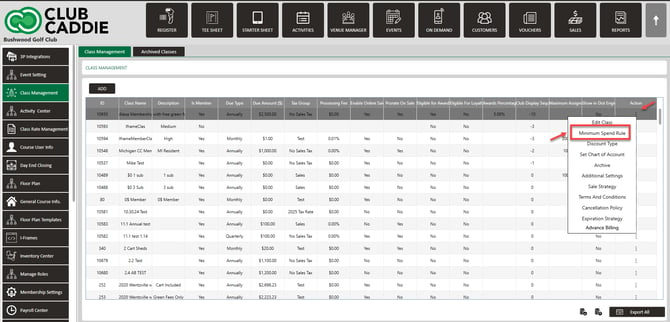
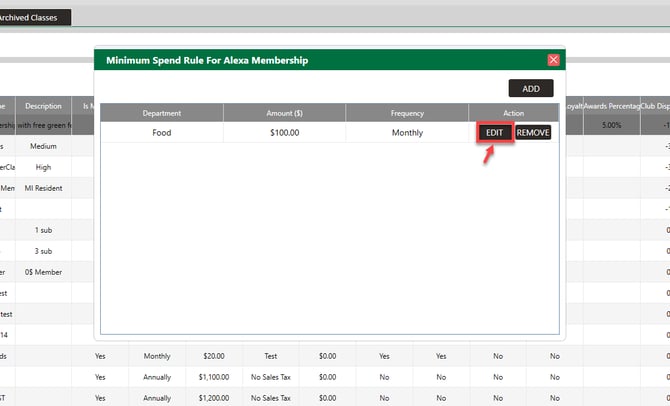
Step 3: You will then be able to edit the department in which you would like the minimum to apply to, the amount, and the frequency. Once the information is correct, select Save. You will then receive a pop-up asking when for the changes to apply.
-
When changing a minimum:
Apply Immediately - Will make the change to all Active Cycle.
Apply Next Renewal - Will make the change on the next Minimum Cycle.
Do Not Apply - Will keep the current minimum set for all Active Users.
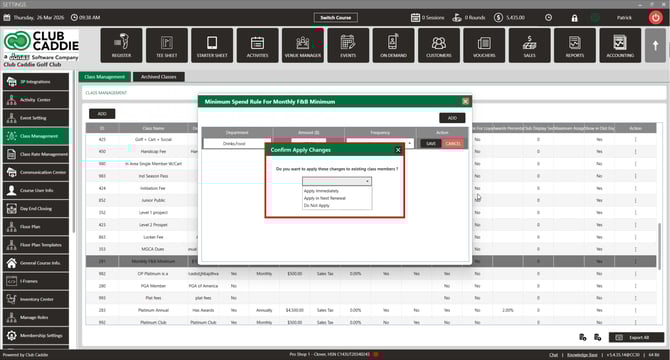
Editing an Existing Minimum Spend Rule
When you make changes to a Minimum Spend Rule that has already been saved, the system will ask how you want to apply those changes before saving.
Step 1: Locate the Minimum Spend Rule you want to update. You can access it through Settings > Class Management > Minimum Spend Rule, or on an individual member's Membership tab.Step 2: Make your desired changes (department, amount, or frequency) and click Save.
Step 3: A prompt will appear asking: apply changes to Existing Members currently on this rule, or only to New Members going forward?
- Existing Members — changes take effect immediately for all members currently assigned this rule.
- New Members Only — current members keep the old rule; only new members receive the updated version.