.png?width=200&height=89&name=CC%20%20fiserv.%20(3).png)
Step by Step Guide:
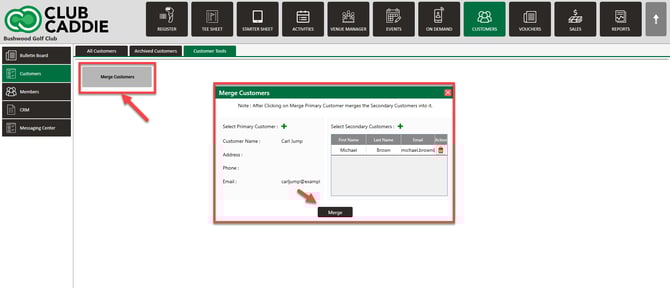
Step 1: Navigate to the Customers module along the top row.
Step 2: Select the Customers tab on the left, and then click Customer Tools.
Step 3: Select Merge Customers. A pop-up will appear where you will enter the customers that you wish to merge.
Step 4: Click on Merge to consolidate records.
You can merge two customer profiles even when they have different Origin Clubs. When the merge is performed, the primary customer's Origin Club is retained, and all history from the secondary profile (playing history, purchase history, etc.) transfers to the primary profile.
What Happens When You Merge
When two profiles are merged, the master record keeps the full history from both — including rounds played, purchases, and any memberships. No history is lost in the merge.
This is useful when a customer has two profiles — for example, if they booked online with a different email address than the one on their existing profile, or if their name was entered slightly differently at a previous visit.

NOTE: Merges are permanent. Once completed, the two profiles cannot be separated. If you are unsure which profile to keep as the master record, check with your manager before proceeding.
Permissions: Only users with Merge Customers access can perform this action—check your role settings.