.png?width=200&height=89&name=CC%20%20fiserv.%20(3).png)
Journal Entry Setup maps Club Caddie transaction types, sub-departments, payment methods, voucher types, and (for facilities using class-specific accounting) classes to QuickBooks general ledger accounts. Each mapping tells the QuickBooks sync which account a given type of sale, payment, or discount should post to when it syncs as a journal entry.
When you'd use this
- Setting up the QuickBooks integration for the first time, after connecting QuickBooks Online or QuickBooks Desktop
- Adding a new GL account in QuickBooks that needs to be mapped on the Club Caddie side before it can be used
- Troubleshooting a sync error that points to an unmapped or incomplete mapping
- Setting up the new Discount Account field added in release 5.7
Where to find it
Settings → QuickBooksIntegration → Journal Entry Setup.
The QuickBooksIntegration item sits in the Settings left menu, written as one word with no space. The Journal Entry Setup tab is one of several tabs on that screen alongside Chart Of Account, QuickBooks Desktop, Chart Of Accounts Oracle Extension, Quick Books Vendor, Settings, QuickBooks Online, QuickBooks Reset Sync, and Great Plains Extension.
The Journal Entry Setup tab shows a list of existing mappings — Transaction Type, credit account, Debit Account, and an Action column with View/Edit and Delete — and an Add Journal Entry button in the upper right.
Setting up a journal entry mapping
- From Journal Entry Setup, click Add Journal Entry.
- Set Journal Entry Type. This field has two options: Transaction Type and Sub Department. Choosing Transaction Type does not display the sub-department dropdown — if you need to map a sub-department (including the new Discount Account field), select Sub Department instead.
- Pick the specific transaction type or sub-department you're mapping (for example, a sub-department like "Pro Shop Balls").
- Assign a Credit Account and a Debit Account from your imported Chart of Accounts. Every mapping needs both accounts filled in.
- Add a Memo Field note if you want one.
- Click Save.
If the QuickBooks account you need doesn't appear in the dropdown yet, it needs to be created or activated in QuickBooks first, then re-imported into Club Caddie via the Chart of Accounts import (Import Data for QuickBooks Desktop, Import from QuickBooks for QuickBooks Online).
New in 5.7: mapping a discount to its own GL account
Journal Entry Setup includes a Discount Account field, which sits between Debit Account and Class in the Add Journal Entry popup. It maps a sub-department's discount dollars to a specific QuickBooks chart-of-account, so discounts post to that account separately instead of blending into the sales/revenue line.
The Discount Account field appears only under the Sub Department journal entry type, not under Transaction Type.
To set it up:
- Settings → QuickBooksIntegration → Journal Entry Setup → Add Journal Entry.
- Set Journal Entry Type to Sub Department.
- Pick the sub-department.
- Assign a Credit Account.
- Assign a Discount Account. If the account you want doesn't exist yet, it can be created without leaving this screen.
- Click Save.
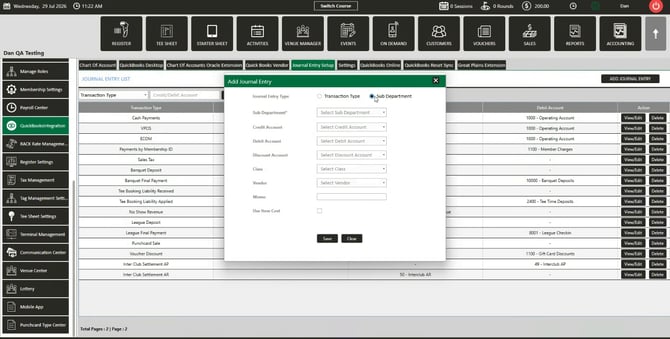
Discount dollars mapped this way sync to QuickBooks — the mapping is not display-only. A mapped discount posts as a debit.
Mapping changes apply going forward, not retroactively. Changing a discount mapping affects future syncs. A period that already synced under a previous mapping does not automatically update — someone would need to manually re-run the sync for that date range for it to pick up the new mapping.
The steps above cover mapping a discount to a sub-department for the first time. If you're changing the discount mapping on a sub-department that already has one configured, the same Add Journal Entry screen is used.
Verifying a sync
After running a sync (Settings → QuickBooksIntegration → Sync with QuickBooks section, select a date range, run the sync), confirm the entries landed where expected:
- Check the Profit & Loss statement or General Ledger in QuickBooks for the sync period.
- For a discount mapping specifically, the GL Cloud Report V2 (Reports module) shows the discount amount after a discounted sale, so you can confirm it posted to the mapped Discount Account rather than the general sales line.
A completed sync shows a "Sync Successful" message in Club Caddie. For a first-time sync, running it against a single date is the safer way to confirm mappings are correct before syncing a full range.
If a sync fails on "Balance debits and credits" or a similar mapping error
Work through these five locations in order — the missing or mismapped entry is almost always in one of them:
- Settings → QuickBooksIntegration → Journal Entry Setup → Transaction Types — every transaction type needs a GL code.
- Settings → Register Settings → Departments (Sub-Departments) — each sub-department needs a GL code.
- Settings → Register Settings → Custom Payment Methods — each custom payment method needs a GL code.
- Settings → Register Settings → Club Voucher Type — each voucher type needs a GL code.
- Settings → Class Management → Set Chart of Accounts — if class-specific GL codes are used, each class needs an assignment. The class dropdown only populates from Chart of Accounts entries with a green checkmark in QuickBooks Online.
Common Questions
Does the Discount Account field apply to Transaction Type mappings too, or only Sub Department?
Only Sub Department. Selecting Transaction Type as the Journal Entry Type does not display a Discount Account field.
If I change a mapping, does it correct entries that already synced?
No. Mapping changes apply to future syncs only. A date range that already synced keeps its original mapping unless someone manually re-runs the sync for that specific range.
Where do I confirm a discount actually posted to the account I mapped?
The GL Cloud Report V2 in the Reports module shows the discount amount for a given sale, which you can check against the Discount Account you assigned.
What if the QuickBooks account I want isn't in the dropdown when I'm setting up a mapping?
It needs to exist and be active in QuickBooks first. Add or activate it in QuickBooks, then re-import your Chart of Accounts in Club Caddie (Import Data or Import from QuickBooks) before it will appear as an option.
Does QuickBooks Desktop use the same mapping steps as QuickBooks Online?
Journal Entry Setup and the mapping steps are the same screen for both. The connection process itself differs — QuickBooks Desktop connects through a flashing icon in the Windows toolbar rather than the browser OAuth flow QuickBooks Online uses.