---
title: "Quickbooks : Migrating to Quickbooks Online (Video)"
description: This article contains a guide for transitioning from Quickbooks Desktop to Quickbooks Online.
---
[Skip to content](https://support.clubcaddie.com/quickbooks-migrating-to-quickbooks-online-video#main-content)
English
Show submenu for translations
[.png?width=200&height=89&name=CC%20%20fiserv.%20(3).png)](https://www.clubcaddie.com?hsLang=en)
- [Club Caddie University](https://clubcaddie-university.com/)
- [Webinar Training](https://info.clubcaddie.com/webinarseries?_gl=1*1b7azj6*_gcl_au*NTg3NjE2MDE0LjE3NTczNTEwMDE.*_ga*MTMwODY5ODg2NS4xNzU3MzUxMDAx*_ga_5DSQKC2H56*czE3NTgzMDAwNDAkbzE4JGcwJHQxNzU4MzAwMDQwJGo2MCRsMCRoMA..)
- [Knowledge Base](https://support.clubcaddie.com/)
- [Changelog](https://clubcaddie.com/changelog/)
Open main navigation
Close main navigation
- [Club Caddie University](https://clubcaddie-university.com/)
- [Webinar Training](https://info.clubcaddie.com/webinarseries?_gl=1*1b7azj6*_gcl_au*NTg3NjE2MDE0LjE3NTczNTEwMDE.*_ga*MTMwODY5ODg2NS4xNzU3MzUxMDAx*_ga_5DSQKC2H56*czE3NTgzMDAwNDAkbzE4JGcwJHQxNzU4MzAwMDQwJGo2MCRsMCRoMA..)
- [Knowledge Base](https://support.clubcaddie.com/)
- [Changelog](https://clubcaddie.com/changelog/)
- English
Show submenu for translations
Need help fast? Enter your question and get step-by-step tips.
- There are no suggestions because the search field is empty.
1. [Club Caddie](https://support.clubcaddie.com/?hsLang=en)
2. [Quickbooks](https://support.clubcaddie.com/quickbooks?hsLang=en)
3. [Quickbooks Online](https://support.clubcaddie.com/quickbooks?hsLang=en#quickbooks-online)
July 30, 2026
# Quickbooks : Migrating to Quickbooks Online (Video)
## This article contains a guide for transitioning from Quickbooks Desktop to Quickbooks Online.
For awareness you will need to **select a respective cutover date** as a migration from Desktop to Online requires for the chart of accounts and mapping to be first removed and then reimported directly from Quickbooks Online.
As an example, choosing a date of March 1st would require you to use the sync to Quickbooks to catch up to the most recently available date prior to cutting over and after migration the GL Code reporting would need to be used to create manual journal entries prior to the the March 1st date.
**Prior to Migration:**
Use the Quickbooks Desktop sync to sync up to the most recent dates by completing a Quickbooks sync for the respective date range.
**Day of the Migration:**
**Step 1:** Navigate to Settings -\> Quickbooks Integration -\> Quickbooks Desktop -\> Disconnect From Quickbooks Desktop.
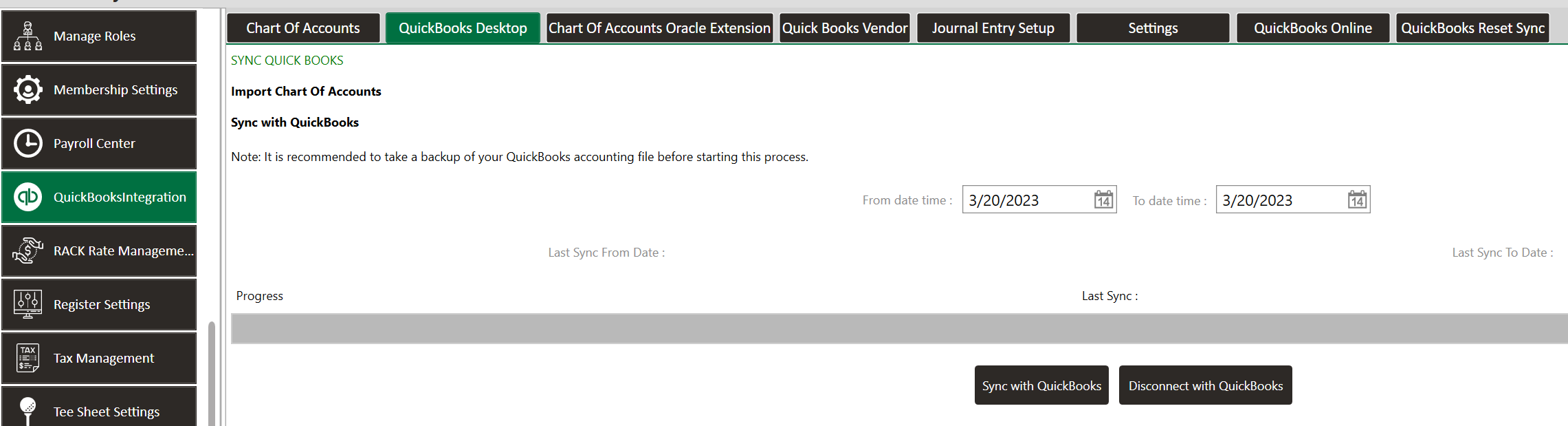
**Step 2:** We will need to remove the existing records from Quickbooks Desktop.
A) Navigate to the Chart of Accounts page and remove each of the established chart of accounts records that are in-place so that the list of account codes is cleared.
B) Navigate to the Quickbooks Vendors tab and remove the respective vendors.
C) Remove the mapping for the transaction types and sub-departments in the journal entry setup.
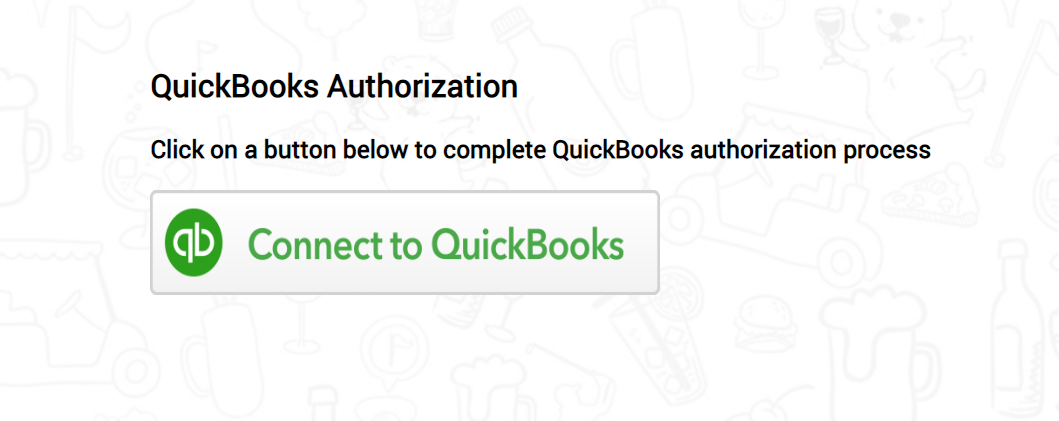
**Step 3:** Navigate to the Quickbooks Online tab and select the Connect to Quickbooks option.
Follow the respective prompts in Quickbooks Online to be able to establish a connection.

You'll be directed to a browser page which will walk you through logging into Quickbooks and selecting the respective company file to sync.
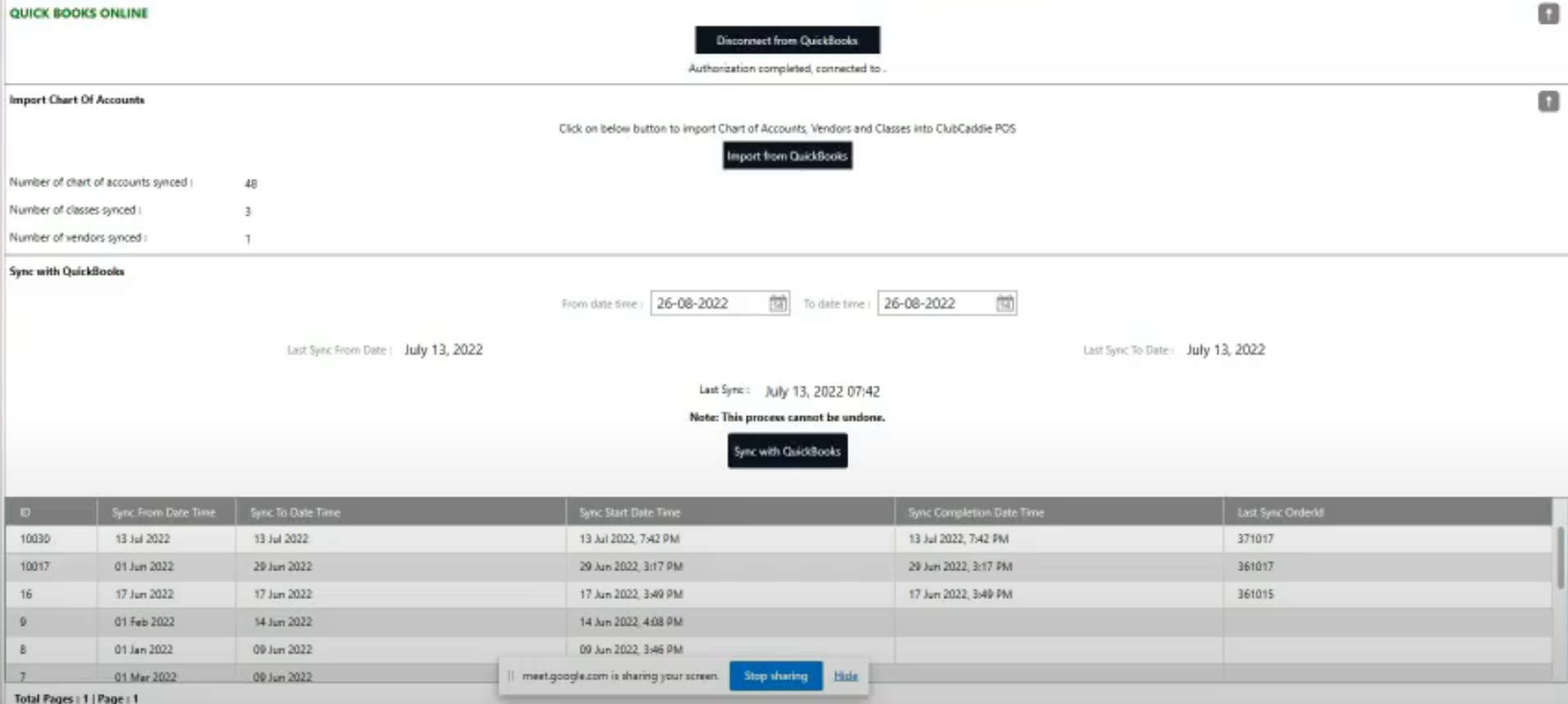
**Step 4:** Once you have established a connection you can sync data from Quickbooks online by selecting the "Import from Quickbooks" option that is now.
**Mapping the Journal Entry - Transaction Types, Sub-Departments, Payment Methods, And Vouchers.**
**Step 5:** After importing your chart of accounts codes you will need to refer to the following locations to complete the mapping:
A) **Transaction Types -** Navigate to Settings -\> Quickbooks Integration -\> Journal Entry Setup -\> Transaction Types. Select Add and then proceed to map each transaction type available in the drop-down list.
If you do not map certain transaction types it may not allow for a sync if that unmapped transaction type results in the GL Code reporting to be unbalanced for a given day.
You can additionally refer to the attached Transaction Type Mapping spreadsheet at the bottom of this article.
**B)** Next, to map the Sub-Departments, Payment Methods, and Custom Vouchers navigate to Settings -\> Register Setting:
**Departments** - Choose the Departments tab and then select edit to choose the respective GL code mapping for each sub-department. **All must be mapped.**
**Customer Payment Methods** - Staying in register settings choose the Custom Payment Methods tab and then select edit to choose the respective GL code mapping.
**Vouchers** - Staying here, next choose the Club Vouchers Tab and then select edit to choose the respective GL code mapping for each custom voucher type created.
C) **Class Types -** Optionally, If you club has separate GL codes for individual member type sales this can be mapped in Settings -\> Class Management -\> Set Chart of Accounts within the action dropdown for each of the class type.
**Attachments:**
[Chart of Accounts Template For Mapping.xlsx](https://support.clubcaddie.com/hubfs/Chart%20of%20Accounts%20Template%20For%20Mapping.xlsx?hsLang=en)
- [Browser](https://support.clubcaddie.com/browser?hsLang=en#main-content)
- [Tee Sheet](https://support.clubcaddie.com/browser?hsLang=en#tee-sheet)
- [Register](https://support.clubcaddie.com/browser?hsLang=en#register)
- [Hardware](https://support.clubcaddie.com/browser?hsLang=en#hardware)
- [Vouchers](https://support.clubcaddie.com/browser?hsLang=en#vouchers)
- [Settings](https://support.clubcaddie.com/browser?hsLang=en#settings)
- [Sales](https://support.clubcaddie.com/browser?hsLang=en#sales)
- [Members](https://support.clubcaddie.com/browser?hsLang=en#members)
- [Events](https://support.clubcaddie.com/browser?hsLang=en#events)
- [Troubleshooting](https://support.clubcaddie.com/troubleshooting?hsLang=en)
- [Desktop: Settings](https://support.clubcaddie.com/desktop-settings?hsLang=en#main-content)
- [Venue Center](https://support.clubcaddie.com/desktop-settings?hsLang=en#venue-center)
- [Inventory Center](https://support.clubcaddie.com/desktop-settings?hsLang=en#inventory-center)
- [Manage Roles](https://support.clubcaddie.com/desktop-settings?hsLang=en#manage-roles)
- [Rack Rate Management](https://support.clubcaddie.com/desktop-settings?hsLang=en#rack-rate-management)
- [Membership Settings](https://support.clubcaddie.com/desktop-settings?hsLang=en#membership-settings)
- [Day End Closing](https://support.clubcaddie.com/desktop-settings?hsLang=en#day-end-closing)
- [Course User Info](https://support.clubcaddie.com/desktop-settings?hsLang=en#course-user-info)
- [Clover](https://support.clubcaddie.com/desktop-settings?hsLang=en#clover)
- [Class Management](https://support.clubcaddie.com/desktop-settings?hsLang=en#class-management)
- [POSLink](https://support.clubcaddie.com/desktop-settings?hsLang=en#poslink)
- [Mobile App Builder](https://support.clubcaddie.com/desktop-settings?hsLang=en#mobile-app-builder)
- [Class Rate Management](https://support.clubcaddie.com/desktop-settings?hsLang=en#class-rate-management)
- [3P Integrations](https://support.clubcaddie.com/desktop-settings?hsLang=en#3p-integrations)
- [Punch Card Type Center](https://support.clubcaddie.com/desktop-settings?hsLang=en#punch-card-type-center)
- [Tee Sheet Settings](https://support.clubcaddie.com/desktop-settings?hsLang=en#tee-sheet-settings)
- [Card Connect](https://support.clubcaddie.com/desktop-settings?hsLang=en#card-connect)
- [Floor Plan](https://support.clubcaddie.com/desktop-settings?hsLang=en#floor-plan)
- [General Course Info](https://support.clubcaddie.com/desktop-settings?hsLang=en#general-course-info)
- [Tax Management](https://support.clubcaddie.com/desktop-settings?hsLang=en#tax-management)
- [Terminal Management](https://support.clubcaddie.com/desktop-settings?hsLang=en#terminal-management)
- [Register Settings](https://support.clubcaddie.com/desktop-settings?hsLang=en#register-settings)
- [Payroll Center](https://support.clubcaddie.com/desktop-settings?hsLang=en#payroll-center)
- [I-Frames](https://support.clubcaddie.com/desktop-settings?hsLang=en#i-frames)
- [Event Settings](https://support.clubcaddie.com/desktop-settings?hsLang=en#event-settings)
- [General](https://support.clubcaddie.com/general?hsLang=en)
- [Reports](https://support.clubcaddie.com/reports?hsLang=en)
- [Support](https://support.clubcaddie.com/support?hsLang=en#main-content)
- [Chat AI](https://support.clubcaddie.com/support?hsLang=en#chat-ai)
- [Register](https://support.clubcaddie.com/register?hsLang=en#main-content)
- [Holding Accounts](https://support.clubcaddie.com/register?hsLang=en#holding-accounts)
- [Tools](https://support.clubcaddie.com/register?hsLang=en#tools)
- [Payments](https://support.clubcaddie.com/register?hsLang=en#payments)
- [Tab Management](https://support.clubcaddie.com/register?hsLang=en#tab-management)
- [Tee Sheet](https://support.clubcaddie.com/tee-sheet?hsLang=en#main-content)
- [Tee Sheet Settings](https://support.clubcaddie.com/tee-sheet?hsLang=en#tee-sheet-settings)
- [Starter Sheet](https://support.clubcaddie.com/starter-sheet?hsLang=en)
- [Activities](https://support.clubcaddie.com/activities?hsLang=en#main-content)
- [Activity Center](https://support.clubcaddie.com/activities?hsLang=en#activity-center)
- [Events](https://support.clubcaddie.com/events?hsLang=en#main-content)
- [General](https://support.clubcaddie.com/events?hsLang=en#general)
- [Activity Outing Manager](https://support.clubcaddie.com/events?hsLang=en#activity-outing-manager)
- [Golf League Manager](https://support.clubcaddie.com/events?hsLang=en#golf-league-manager)
- [Online Events](https://support.clubcaddie.com/events?hsLang=en#online-events)
- [Banquet Manager](https://support.clubcaddie.com/events?hsLang=en#banquet-manager)
- [Golf Outing Manager](https://support.clubcaddie.com/events?hsLang=en#golf-outing-manager)
- [On Demand](https://support.clubcaddie.com/on-demand?hsLang=en)
- [Customers](https://support.clubcaddie.com/customers?hsLang=en#main-content)
- [Message Center](https://support.clubcaddie.com/customers?hsLang=en#message-center)
- [CRM](https://support.clubcaddie.com/customers?hsLang=en#crm)
- [Bulletin Board](https://support.clubcaddie.com/customers?hsLang=en#bulletin-board)
- [Members](https://support.clubcaddie.com/members?hsLang=en#main-content)
- [Membership Portal](https://support.clubcaddie.com/members?hsLang=en#membership-portal)
- [Vouchers](https://support.clubcaddie.com/vouchers?hsLang=en#main-content)
- [Credit Books](https://support.clubcaddie.com/vouchers?hsLang=en#credit-books)
- [Punch Cards](https://support.clubcaddie.com/vouchers?hsLang=en#punch-cards)
- [Holding Account](https://support.clubcaddie.com/vouchers?hsLang=en#holding-account)
- [Sales](https://support.clubcaddie.com/sales?hsLang=en)
- [Quickbooks](https://support.clubcaddie.com/quickbooks?hsLang=en#main-content)
- [Quickbooks Desktop](https://support.clubcaddie.com/quickbooks?hsLang=en#quickbooks-desktop)
- [Quickbooks Online](https://support.clubcaddie.com/quickbooks?hsLang=en#quickbooks-online)
- [General](https://support.clubcaddie.com/quickbooks?hsLang=en#general)
- [Hardware](https://support.clubcaddie.com/hardware?hsLang=en#main-content)
- [First American / First Pay](https://support.clubcaddie.com/hardware?hsLang=en#first-american-first-pay)
- [Card Connect](https://support.clubcaddie.com/hardware?hsLang=en#card-connect)
- [Sound Payments / POSLink](https://support.clubcaddie.com/hardware?hsLang=en#sound-payments-poslink)
- [Printer](https://support.clubcaddie.com/hardware?hsLang=en#printer)
- [Clover Connect](https://support.clubcaddie.com/hardware?hsLang=en#clover-connect)
- [Clover Go](https://support.clubcaddie.com/hardware?hsLang=en#clover-go)
- [Food and Beverage App](https://support.clubcaddie.com/food-and-beverage-app?hsLang=en#main-content)
- [Key Features and Procedures](https://support.clubcaddie.com/food-and-beverage-app?hsLang=en#key-features-and-procedures)
- [Mobile App](https://support.clubcaddie.com/mobile-app?hsLang=en)
- [Email Marketing](https://support.clubcaddie.com/email-marketing?hsLang=en)
- [KDS (Kitchen Display System)](https://support.clubcaddie.com/kds-kitchen-display-system?hsLang=en)
- [Video Training](https://support.clubcaddie.com/video-training?hsLang=en#main-content)
- [Membership & Passes](https://support.clubcaddie.com/video-training?hsLang=en#membership-passes)
- [Class Management](https://support.clubcaddie.com/video-training?hsLang=en#class-management)
- [I-Frames](https://support.clubcaddie.com/video-training?hsLang=en#i-frames)
- [Accounting](https://support.clubcaddie.com/video-training?hsLang=en#accounting)
- [Club Caddie Managed Marketing](https://support.clubcaddie.com/club-caddie-managed-marketing?hsLang=en#main-content)
- [SMS](https://support.clubcaddie.com/club-caddie-managed-marketing?hsLang=en#sms)
- [Email Marketing](https://support.clubcaddie.com/club-caddie-managed-marketing?hsLang=en#email-marketing)
- [Uncategorized](https://support.clubcaddie.com/uncategorized?hsLang=en)
- [MCO](https://support.clubcaddie.com/mco?hsLang=en#main-content)
- [Inventory](https://support.clubcaddie.com/mco?hsLang=en#inventory)
[](https://www.clubcaddie.com?hsLang=en)
Award Winning, All-In-One,
Golf Facility Management Software.
[mailto:email@email.com](mailto:email@email.com)
Copyright © 2025, Club Caddie