.png?width=200&height=89&name=CC%20%20fiserv.%20(3).png)
Rain Check and No-Show are now trackable statuses in Club Caddie's golf reports and customer playing history. Instead of tracking weather cancellations and no-shows manually or in a separate system, this data flows automatically into your rounds reports once a rain check is issued or a tee time passes without a check-in.
Where You'll See This Data
In Golf Reports
Two reports now include No Show and Raincheck columns:
- Rounds Breakdown Report
- Rounds Played Report
Reports → Rounds Breakdown Report (or) Reports → Rounds Played Report
Each report includes two separate columns — No Show and Raincheck (one word) — showing counts per player row.

In Customer Playing History
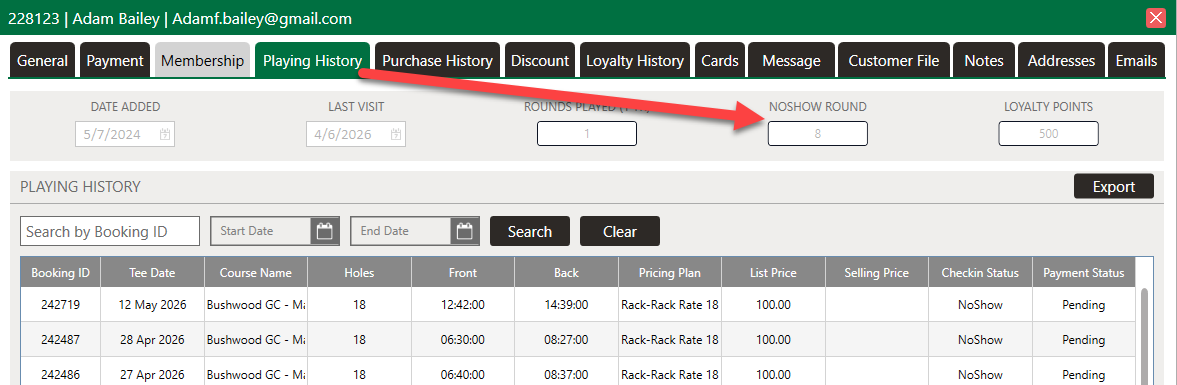
Rain check and no-show statuses also appear on individual customer records.
Customers → open customer profile → Playing History tab
Each round row shows a Checkin Status column with values including NoShow, CheckedIn, and Canceled. A NOSHOW ROUND counter at the top of the Playing History section shows a running total for that customer.
How These Statuses Get Recorded
Raincheck: Recorded when a staff member issues a rain check voucher from the Tee Sheet. Staff must take this action — it does not happen automatically.
No Show: Recorded automatically by the system after the tee time passes if the player was not checked in and not processed through the register. No staff action is required.
TIP:
Raincheck data will only be accurate if staff issue rain check vouchers through Club Caddie at the time of the cancellation — not outside the system. No-show data populates automatically, so no staff action is needed for those.
Use the Rounds Played Report at end of week or month to see weather impact on rounds and identify players who consistently miss tee times.