
Step by Step
Step 1: Select the REGISTER icon (1) from the top navigation bar. You don't need to click into the Barcode Scanner box (2) first: a scan adds the item as long as your cursor isn't in another text box.
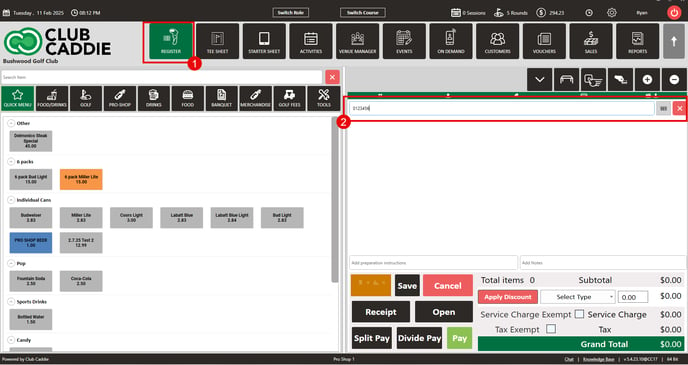
Step 1: Select the REGISTER icon (1) from the top navigation bar. You don't need to click into the Barcode Scanner box (2) first: a scan adds the item as long as your cursor isn't in another text box.
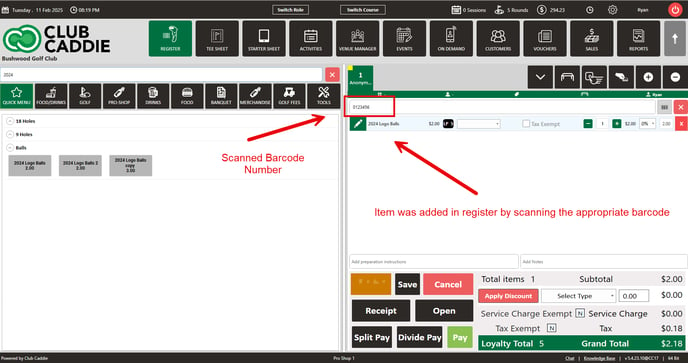
Step 2: Scan the barcode of any item from your inventory. The system will match the scanned barcode against the list in your inventory center to identify the respective item. If your cursor is in another box, such as an item's quantity or price, the scan types the barcode numbers into that box instead. Change that box back to the right value, then click into the Barcode Scanner box and scan again.
Step 3: If the system does not return a match by adding the item to the cart, it indicates that there is no item in the inventory center that matches the scanned barcode.
Note: Users can assign a barcode within Club Caddie or can use the manufacturers barcode on the item itself.