
Overview
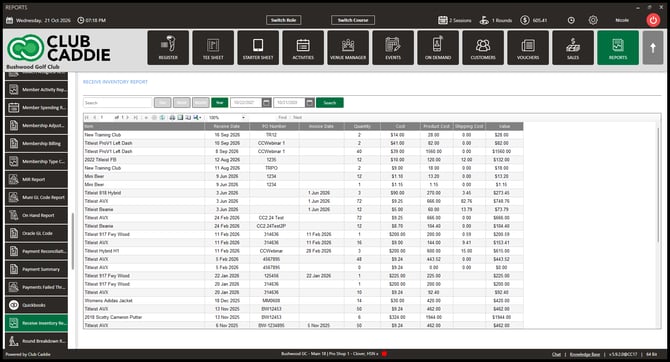
The Receive Inventory Report lists the inventory items that were received, with the receive date, PO number, invoice date, quantity and cost columns, and a Total Value row. It opens on Week, so if nothing was received in the dates shown the list is empty. Choose a longer period to see more. The report reloads when you click a period button.
Watch how to open the Receive Inventory Report in the Club Caddie Desktop app, pick a range, and read the rows.
Open the Receive Inventory Report
- Click the Reports tab located in the header of the window.
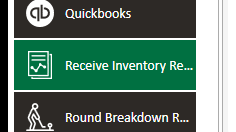
- On the left side of the screen, click Receive Inventory Report. The list shortens the name to Receive Inventory Re....
Choose the dates
- Find the filter row at the top of the report. It has a Search box, the Day, Week, Month and Year buttons with Week lit, two date boxes with calendar icons, and Search.

- Click Day, Week, Month or Year. Your choice fills in the two date boxes and reloads the report.
- If you change the dates yourself, click Search to load the rows for the dates shown.
Read the report
- Read the rows. Each row is an item that was received. The columns are Item, Receive Date, PO Number, Invoice Date, Quantity, Cost, Product Cost, Shipping Cost and Value.
- Look for the Total Value row. It is part of the report and shows empty when no items were received in the dates shown.
Common Questions
Why is the report empty when I open it?
It opens on Week. When no items were received in the dates shown, the rows are empty. Click Month or Year to look back further.
Are the rows grouped by day?
Each row is a received item, and the Receive Date column shows when it was received.
How do I set my own dates?
Use the calendar icon in each of the two date boxes to pick a date, then click Search.
What are the columns?
Item, Receive Date, PO Number, Invoice Date, Quantity, Cost, Product Cost, Shipping Cost and Value, with a Total Value row.