How to run the Rounds Played Report
The Rounds Played Report shows the number of rounds played over a selected time period. You can filter it by preset period or custom date range, search for a specific member or guest, adjust the zoom level, and export results in multiple formats. Follow the steps below to get started.
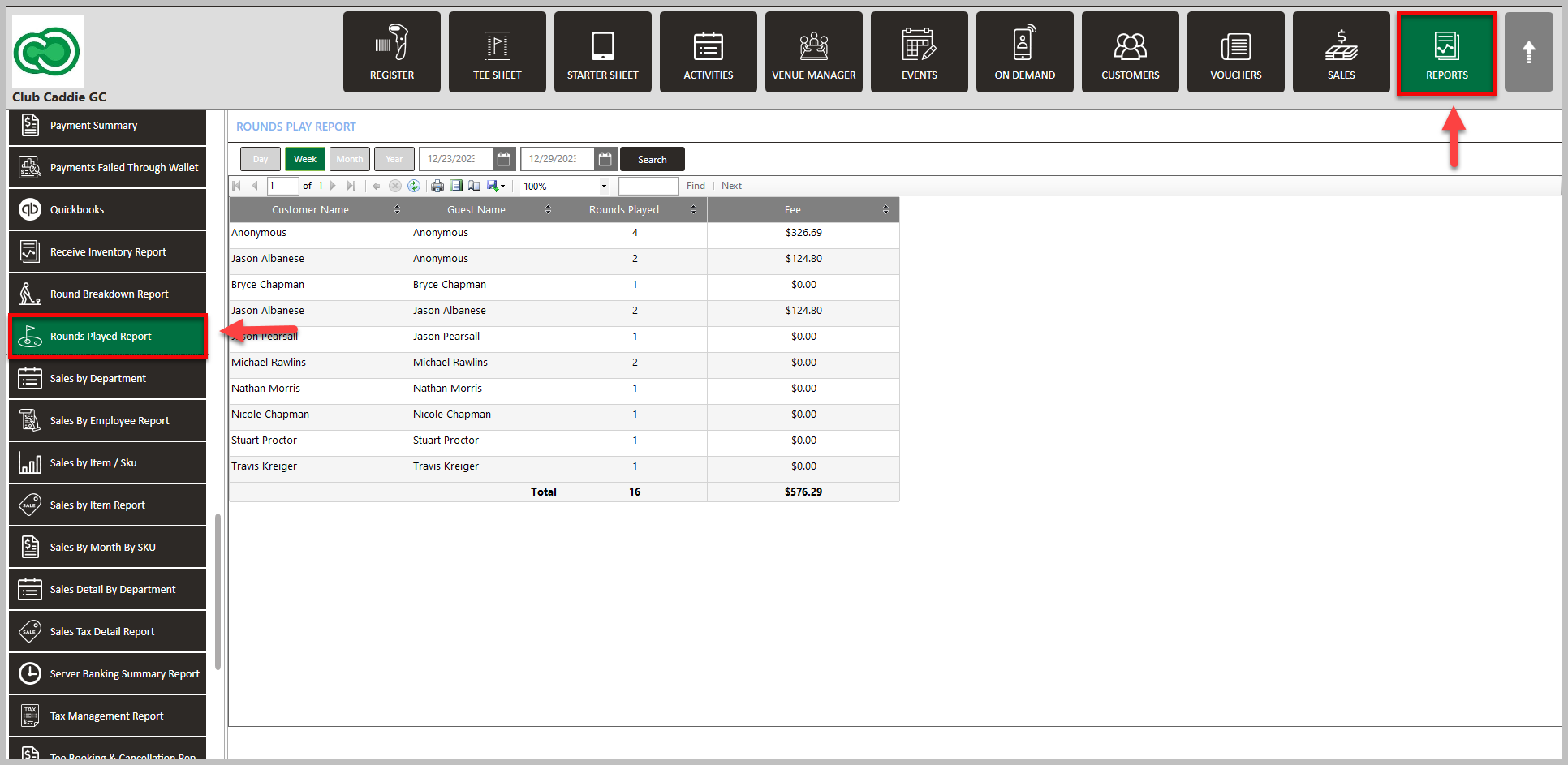
Step 1: Select the REPORTS module from the module navigation menu. Then select Rounds Played Report from the left-hand menu.
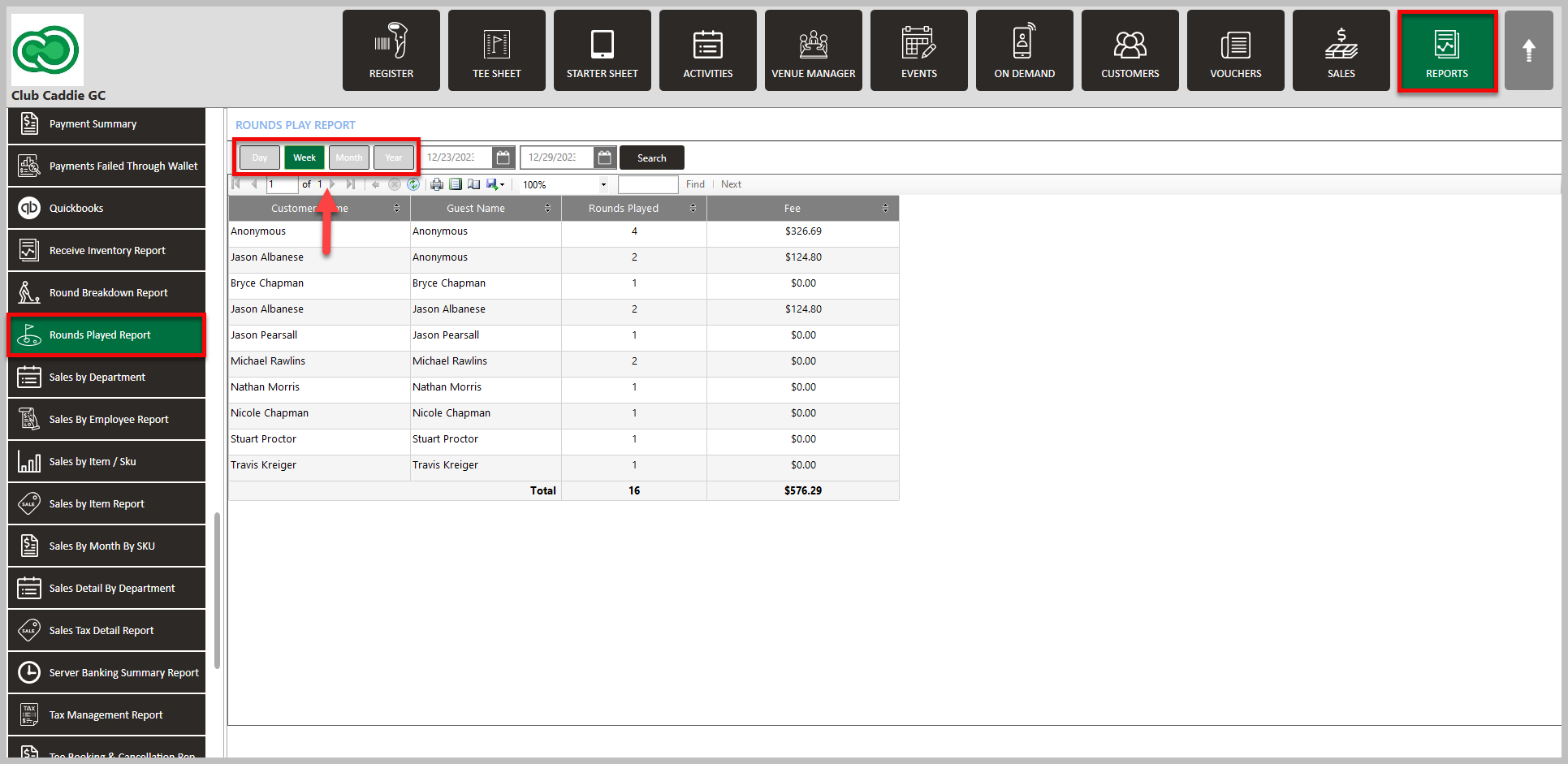
Step 2: Filter the Rounds Played Report by selecting a preset period — Day, Week, Month, or Year — from the filter options.
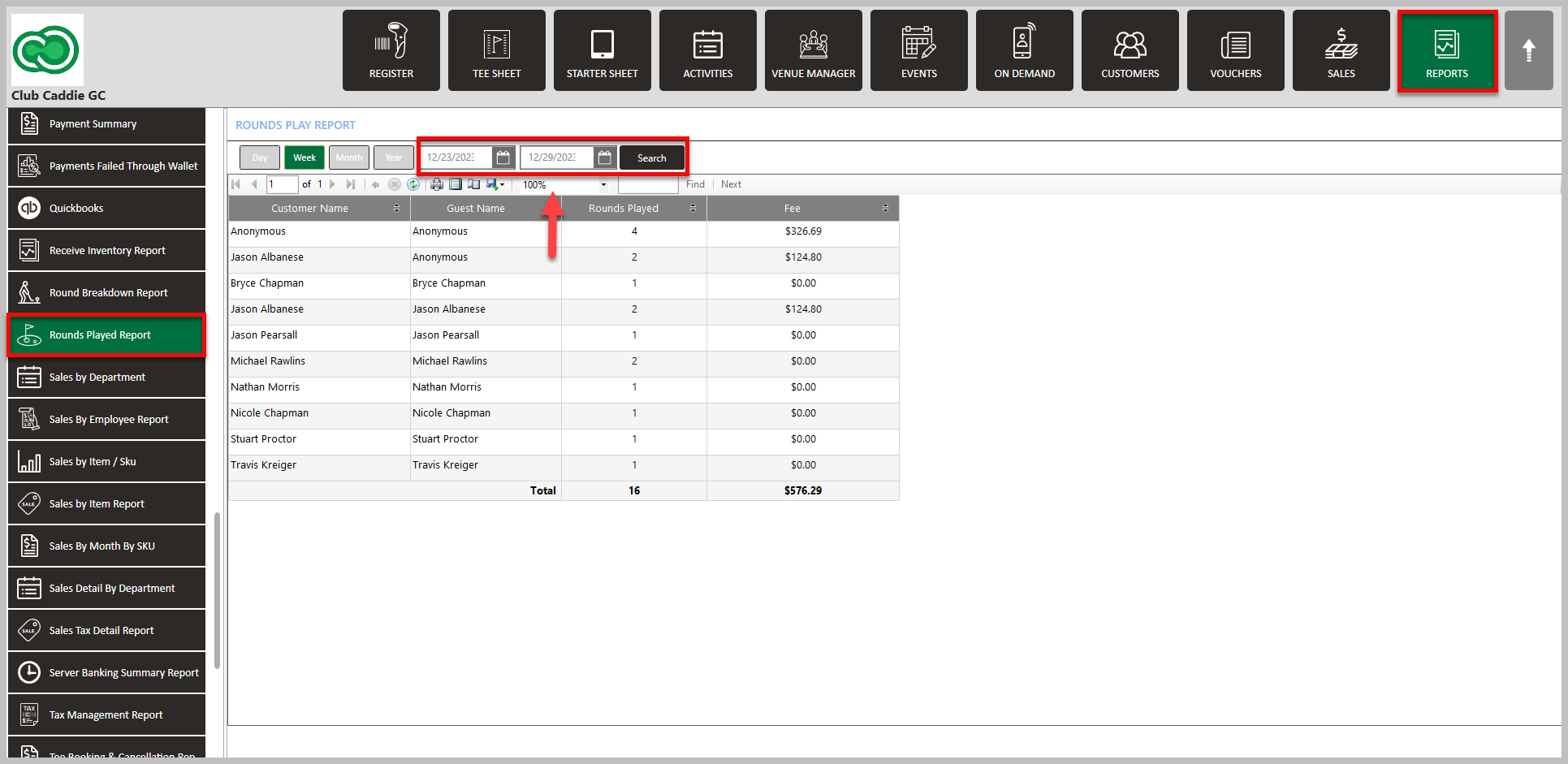
Step 3: To view the report for a specific date range, select the starting date and ending date, then click the
Search button.
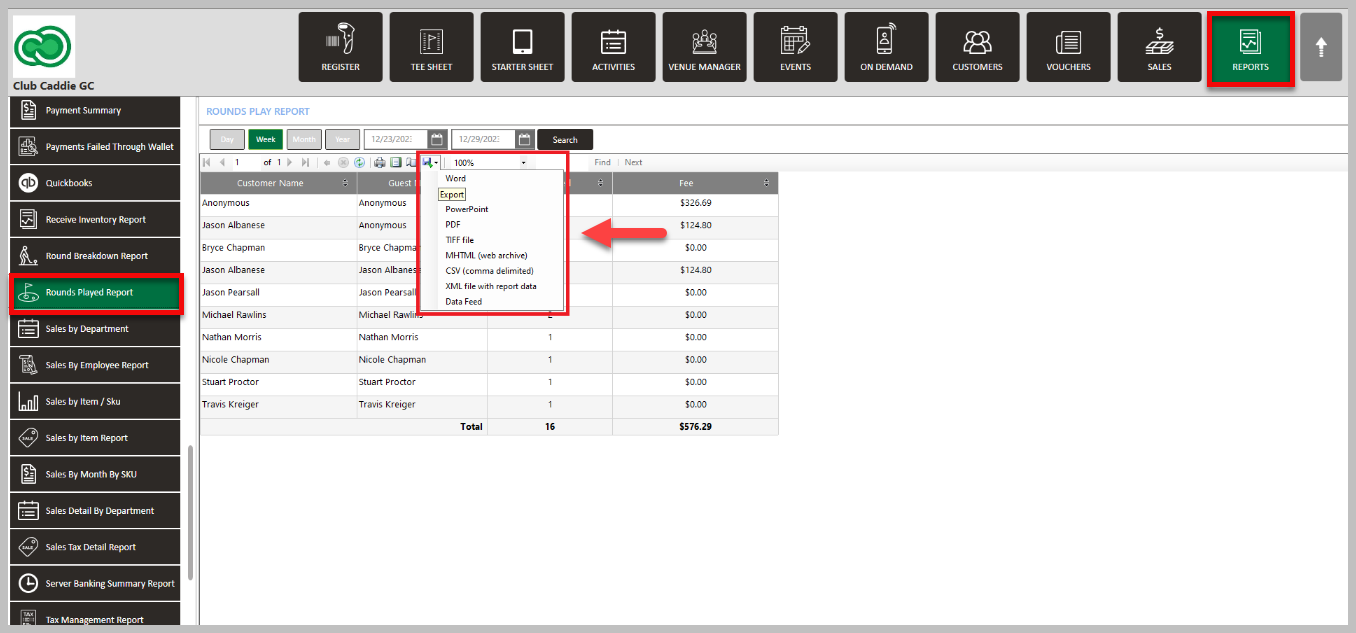
Step 4: Reports can be exported in the format of Excel, PDF, Word, etc. Once a format is selected, the report will download automatically.
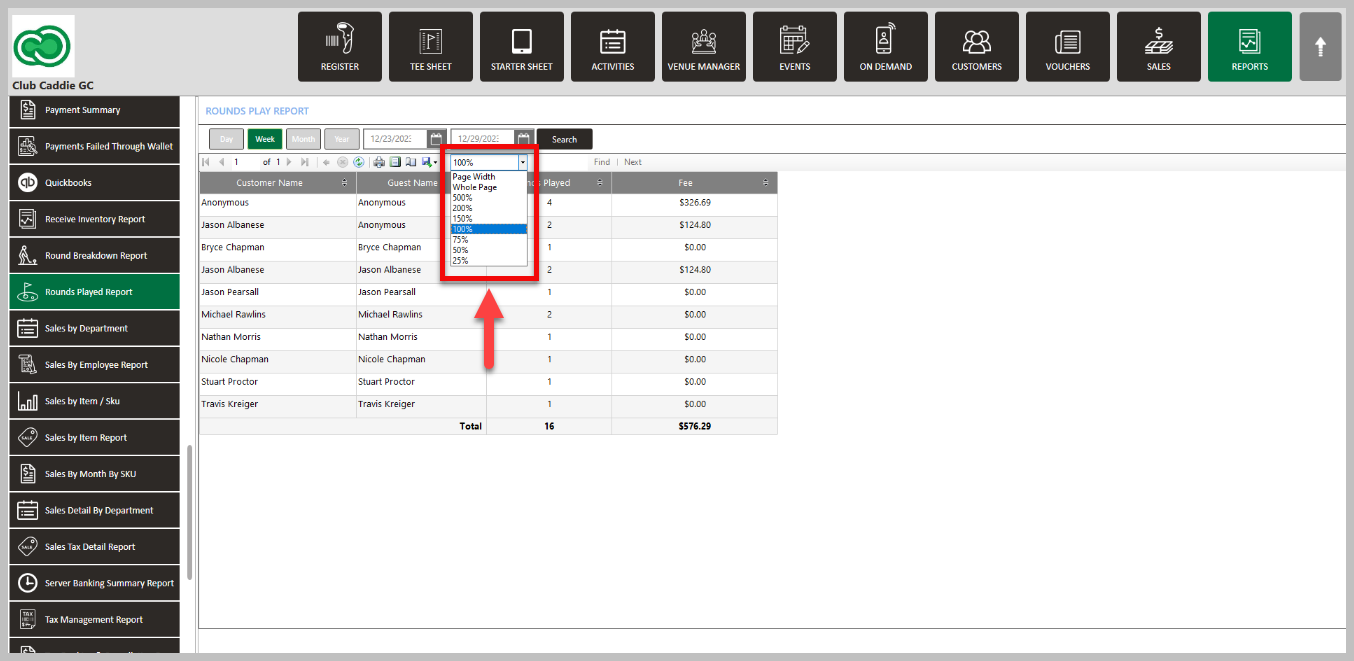
Step 5: Click on the Zoom field to set the size of the report.
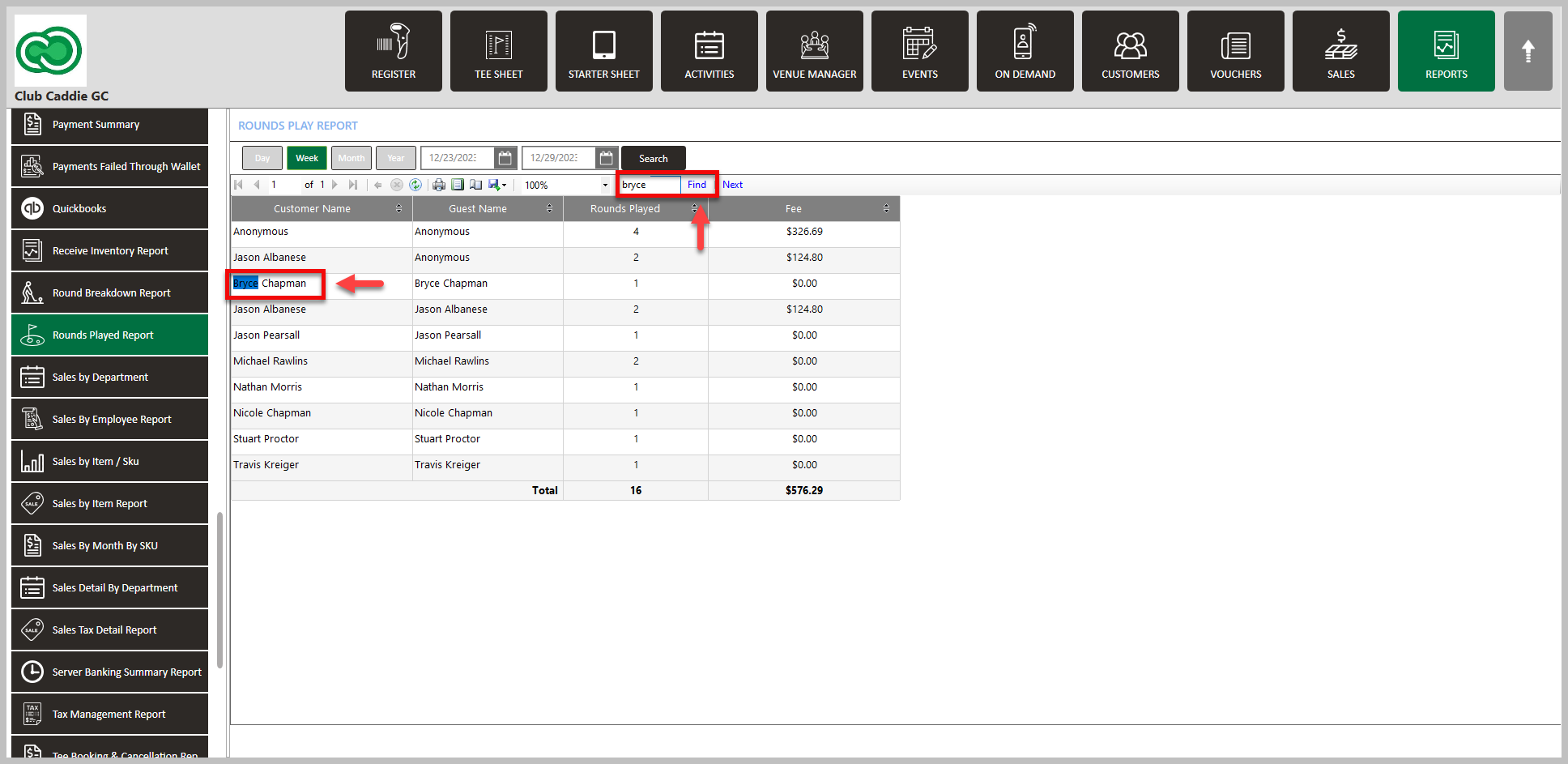
Step 6: A customer can be searched by inputting a name in the
Find text box, then clicking on the
Find button. The matching name will be highlighted in the report.