
Overview
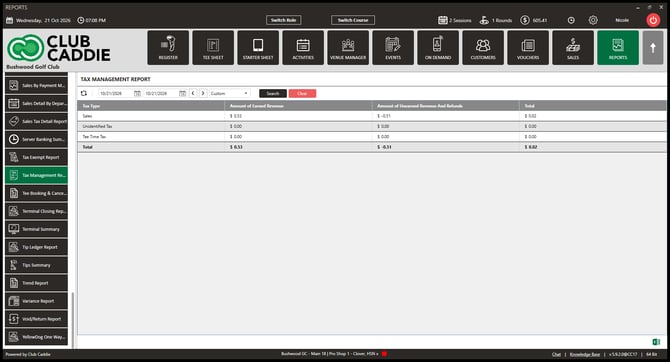
The Tax Management Report shows tax by tax type for the dates you choose. Each row is a tax type that collected tax in the dates you choose, plus an Unidentified Tax row and a Tee Time Tax row, and a bold Total row closes the list. The report opens on today, so pick a different range and click Search to see more days. Tax types are set up in Settings → Tax Management. See Settings : Tax Management Overview for setup.
Watch how to open the Tax Management Report in the Club Caddie Desktop app, pick a date range, and read it.
Open the Tax Management Report
- Click REPORTS in the top navigation.
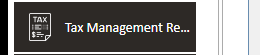
- In the report list on the left, scroll down and click Tax Management Report. The list shortens the name to Tax Management Re.... The Tax Exempt Report sits directly above it and is a separate report.
- The report opens on today's date with the title TAX MANAGEMENT REPORT. Each row is a tax type, and the columns are Tax Type, Amount of Earned Revenue, Amount of Unearned Revenue And Refunds and Total.
Choose a date range
This report uses a dropdown of date ranges instead of Day, Week, Month and Year buttons.
- Open the dropdown beside the two date boxes. It reads Custom when the report opens. The choices are Today, Yesterday, Week To Date, Month To Date, Year To Date, Last Week, Last Month, Last Year, Last 7 Days, Last 30 Days, The Last Year and Custom.
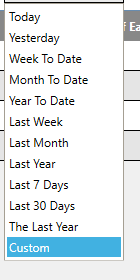
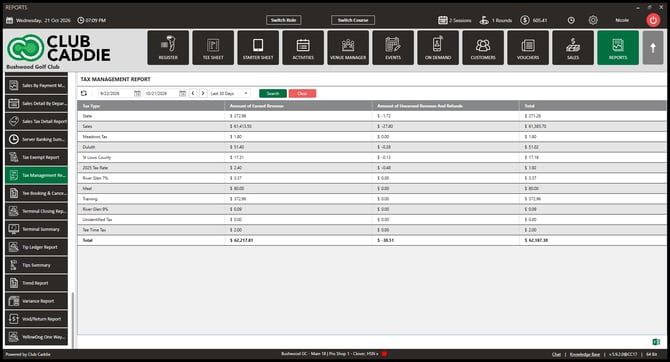
- Pick a range, for example Last 30 Days. Your choice fills in the two date boxes.
- Click Search. The rows change after you click Search, not when you pick a range.
Export the report
- To export the report to Excel, click the green Excel icon at the bottom right corner of the report area.
Common Questions
Which dates does the report cover when I open it?
It opens on today's date. Pick a range from the dropdown and click Search to see more days.
Why didn't the rows change when I picked Last 30 Days?
Picking a range fills in the dates. The rows load after you click Search.
Where are the Day, Week, Month and Year buttons?
This report uses the date range dropdown instead. Other reports, such as the Tax Exempt Report, Customer Spend By Department and Sales by Item / Sku, do have those buttons.
Where do I set up the tax types this report lists?
In Settings → Tax Management. See Settings : Tax Management Overview. The Unidentified Tax and Tee Time Tax rows are not set up there.
Is this the same report as the Tax Exempt Report?
They are two separate entries in the Reports list, with the Tax Exempt Report directly above Tax Management Report.