.png?width=200&height=89&name=CC%20%20fiserv.%20(3).png)
This article covers how to refund an order that has already settled.
Step-by-step
Step 1: Click the Sales tab in the header.
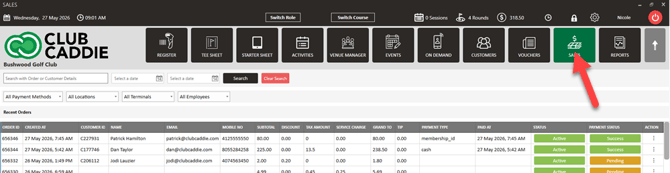
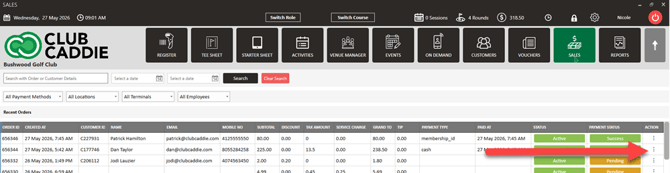
Step 2: Find the transaction you want to refund. In the Action column on the right side of the order row, click the ⋮ button, then click Refund.
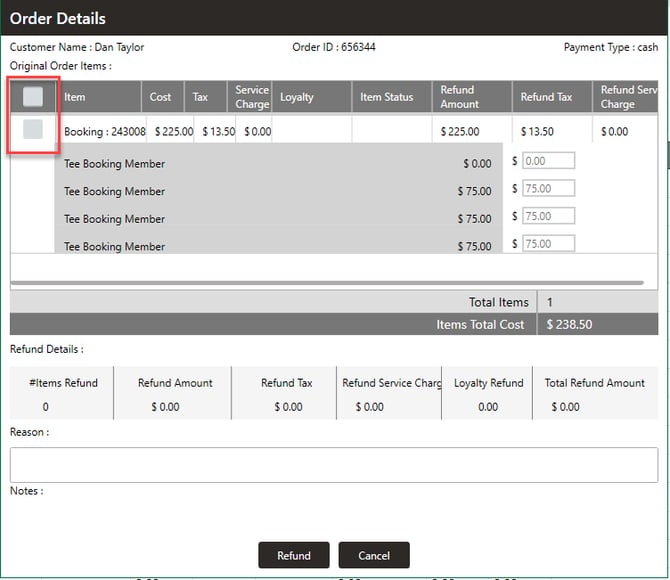
Step 3: An Order Details window opens showing the items on the order.
Step 4: Select the items to refund using the checkboxes, enter the refund reason, then click Refund.
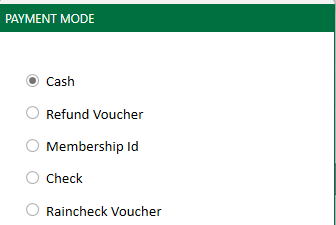
Step 5: Select the payment mode for the refund. To print a receipt, tick Print Receipt. Click Ok.
If you're refunding a Sound / PAX Payments transaction from a previous day, you'll need to insert the card into the reader to complete the refund.
Step 6: A success message appears and the item status is set to refunded.
Refunding an order that contains a combo item
Combo items are priced in the refund window from the components actually sold on that order, not from the combo line's original recorded price, which reflects the full combo rather than what was actually sold once a component has been removed.
This matters when the combo that went out the door was not the standard combo. When a component was removed at the Register, the number previewed in the refund window and the refund that actually posts agree, based on what was actually sold. The Refund Amount and the Items Total Cost at the top of the window both follow this rule.
The same applies whether you use Refund or Split Refund.
Paid modifiers attached to those components are included as well, since they were genuine upcharges.
Tax, service charge and loyalty are calculated the same way they always have been — this only changes how the combo's item cost is calculated. Items Total Cost includes tax and service charge in its total, so it will read higher than the Refund Amount alone — that's normal, not a sign tax was double-applied.
Checking a refund after the fact
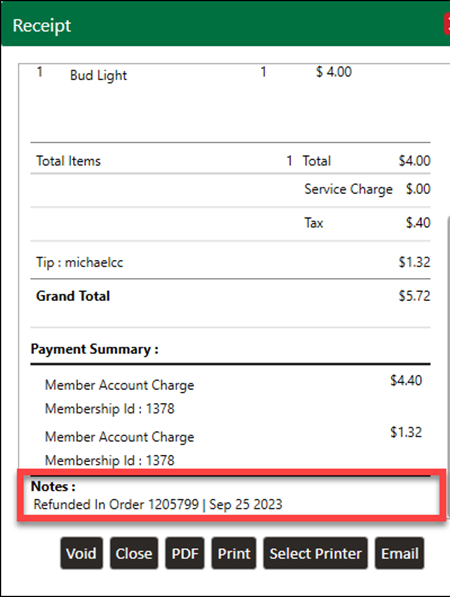
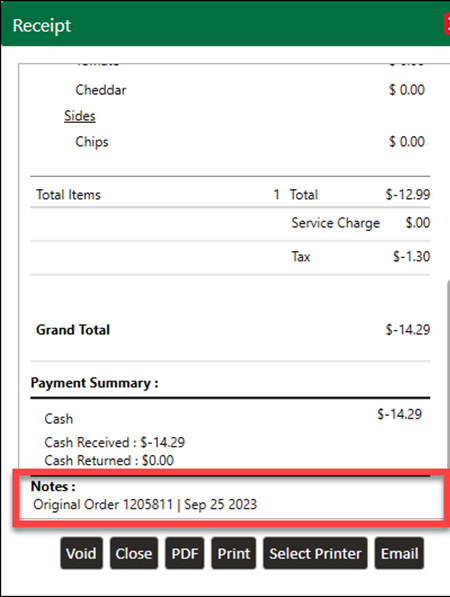
When a transaction is refunded, text appears in the Notes section of the receipt. The original transaction's receipt shows the refund's Order ID and date; the refund receipt shows the original transaction's Order ID and date. To view the original receipt, use the separate Receipt entry in the Action menu — the Refund entry opens a new refund, not the original receipt.
Common Questions
A component was removed from a combo before the order was refunded — how is the refund calculated?
The refund reflects what was actually on the order. A combo with a component removed refunds the components that were sold, not the full combo price.
Do I need a special permission to refund?
Refund access is granted per role. If the Refund option is greyed out, either your role does not have refund access, or the order itself is not eligible — for example if it is no longer active or the original payment did not succeed. If you believe your role should have access, check with a facility admin.