
Overview
Club Caddie Email Marketing runs on Campaign Monitor. A campaign is a single email sent to the recipients you choose, either right away or at a time you schedule. Each campaign has a checklist with three parts, Subject, From and To, plus the email design, and you can work through them in any order. This article walks through one email from start to finish.
Before you start
- Log in to your Club Caddie email marketing at https://emailmarketing.clubcaddie.com/login, using the invitation Club Caddie sent you.
- If you have not received an invitation to join Club Caddie email marketing, please reach out to your customer service representative to get started.
Start a new email
- Open Campaigns and choose Create a campaign.
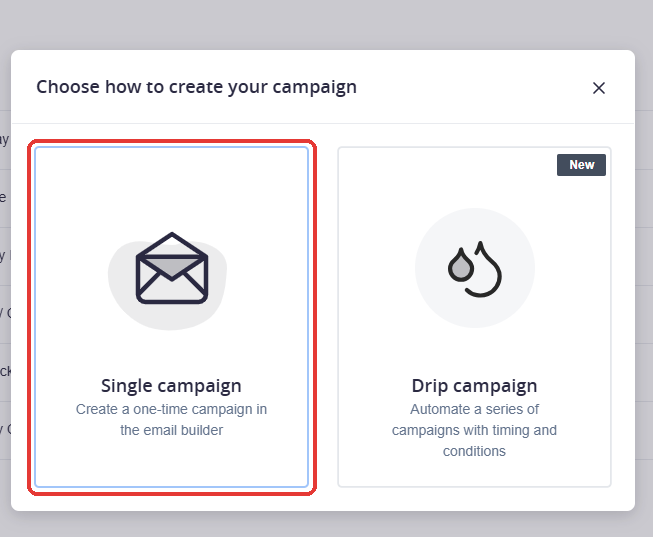
- In Choose how to create your campaign, choose Single campaign. A single campaign is one email built in the email builder.
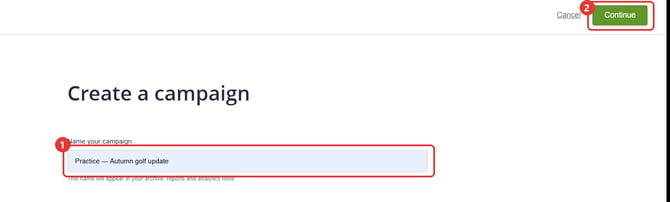
- Under Name your campaign, enter a name you will recognize, then choose Continue. The name appears in your archive, reports and analytics tools.
Design your email
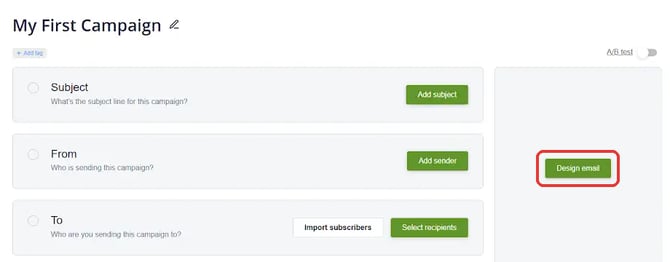
- In the campaign checklist, choose Design email.
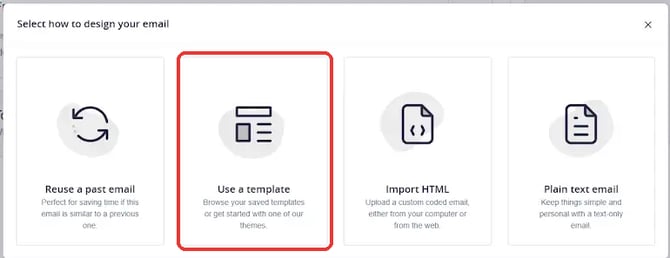
- In Select how to design your email, choose how to start: Reuse a past email, Use a template, Import HTML or Plain text email. To start from your club's template, choose Use a template and select it.
- Add your message in the email builder. See Introduction to the Email Builder.
- When the content is ready, choose Save & next to return to the campaign checklist.
Add the subject and preview text
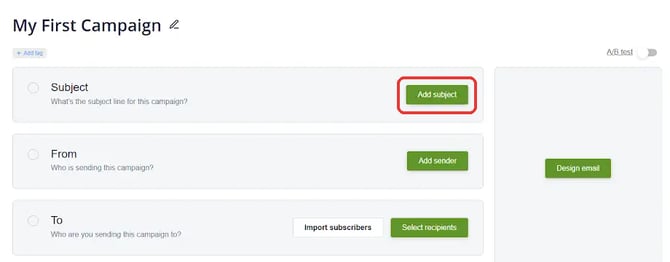
- In the checklist, choose Add subject.
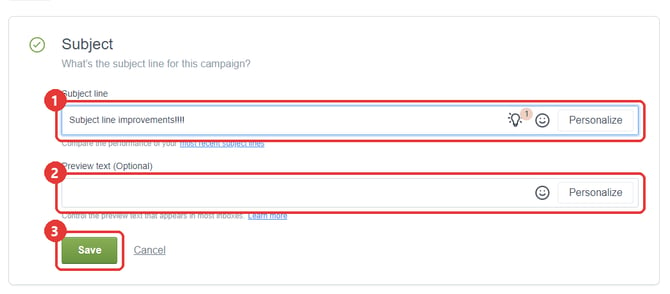
- In Subject line, say what the email is about.
- In the preview text field, add a short supporting line. Many inboxes show it beside the subject.
- Read the two together, then choose Save.
Add the sender
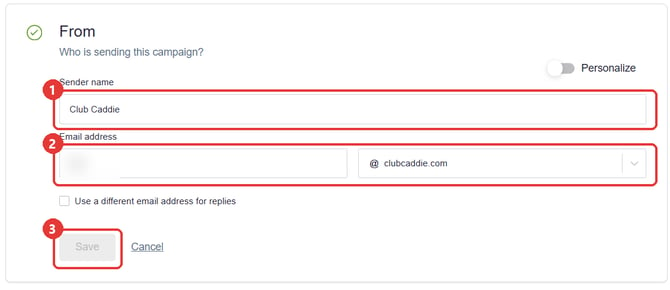
- In the checklist, choose Add sender.
- Check the Sender name and the Email address. Use your club's approved sender and an address someone checks for replies.
- To send replies to a different address, select Use a different email address for replies.
- Choose Save.
Choose your recipients
- In the checklist, choose Select recipients.
- Select the list or segment meant for this message, then save your choice. A list stores your contacts. A segment selects subscribers who match chosen criteria, for example golfers within 50 km by zip code, or a membership class.
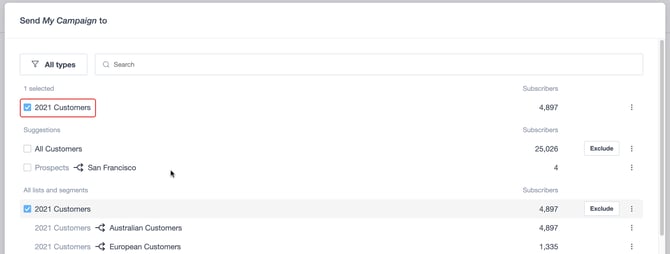
- Check the To box. Make sure the audience and its count match who you mean to reach.
Preview and send yourself a test
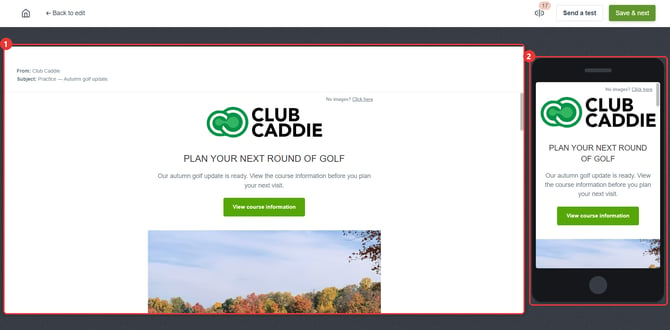
- Choose Preview at the top right. Check the desktop view and the mobile view side by side: the heading, the dates, the image and the button. Open each link and make sure it goes where the words promise.
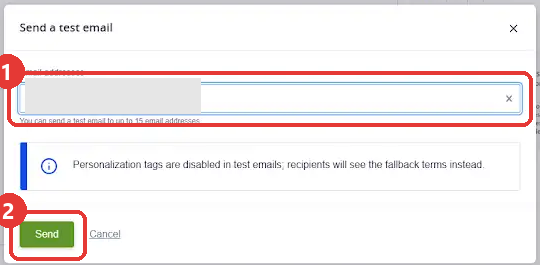
- Choose Send a test. In Email addresses, enter only the internal address your club uses for tests, then choose Send. The window takes up to 15 addresses.
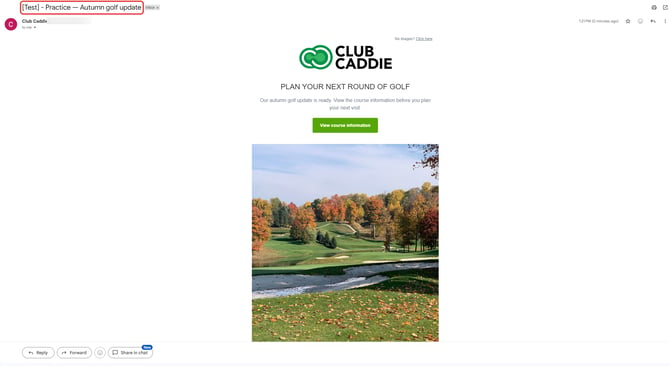
- Open the test in your inbox. Its subject starts with "[Test]". Check the wording, the images and the links the way a reader will see them.
- If you change anything, send a fresh test, so what you checked matches what readers get.
Send or schedule the email
- In the checklist, choose Prepare to send.
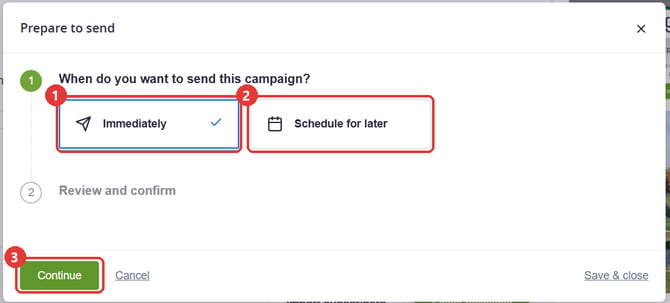
- Choose Immediately or Schedule for later. For a scheduled email, choose Specific time and set the Date, Time and Time zone. Then choose Continue.
- In Review and confirm, check the number of recipients and, for a scheduled email, the date, time and time zone.
- Choose Send now for an immediate email, or Confirm schedule for a scheduled one. A sent email cannot be recalled.
Common Questions
I don't have a login. Who do I contact?
Login to your Club Caddie email marketing is sent to you by Club Caddie. If you have not received an invitation to join Club Caddie email marketing, please reach out to your customer service representative to get started.
Where do my subscribers come from?
The subscriber details are directly imported from your Club Caddie database.
Will the test email show each golfer's name?
No. Personalization tags are disabled in test emails, so the test shows the fallback words instead. Use Preview to check personalized content.
How do I reuse an email I already built?
Open Campaigns, then Drafts or Sent. Open the three-dot menu next to the email and choose Copy. The copy is added to your drafts with "(copy)" at the end of its name. Review its subject, sender, recipients and content before you send it.
Can I get back a campaign I deleted?
Campaign Monitor's help explains deleting and restoring campaigns: Campaigns.