.png?width=200&height=89&name=CC%20%20fiserv.%20(3).png)
Before You Start
- This article assumes your facility uses Clover Connect for card processing.
- The Add Tip tool lives in the Sales module. You’ll need access to the Sales action menu to use it.
- Setting changes are made under Settings → 3P Settings → Clover Connect and Settings → Terminal Management. Confirm with your manager that you have access to those sections before making changes.
Step by Step:
Step 1 — Open Clover Connect settings:
Go to Settings → 3P Settings → Clover Connect.
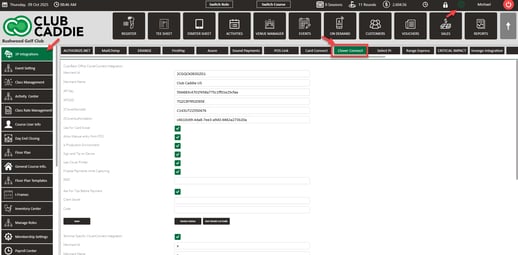
Step 2: Make sure each of these is enabled
- Use For Card Swipe: Turned On
- Is Production Environment: Turned On
- Sign and Tip on Device: Turned On
- Finalize Payments while Capturing: Turned On
- Ask for Tip Before Payments: Turned On
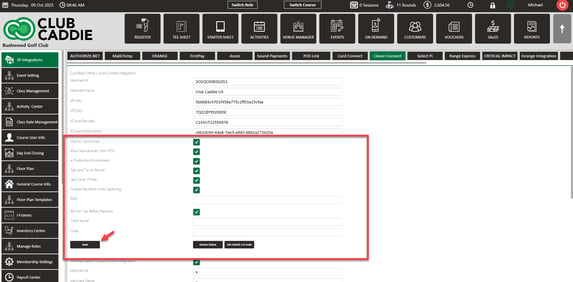
Save your changes before leaving the page.
Step 3 — Enable Signature Tip on Screen in Terminal Management
Go to Settings → Terminal Management, turn on Signature Tip on Screen, and click Save.
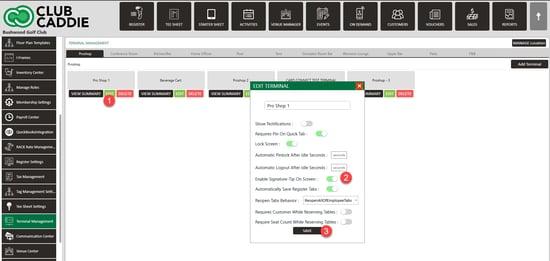
Once those are configured, the Clover device will prompt for a tip before the card is inserted, and tips will record correctly against the transaction.
Part 2: Add a Tip After a Sale
If a tip wasn’t captured at the terminal — the customer wrote one on the printed receipt, called in later, or you simply need to adjust — you can add it after the fact through the Sales module. This is the Add Tip tool.
Step 1 — Find the transaction in Sales
Go to Sales and locate the transaction row you need to update.
Step 2 — Open the row action menu
Click the three-dot menu at the right end of the row. Select Add Tip
Step 3 — Fill in the popup
At the top of the popup, you’ll see the transaction summary: the internal Id, the Payment Methods value, the Amount, and whether a tip has been applied yet (it’ll say Not Applied).
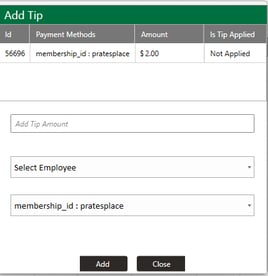
Below that, complete three fields:
- Add Tip Amount — enter the dollar amount of the tip.
- Select Employee — choose which employee the tip should be credited to. This matters for tip reporting and Server Banking.
- Payment Method dropdown — if the order has multiple payments, select which payment the tip should be allocated to. For single-payment orders, leave the default.
Step 4 — Save
Click Add to save the tip, or Close to cancel without saving.
TIP: For orders with multiple payment methods (for example, part on a card, part on a membership account), the Payment Method dropdown lets you split which payment the tip goes against. Pick the one the tip actually applies to.
Troubleshooting steps when tips are missing or fail to add
Important note: Tips entered during the original sale (via the Clover device’s tip prompt) cannot be edited from the device after the transaction is finalized. Use the Add Tip tool in Sales if a tip needs to change.
Tips aren’t recording during the sale
Check the five settings under Settings → 3P Settings → Clover Connect first. All five need to be on, and you need to save after toggling. Then confirm Signature Tip on Screen is on under Settings → Terminal Management.
A tip was selected at checkout but didn’t record
Use the Add Tip tool to enter it manually: Sales → row three-dot menu → Add Tip. Use the same terminal that processed the original transaction.
Add Tip returns a "did not find payment with id..." error
Copy the full error message exactly as it appears. This is a payment-matching issue and support needs the specific IDs to investigate it.
Multiple terminals — can I add the tip from any of them?
Use the same terminal that processed the original sale. Tip additions from a different terminal can fail or return the payment-ID error above.
Tips are missing across the board, along with payments, voids, and refunds
This is almost always a Clover outage, not a Club Caddie problem. Check the Clover Status page. While Clover is down, switch to manual card entry for new transactions — that runs through a separate processor and will usually still work. Don’t keep retrying tips through the Clover device during an active outage.
A tip was already included in a settled batch and needs to be refunded
This one has to go through merchant support — it can’t be voided from Club Caddie once the batch has settled. Contact your CardConnect or merchant support team to refund the tip from a settled batch.