.png?width=200&height=89&name=CC%20%20fiserv.%20(3).png)
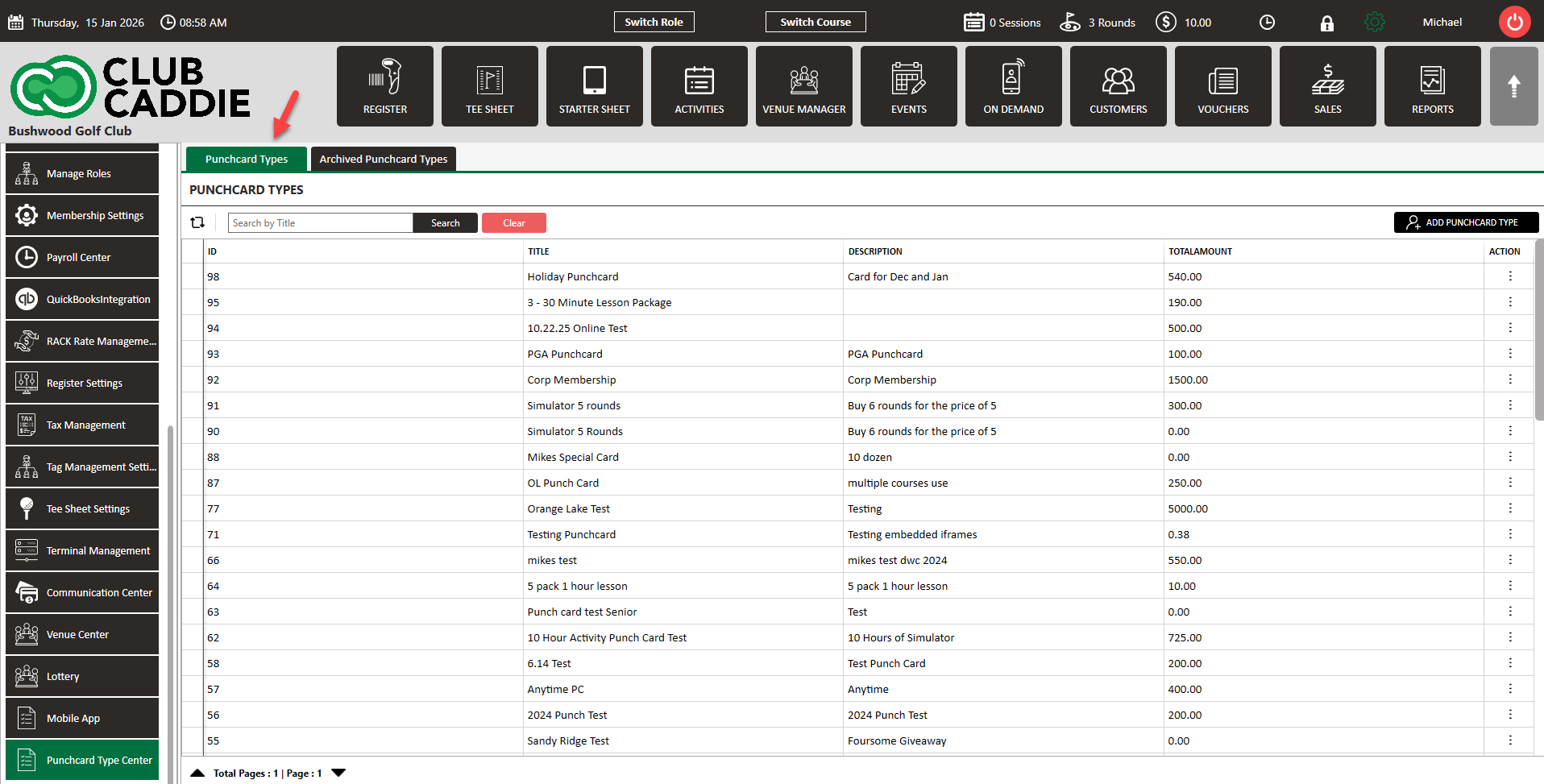
Step 1: Click the Gear Box icon from the top right of the screen—next click Punch Card Type Center in the left-hand menu. The system will open a PUNCH CARD TYPES window.

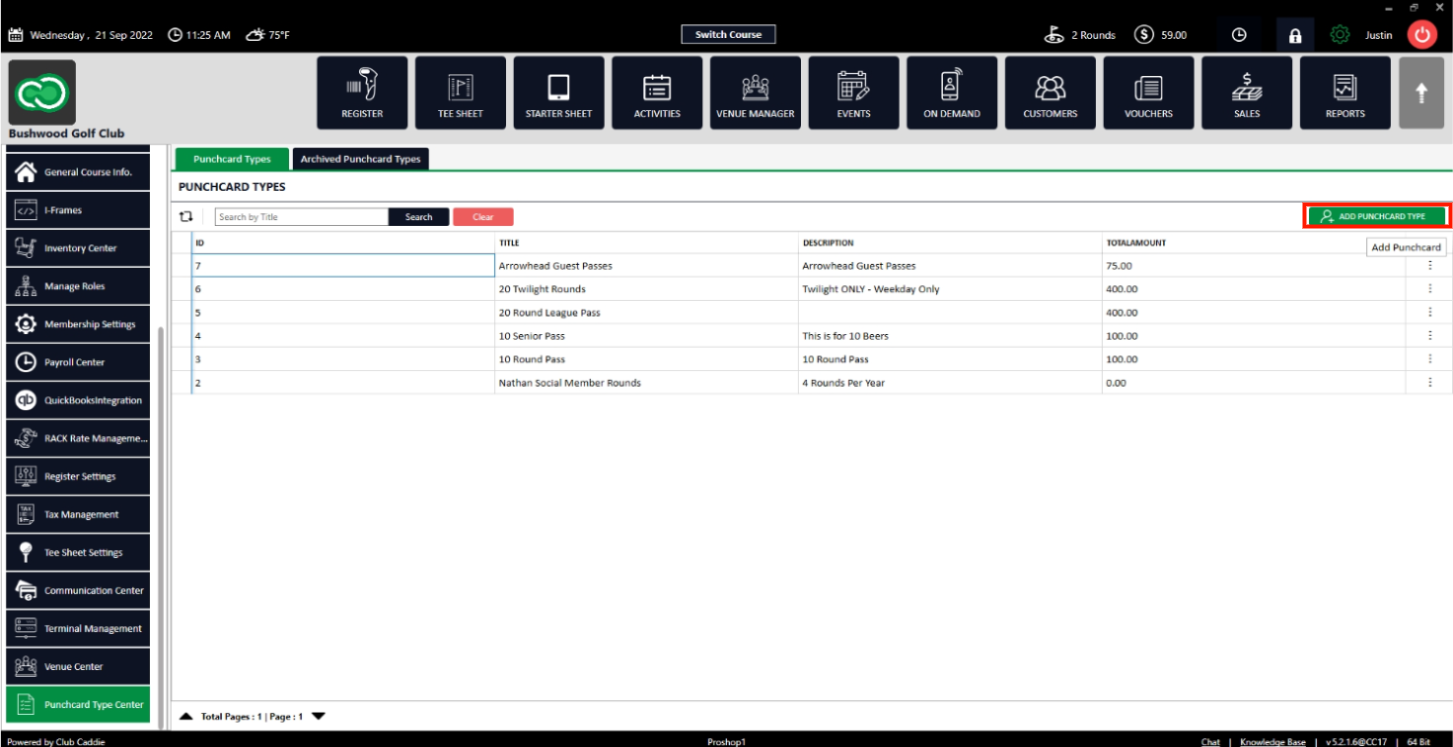
Step 2: Click ADD PUNCH CARD TYPES. The system will open an ADD EDIT PUNCH CARD window.
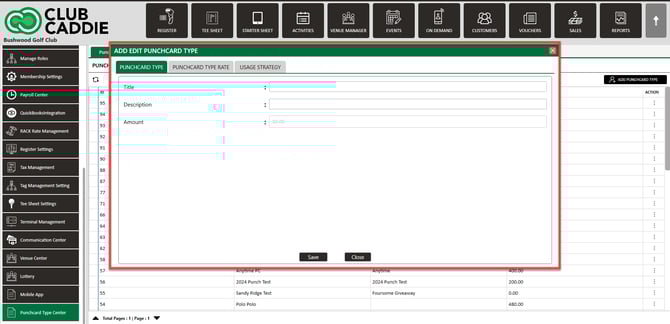
Step 3: Fill in the requisite information (Title and Description) and then click Save to store the data.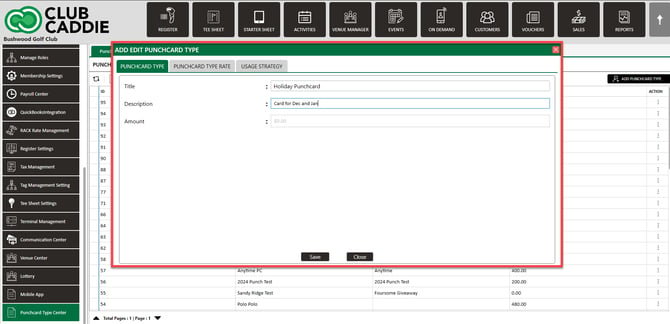
Step 4: Once saved, the PUNCH CARD TYPE RATE and Usage Strategy tab will open and be accessible.
Punch Card Type Rate (Step 5): Assign a specific number of punches that can be used per rate.
Usage Strategy (Step 6): Define a total number of punches that can be used across all selected rates.
Most courses typically do not use both the Punch Card Type Rate tab and the Usage Strategy at the same time. While they can be used in tandem, in most cases only one tab needs to be configured.
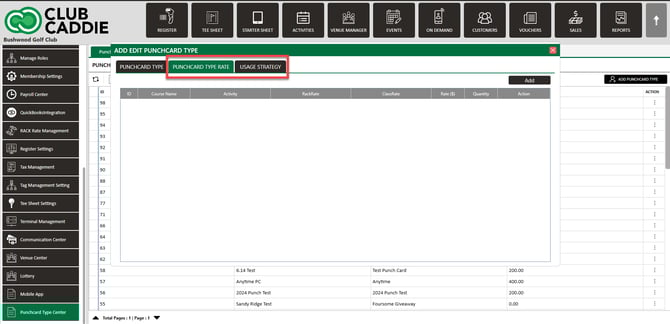
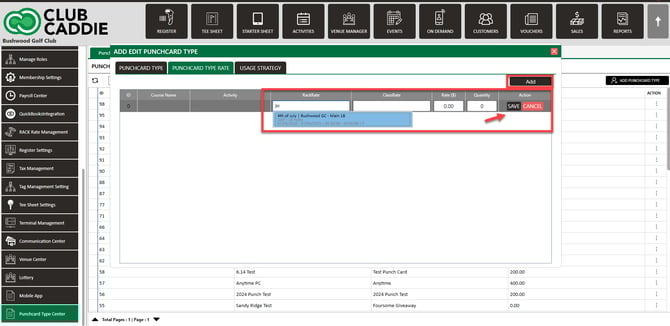
Step 5: In the Punchcard Type Rate tab, click Add. Then, fill in RackRate , Class Rate, Rate ($), and Quantity. Click Save.
Punchcard Type Rate: A punch card setup where punches are allocated to specific rate types, and each rate has its own capped number of redemptions.
When to use Punchcard Type Rate:
- 3 punches for Weekday 18 Rate
- 3 punches for Weekend 18 Rate
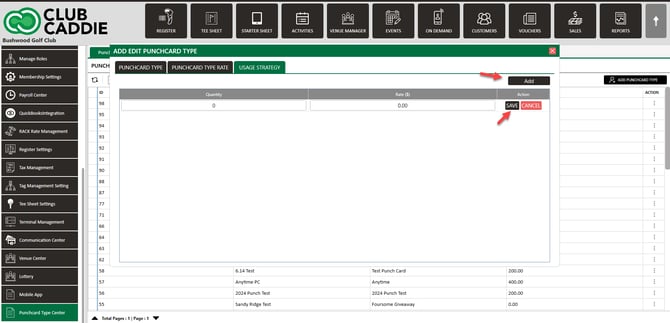
Step 6: In the Usage Strategy tab, click Add, then fill in the Quantity and Rate. Click Save.
Usage Strategy: A rule that defines how punches are shared and redeemed across eligible rates on a punch card.
When to use Usage Strategy:
- 6 total punches that can be used on any of the eligible rates, without limiting how many punches apply to each individual rate.
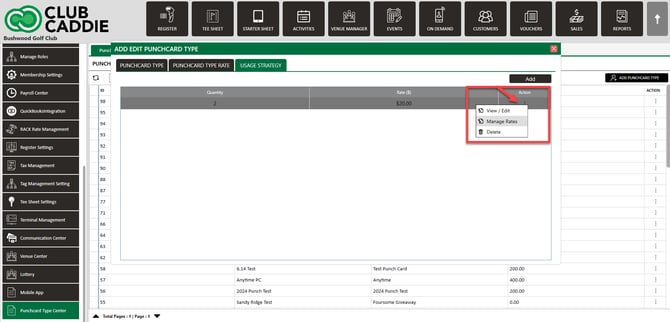
To add rates to the available pass, under the Usage Strategy tab, click on Action (three small dots), then Manage Rates. Usage Strategy will be quantity of punches at the desired amount.
Step 7: Once saved, the new punch card will be added to the PUNCH CARD TYPES window.