---
title: "Settings: Creating and Editing Combo Items (Video)"
description: This article gives step-by-step instructions on creating and updating combo inventory in your system.
---
[Skip to content](https://support.clubcaddie.com/settings-creating-and-editing-combo-items#main-content)
English
Show submenu for translations
[.png?width=200&height=89&name=CC%20%20fiserv.%20(3).png)](https://www.clubcaddie.com?hsLang=en)
- [Club Caddie University](https://clubcaddie-university.com/)
- [Webinar Training](https://info.clubcaddie.com/webinarseries?_gl=1*1b7azj6*_gcl_au*NTg3NjE2MDE0LjE3NTczNTEwMDE.*_ga*MTMwODY5ODg2NS4xNzU3MzUxMDAx*_ga_5DSQKC2H56*czE3NTgzMDAwNDAkbzE4JGcwJHQxNzU4MzAwMDQwJGo2MCRsMCRoMA..)
- [Knowledge Base](https://support.clubcaddie.com/)
- [Changelog](https://clubcaddie.com/changelog/)
Open main navigation
Close main navigation
- [Club Caddie University](https://clubcaddie-university.com/)
- [Webinar Training](https://info.clubcaddie.com/webinarseries?_gl=1*1b7azj6*_gcl_au*NTg3NjE2MDE0LjE3NTczNTEwMDE.*_ga*MTMwODY5ODg2NS4xNzU3MzUxMDAx*_ga_5DSQKC2H56*czE3NTgzMDAwNDAkbzE4JGcwJHQxNzU4MzAwMDQwJGo2MCRsMCRoMA..)
- [Knowledge Base](https://support.clubcaddie.com/)
- [Changelog](https://clubcaddie.com/changelog/)
- English
Show submenu for translations
Need help fast? Enter your question and get step-by-step tips.
- There are no suggestions because the search field is empty.
1. [Club Caddie](https://support.clubcaddie.com/?hsLang=en)
2. [Desktop: Settings](https://support.clubcaddie.com/desktop-settings?hsLang=en)
3. [Inventory Center](https://support.clubcaddie.com/desktop-settings?hsLang=en#inventory-center)
February 27, 2025
# Settings: Creating and Editing Combo Items (Video)
## This article gives step-by-step instructions on creating and updating combo inventory in your system.
### **Step-By-Step:**
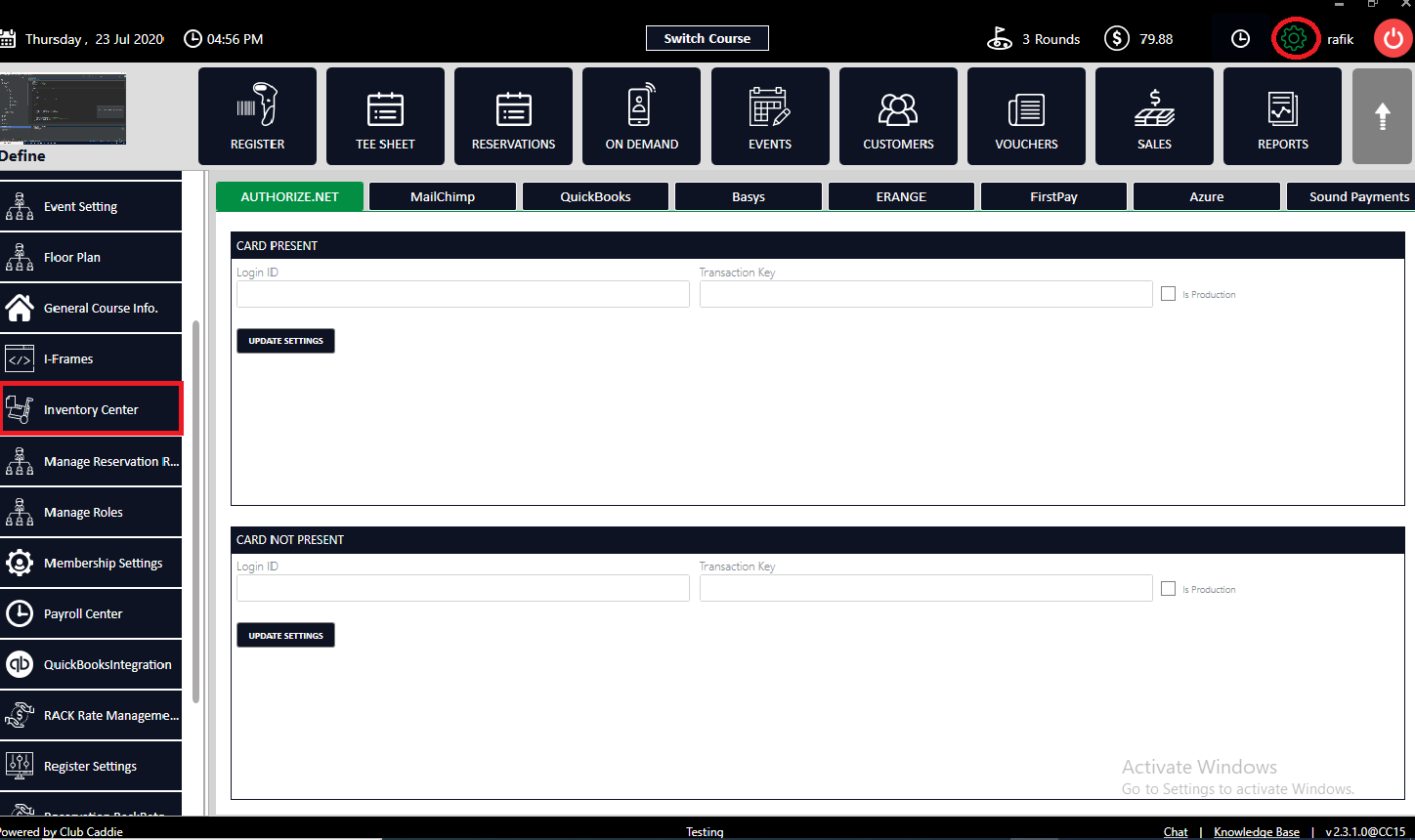
**Step 1:** Click on "**Settings**" then "**Inventory Center**".
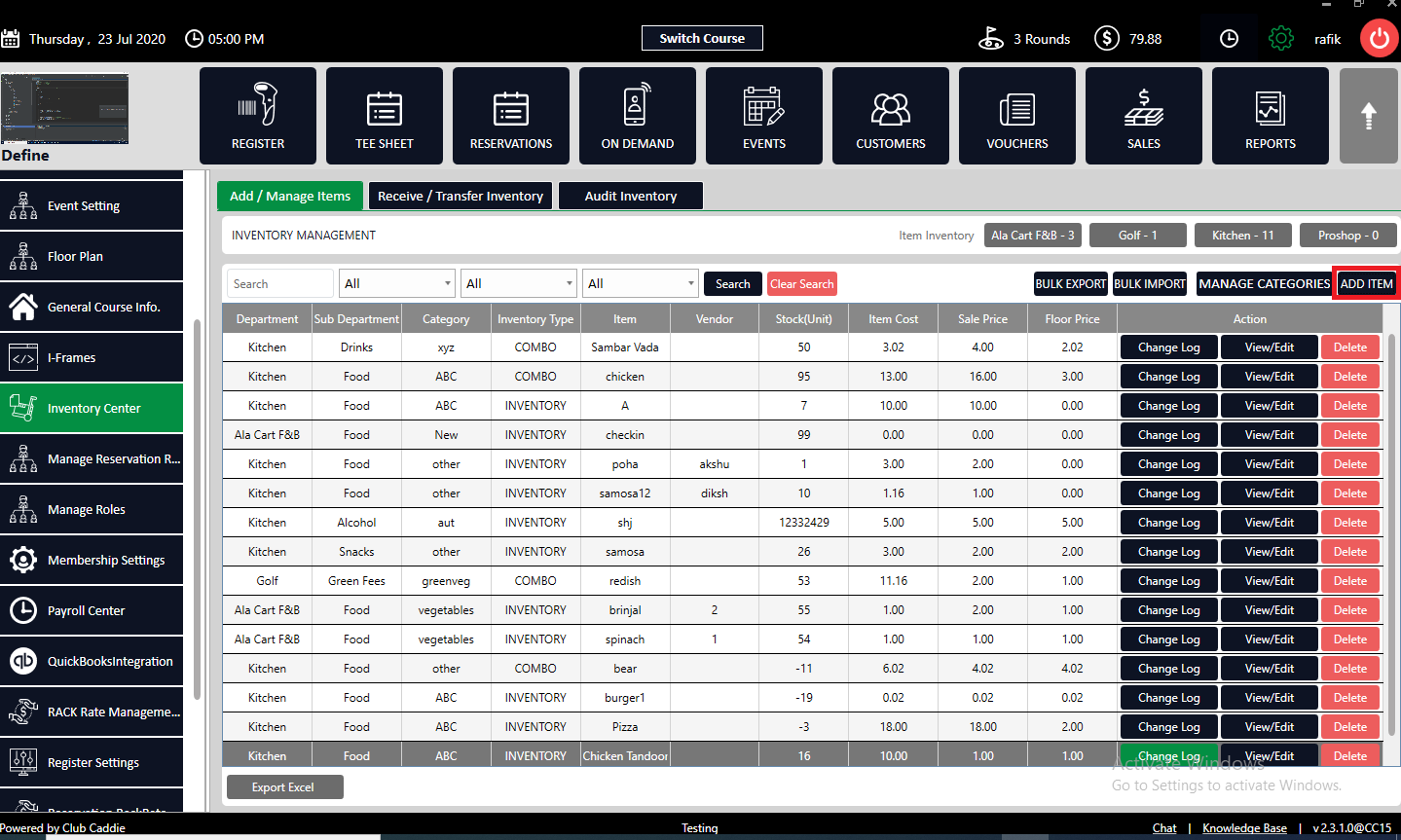
**Step 2:** To add a new item to your inventory, you need to click on the "**ADD ITEM**" button.
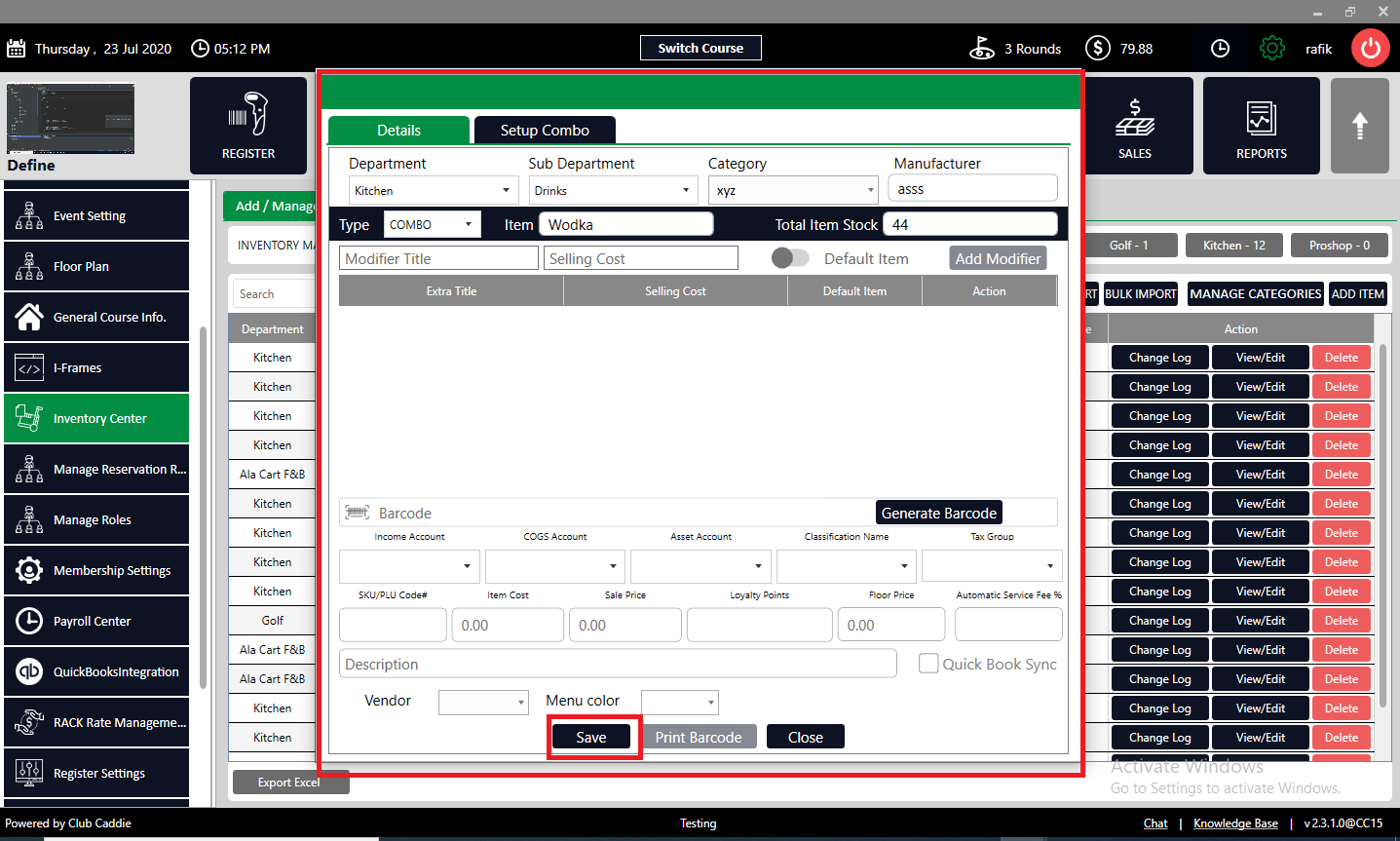
**Step 3:** To create a combo item, you need to fill in some details about it. A pop-up window will appear where you can enter the following information:
\- Department: The main category of the item
\- Sub Department: The subcategory of the item
\- Category: The specific type of the item
\- Manufacturer: The company that produces the item
\- Type: This should be set to "**COMBO**" to indicate that the item is a combination of other items
\- Item name: The name of the combo item that will appear on the menu
\- Total Item Stock: The number of combo items available in stock
After entering all the required information, click on "**Save**" to create the combo item.
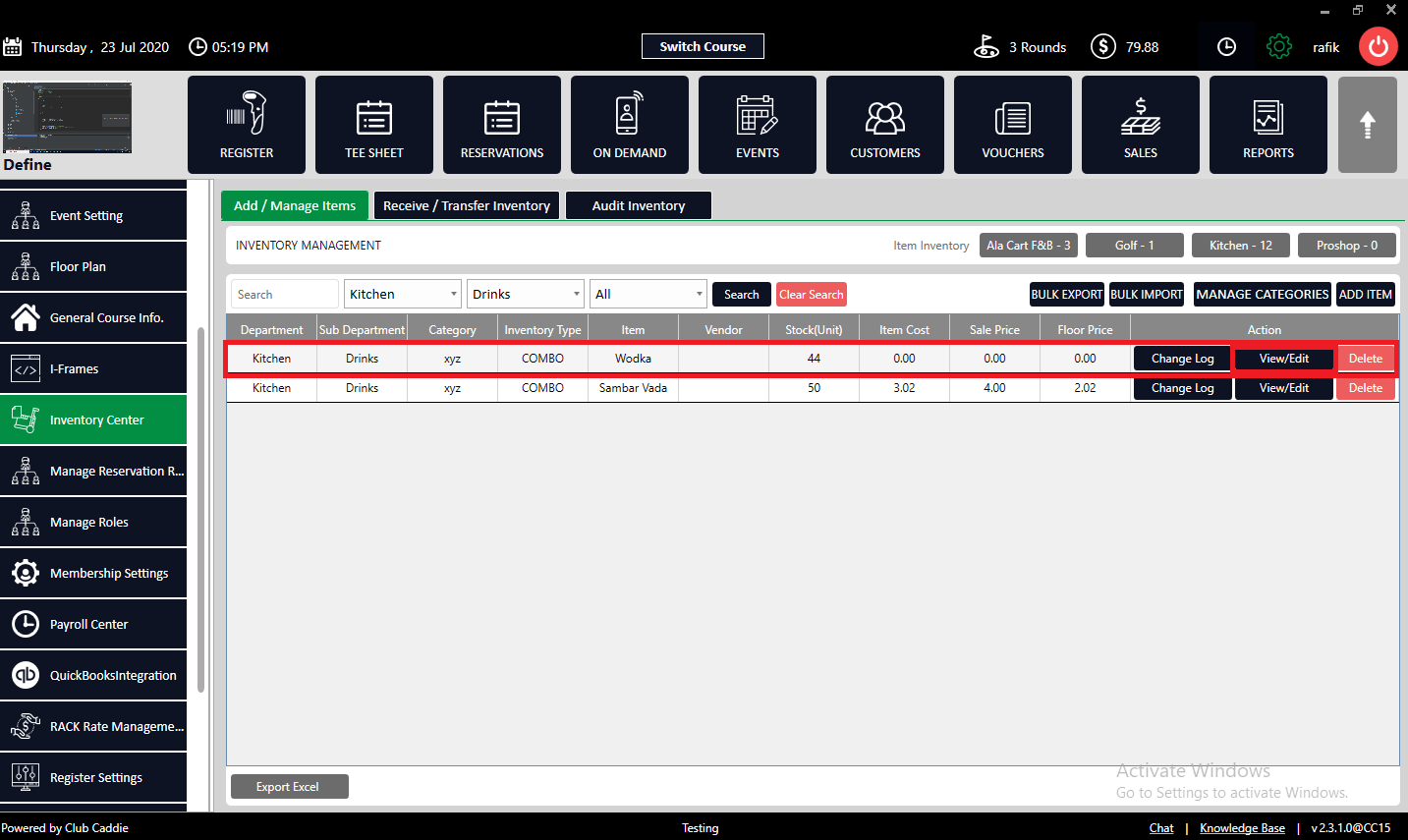
**Step 4:** Now click on "**View/Edit**" for that item that you want to add combo.
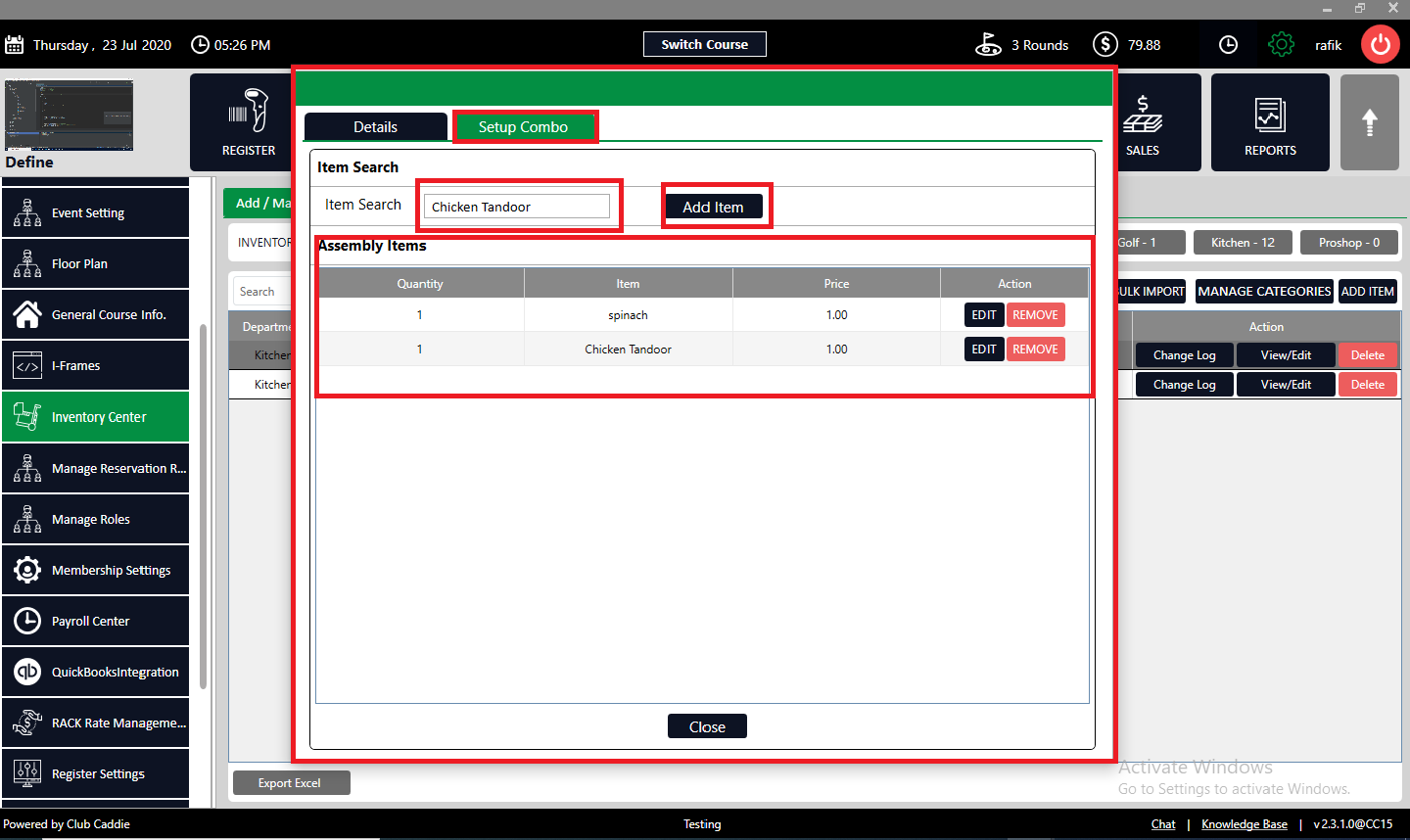
**Step 5:** The system will display a pop-up window where you can click on "**Setup Combo**". This will allow you to search for the items you want to include in your combo and add them. You can repeat this process until you have added all the desired items to your combo.
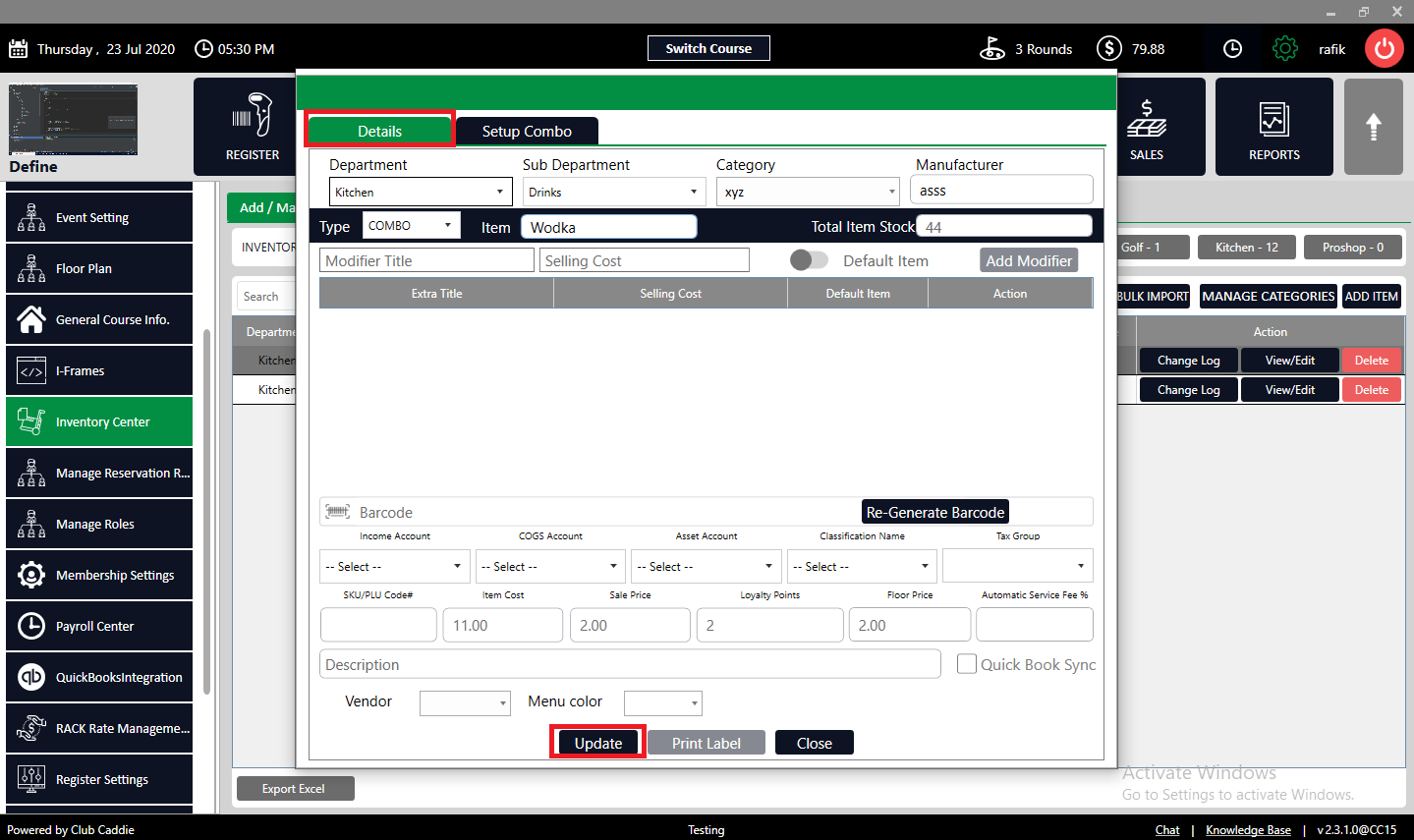
**Step 6:** Go back to the "**Details**" tab and click on the "**Update**" button. This will apply the modifications you have made and refresh your inventory center. Make sure you review the inventory item after updating it to ensure it is correct and complete
**Step 7:** Troubleshooting: Incorrect Inventory Type for Combo Items
If you encounter an issue where the "Combo" tab is greyed out and non-responsive during the setup of a combo item, it is likely due to the inventory item type not being set to "COMBO". This is a common point of confusion that can easily be addressed.
**Steps to Resolve:**
1. Check Item Type:
- Navigate to the item details by clicking on "**View/Edit**" for the item in question.
\- Ensure the "**Type**" field is set to "**COMBO**". If it is not, you will be unable to activate or set up the combo properties for this item.
2. Change Item Type if Necessary:
\- If the item type is incorrect, you can change it by selecting "**COMBO**" from the dropdown menu in the item's type menu. Once adjusted, ensure you save the changes.
\- After changing the item type to "**COMBO**", revisit the "**COMBO**" tab to set up your combo as described in Step 5 of this article.
- [Browser](https://support.clubcaddie.com/browser?hsLang=en#main-content)
- [Tee Sheet](https://support.clubcaddie.com/browser?hsLang=en#tee-sheet)
- [Register](https://support.clubcaddie.com/browser?hsLang=en#register)
- [Hardware](https://support.clubcaddie.com/browser?hsLang=en#hardware)
- [Vouchers](https://support.clubcaddie.com/browser?hsLang=en#vouchers)
- [Settings](https://support.clubcaddie.com/browser?hsLang=en#settings)
- [Sales](https://support.clubcaddie.com/browser?hsLang=en#sales)
- [Members](https://support.clubcaddie.com/browser?hsLang=en#members)
- [Events](https://support.clubcaddie.com/browser?hsLang=en#events)
- [Troubleshooting](https://support.clubcaddie.com/troubleshooting?hsLang=en)
- [Desktop: Settings](https://support.clubcaddie.com/desktop-settings?hsLang=en#main-content)
- [Venue Center](https://support.clubcaddie.com/desktop-settings?hsLang=en#venue-center)
- [Inventory Center](https://support.clubcaddie.com/desktop-settings?hsLang=en#inventory-center)
- [Manage Roles](https://support.clubcaddie.com/desktop-settings?hsLang=en#manage-roles)
- [Rack Rate Management](https://support.clubcaddie.com/desktop-settings?hsLang=en#rack-rate-management)
- [Membership Settings](https://support.clubcaddie.com/desktop-settings?hsLang=en#membership-settings)
- [Day End Closing](https://support.clubcaddie.com/desktop-settings?hsLang=en#day-end-closing)
- [Course User Info](https://support.clubcaddie.com/desktop-settings?hsLang=en#course-user-info)
- [Clover](https://support.clubcaddie.com/desktop-settings?hsLang=en#clover)
- [Class Management](https://support.clubcaddie.com/desktop-settings?hsLang=en#class-management)
- [POSLink](https://support.clubcaddie.com/desktop-settings?hsLang=en#poslink)
- [Mobile App Builder](https://support.clubcaddie.com/desktop-settings?hsLang=en#mobile-app-builder)
- [Class Rate Management](https://support.clubcaddie.com/desktop-settings?hsLang=en#class-rate-management)
- [3P Integrations](https://support.clubcaddie.com/desktop-settings?hsLang=en#3p-integrations)
- [Punch Card Type Center](https://support.clubcaddie.com/desktop-settings?hsLang=en#punch-card-type-center)
- [Tee Sheet Settings](https://support.clubcaddie.com/desktop-settings?hsLang=en#tee-sheet-settings)
- [Card Connect](https://support.clubcaddie.com/desktop-settings?hsLang=en#card-connect)
- [Floor Plan](https://support.clubcaddie.com/desktop-settings?hsLang=en#floor-plan)
- [General Course Info](https://support.clubcaddie.com/desktop-settings?hsLang=en#general-course-info)
- [Tax Management](https://support.clubcaddie.com/desktop-settings?hsLang=en#tax-management)
- [Terminal Management](https://support.clubcaddie.com/desktop-settings?hsLang=en#terminal-management)
- [Register Settings](https://support.clubcaddie.com/desktop-settings?hsLang=en#register-settings)
- [Payroll Center](https://support.clubcaddie.com/desktop-settings?hsLang=en#payroll-center)
- [I-Frames](https://support.clubcaddie.com/desktop-settings?hsLang=en#i-frames)
- [Event Settings](https://support.clubcaddie.com/desktop-settings?hsLang=en#event-settings)
- [General](https://support.clubcaddie.com/general?hsLang=en)
- [Reports](https://support.clubcaddie.com/reports?hsLang=en)
- [Support](https://support.clubcaddie.com/support?hsLang=en#main-content)
- [Chat AI](https://support.clubcaddie.com/support?hsLang=en#chat-ai)
- [Register](https://support.clubcaddie.com/register?hsLang=en#main-content)
- [Holding Accounts](https://support.clubcaddie.com/register?hsLang=en#holding-accounts)
- [Tools](https://support.clubcaddie.com/register?hsLang=en#tools)
- [Payments](https://support.clubcaddie.com/register?hsLang=en#payments)
- [Tab Management](https://support.clubcaddie.com/register?hsLang=en#tab-management)
- [Tee Sheet](https://support.clubcaddie.com/tee-sheet?hsLang=en#main-content)
- [Tee Sheet Settings](https://support.clubcaddie.com/tee-sheet?hsLang=en#tee-sheet-settings)
- [Starter Sheet](https://support.clubcaddie.com/starter-sheet?hsLang=en)
- [Activities](https://support.clubcaddie.com/activities?hsLang=en#main-content)
- [Activity Center](https://support.clubcaddie.com/activities?hsLang=en#activity-center)
- [Events](https://support.clubcaddie.com/events?hsLang=en#main-content)
- [General](https://support.clubcaddie.com/events?hsLang=en#general)
- [Activity Outing Manager](https://support.clubcaddie.com/events?hsLang=en#activity-outing-manager)
- [Golf League Manager](https://support.clubcaddie.com/events?hsLang=en#golf-league-manager)
- [Online Events](https://support.clubcaddie.com/events?hsLang=en#online-events)
- [Banquet Manager](https://support.clubcaddie.com/events?hsLang=en#banquet-manager)
- [Golf Outing Manager](https://support.clubcaddie.com/events?hsLang=en#golf-outing-manager)
- [On Demand](https://support.clubcaddie.com/on-demand?hsLang=en)
- [Customers](https://support.clubcaddie.com/customers?hsLang=en#main-content)
- [Message Center](https://support.clubcaddie.com/customers?hsLang=en#message-center)
- [CRM](https://support.clubcaddie.com/customers?hsLang=en#crm)
- [Bulletin Board](https://support.clubcaddie.com/customers?hsLang=en#bulletin-board)
- [Members](https://support.clubcaddie.com/members?hsLang=en#main-content)
- [Membership Portal](https://support.clubcaddie.com/members?hsLang=en#membership-portal)
- [Vouchers](https://support.clubcaddie.com/vouchers?hsLang=en#main-content)
- [Credit Books](https://support.clubcaddie.com/vouchers?hsLang=en#credit-books)
- [Punch Cards](https://support.clubcaddie.com/vouchers?hsLang=en#punch-cards)
- [Holding Account](https://support.clubcaddie.com/vouchers?hsLang=en#holding-account)
- [Sales](https://support.clubcaddie.com/sales?hsLang=en)
- [Quickbooks](https://support.clubcaddie.com/quickbooks?hsLang=en#main-content)
- [Quickbooks Desktop](https://support.clubcaddie.com/quickbooks?hsLang=en#quickbooks-desktop)
- [Quickbooks Online](https://support.clubcaddie.com/quickbooks?hsLang=en#quickbooks-online)
- [General](https://support.clubcaddie.com/quickbooks?hsLang=en#general)
- [Hardware](https://support.clubcaddie.com/hardware?hsLang=en#main-content)
- [First American / First Pay](https://support.clubcaddie.com/hardware?hsLang=en#first-american-first-pay)
- [Card Connect](https://support.clubcaddie.com/hardware?hsLang=en#card-connect)
- [Sound Payments / POSLink](https://support.clubcaddie.com/hardware?hsLang=en#sound-payments-poslink)
- [Printer](https://support.clubcaddie.com/hardware?hsLang=en#printer)
- [Clover Connect](https://support.clubcaddie.com/hardware?hsLang=en#clover-connect)
- [Clover Go](https://support.clubcaddie.com/hardware?hsLang=en#clover-go)
- [Food and Beverage App](https://support.clubcaddie.com/food-and-beverage-app?hsLang=en#main-content)
- [Key Features and Procedures](https://support.clubcaddie.com/food-and-beverage-app?hsLang=en#key-features-and-procedures)
- [Mobile App](https://support.clubcaddie.com/mobile-app?hsLang=en)
- [Email Marketing](https://support.clubcaddie.com/email-marketing?hsLang=en)
- [KDS (Kitchen Display System)](https://support.clubcaddie.com/kds-kitchen-display-system?hsLang=en)
- [Video Training](https://support.clubcaddie.com/video-training?hsLang=en#main-content)
- [Membership & Passes](https://support.clubcaddie.com/video-training?hsLang=en#membership-passes)
- [Class Management](https://support.clubcaddie.com/video-training?hsLang=en#class-management)
- [I-Frames](https://support.clubcaddie.com/video-training?hsLang=en#i-frames)
- [Accounting](https://support.clubcaddie.com/video-training?hsLang=en#accounting)
- [Club Caddie Managed Marketing](https://support.clubcaddie.com/club-caddie-managed-marketing?hsLang=en#main-content)
- [SMS](https://support.clubcaddie.com/club-caddie-managed-marketing?hsLang=en#sms)
- [Email Marketing](https://support.clubcaddie.com/club-caddie-managed-marketing?hsLang=en#email-marketing)
- [Uncategorized](https://support.clubcaddie.com/uncategorized?hsLang=en)
- [MCO](https://support.clubcaddie.com/mco?hsLang=en#main-content)
- [Inventory](https://support.clubcaddie.com/mco?hsLang=en#inventory)
[](https://www.clubcaddie.com?hsLang=en)
Award Winning, All-In-One,
Golf Facility Management Software.
[mailto:email@email.com](mailto:email@email.com)
Copyright © 2025, Club Caddie